
Freelo payments options
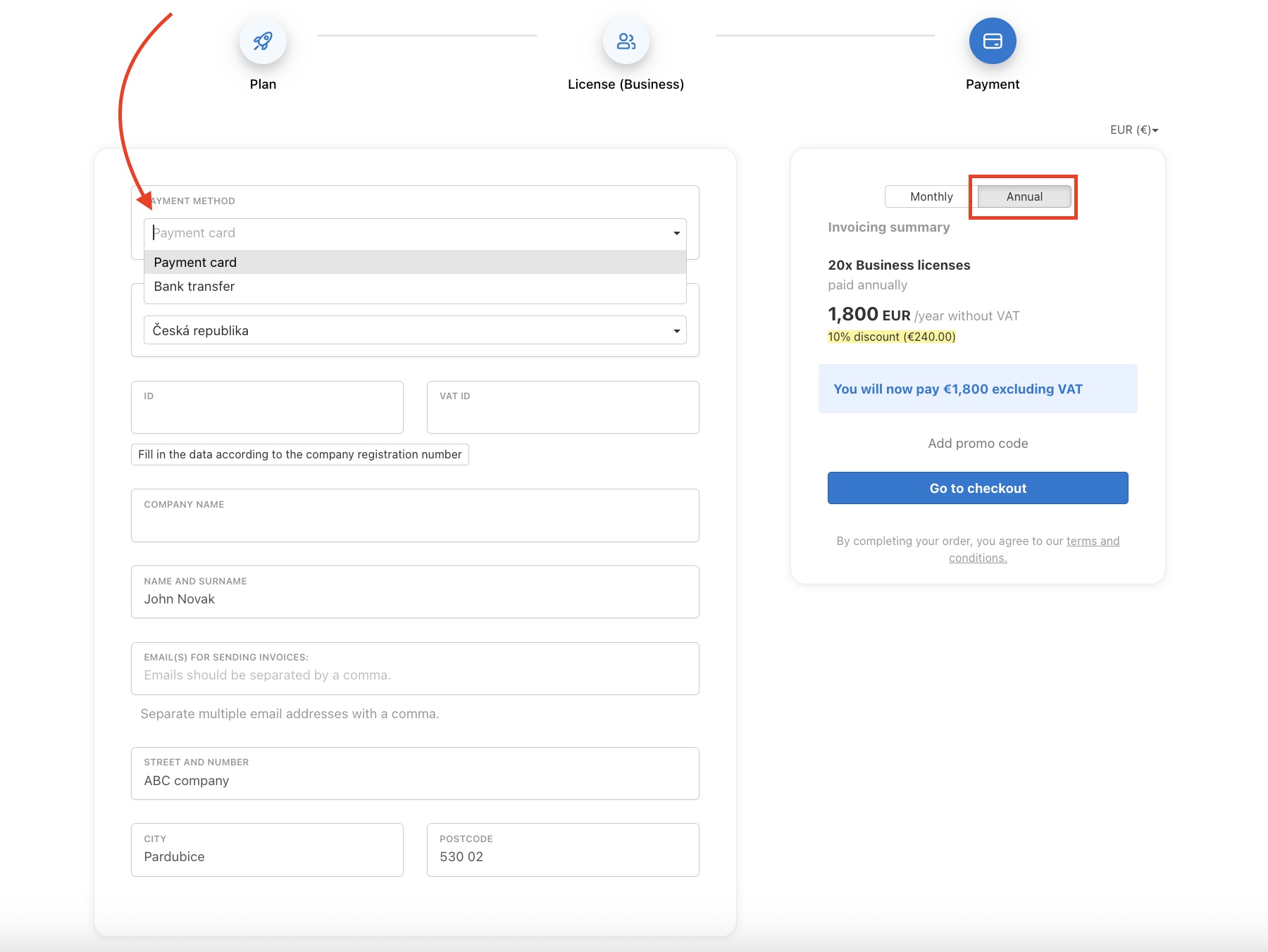
Check the billing information and choose a payment option:
- Monthly - payment is only possible online via the payment gateway.
- Annually - payment is possible online via the payment gateway or by transfer to an account with an invoice.
For a bank transfer, check the option I want to pay by bank transfer.
We will send you a proforma invoice by e-mail, and you can find all invoices for Freelo in the section Payments and invoicing information.
Change of a plan
If you need more licenses or want to change the payment frequency, you can easily change your plan in Freelo in the Captain’s account (no one else can make changes to payments).
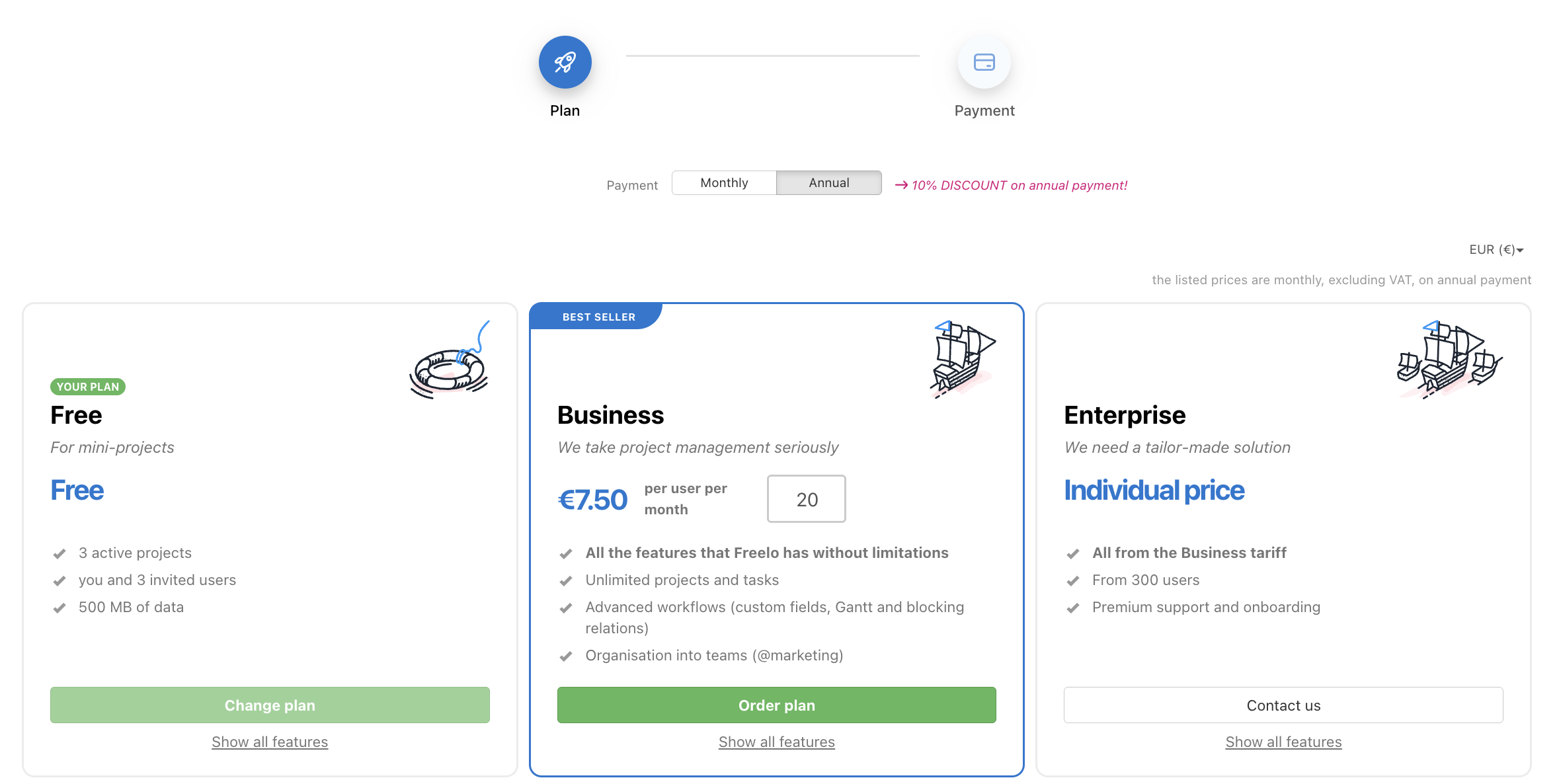
Via the avatar in the upper right corner, click on Change plan. At the top adjust the payment frequency; for a different number of licences, enter the desired number and click Order plan.
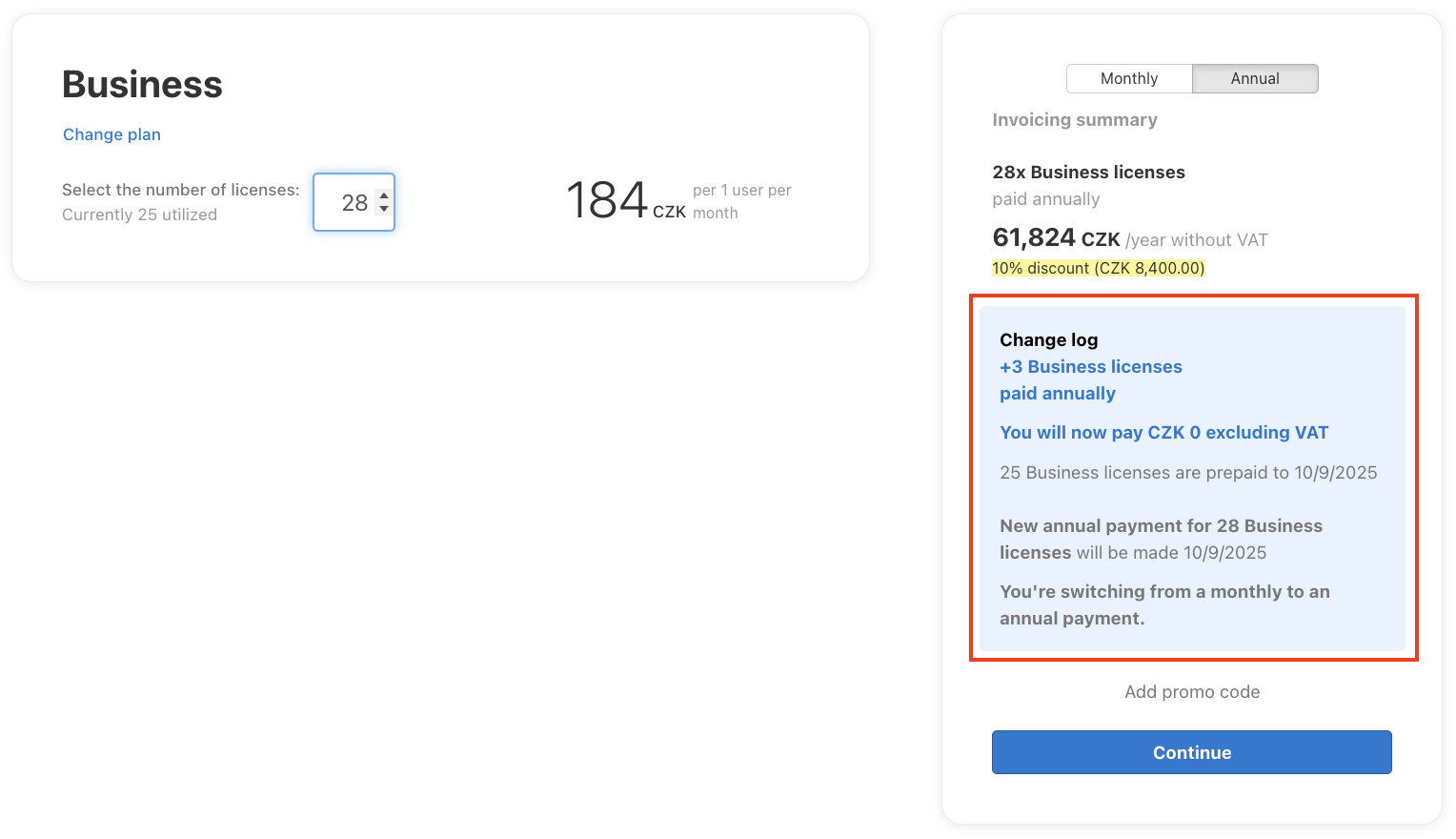
Then, when you enter your order, you will be shown an overview of changes in payments for the paid plan.
Increasing or decreasing the number of licenses
You can change the number of licenses via Change plan. How the change affects your payment depends on whether you pay monthly or annually.
- Increasing licenses (monthly and annual plans) – takes effect immediately. You will pay the pro-rated amount for the remaining days of the current period, either directly by card or via a proforma invoice for bank transfer (annual plan). On the annual plan, the 14% discount still applies to the added licenses; no other discounts apply to additional licenses.
- Decreasing licenses (monthly and annual plans) – the lower number of licenses and lower payment only take effect from the next billing period. The current period runs to its end unchanged, with no refund.
On the Business plan, you can add licenses one at a time as long as your team has up to 20 people. Above 20 people, licenses are sold in packs of five (25, 30, etc.). The price per team member decreases as the number of users grows. For details on the Business plan, see the help article on payments per user.
You will see an overview of the changes in the app before confirming your order.
Decreasing licenses does not entitle you to a credit note during the period; the new, lower price applies only from the next subscription. However, if Freelo simply isn’t the right fit for you, you can use our satisfaction guarantee within 60 days of your first payment and get a full refund after meeting 3 conditions.
Change of billing details
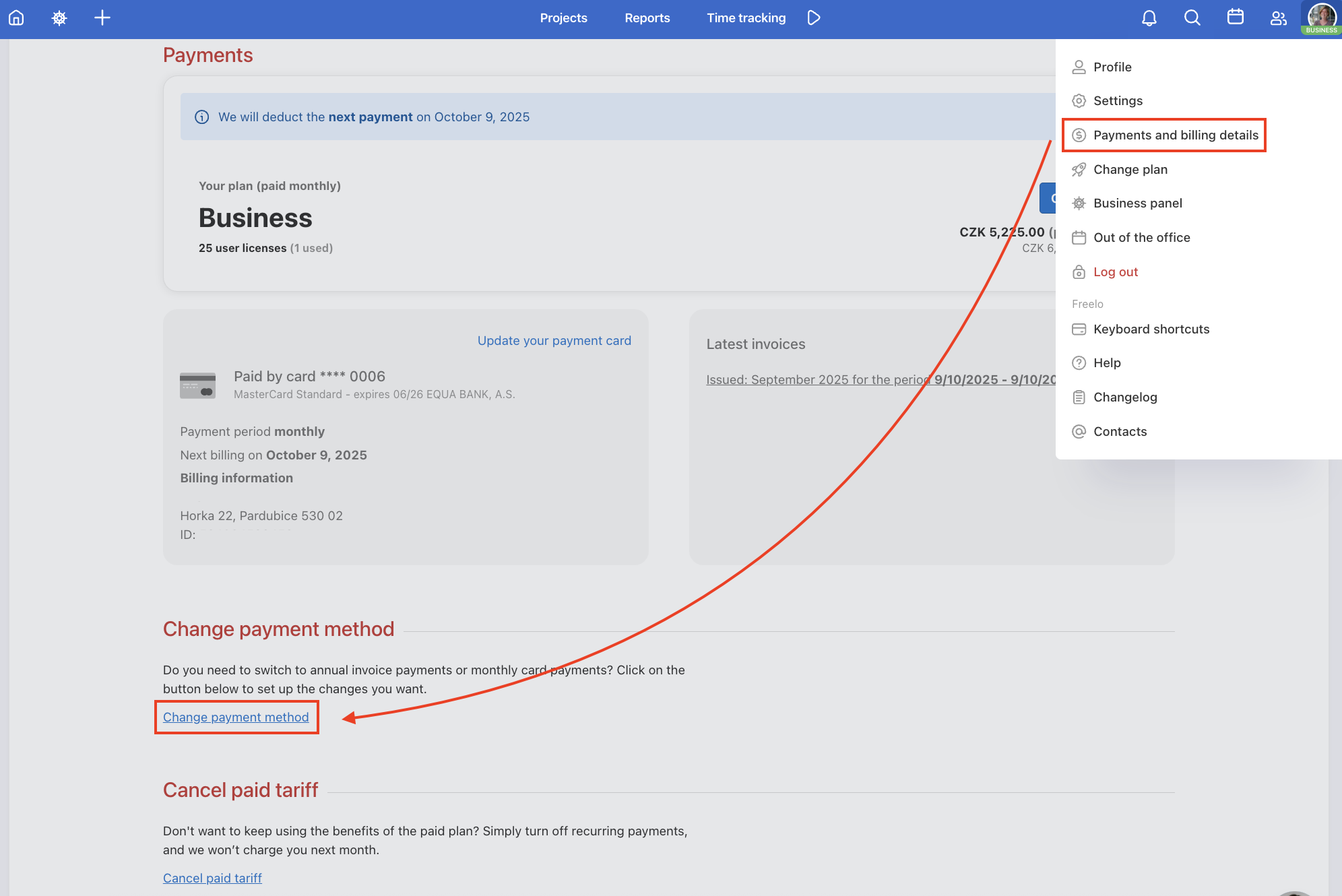
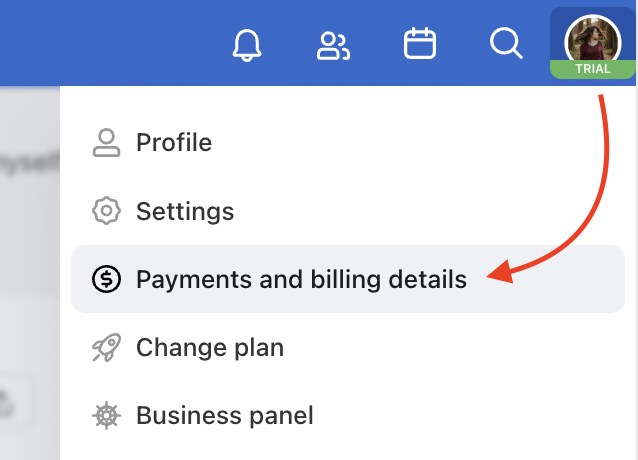
To change the billing or card information you use for Freelo payments, click on your avatar in the top right corner and choose Payments and billing details.
Change of invoicing details
To change the billing information, overwrite the data in the form. The change will be applied from the next issued invoice. In the Payments and billing information section, choose Change data.
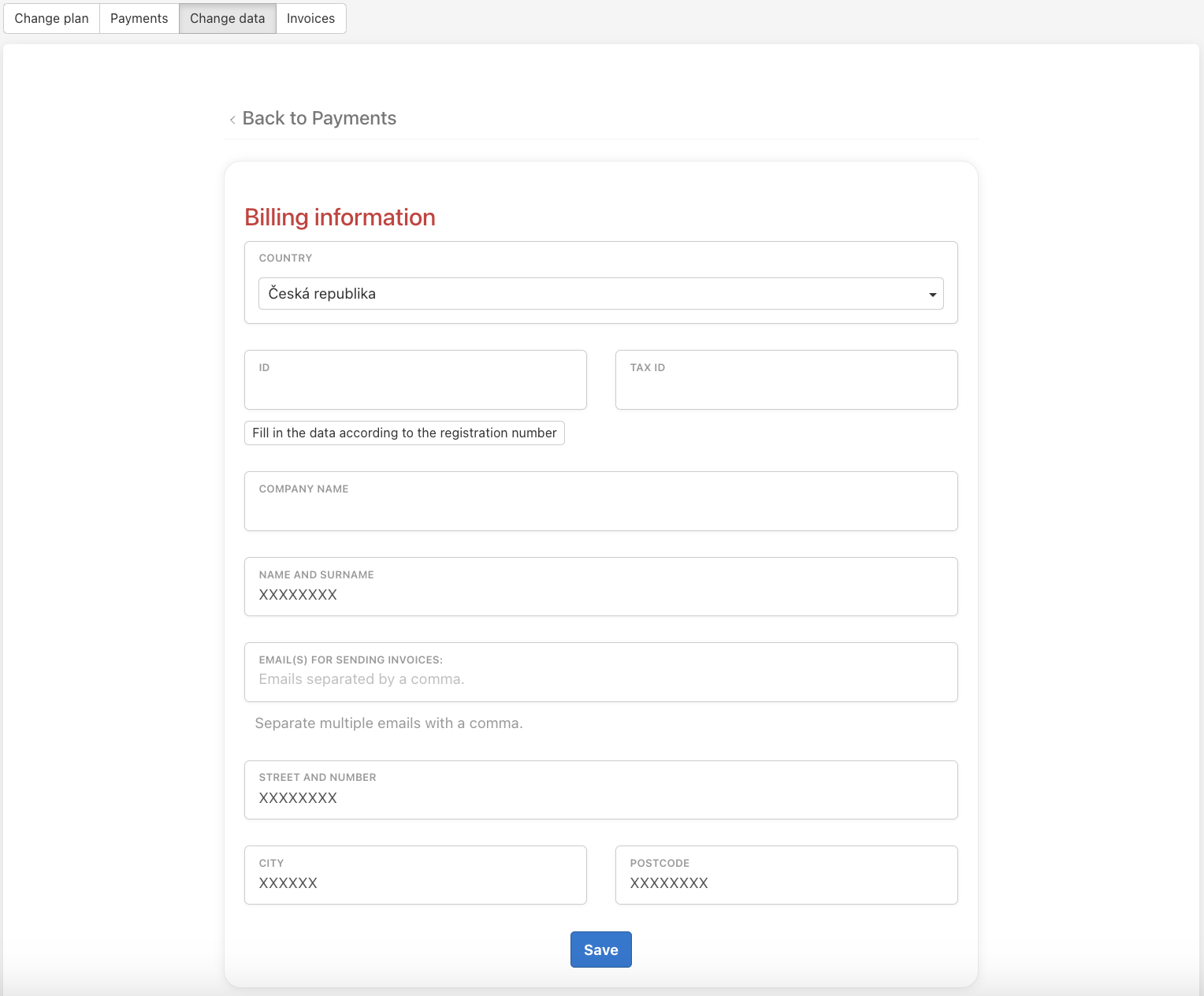
Confirm the changes by clicking Save.
How to change payment card
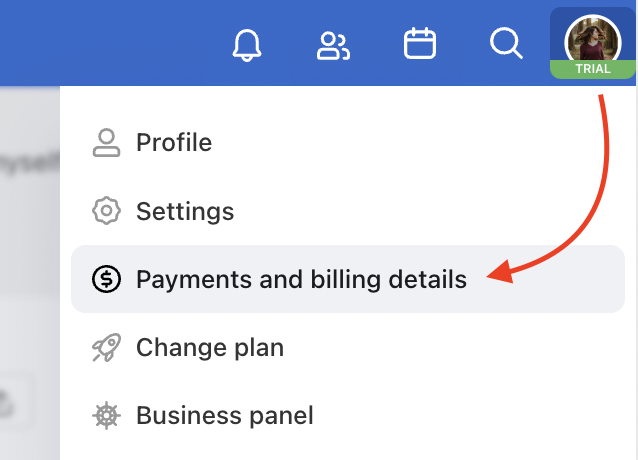
Go to the Payments and billing details via the avatar in the top right corner.
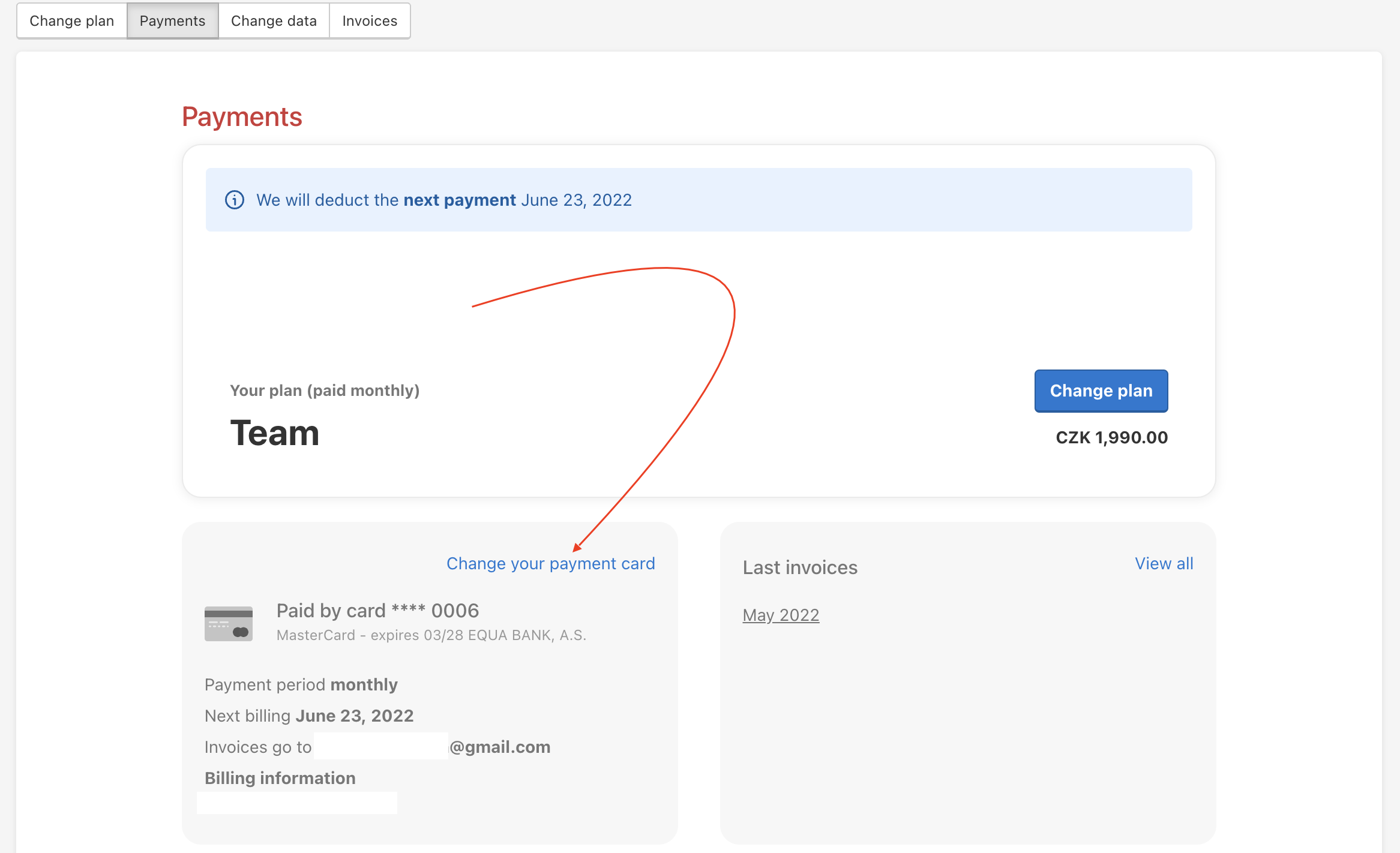
In the Payments section, click on Change your payment card. We will redirect you to the payment gateway where we will make a block of 1 CZK, which will be automatically canceled within 3 days. This is a necessary step to authorize a new payment card. The next payment will be made from the new payment card.
If you pay annually by card and it expires, we will notify you by email right after the expiration. If you haven’t updated your card by then, we will send another email about 14 days before the actual payment is due, so you have time to update your card.
Invoice for Freelo
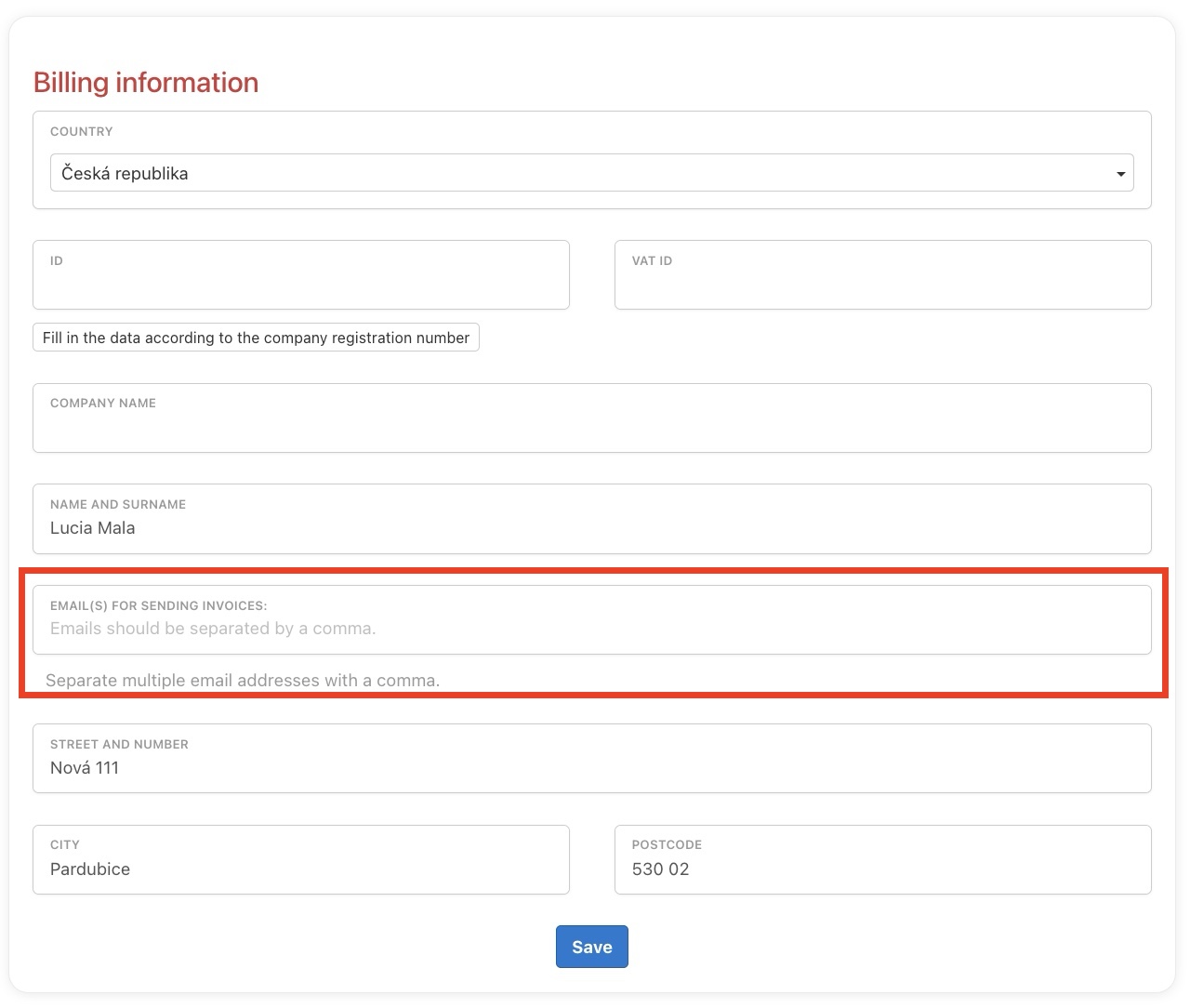
We will issue an invoice for every Freelo payment. We will automatically send it to all email addresses you enter in the billing information. The Captain can always find all invoices in Payments and billing details > Invoices.
If invoices need to go to multiple recipients (e.g. directly to your accountant), add all email addresses in Email(s) for invoice delivery in the billing information.
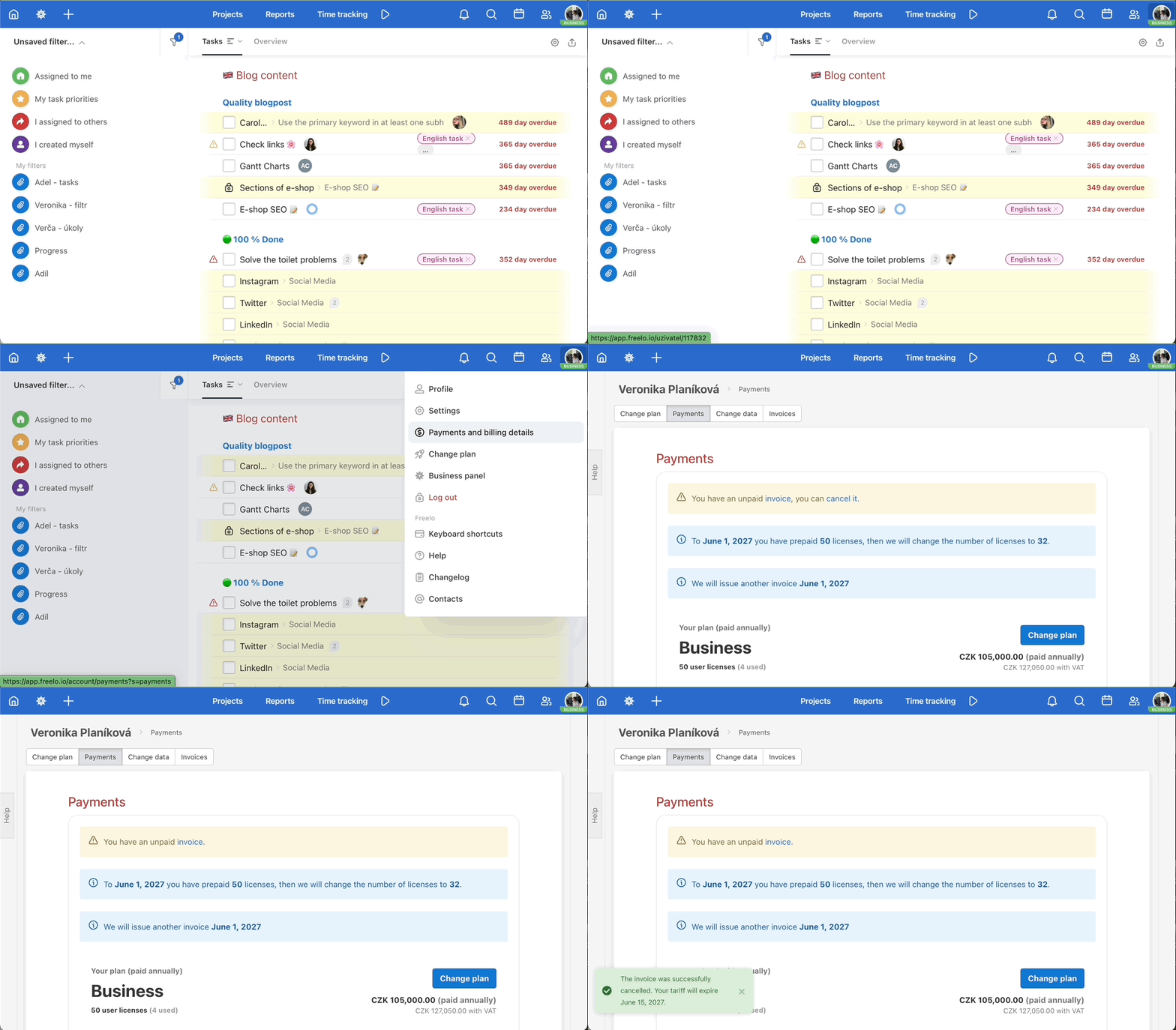
Invoice cancellation
As a Captain, you can cancel the issued annual invoice for the ordered plan directly in your account. You can do so in the section Payments and billing data, where you just need to click the cancel button.
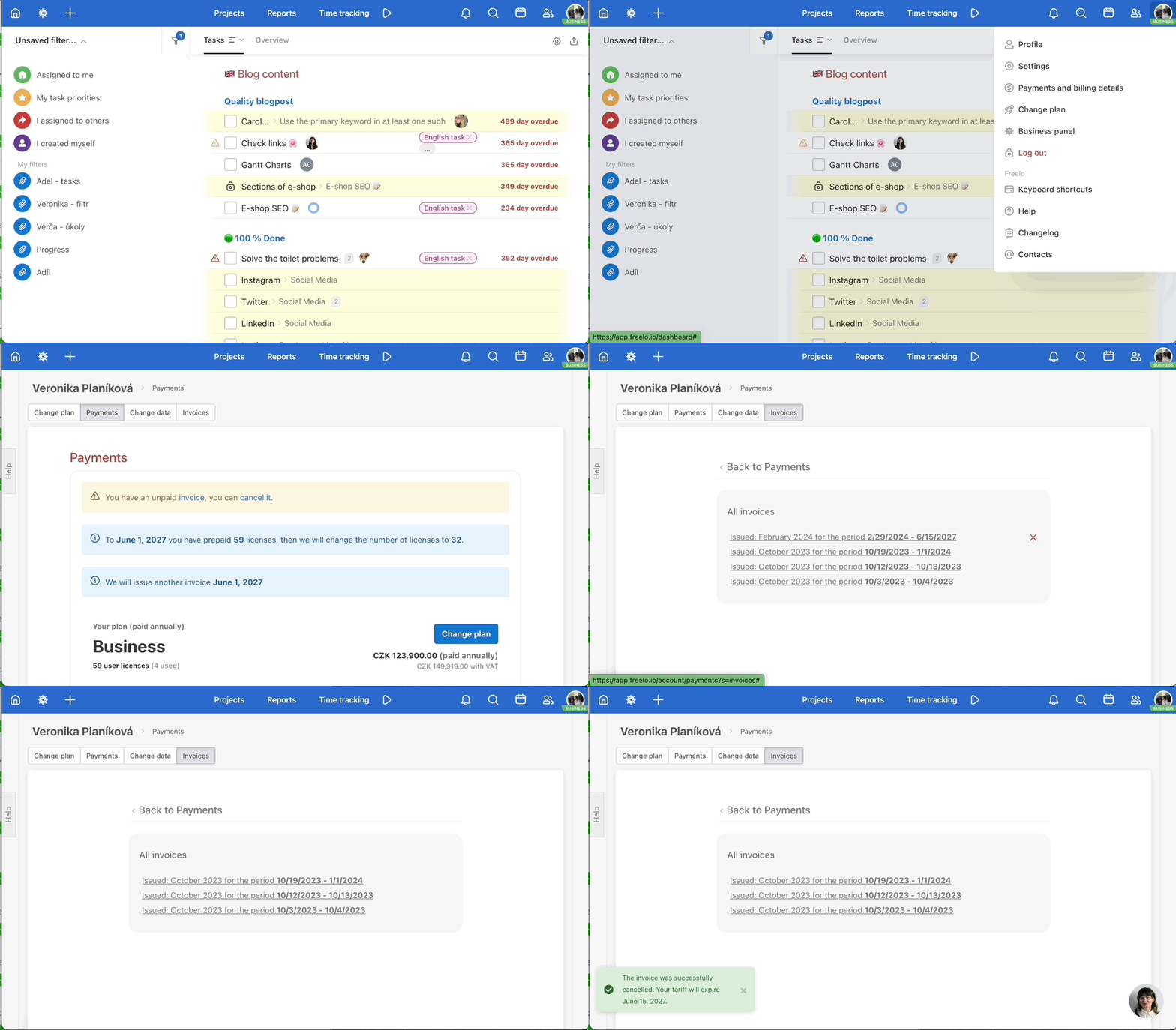
You can also cancel the invoice in the overview of all issued invoices.
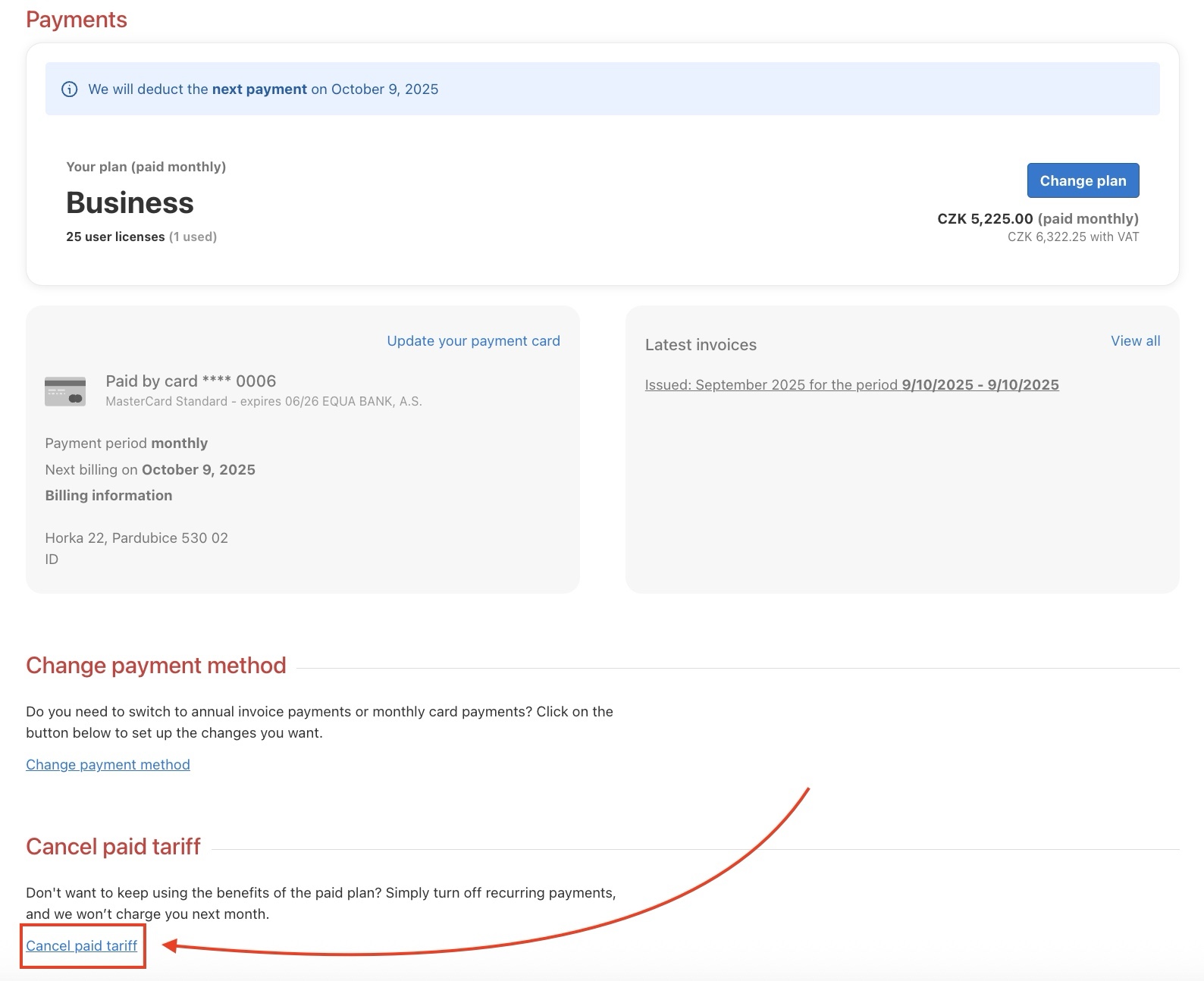
Cancelling recurring payments
Don’t want to use the benefits of the paid plan in your company anymore? The Captain just needs to go to their profile in the top corner, then to Payments and billing information > Payments and cancel the plan payments. This setting works for both payment methods we support – credit card and invoice.
If you pay by invoice, you also need to cancel the upcoming annual invoice in the Invoices section.
Once the plan payment has been cancelled, we will no longer charge you for the next period. After the Captain’s last subscription expires, their account will be switched to the Free plan. A 7-day grace period always applies before the plan officially ends.
Plan Renewal
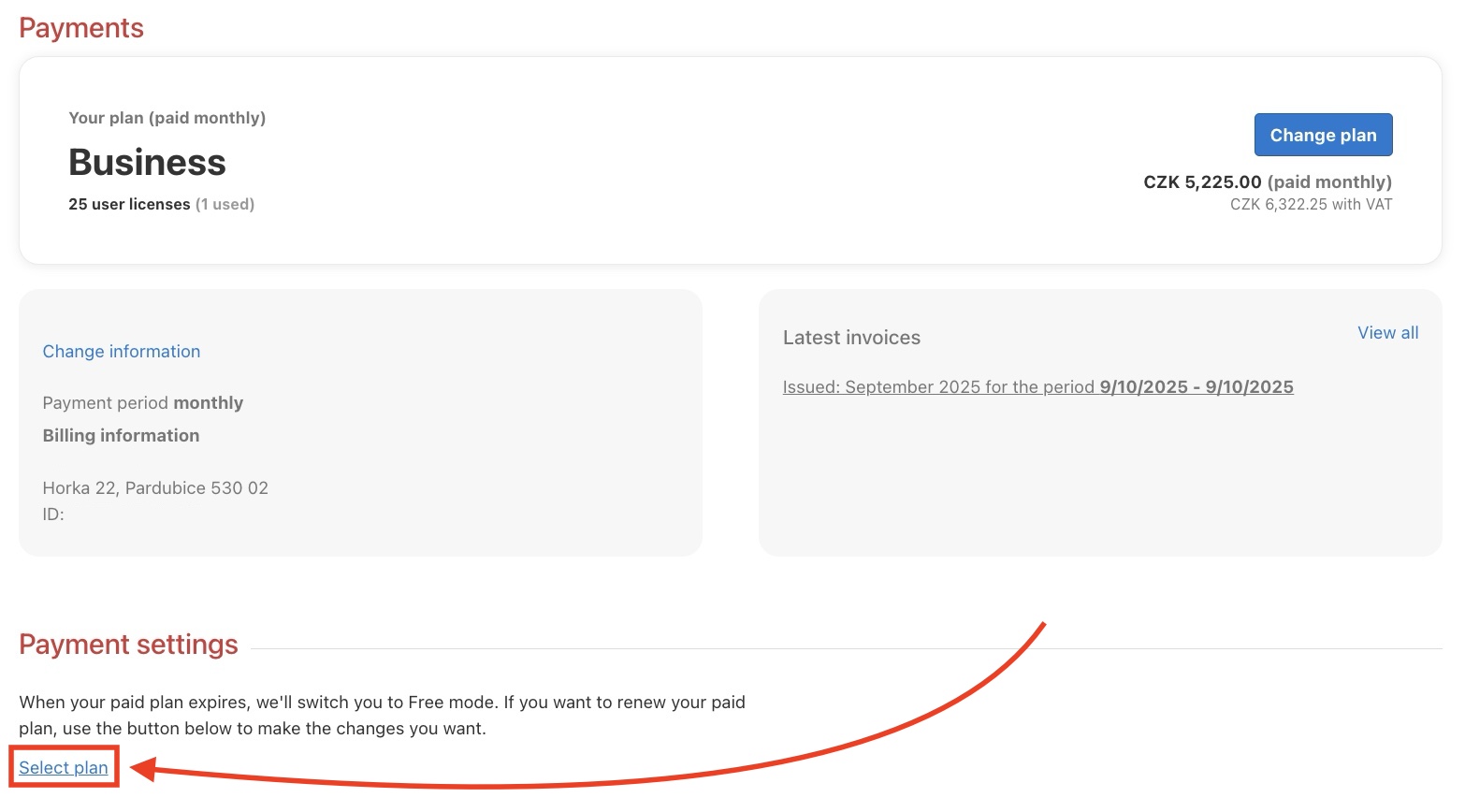
If you’re missing some of the features offered by the paid plan, you can easily switch back to it. The Captain just needs to go to their profile in the top corner and then to Payments and billing information > Payments, and select a new plan.
Practical use cases
- Annual payment by bank transfer – prefer an invoice over a card payment? Choose annual billing and bank transfer. You will receive a proforma invoice by email without needing to enter your card details.
- Invoices directly to your accountant – add their email address in the billing information and invoices will be sent automatically, no manual forwarding needed.
- More licences as the team grows – adding colleagues? Change the number of licences directly in the Payments section without contacting support.
- Temporary cancellation without losing data – cancel the paid plan at any time and switch to the Free plan without losing any data. Renewing is just as easy.
- Updating your payment card – the new card is authorised with a 1 CZK block that is automatically released within 3 days. Payments continue without interruption.