
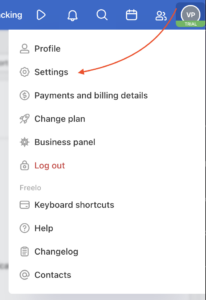
You can set all email notifications and alerts in Settings. You will find it in your profile (your avatar at the top right) > Settings.
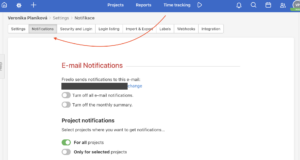
Change email for notifications
You can change the email address the notifications will be sent to. If you do not specify the other email address, the notifications will be sent to your login email address.
How to turn off email notifications
Via the Turn off all email notifications option you can stop all application emails in one click.
We recommend turning email notifications off completely and tracking activities directly in Freelo instead. In the notification centre (the bell icon) you can see the full context of every notification in one place and click straight to where something happened. It is faster and clearer than searching through emails.

Types of notification – summary and instant
You can choose the type of notifications you want to receive – summary or instant. You can also choose whether you want to receive them for specific projects or all of them.
If you do not want to receive any notifications at all, it is possible to turn them off completely.
Summary notifications by email
There are three options you can pick:
- Send me an email every couple of hours about new activities.
- Send me an email every morning about the general changes in my project.
- Send me an email with a summary of events every 5 minutes.
Notifications every couple of hours about new activities
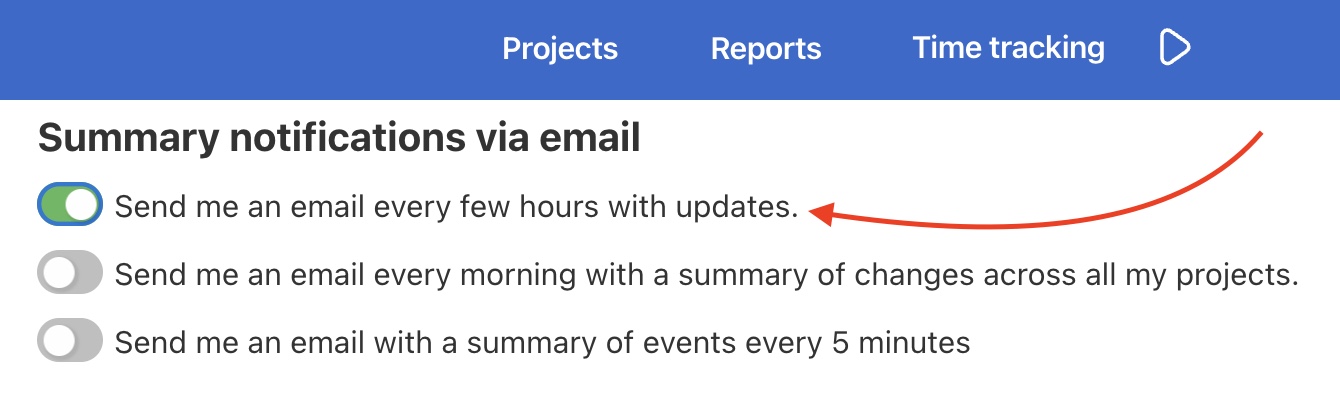
In Settings > Summary notification via email, you can set notifications to be sent to you every few hours throughout the day.
Notification every morning about general changes in my projects
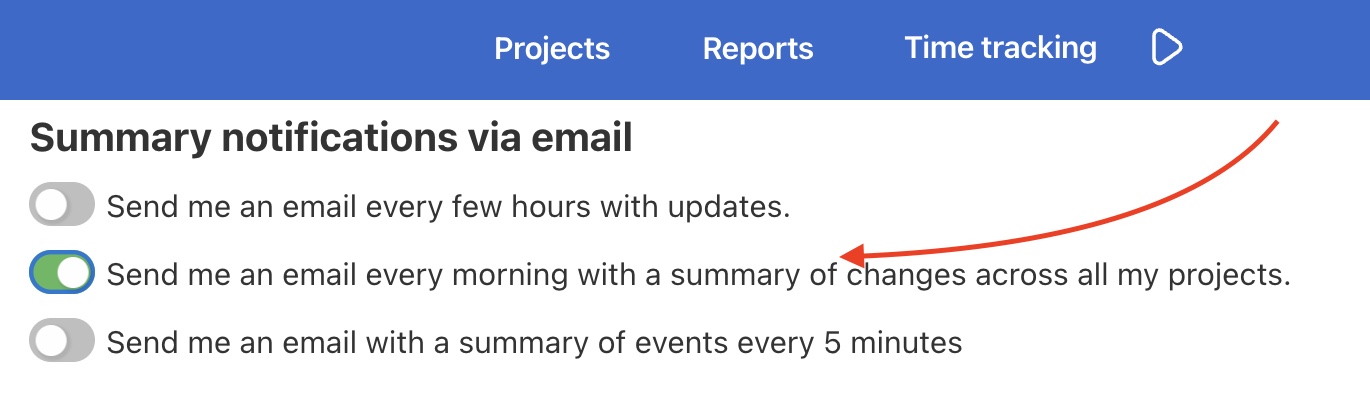
If you want to receive the notifications every morning, click the button in the second line in Settings > Summary notification via email.
Notifications with a summary of events every five minutes
If you want to receive notifications more often, there is the option to set them to come every 5 minutes in Settings > Summary notification via email by clicking the button in the third line.
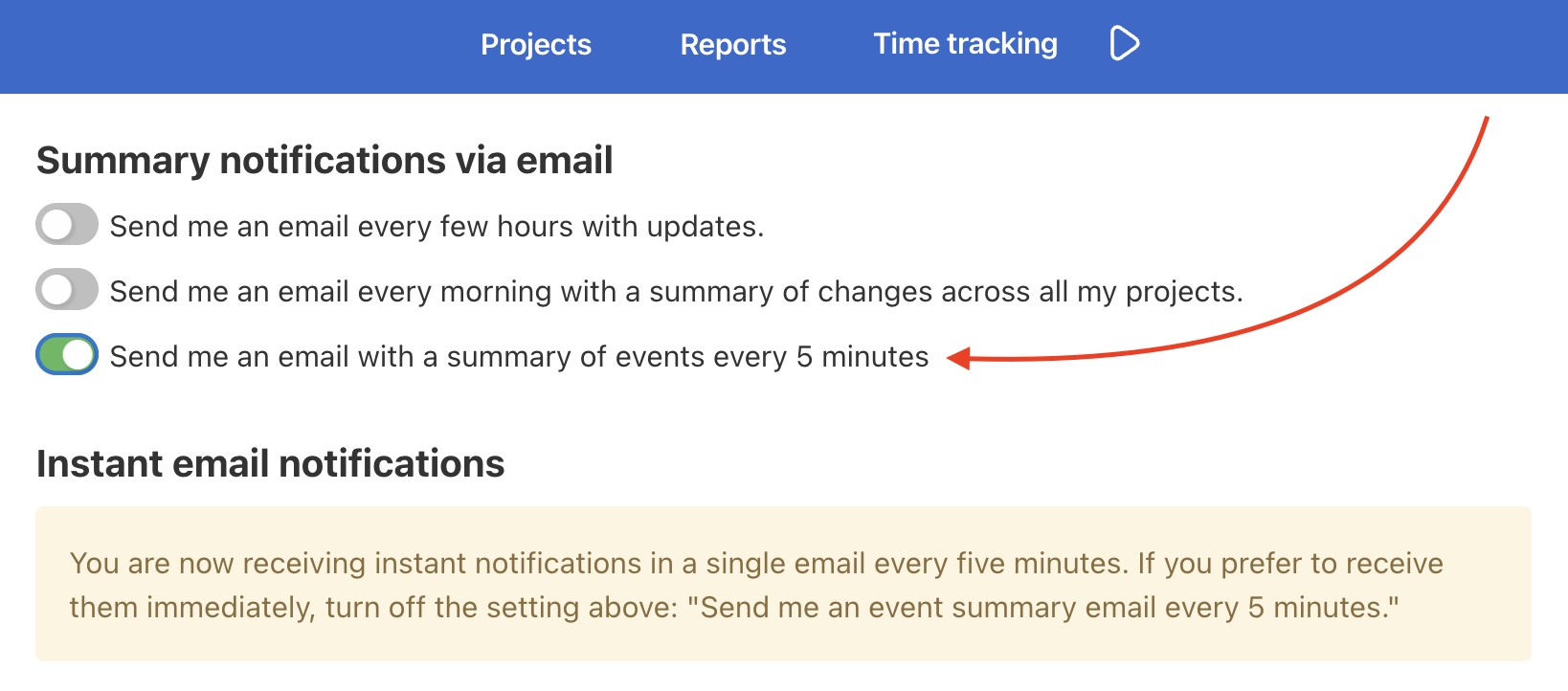
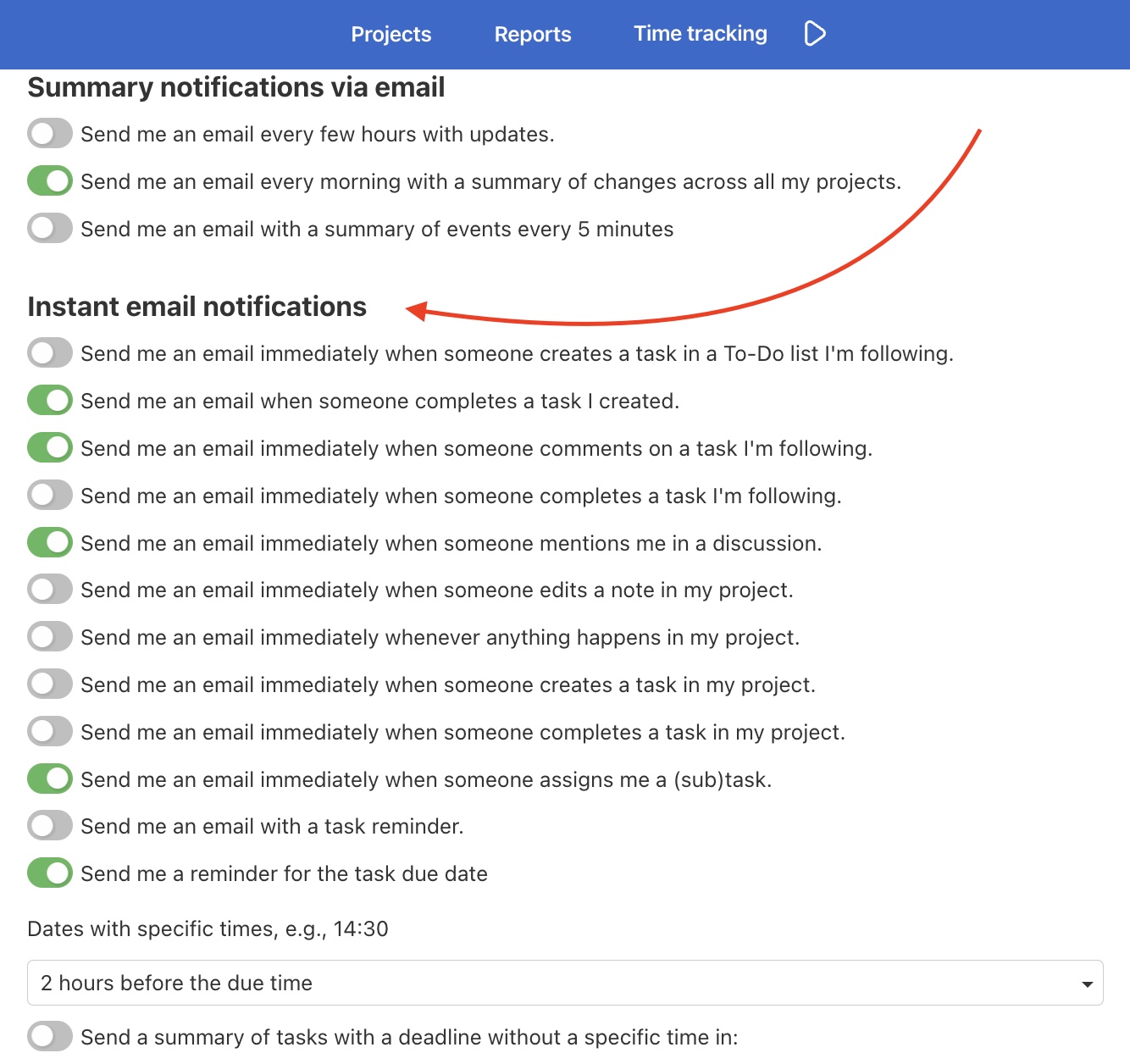
Instant email notifications
Set up the instant email notifications the way you need – there is a large number of notifications to choose from.
Turn on/off notifications for specific projects
If you want to receive email notifications only for specific projects, you can check the Only for certain projects option. Then, you can select the specific projects which you will receive the notifications from.
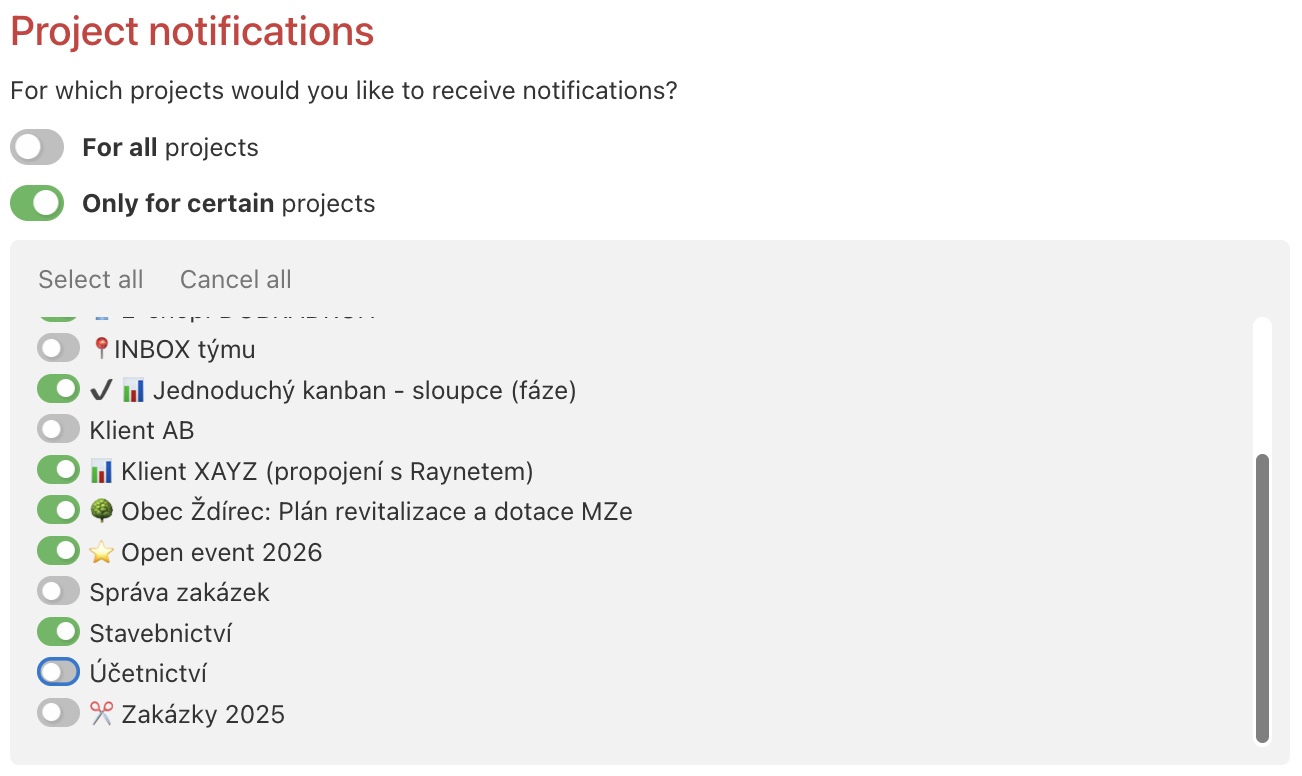
Notifications from unselected projects will not be sent to your mailbox.
Check out notifications within the app or browser notifications.
Practical use cases
- Daily overview without email overload – set up a morning summary instead of instant notifications and start each day with a clear picture of what happened in Freelo.
- Focused work in blocks – a summary every few hours interrupts you just two or three times a day instead of dozens of instant alerts.
- Notifications only from important projects – if you are invited to dozens of projects, enable emails only for those where you are actively contributing.
- Separate email address for work projects – set up a dedicated inbox for notifications and keep them separate from your personal or company email.
- Manager and specialist in one team – a manager can turn on instant notifications for quick response, while a specialist sets a morning summary for uninterrupted work.