
If you are on vacation or out of reach, you can add a status stating this to your avatar. After that, you will see a yellow box everywhere in Freelo where your avatar's shown. It comes in handy when you're on holiday or unexpectedly unavailable – your teammates will see your status right on your avatar and immediately know that tasks assigned to you are currently unattended. No need to message anyone.
After clicking the Out of Office button, a modal window will pop up. In this window, you can choose from and until when you will be unavailable. Confirm this with the Save. This status will be added to your avatar in Freelo based on the settings.
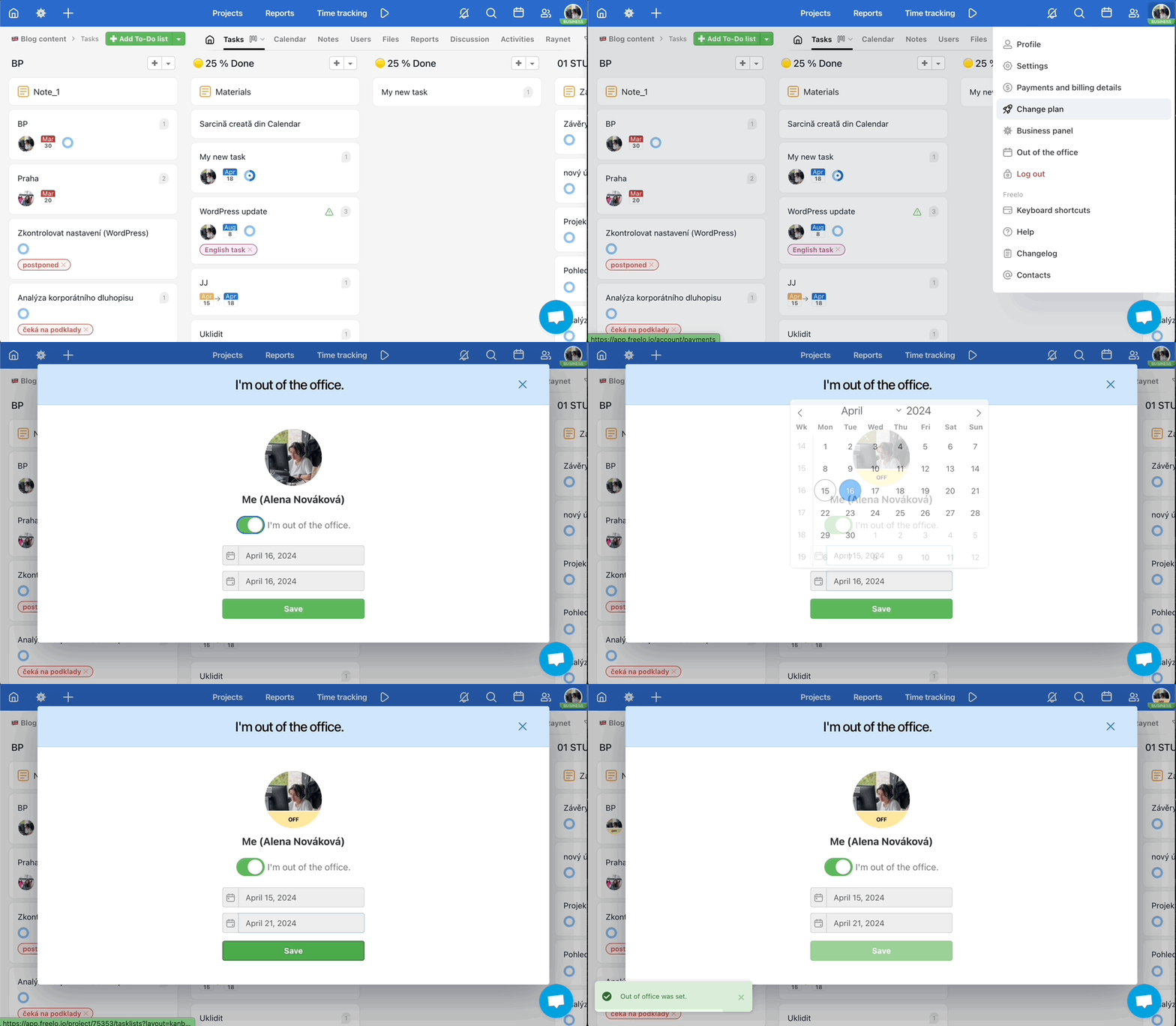
Status display across Freelo
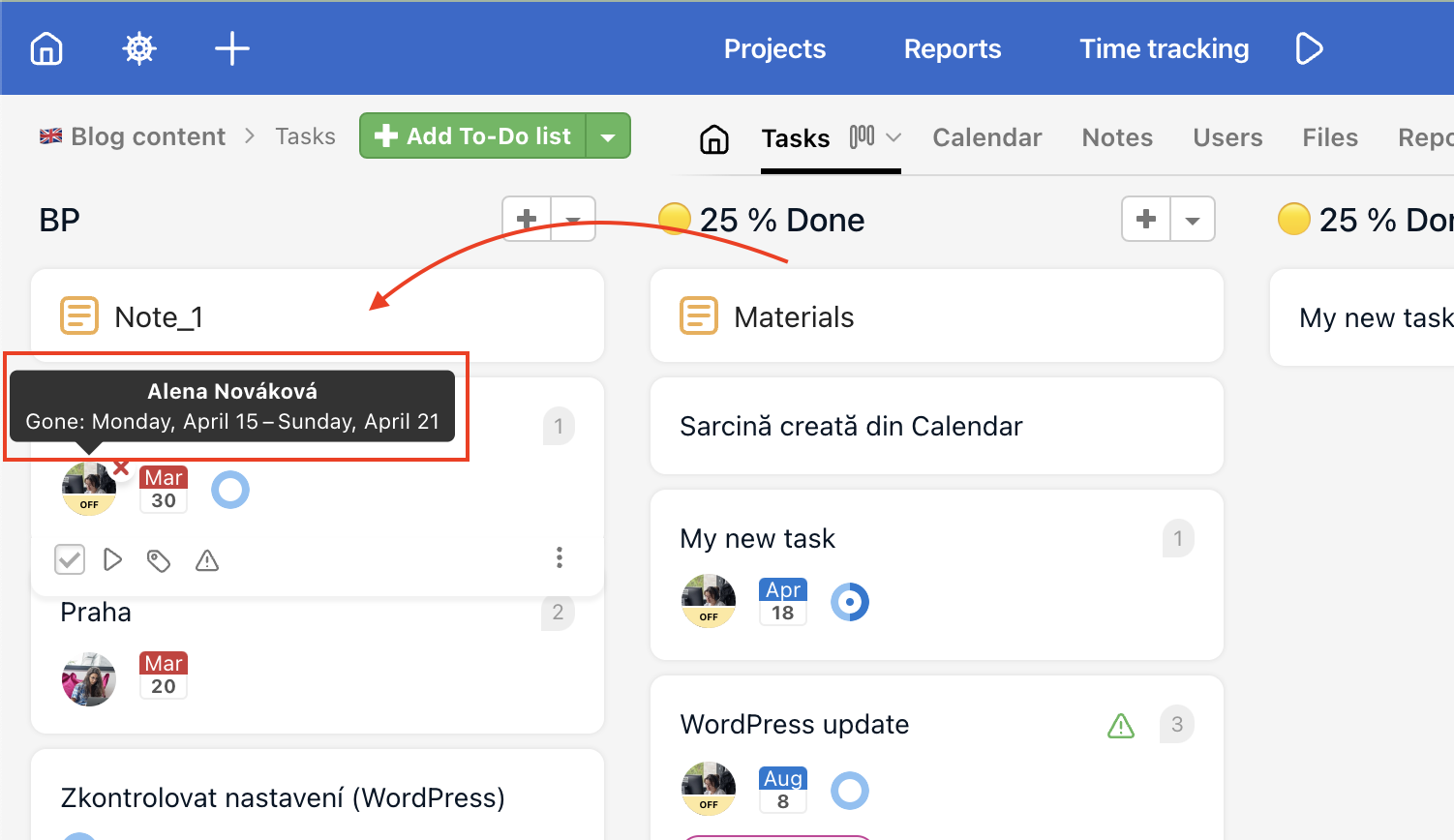
After hovering the cursor over the user's avatar, you will be shown the time frame when they won't be available.
Out of the office status will be displayed everywhere across Freelo (where you are marked as an assignee, follower, on the Dashboard etc.).
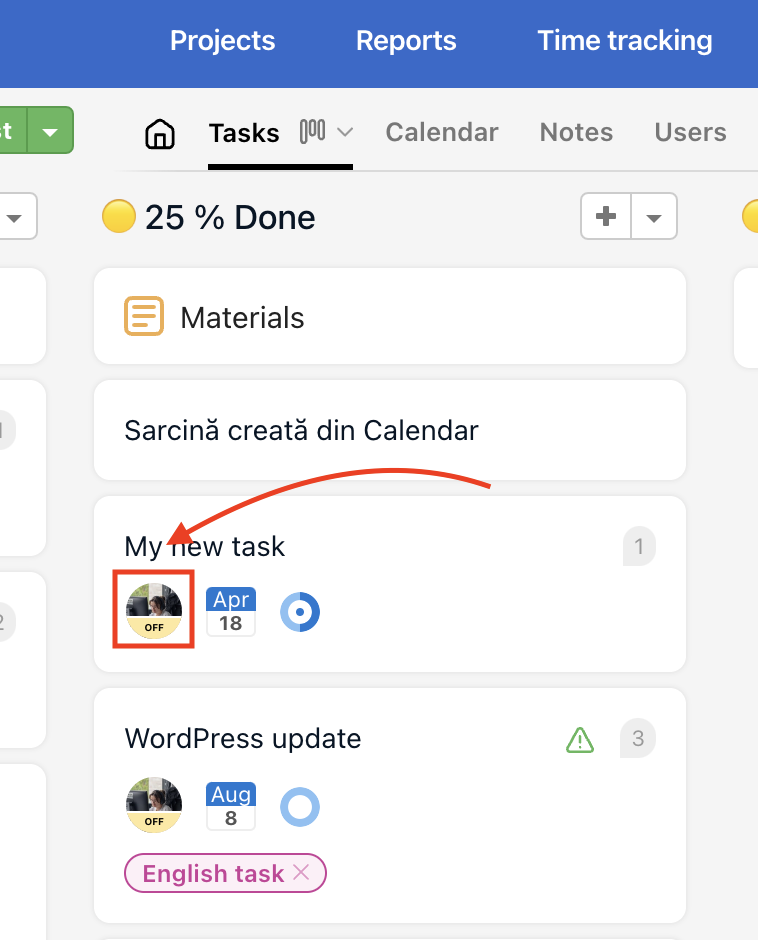
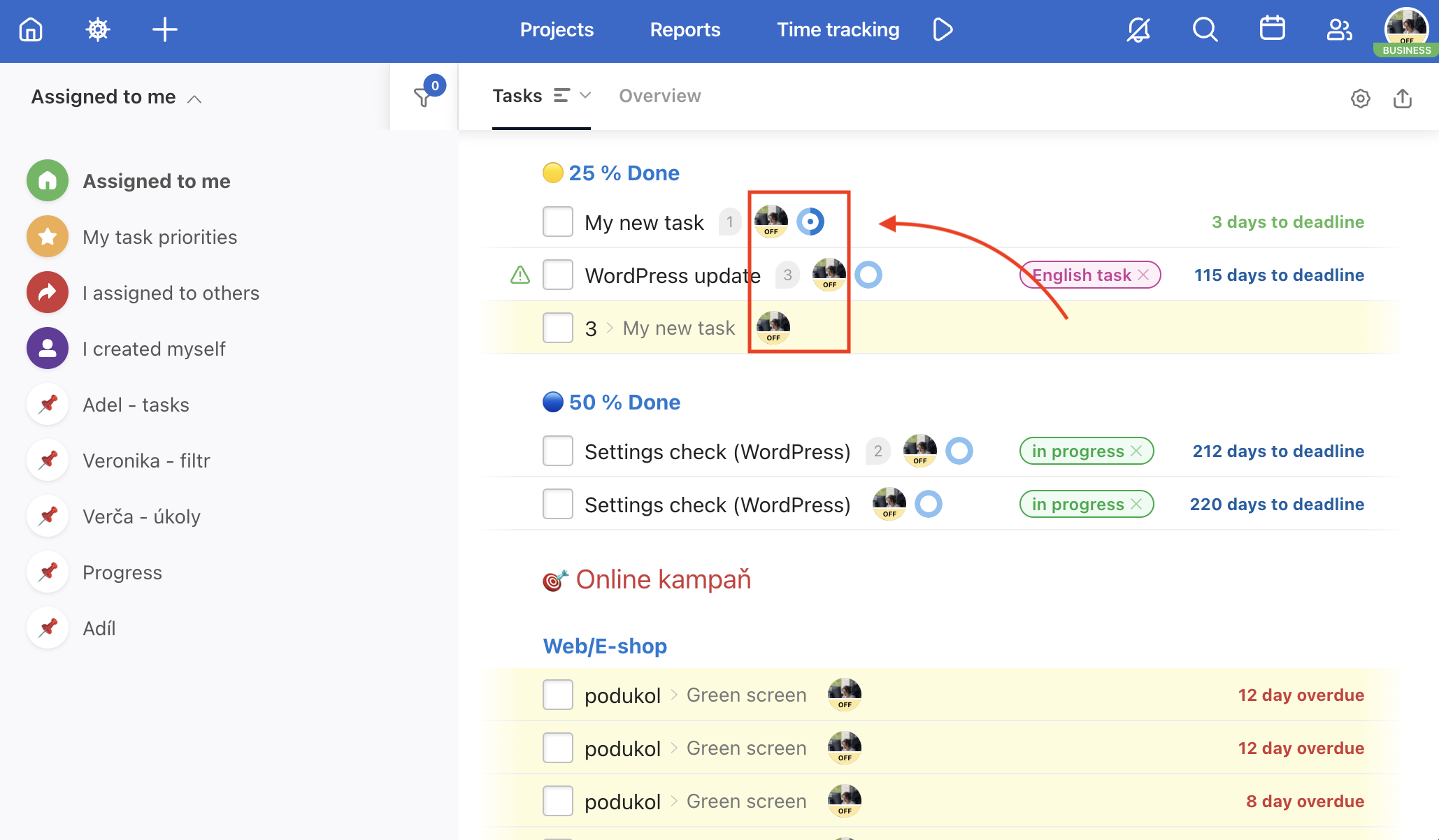
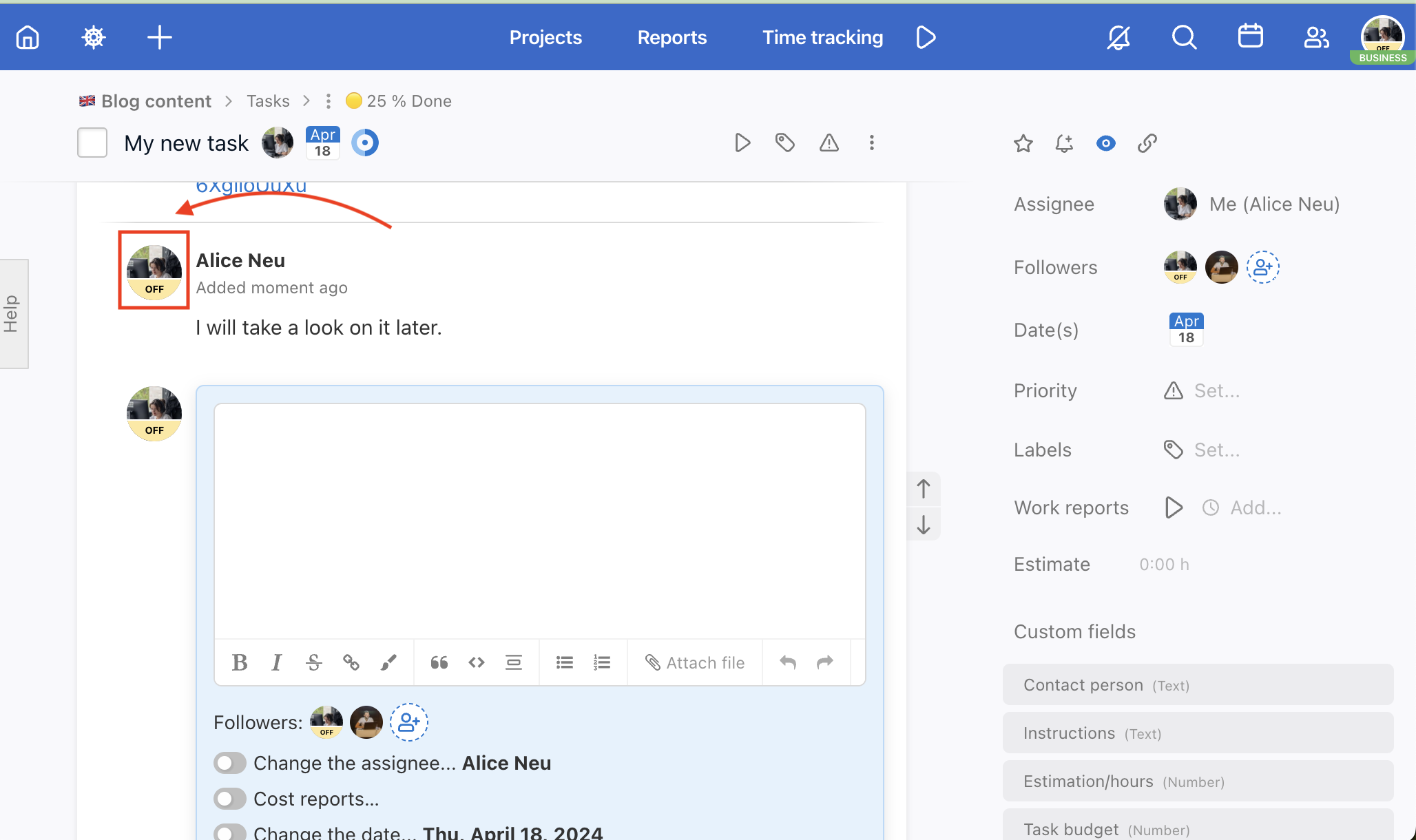
A practical example: your colleague is assigned as the solver on an urgent task and in Kanban you see their avatar with an Out of Office status until next week. You immediately know you need to reassign the task or factor that into your planning.
Setting OOF in the Business Panel
With a verified domain, as the Captain or Company Captain, you can set an "Out of Office" status for a user. To configure this, the user’s email must have the same verified domain.
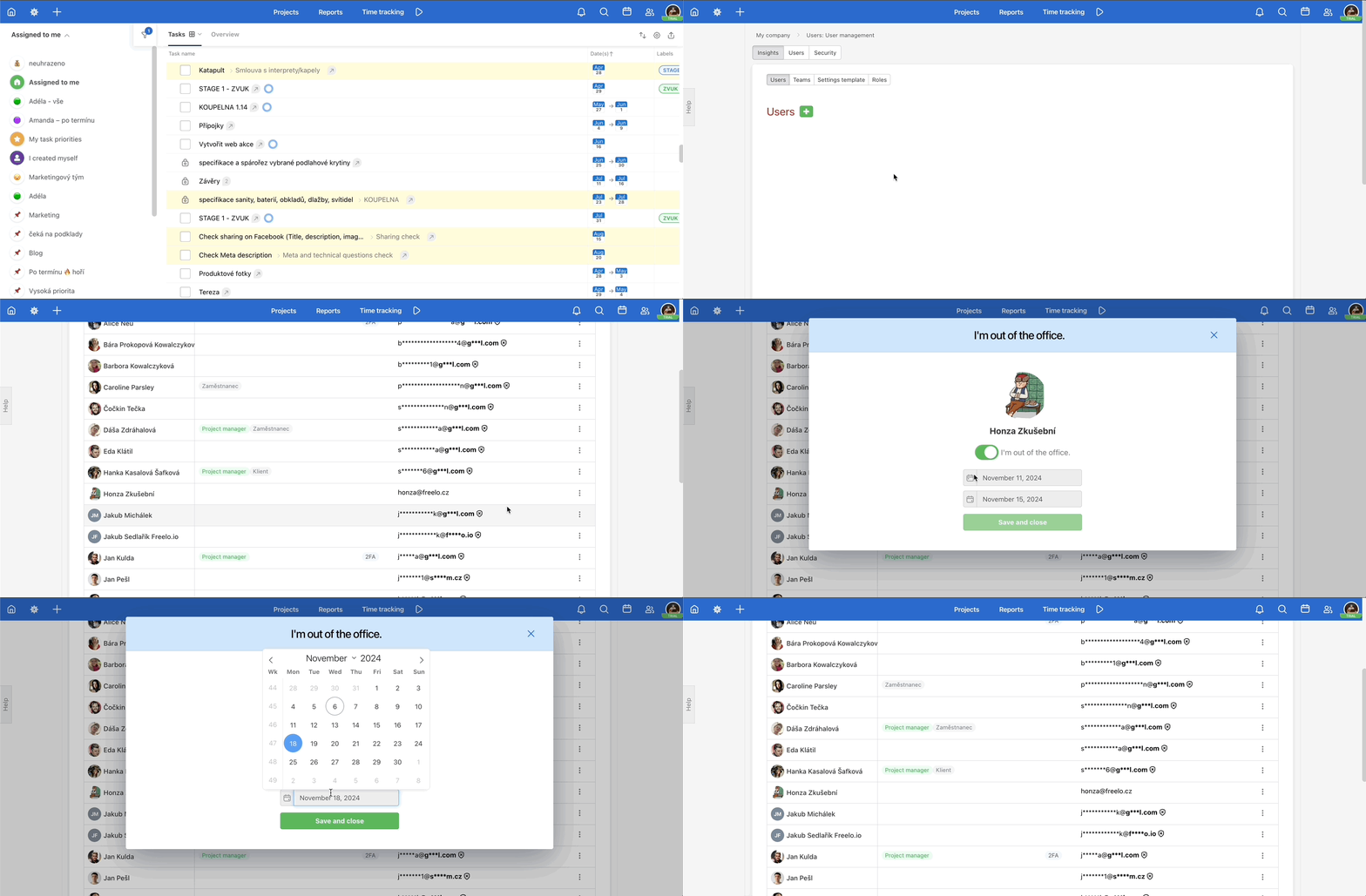
This is useful for example when a colleague goes on unplanned sick leave and cannot set their own status – as a Captain you can set it for them and the team immediately knows what to expect.
Automation
Using the API and integrations with Make, you can automate the process in both directions. When you create an event in your Google Calendar, your Out of Office status in Freelo can be automatically set for the same period – and vice versa.
When you set Out of Office in Freelo, the dates can be saved to a record (Google Sheets, etc.). You can also trigger a similar status in Slack or any other connected system.
Here you can find the API documentation. For Make integrations, use the Freelo Make an API call module.
If you are a Captain with a verified domain, you can also set the Out of Office status for other users this way.