
From one Freelo account, you can collaborate on projects across different companies or external teams. Your account is linked to the email address you signed up with.
If you want to work from two different accounts, you always need to log out and sign in with the other email. For the second account, you can use incognito mode in your browser – that way you can work in both accounts at once.
Multiple accounts are most useful when you want to keep work and personal projects completely separate, or when you collaborate for two different companies and don't want their projects to mix.
Typical use cases:
- You want to keep your work and personal tasks completely separate.
- You have two email addresses linked to different company domains and want to keep the projects apart.
- One PC is shared by multiple people at work – each person has their own Freelo account.
Switch via Google Chrome profile
The easiest way to quickly switch between multiple Freelo accounts is by using profiles in Google Chrome. Create several profiles and each one remembers its own login – not just for Freelo.
In both profiles you stay permanently signed in. When you keep both browser windows open, you are logged in to two or more Freelo accounts at the same time. This is the most convenient method – you don't need to log out between accounts and can have both open side by side.
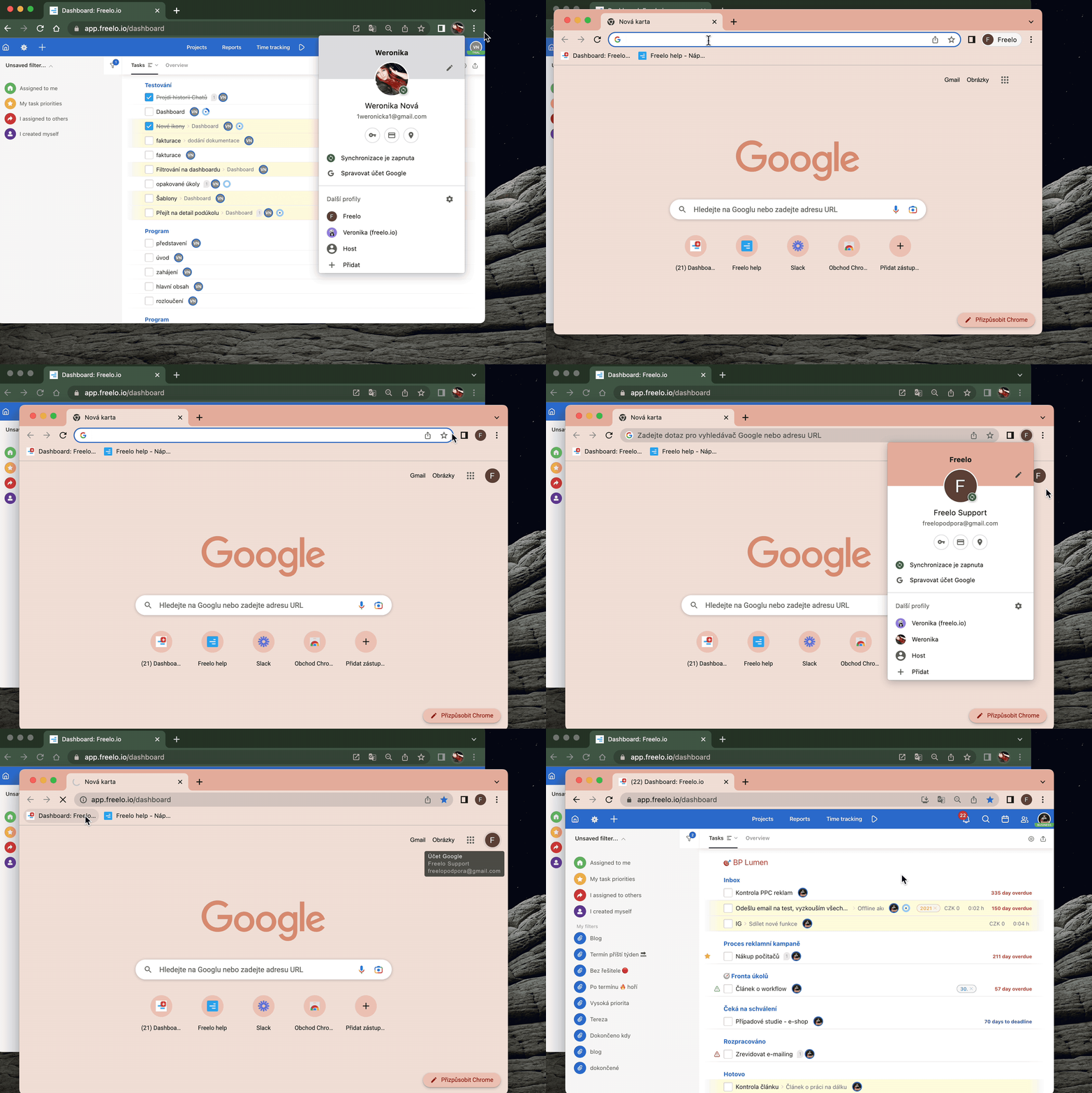
Log out from Freelo
If you are already using Freelo with a different email, first log out from account A. Click on your avatar in the top right corner and select Logout from the menu.

Sign in to your second account with its email and password. At this point you can also use your email notifications to sign in to account B.
Confirm registration
In the sign-up form, enter your new email address and confirm via Try for Free.
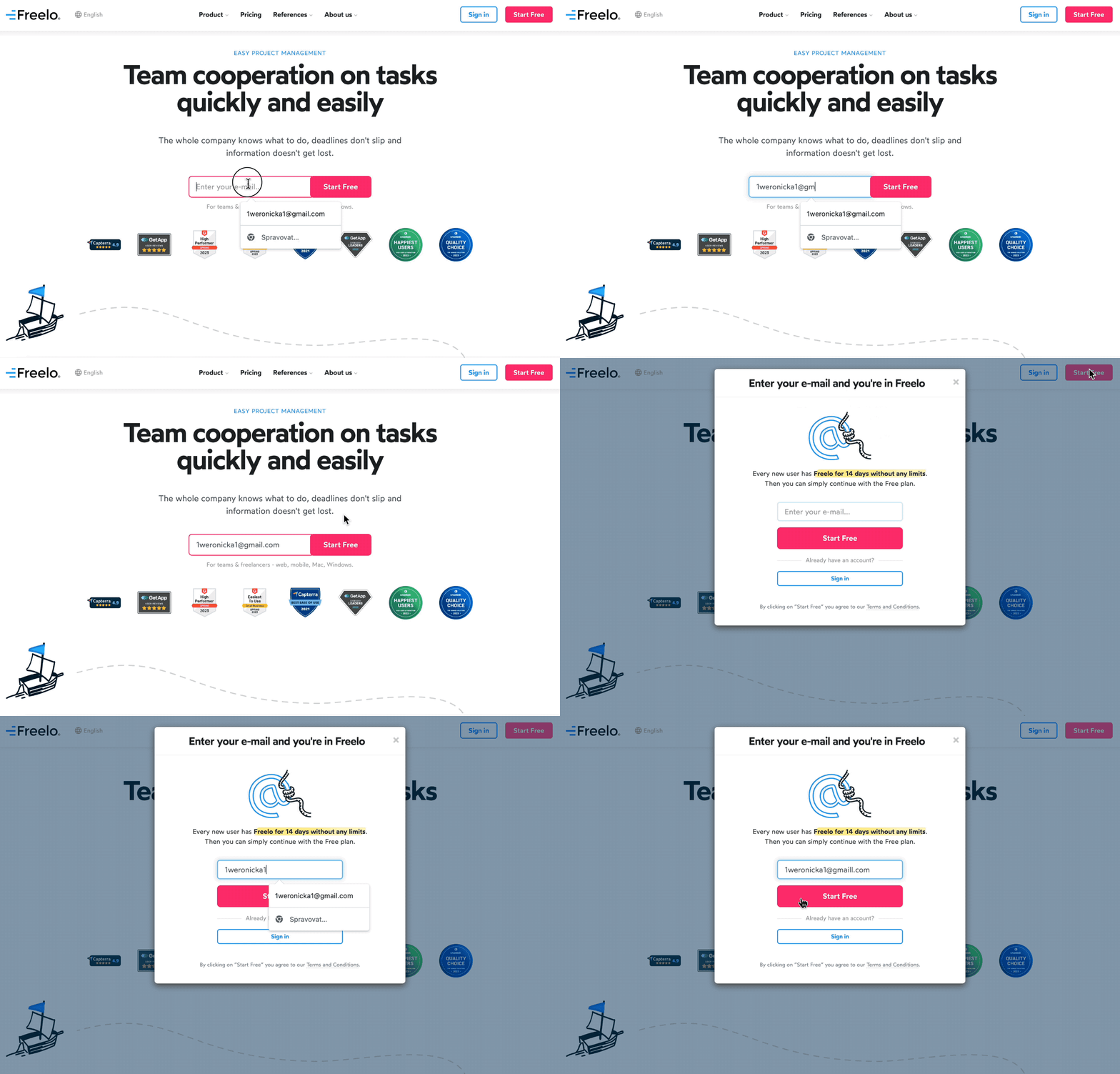
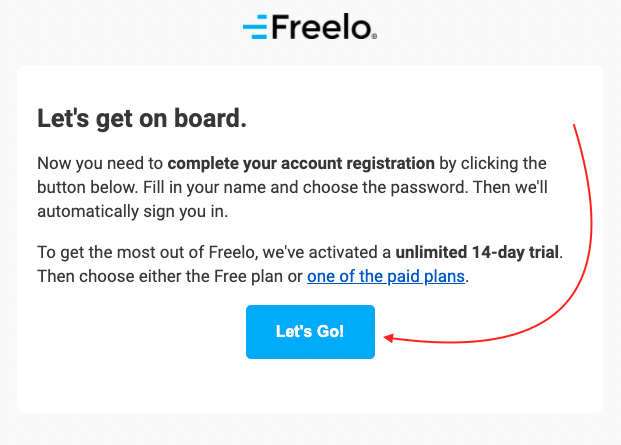
We will send a confirmation email to the entered address. If you are not currently logged in to an existing Freelo account, you will be automatically redirected to your new account from the email. Click Let's Go!
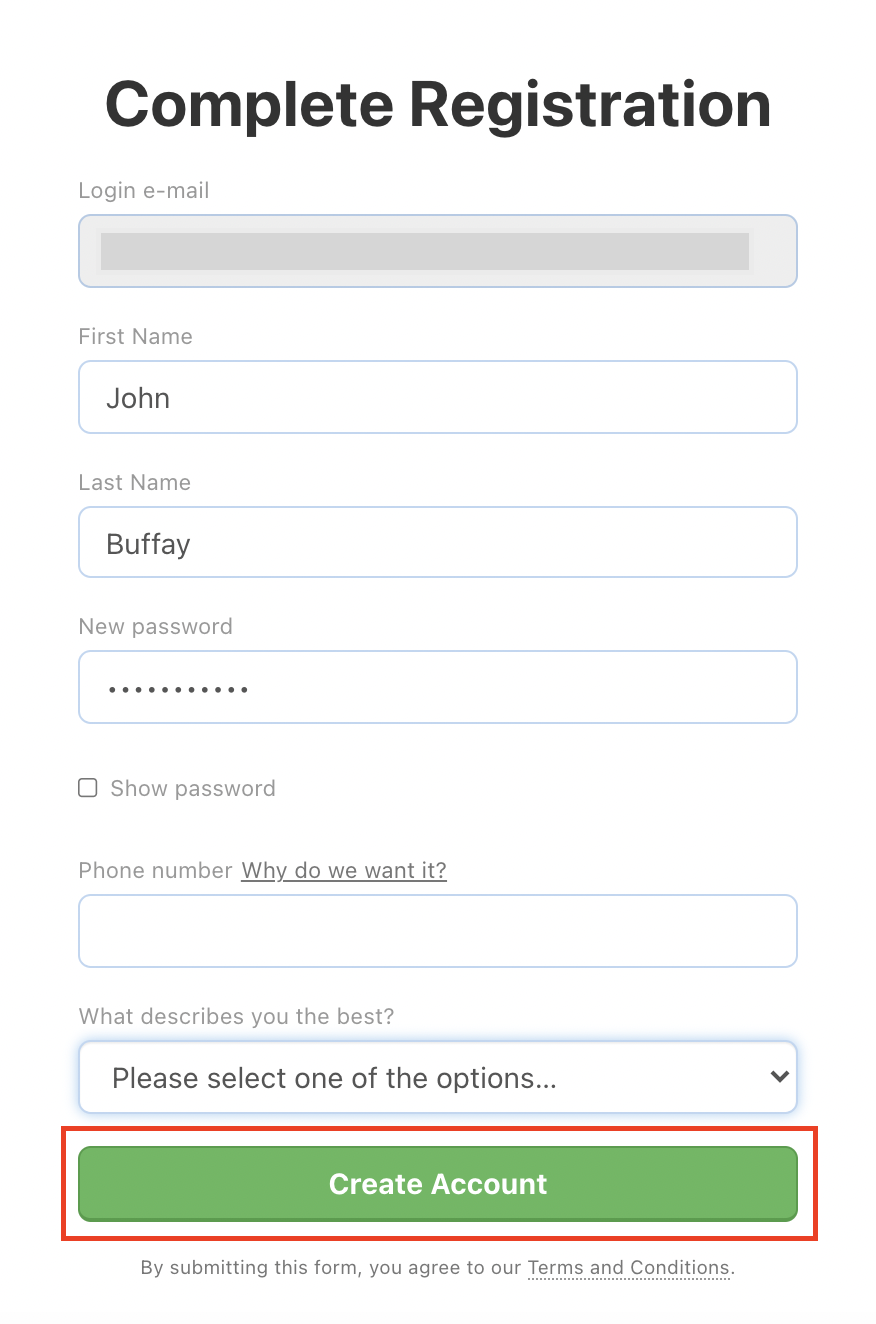
Next, fill in your personal details – name and surname that your teammates will see. Set your Freelo password and we recommend securing your account with two-factor authentication. Other details are optional.
Confirm the registration via Create Account.
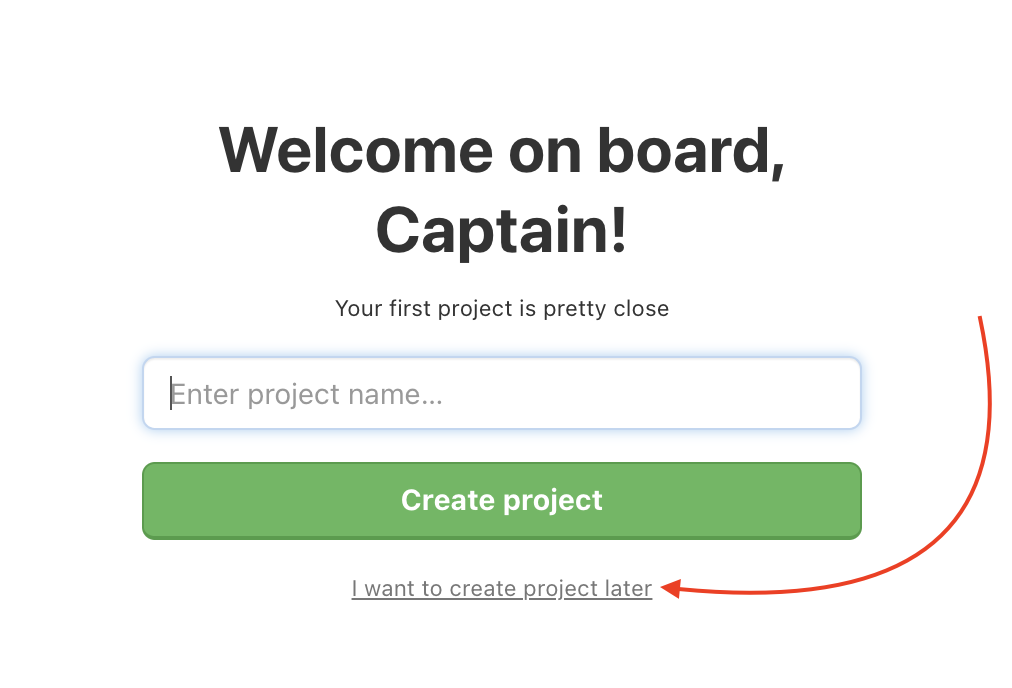
Done! Your new account is ready. You can create a new project right away or continue to Freelo via I want to create a project later.
How to recover a forgotten password
For the password recovery link we send you to work, you need to log out of Freelo first. Then go to the login page, enter your email and we'll send you a recovery link.
If you have multiple Freelo accounts and need to recover the password for one of them, you need to log out of all accounts first.
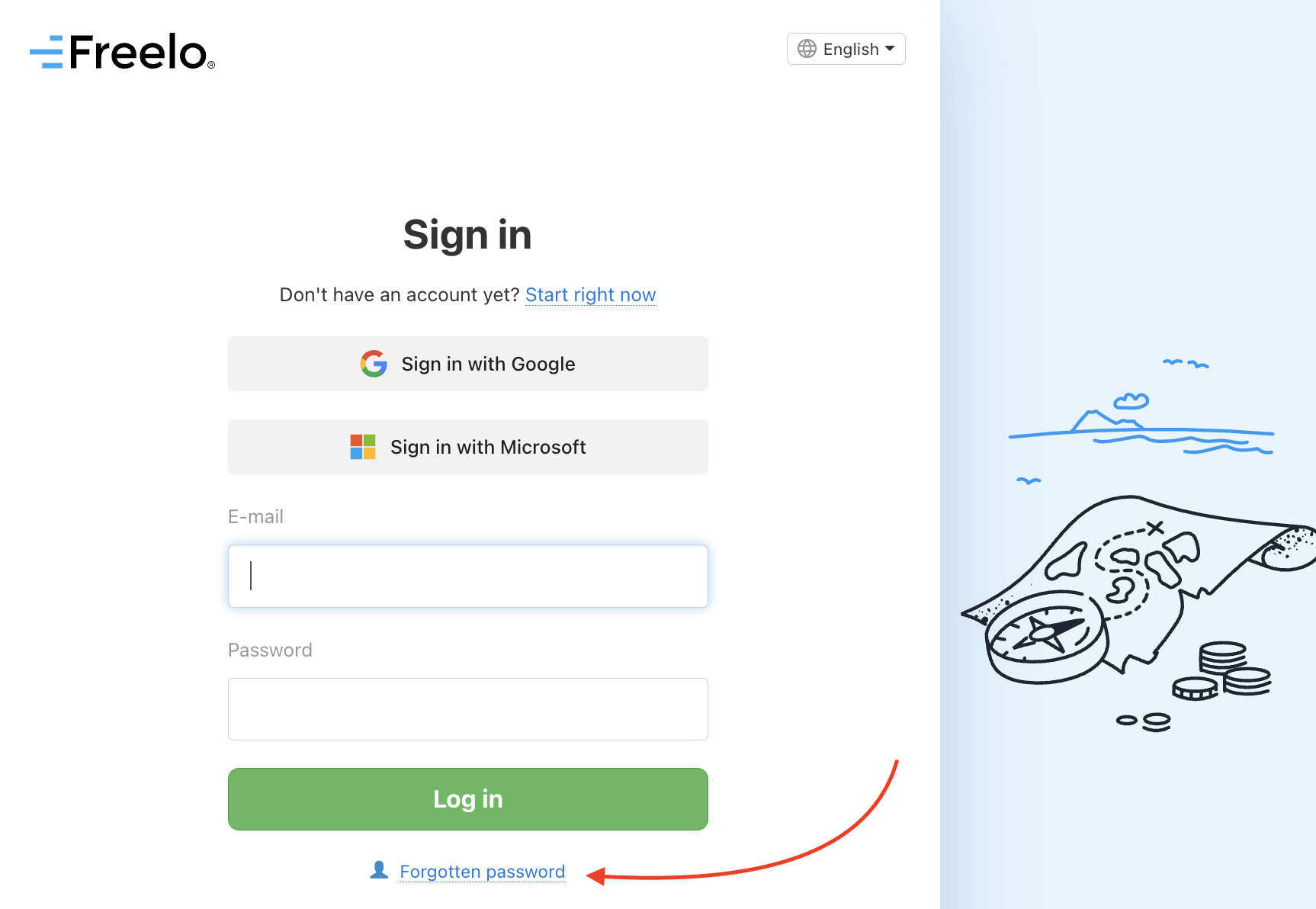
In the login form, select Forgotten password. Enter your email and we will send you a link to reset it.
If you only want to change your current password, go to Settings via your avatar in the top right corner and find the Personal information section.
Change your login email
Changed your company domain or just need to update your Freelo login email? Our support team will handle the change for you.
Send us a request at info@freelo.io from your current login email and include the new email address you want to switch to.
Practical use
- Freelancer with multiple clients – you have one account registered with your personal email and are invited to projects across different clients. One account is plenty – you just switch between projects.
- Employee and self-employed at the same time – you want to keep company projects completely separate from your own contracts. Two accounts, two Chrome profiles, no mixing.
- Shared office computer – several colleagues use the same PC. Each person has their own Chrome profile with their own Freelo login – switching takes a second.
- Switching to a new email – changing your work email? Contact us at info@freelo.io and we'll transfer your account without any data loss.