
Content
- Registration
-
Sign-in
- User registered via Microsoft
- User not registered via Microsoft
- Via account settings (recommended)
- From the sign-in page (signed-out user)
- Your Freelo account is registered with a different email than Microsoft
- Using Google and Microsoft sign-in on one account
- How can you set up both sign-in methods?
-
Frequently Asked Questions
- I'm not receiving Freelo notifications on my Microsoft email. What can I do?
- Microsoft login isn't working — I see a permission error
- Can I remove the Microsoft account connection in the future?
- What about an account created via Microsoft registration?
- Can I change the linked Microsoft account?
- Which email address will receive Freelo notifications?
Do you use a Microsoft account (Outlook, Microsoft 365, Azure AD) and want to register or sign in to Freelo quickly and without a password? You can! Freelo supports both sign-in and registration via a Microsoft account. This is especially useful for companies where employees have corporate Microsoft 365 accounts. Signing in via Microsoft means fewer passwords and faster onboarding for new team members.
Registration
Via the Freelo website
- On the registration page, click Register with Microsoft.
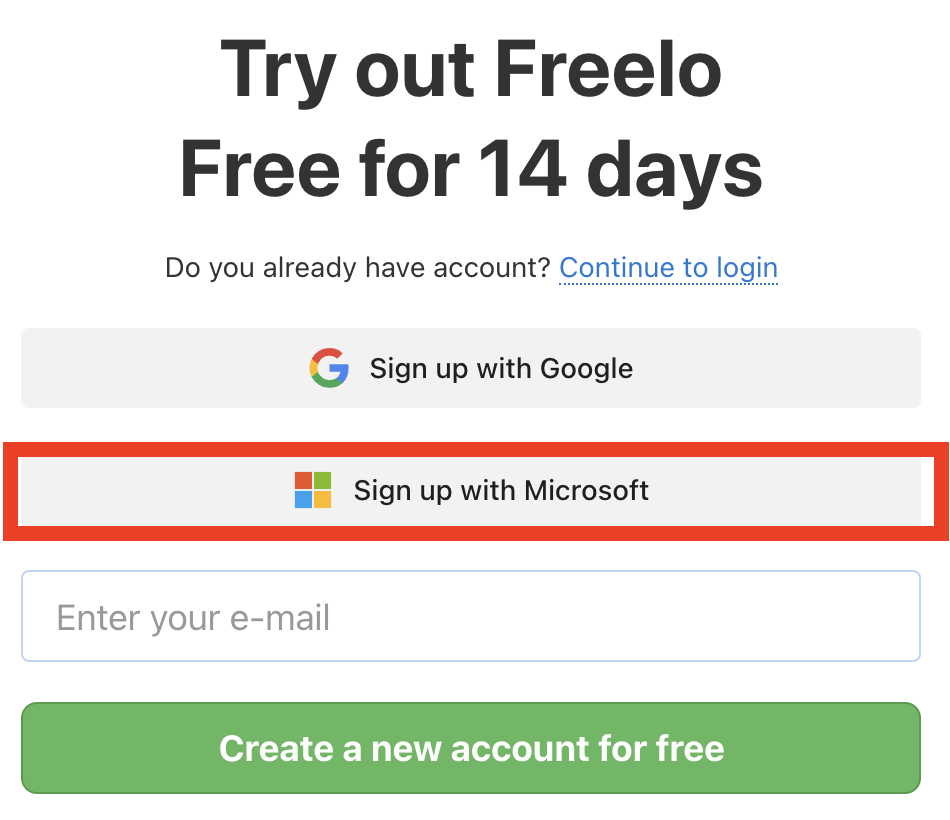
Registration in Freelo via the website. - You will be redirected to the Microsoft sign-in page.
- Select the Microsoft account you want to link with Freelo, or sign in.
- Confirm your consent to share data with Freelo.
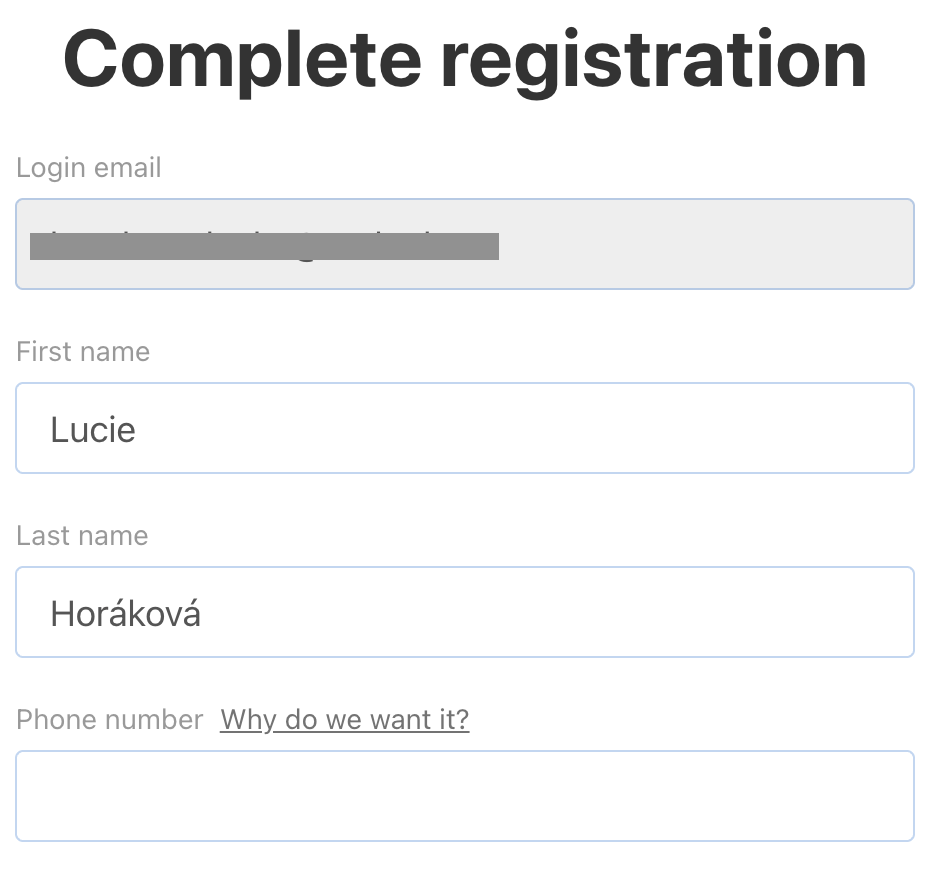
In the final step of registration, your first and last name will be automatically pre-filled from your Microsoft account. You can edit these details and optionally add a phone number. Then click Create account – and you're done.
Via invitation
- registration using email, or
- registration using a Microsoft account
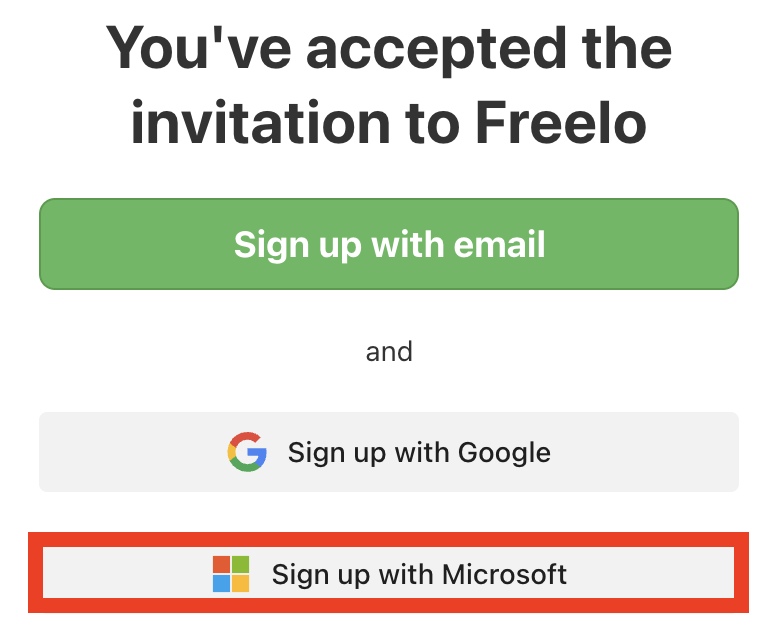
This is what the invitation link to Freelo from an email looks like.
Sign-in
User registered via Microsoft
User not registered via Microsoft
Via account settings (recommended)
- Click your avatar in the top right corner.
- Go to Settings → Security and sign-in.
- In the Sign-in section, select Set up Microsoft sign-in.
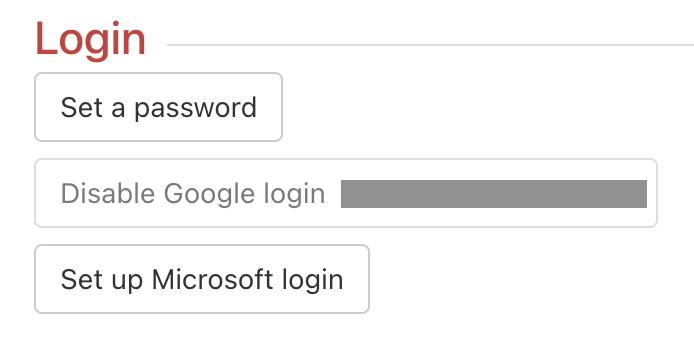
Select the Microsoft account you want to link with Freelo. - A modal window will open and guide you through the verification process.
- For security reasons, you will be asked to enter your Freelo password.
- Select the Microsoft account you want to link with Freelo.
We recommend this method if you want to set up the connection at any time without signing out. It is handy when you received an invitation by email and registered the standard way, but want to add Microsoft sign-in afterwards.
From the sign-in page (signed-out user)
- Go to the Freelo sign-in page.
- Click Sign in with Microsoft.
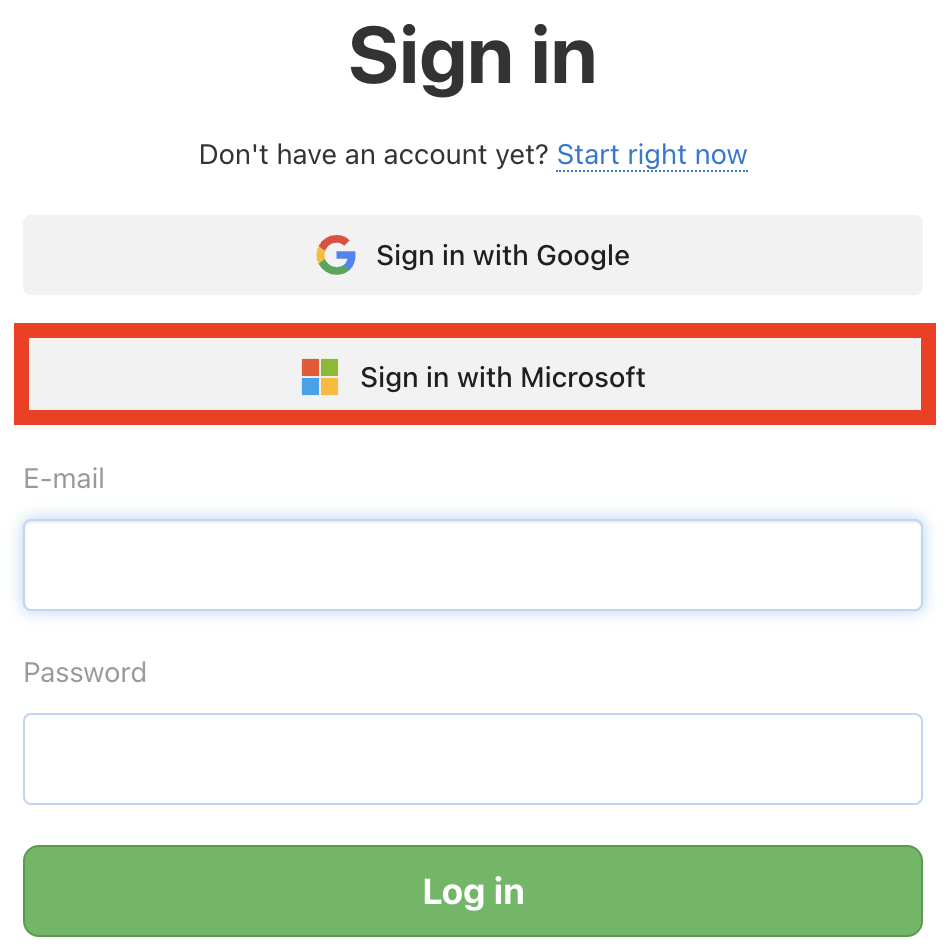
Link your Freelo account with Microsoft using the button. - Select the Microsoft account under which your Freelo account is registered.
- The first sign-in will still be completed using the original method (email and password).
- From the next sign-in onwards, you can use the Microsoft button.
Your Freelo account is registered with a different email than Microsoft
- one email for standard sign-in (email and password),
- a different email for Microsoft sign-in.
- Go to Settings → Security and sign-in.
- Set up Microsoft sign-in.
- Select the Microsoft account and enter your Freelo password.
Using Google and Microsoft sign-in on one account
A concrete example: you work on projects at two companies – one uses Google Workspace and the other uses Microsoft 365. You can link both accounts to a single Freelo account and sign in with whichever you have open at the time.
- One Freelo account can have:
- standard sign-in (email and password),
- sign-in via a Google account,
- sign-in via a Microsoft account. This is especially useful for companies where employees have corporate Microsoft 365 accounts – signing in via Microsoft means fewer passwords and faster onboarding for new team members.
- Google and Microsoft sign-in work independently of each other.
- It is not a problem if:
- the Google account uses a different email than the Microsoft account,
- and both are linked to the same Freelo account.
How can you set up both sign-in methods?
- Go to Settings → Security and sign-in.
Setting up Microsoft account sign-in. - In the Sign-in section, set up:
- Google sign-in,
- and/or Microsoft sign-in.
- To complete the linking, you must enter your Freelo password for security reasons.
Frequently Asked Questions
I'm not receiving Freelo notifications on my Microsoft email. What can I do?
First, check your Spam or Junk folder. If there are no Freelo messages there and you are not receiving them at all, the issue is most likely related to your company's Microsoft tenant settings – in that case, follow the steps below:
- In Microsoft Defender, open Tenant Allow/Block List and Spoof intelligence.
- Add the domain freelo.io (or app.freelo.io) as allowed.
- Report blocked Freelo emails to Microsoft as a false positive.
Microsoft login isn't working — I see a permission error
Some companies restrict which third-party apps employees can log in to in their Microsoft 365 (Azure AD / Entra ID) settings. If you see an error when logging in with Microsoft, your company likely requires your IT administrator to approve the Freelo app first.

What can you do?
Ask your company's IT administrator (Microsoft 365 admin) to approve Freelo for the whole company. It's enough for the admin to log in once with their administrator account.
Once approved, all employees in your company will be able to log in to Freelo via Microsoft without any further restrictions.
What exactly does Freelo need from Microsoft?
When logging in via Microsoft, Freelo only requests basic information to verify your identity, your first name, last name, and email address. Freelo has no access to your files, emails, calendar, or any other company data.
Can I remove the Microsoft account connection in the future?
- Go to Settings → Security and sign-in.
- In the Sign-in section, remove the Microsoft account connection by clicking Remove Microsoft sign-in.
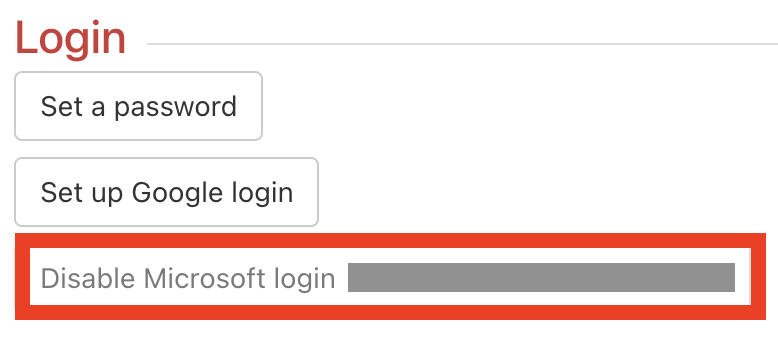
Removing Microsoft account sign-in. - To confirm, you will need to enter your Freelo password.