


New The AI tide at Freelo - a new era of modern collaboration
Old Freelo · New Look · September 2026

A modern look, enhanced features, and a more comfortable work experience

Freelo has a new look. A cleaner design, a more organized layout, dark mode, and plenty of other improvements to make your daily work more enjoyable.

Project Kanban in Freelo's New Look
The same Kanban with Freelo's original design
Original appearance New Look

Drag the slider. On the left is Freelo as you know it; on the right is the new look.

Side Panel

Open the task without leaving the list

Until now, you've only encountered the side panel in Kanban. In all other view types, you had to click through to the task details and back again, or know the shortcut " ”Q".

In the new Freelo, the side panel opens in all views. You can adjust its width so that it can accommodate a panel with links and custom fields. Check off a task and move on without getting lost in your to-do list.

Try the side panel
Task Hierarchy

Pack it up, move it, change the level

You can now collapseto-do lists in a project into a folder. Instead of an endless list, you'll see a structured view and can expand only what you're currently working on.

Plus, by dragging with your mouse, you can turn a task into a subtask—and vice versa. No need to delete and recreate anything. You can rearrange tasks within a project however you need.

Try drag-and-drop
Dashboard

New View of Tasks and Subtasks

Subtasks no longer appear in yellow on the Dashboard. You can now identify them by their icons, which make the table look cleaner and help you find what you're looking for more quickly.

The column with saved filters has also been updated— you can reorder the filters by dragging them with the mouse, just like in the task list (drag-and-drop). Put your most frequently used filter first so you don't have to search for it in the list.

Explore the New Dashboard
Dark Mode

You asked for dark mode—here you go

A new look, a new dark mode that lets you work not only in the evening but also during the day. Colors, contrast, and fonts have been fine-tuned down to the last detail.

Try Dark Mode
Upgrades That'll Give You a Boost

What else has changed?

This is not a complete list of all the changes. We've selected the ones you'll encounter most often and organized them by where you'll find them in the app.

Changes to Task Details

Changes to the Dashboard and Reports

Changes to the Project and Navigation

New Icons

A new look in 3, 2, 1...

How to Enable the New Look

At the end of September, every Freelo user will find a toggle in their profile menu. Be among the first to experience the new look!

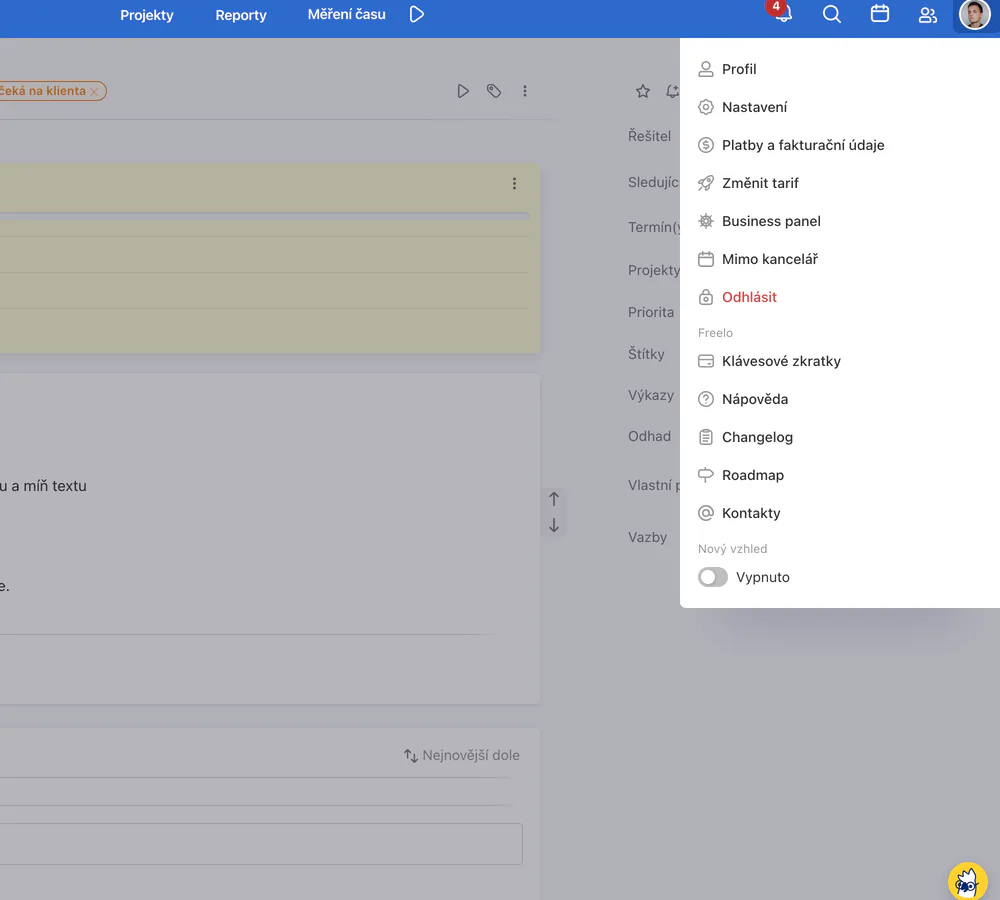
  1. Click on your profile in the upper-right corner.
  2. At the bottom of the menu, click the " New Version of Freelo" toggle.
  3. Done. The theme will change immediately.
Profile menu with a toggle button: New version of Freelo

You can switch back at any time

You can turn off the new design at any time using the same method you used to turn it on. You won't lose any data. However, please note that new registrations starting September 30 will automatically use the new design and will not have the option to switch back to the original one.

Make the switch before your new coworker starts. Retraining is such a pain.

TuDů

ToDoo writes...

Frequently asked questions

What interests you most about the new look?

We've compiled a list of the questions we get asked most often about the new look.

Free online demo of Freelo

  • Don't have Freelo yet? Schedule an appointment online.
  • We'll let you know if Freelo is a good fit for your team.
  • We'll walk you through the setup process and what to watch out for.
  • You'll leave with a plan for the first 30 days.
Team Freelo

Freelo's New Look
The Freelo's Original Design