
Are you using Google and want a smooth way to register and log in to Freelo? It’s easy!
Signing up
Don’t have a Freelo account yet and want to sign up directly using your Google account? Here’s how you can do it:
Through the Freelo website
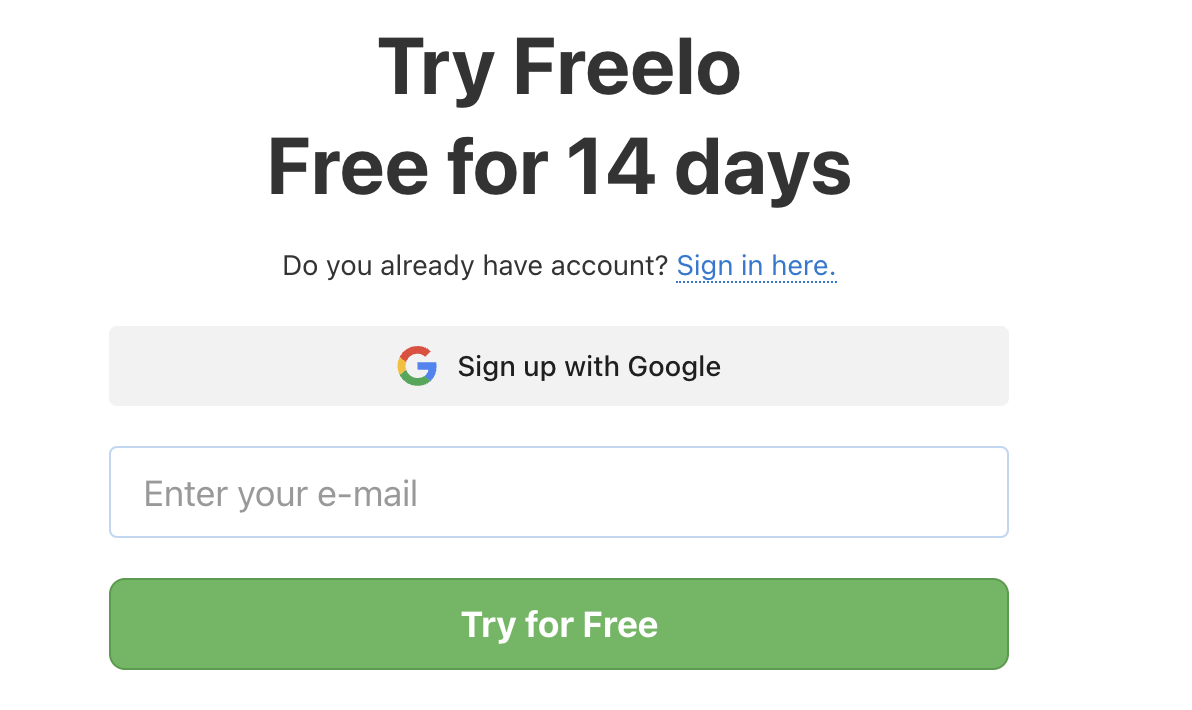
Click Sign up with Google on the registration page.
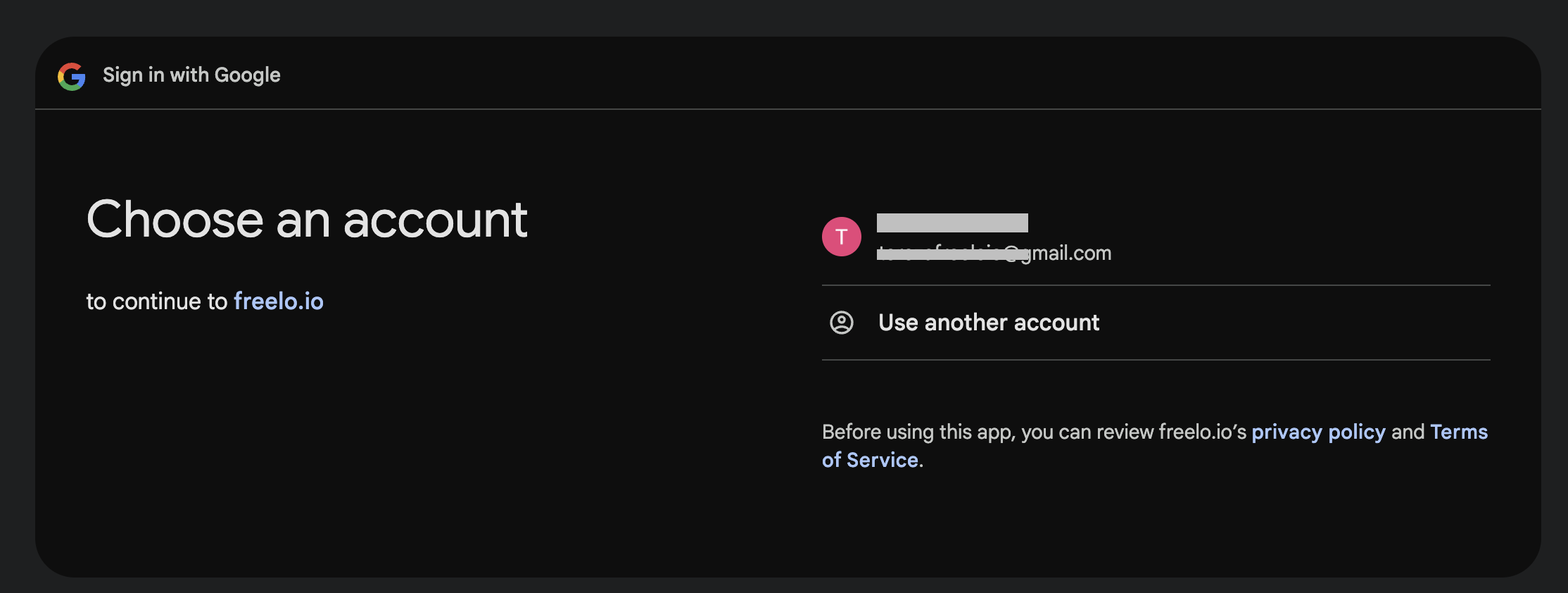
You will be redirected to a page to select your Google account. Choose the Google account you want to link with Freelo, or sign in if needed. Then, simply confirm your consent to share data with Freelo by clicking the Continue button.
In the final step, you will complete the registration. Your first and last name from your Google account will be automatically filled in, but you can edit them if needed. Then, click on Create Account. And you're all set!
Through an invitation
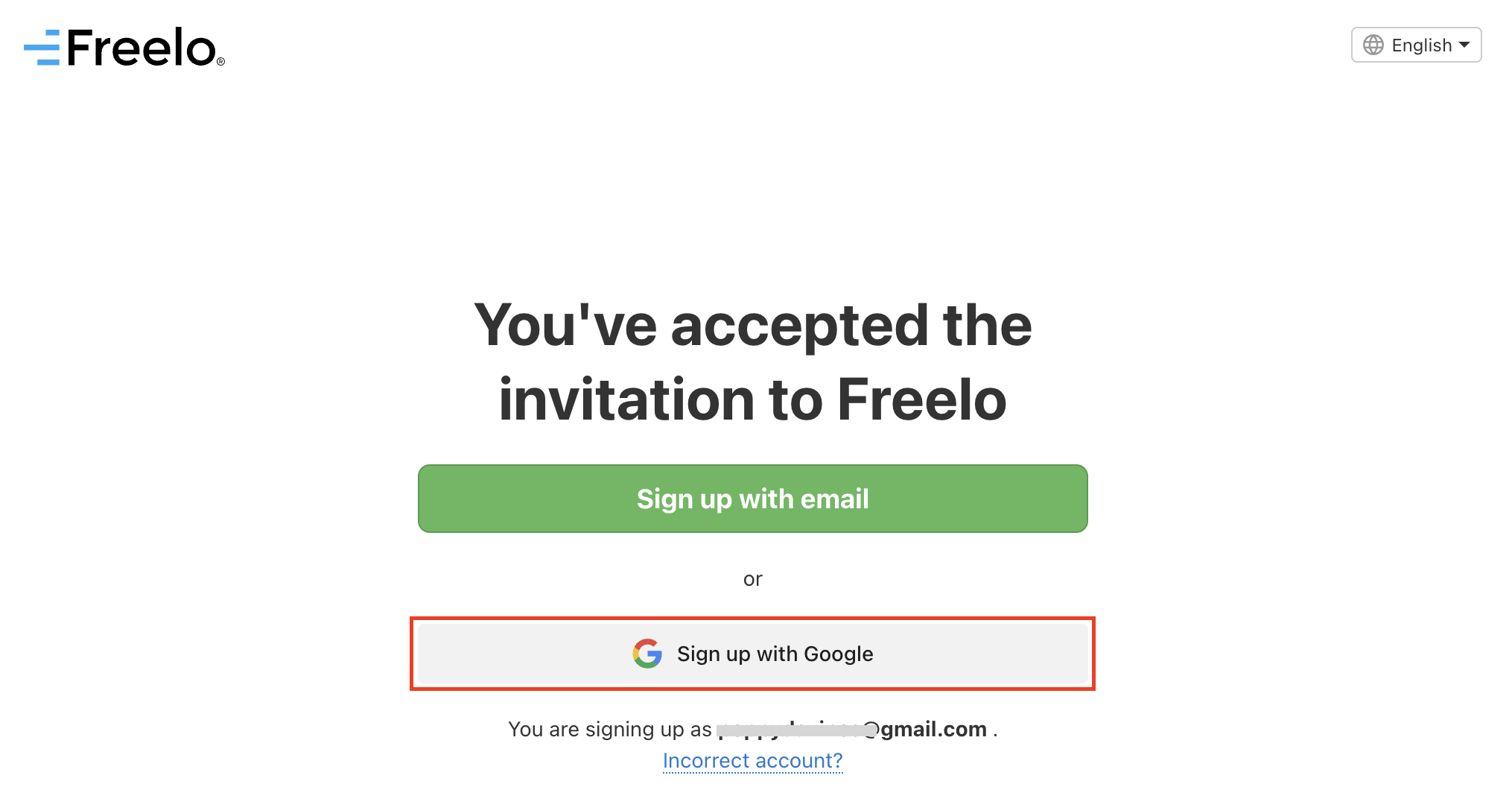
If someone sends you an invitation, the email will contain a link to a page where you can choose to register using your email or Google account. The process will be the same as registering through the website.
Log in
User registered via Google
Simply select Sign up with Google when logging in and choose the Google account you used to register with Freelo.
User not registered via Google
You have a Freelo account registered with a Google email
There are two ways to link your Freelo account with Google:
- Via Settings:
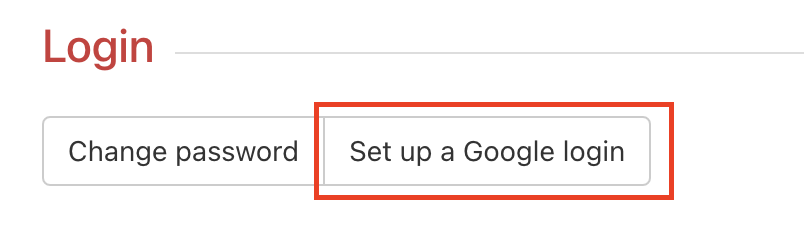
- Go to your avatar in the top right corner and navigate to Settings > Security & Login > Login section at the bottom of the page.
- Click on Set up Google login. A modal window will appear to guide you through account verification. For security reasons, you'll need to enter your Freelo password to complete the linking process. Once done, you can log in using the Google button.
Select the Google account you want to link with Freelo.
-
Via the login page:
-
Click Sign in with Google and select the account linked to Freelo.
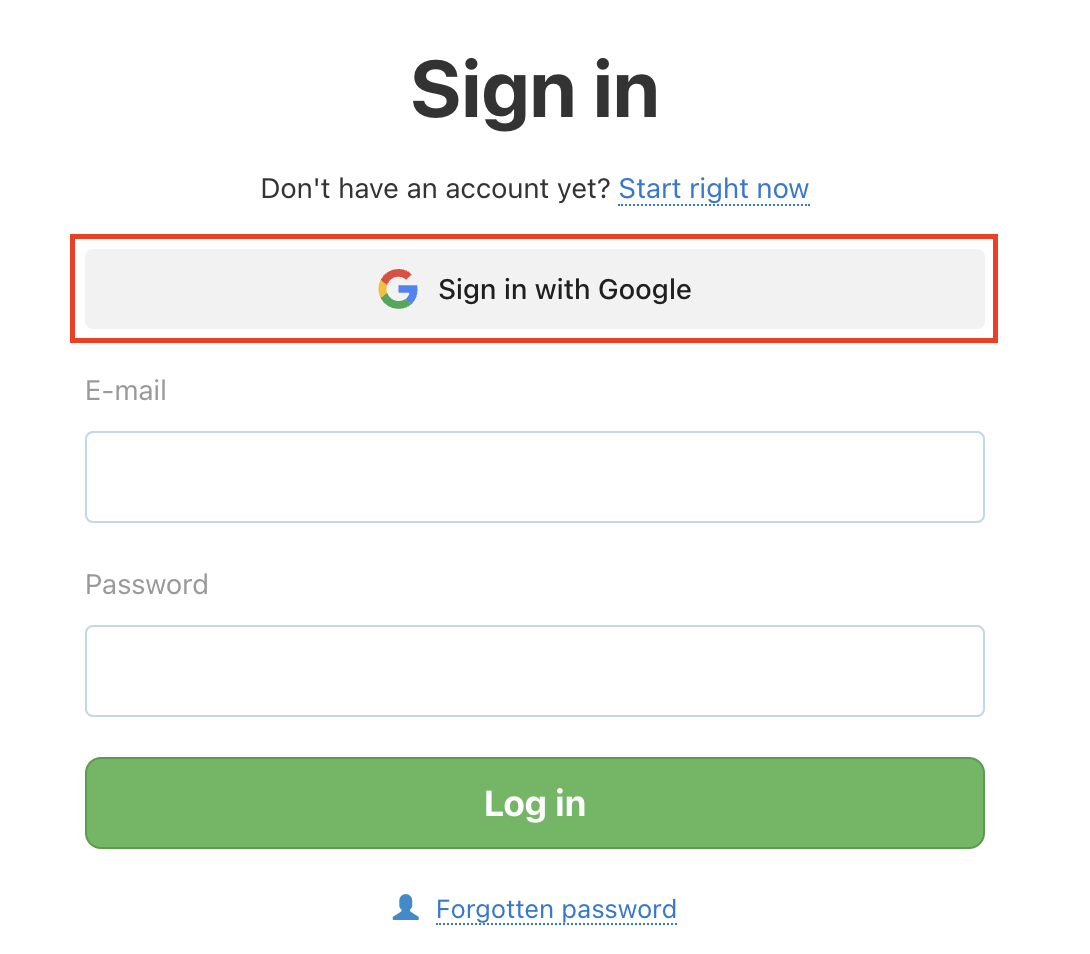
Link your Freelo account to Google using the button. - The first login after linking will be done using the original method (email and password) for security reasons. After that, you can log in via the Google button.
-
You have a Freelo account registered with an email that is not linked to Google
No problem! You can use a different email for standard Freelo login and another one for the Google button.
- Go to Settings > Security and Login > Login.
- Click Set up a Google login, select your Google account, and enter your Freelo password to complete the linking process.
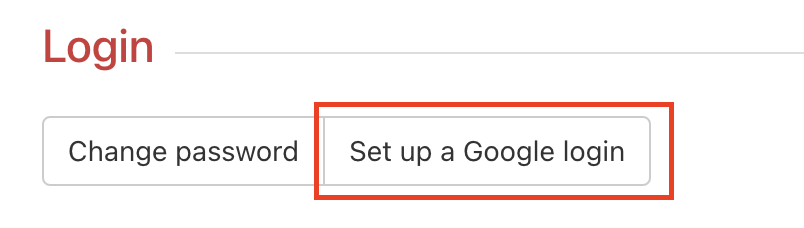
Click the button, and the system will guide you through the steps.
Once set up, you can sign in using Google or your email and password.
FAQs
Can I unlink my Google account later?
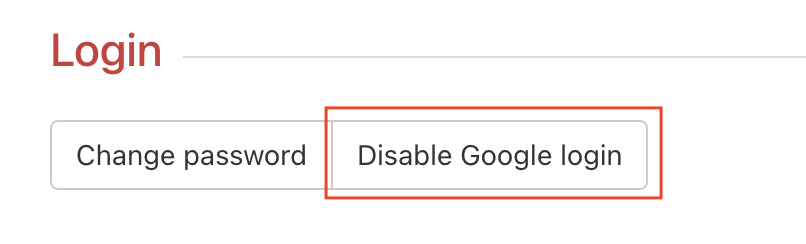
Yes, you can disable Google login if you have a password set for your Freelo account. Go to Settings > Security and Login > Login.
Can I change the linked Google account?
Yes. First, unlink your current Google account, then link a new one. The new account must not be associated with another Freelo account.
Where will my Freelo notifications be sent?
Notifications will be sent to the email address used during registration. This applies to accounts registered via the Google button as well. You can verify or change this email under Notifications in your settings.