Content
- Overview of keyboard shortcuts
-
Examples of keyboard shortcuts
- Add a new task
- Adding a new task from Chrome
- Create a new project
- Invite a new user
- Start / Stop time tracking
- Set a reminder for a sub/task
- Quickly edit the followers of a sub/task
- Quickly assign a sub/task to a user
- Quickly add a label to a task
- Quickly change the sub/task priority
- Close the sidebar on Kanban board
- Search
- Assign a task or subtask to yourself
- Quick preview of a sub/task and notes
- Quick edit of a sub/task
- Quick change of sub/task deadline
- Quick editing of custom fields
- Quick add menu
Using keyboard shortcuts helps you speed up your work in Freelo and save dozens of mouse clicks every day.
Overview of keyboard shortcuts
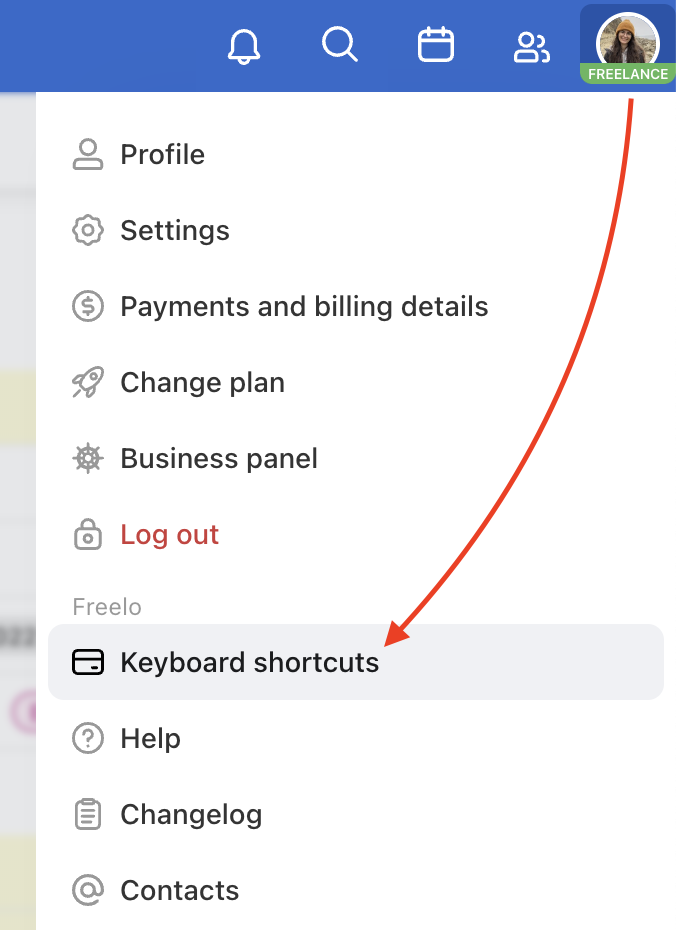
In the app, find the list of shortcuts by clicking on your avatar in the top right corner > Keyboard shortcuts. A modal window with all shortcuts will appear.
You will find the following keyboard shortcuts, which we are gradually expanding:
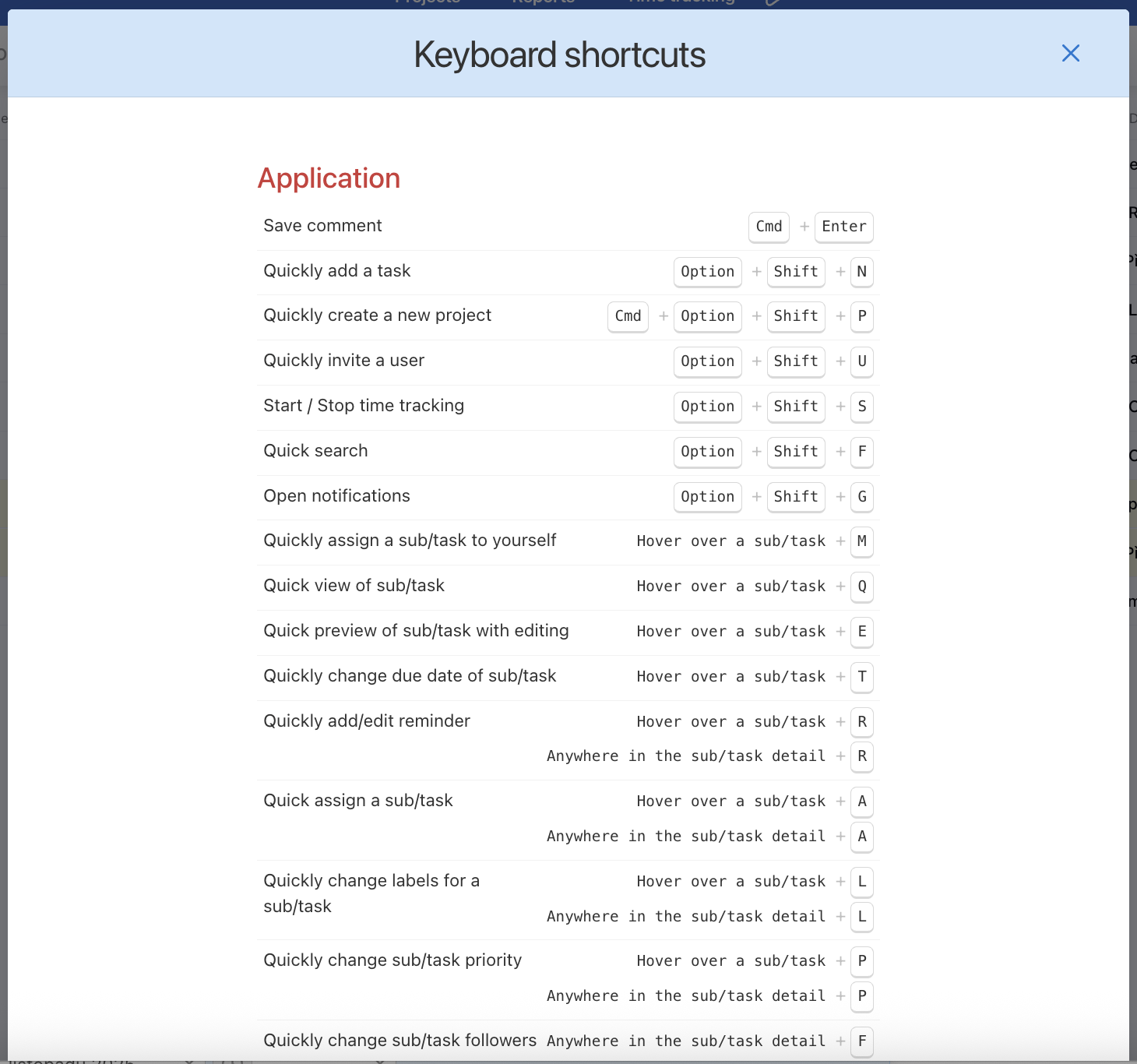
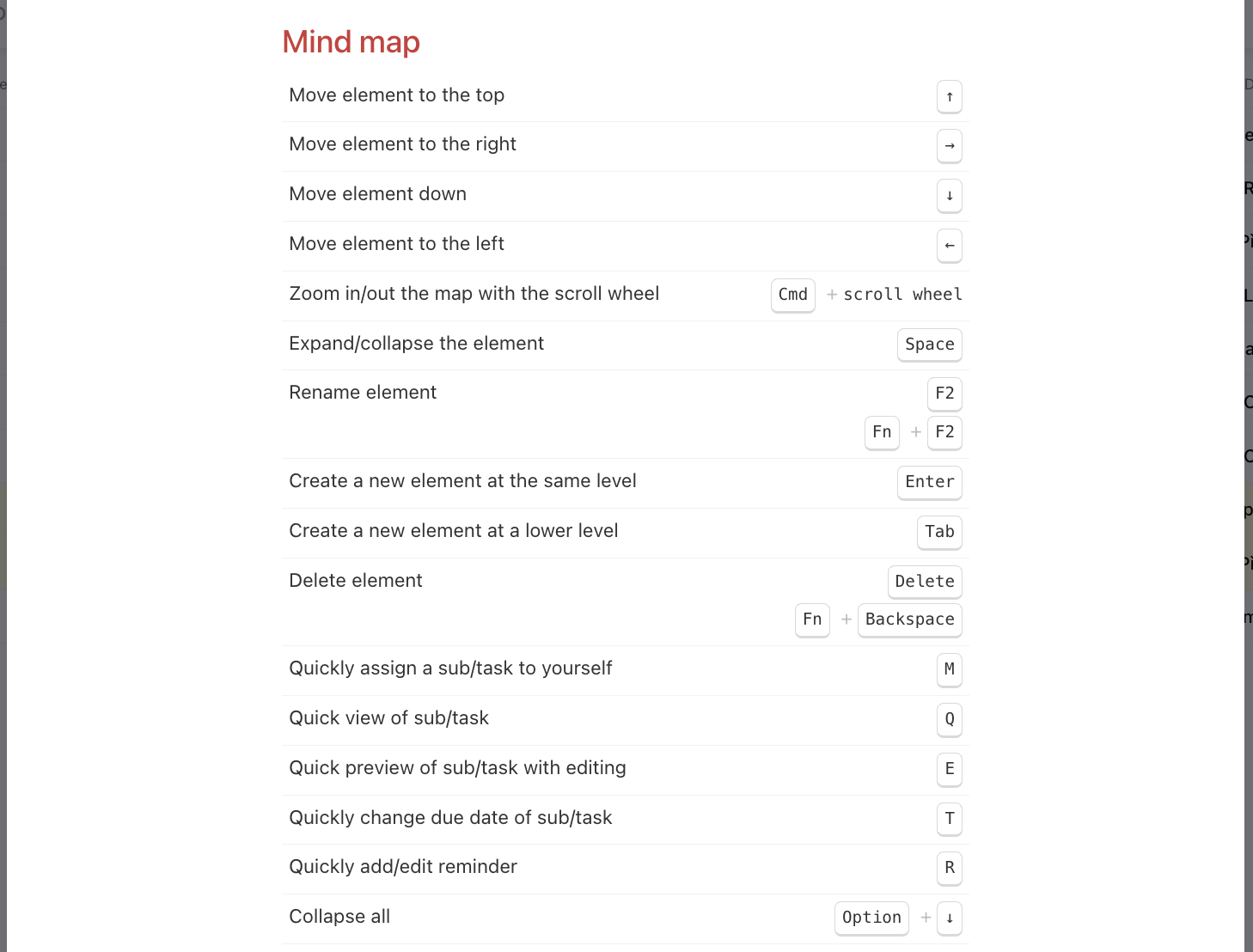
Entering a shortcut immediately triggers the requested action, and it works anywhere in Freelo.
Examples of keyboard shortcuts
Add a new task
Keyboard shortcut: Alt/Option + Shift + N opens the form to add a new task.
Useful when a task comes to mind while browsing projects and you don't want to navigate to a specific To-Do list.
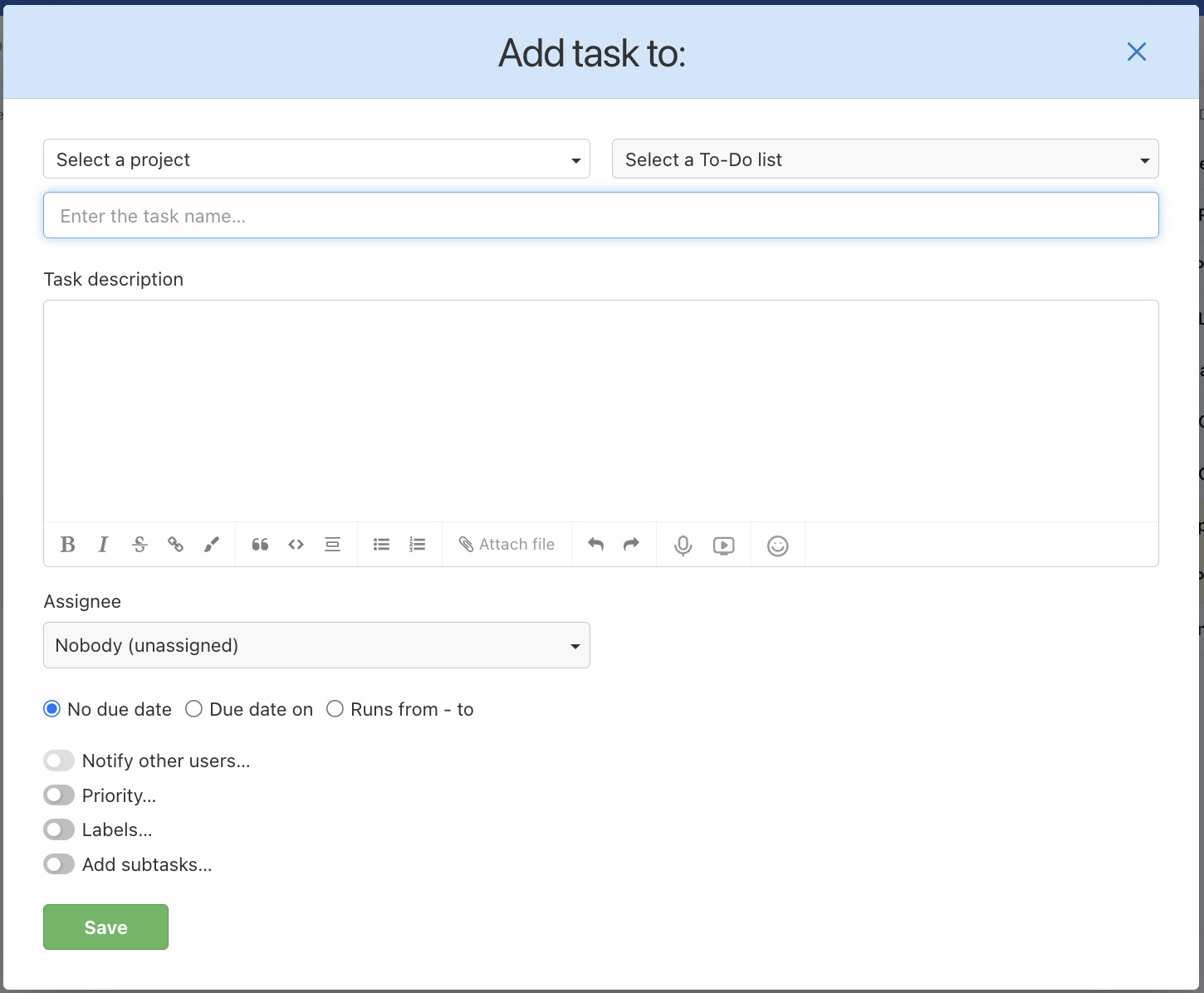
More ways to add a new task are covered in a separate article.
Adding a new task from Chrome
Keyboard shortcut: Alt/Option + Shift + F on selected text in the Google Chrome browser opens the form to add a new task.
Useful when you're reading an email or web page and spot something that needs doing. Select the text and add it as a task right away.
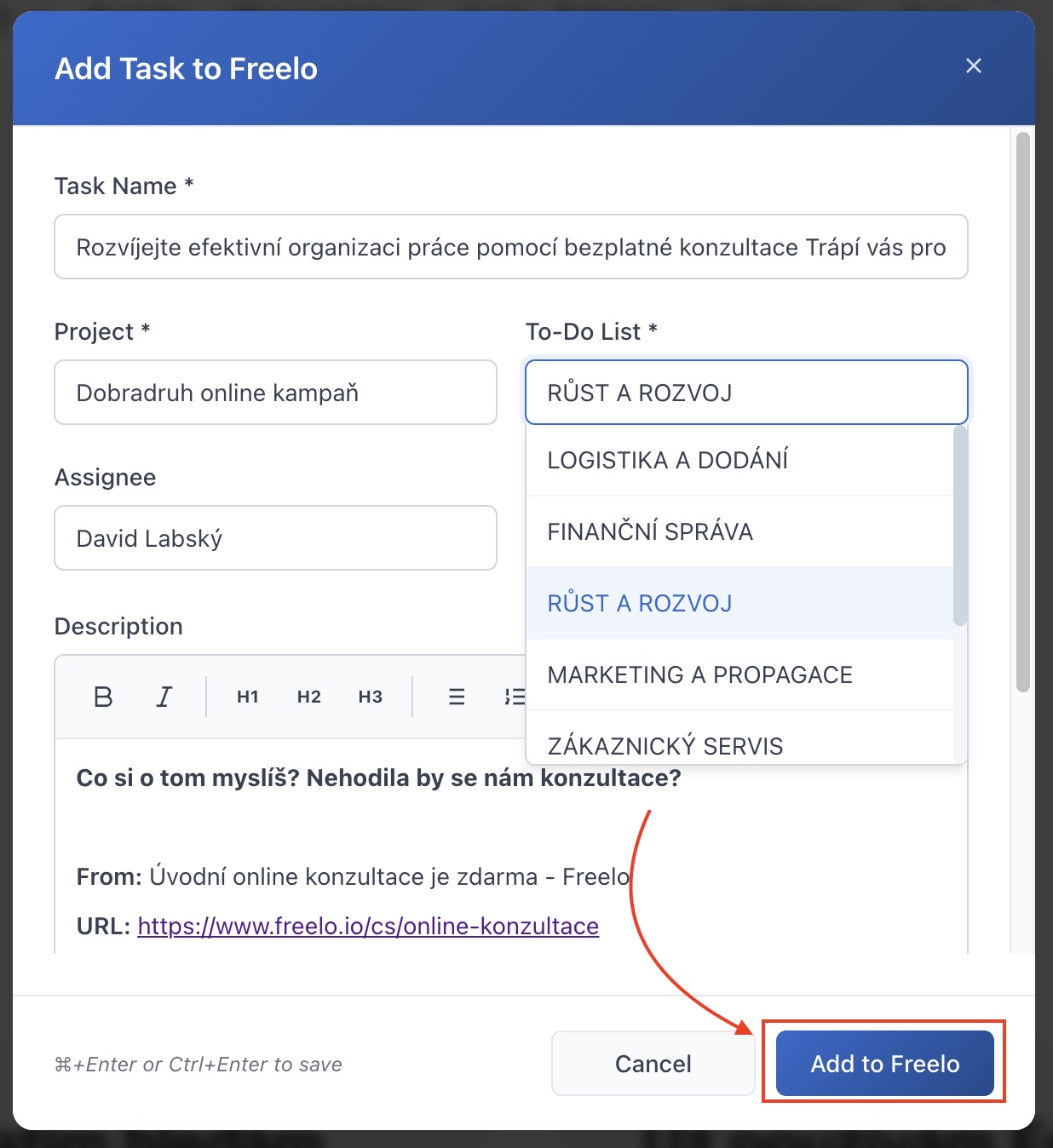
You can find the article about creating a new task from a web page here.
Create a new project
Keyboard shortcut: Ctrl/Cmd + Alt/Option + Shift + P opens the form to create a new project.
Useful when you get a new contract and want to create a project immediately without searching for the button in the menu.
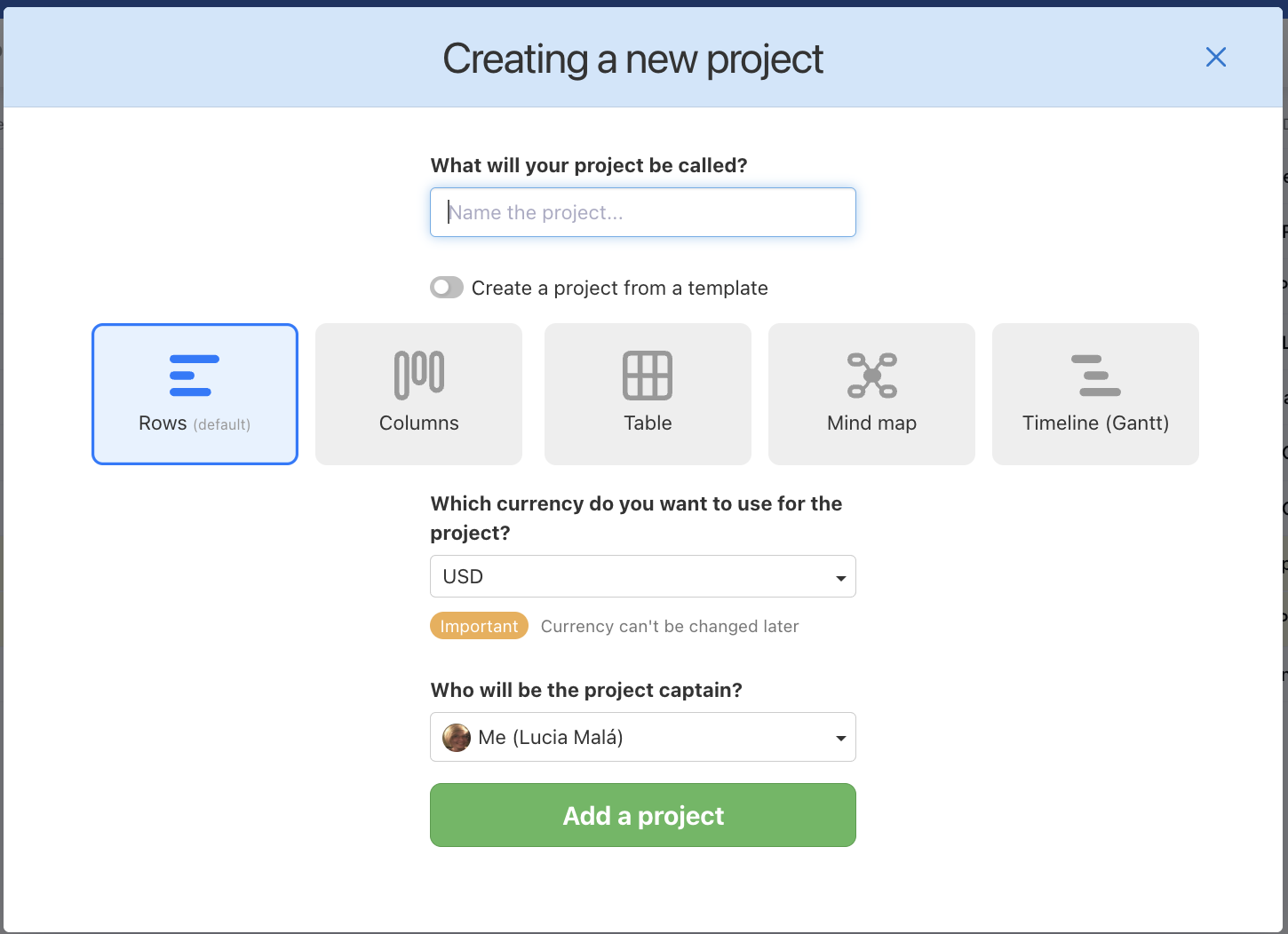
Article about creating a new project here.
Invite a new user
Keyboard shortcut: Alt/Option + Shift + U opens the form to invite a new user by email, including to a specific project.
Useful when you agree with a new colleague in a meeting and want to add them to the project straight away.
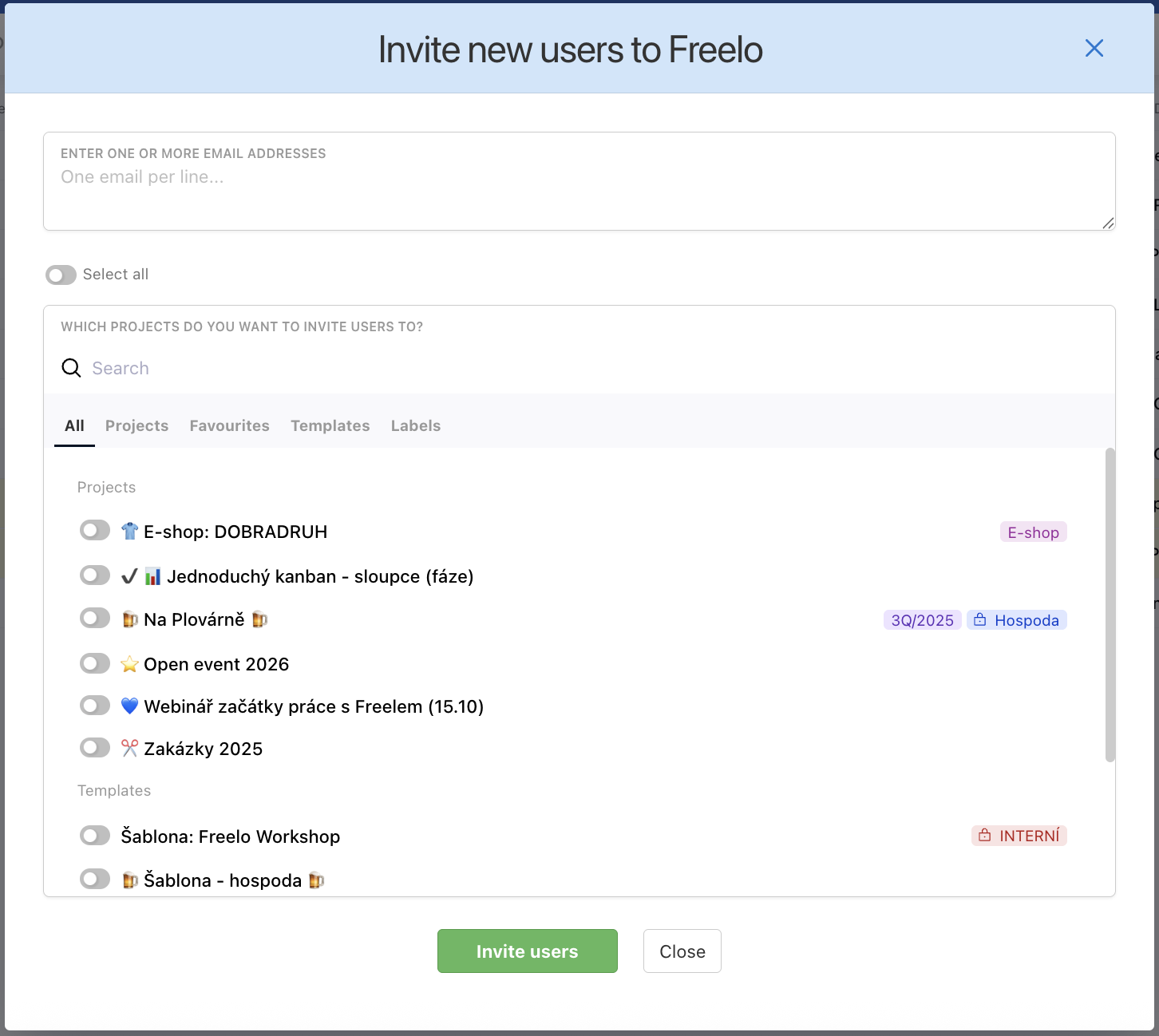
Detailed guide on how to invite a new user to a project.
Start / Stop time tracking
Keyboard shortcut: Alt/Option + Shift + S starts time tracking in the blue top bar.
Useful when you start working on a task and want to start the timer immediately without clicking into the detail.
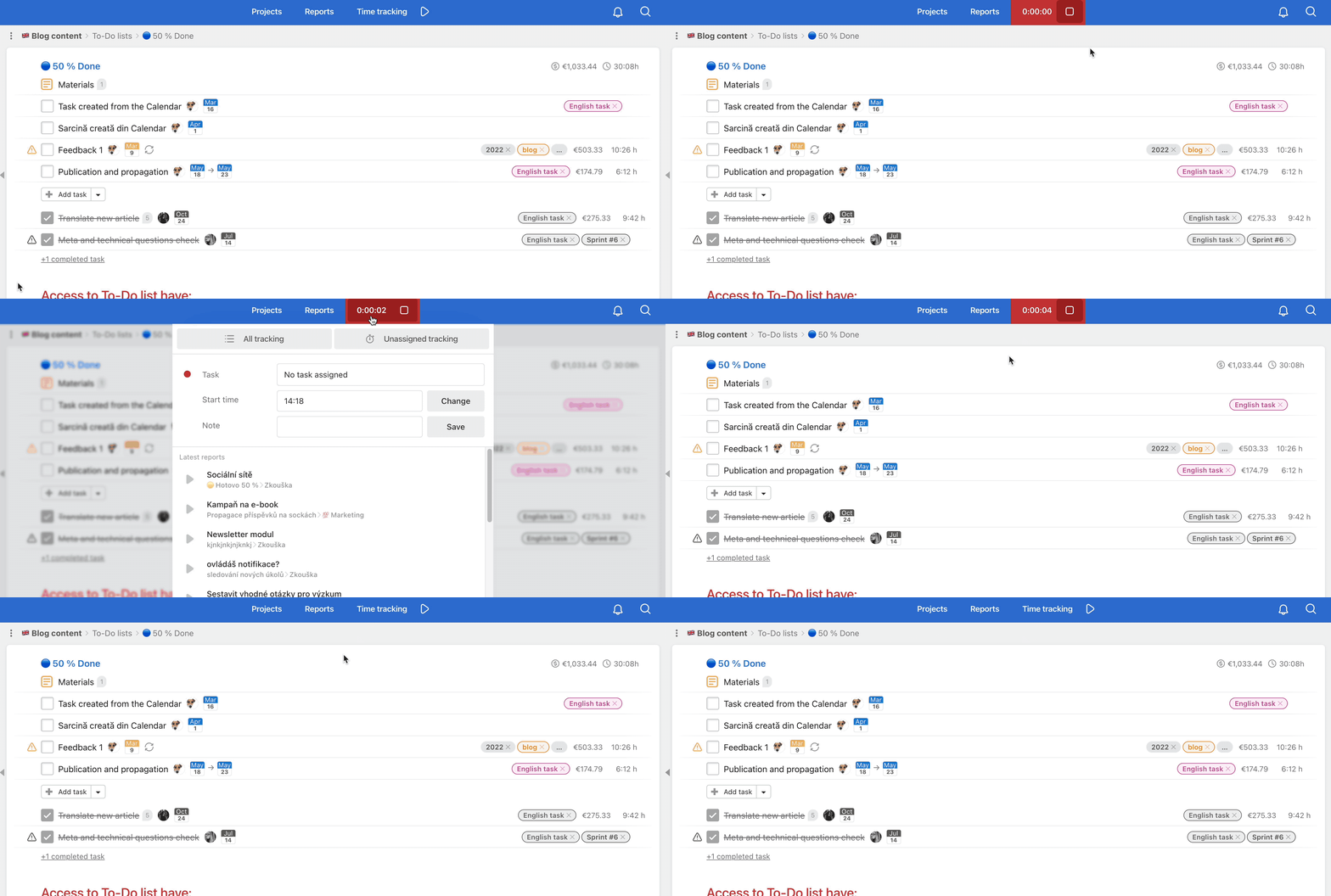
More about time tracking here.
Set a reminder for a sub/task
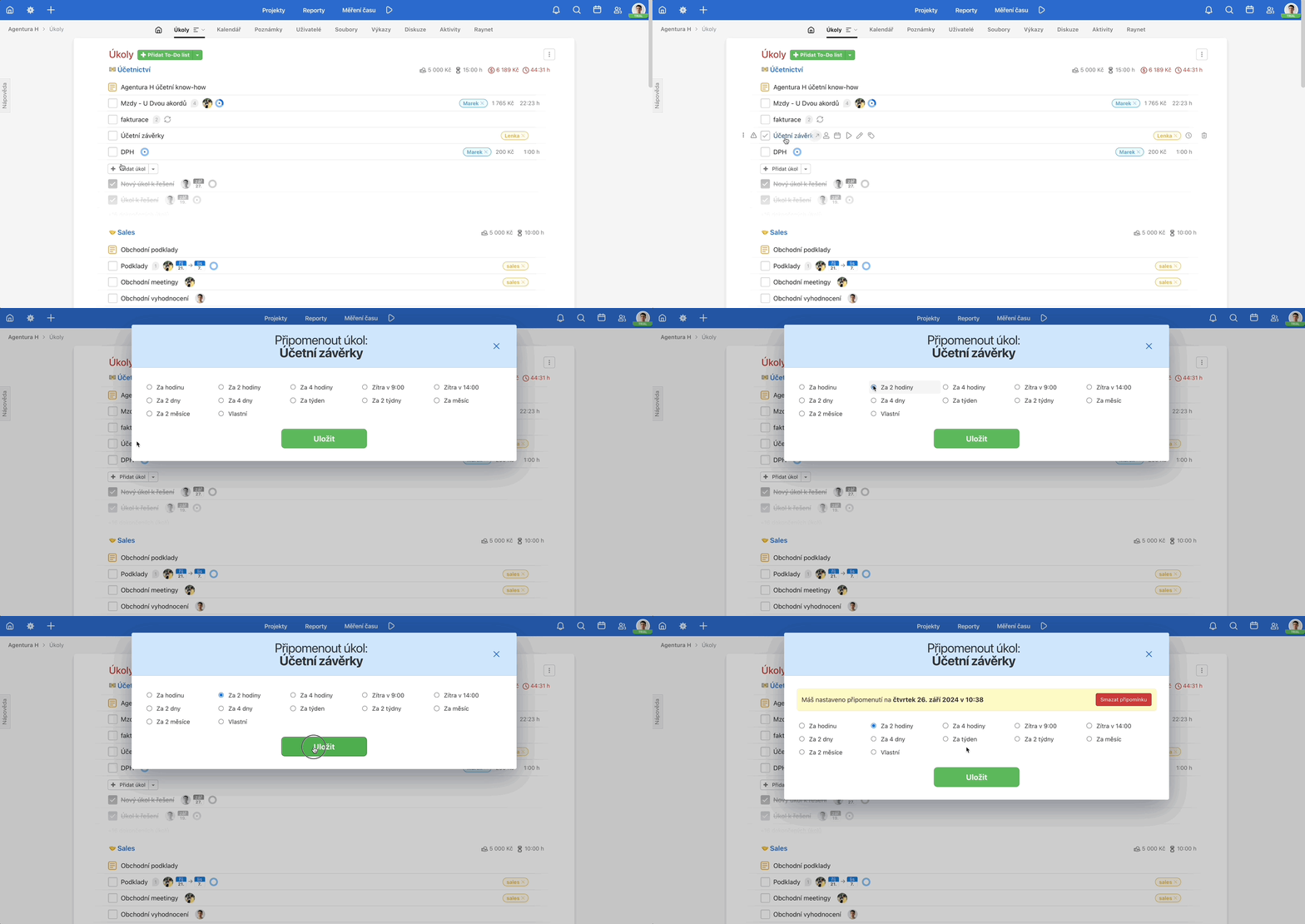
Keyboard shortcut: mouse over sub/task + R opens a modal window where you select the reminder date. More about task reminders here.
Useful when you see a task you can't afford to forget about in a few days – add a reminder directly from the overview without opening the detail.
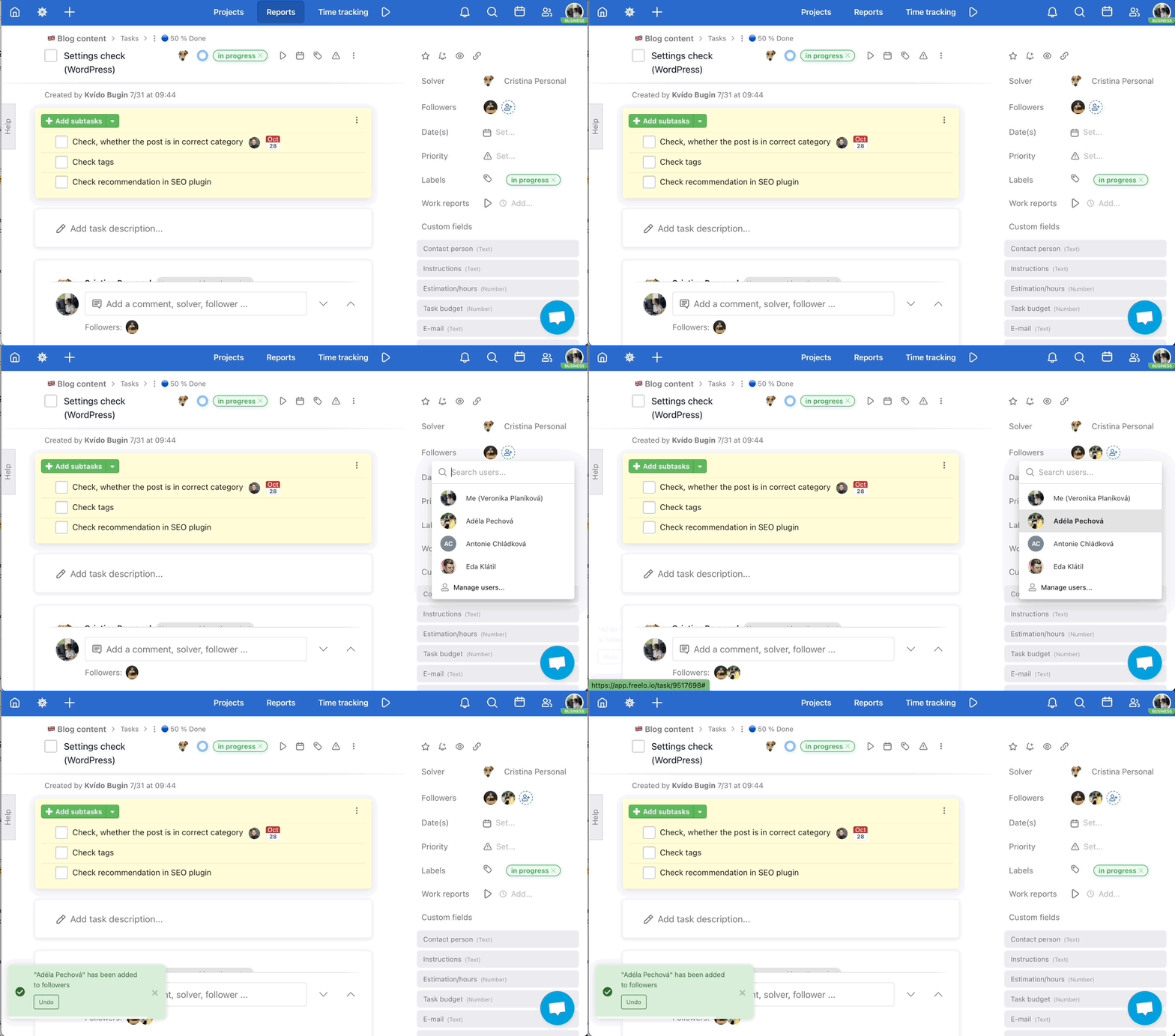
Quickly edit the followers of a sub/task
Keyboard shortcut: anywhere in the sub/task detail + F
Useful when you want to keep a colleague informed about task progress – add them as a follower with a single keystroke directly in the detail.
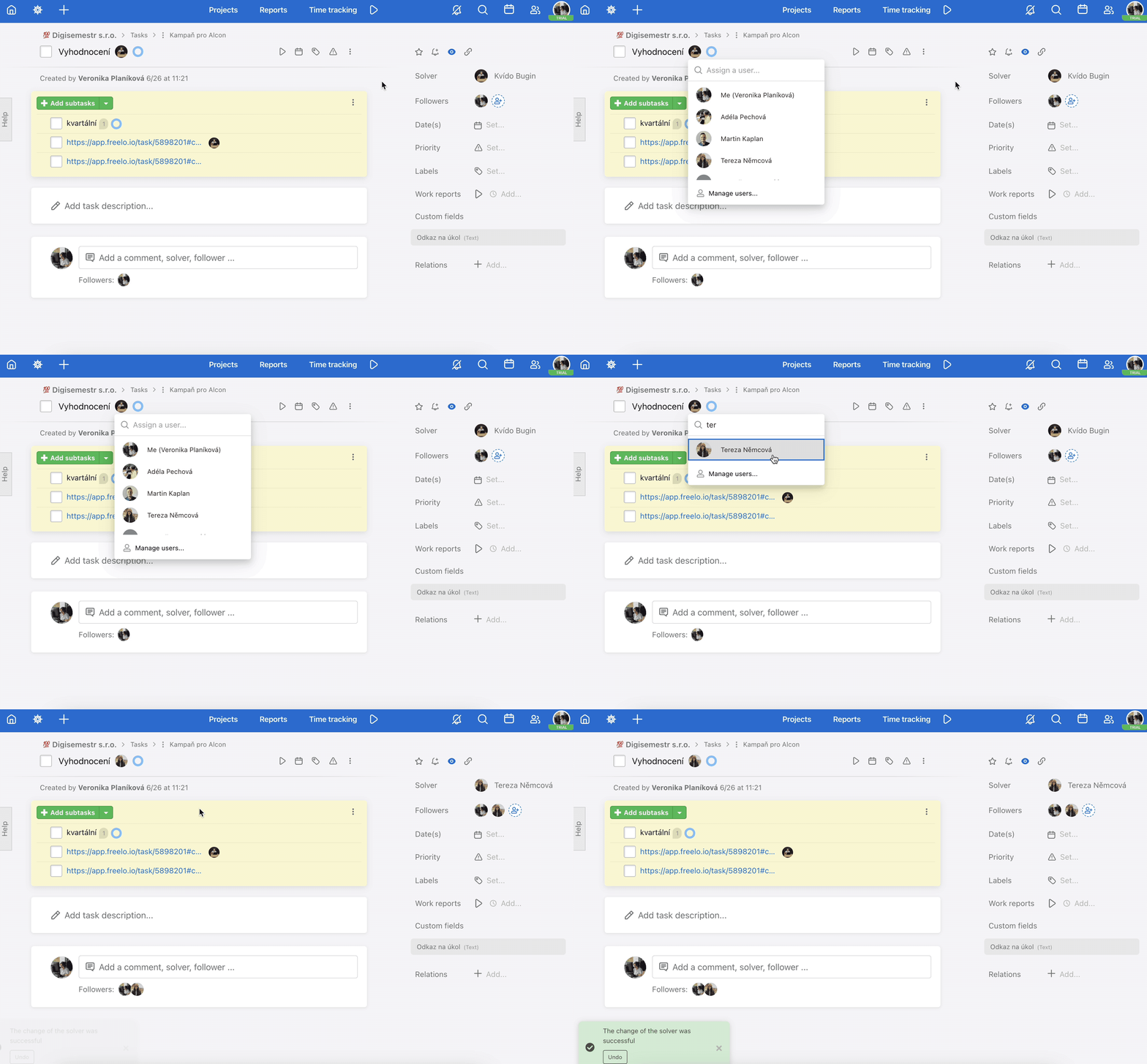
Quickly assign a sub/task to a user
Keyboard shortcut: mouse over sub/task + A or anywhere in the sub/task detail + A
Useful when you're browsing Kanban and spot an unassigned task – assign it to a colleague with a single keystroke without opening a modal.
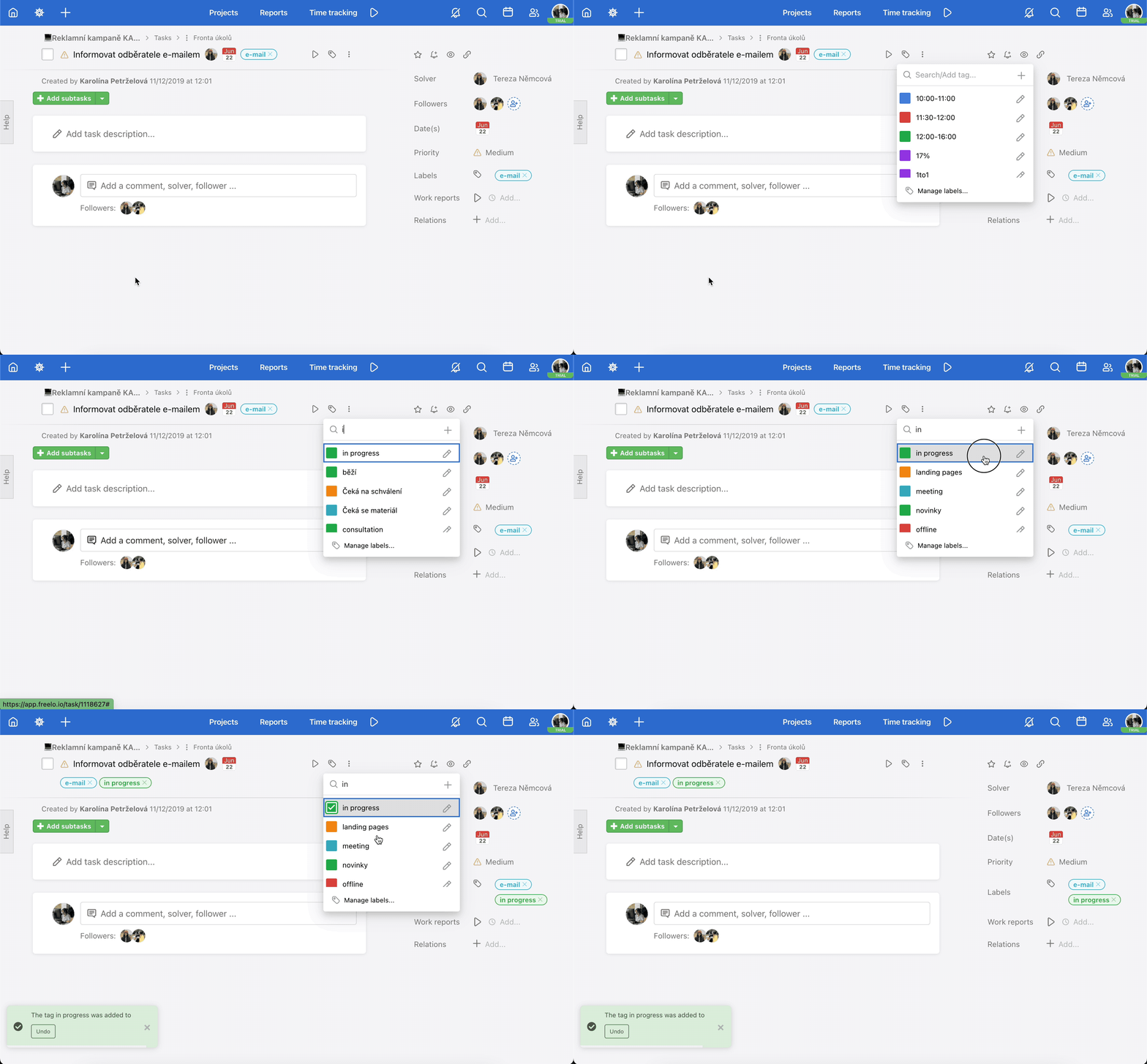
Quickly add a label to a task
Keyboard shortcut: mouse over sub/task + L or anywhere in the sub/task detail + L
Useful when you want to quickly categorise multiple tasks with labels without opening each one individually.
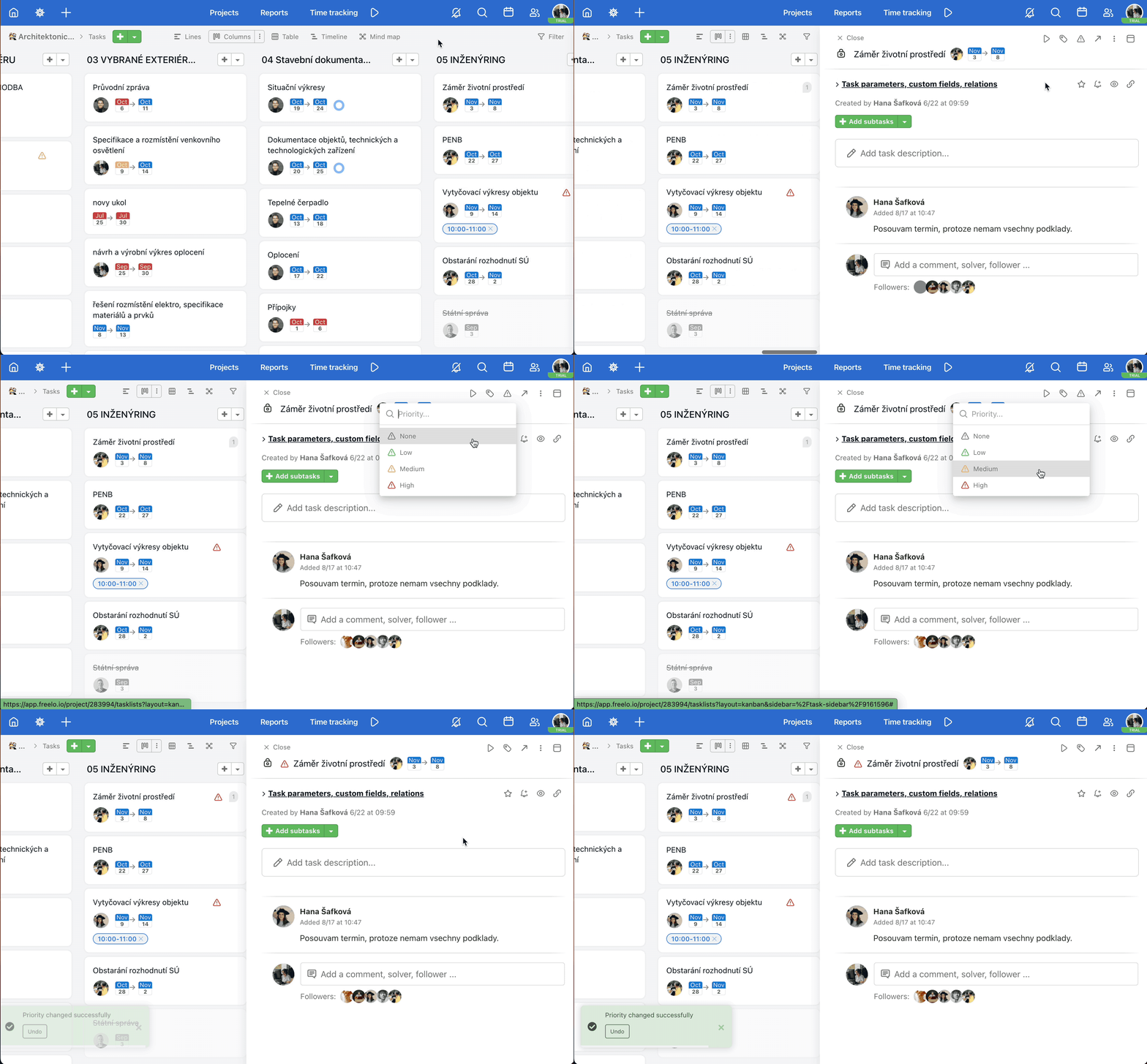
Quickly change the sub/task priority
Keyboard shortcut: mouse over sub/task + P or anywhere in the sub/task detail + P
Useful during your morning Kanban review when you want to set priorities without navigating into each task's detail.
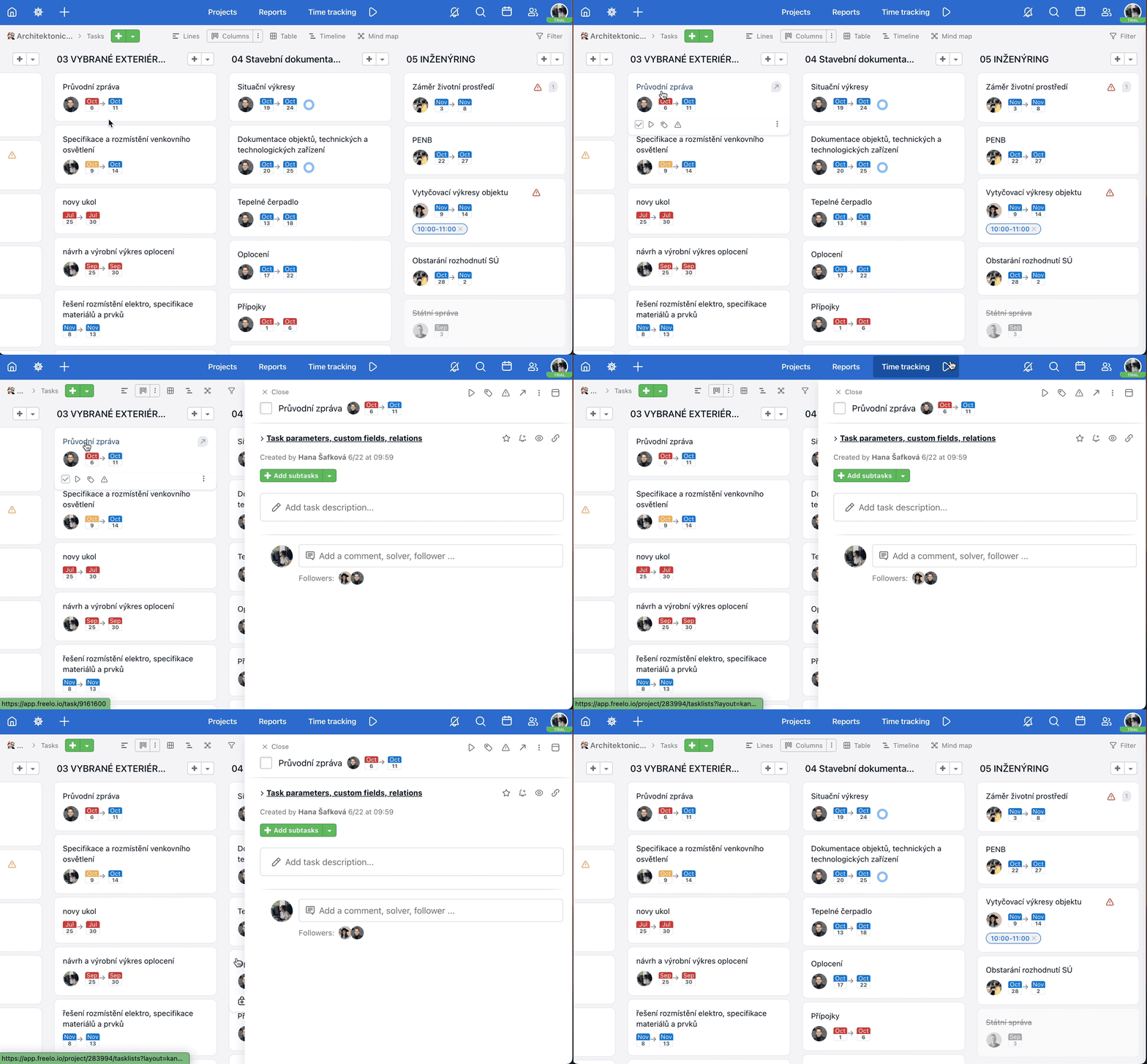
Close the sidebar on Kanban board
Keyboard shortcut: anywhere on Kanban + Esc
Useful when you're browsing tasks in Kanban and want to close the side panel with a single keystroke after reading it, without reaching for the mouse.
Search
Keyboard shortcut: Alt/Option + Shift + F opens the search form and recently visited tasks.
Useful when you need to quickly find a specific task or project instead of browsing the structure.
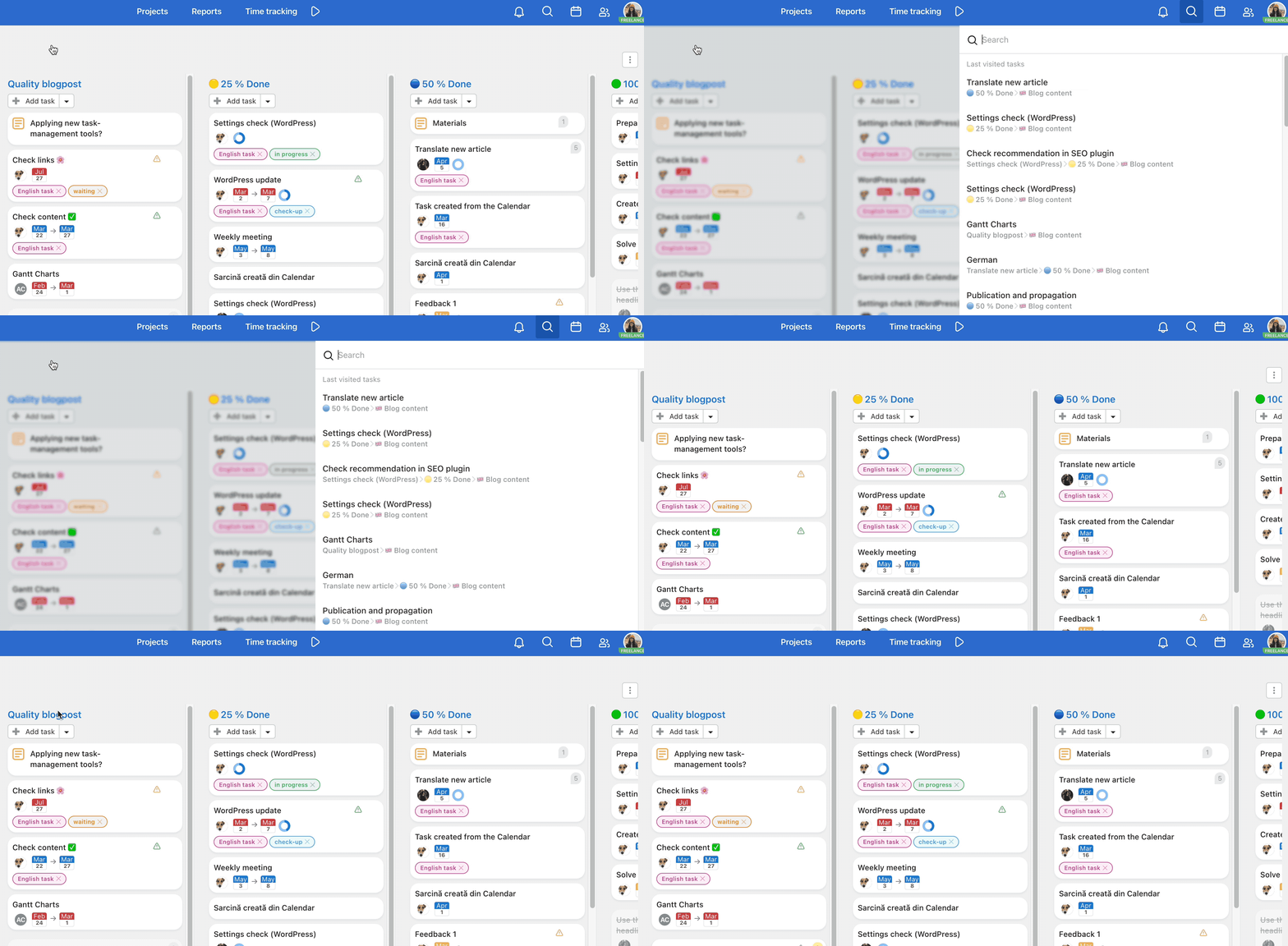
More about search here.
Assign a task or subtask to yourself
Keyboard shortcut: mouse cursor over sub/task + M immediately assigns the sub/task to you. It also removes your assignment if already set.
Useful when you're browsing the backlog and see a task you want to take on – assign it to yourself with a single keystroke without opening the detail.
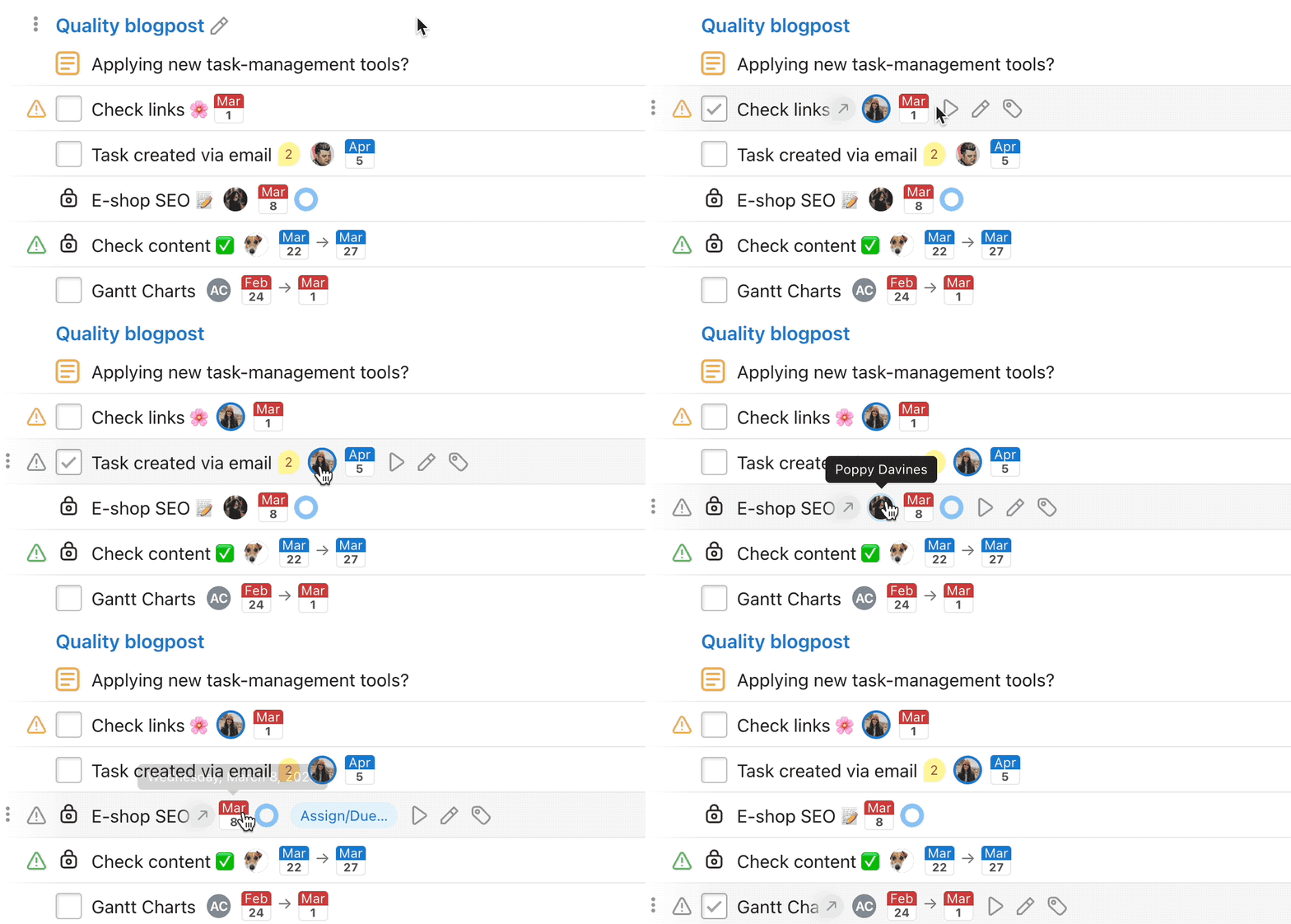
More about assigning tasks to users.
Quick preview of a sub/task and notes
Keyboard shortcut: mouse cursor over sub/task + Q shows a quick preview of a task, subtask or note in a modal window without leaving the current page. You can reply in comments and edit details in the modal.
Useful when you want to quickly check the status of a task from the notification centre or Kanban without switching to a different page.
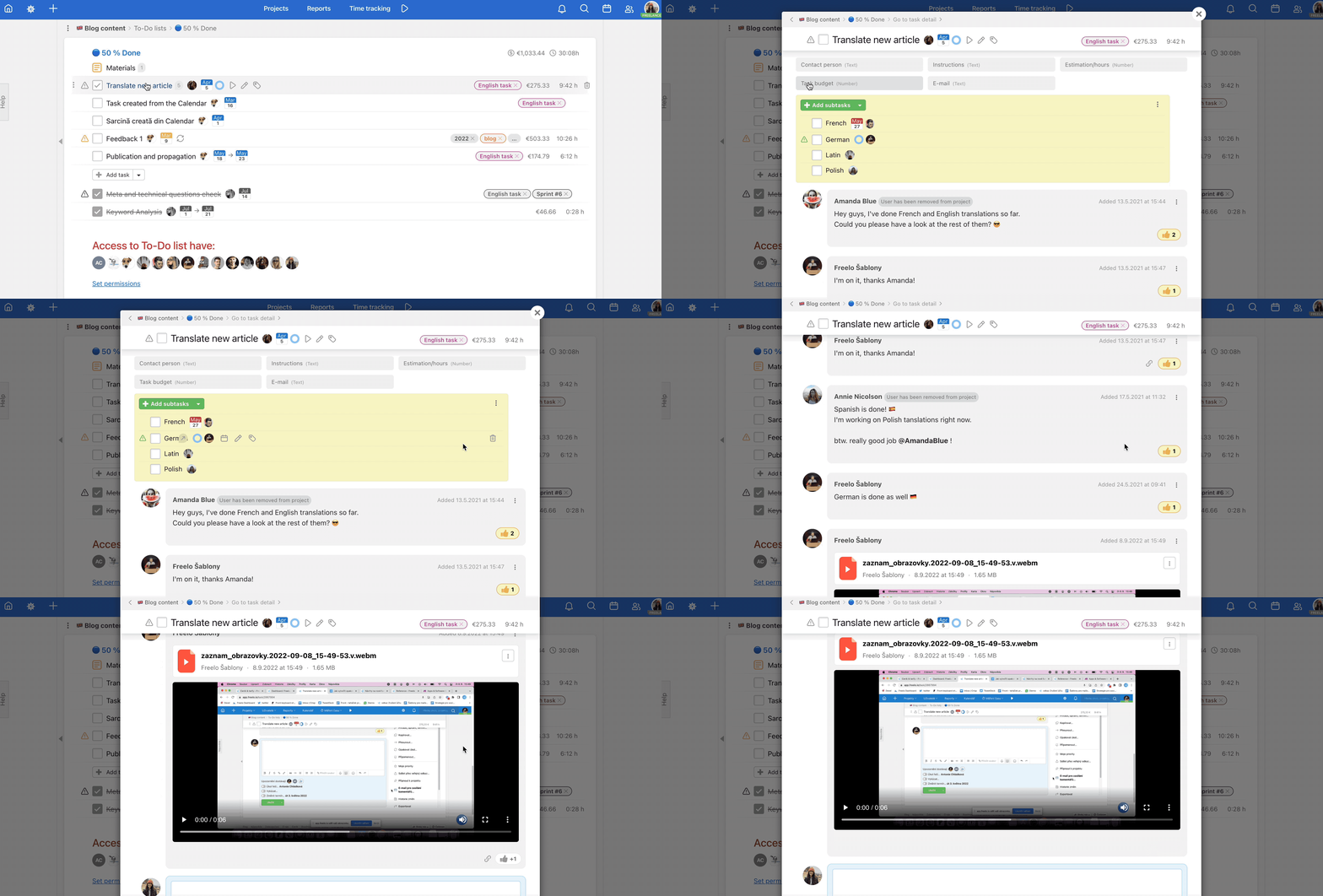
You can also use the Q shortcut to open tasks from the notification centre.
Quick edit of a sub/task
Keyboard shortcut: mouse cursor over sub/task + E opens a modal window for editing the sub/task. You can change the name, assignee or deadline.
Useful when you need to quickly update a task name or reassign it without fully opening the detail.
Quick change of sub/task deadline
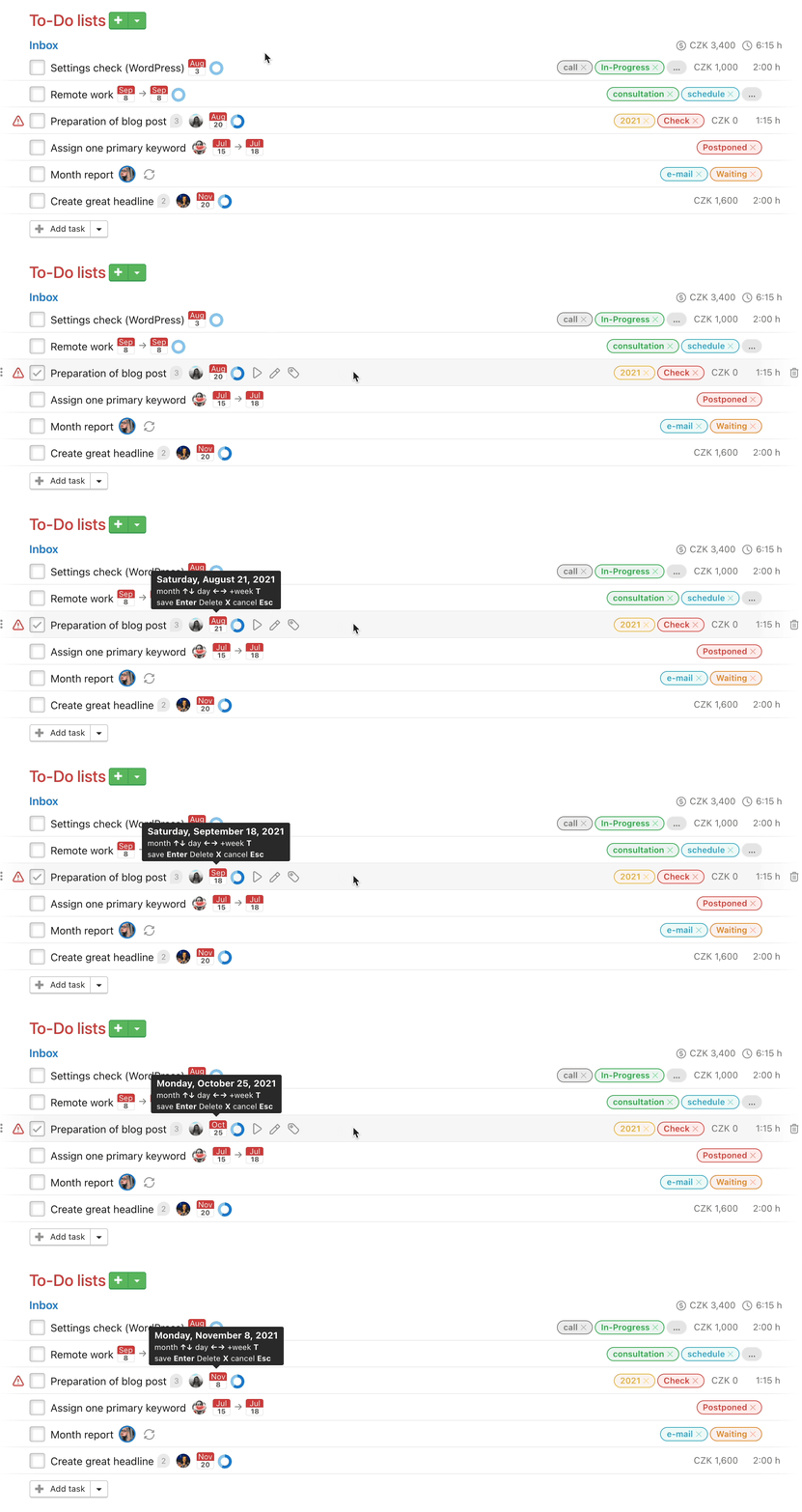
Keyboard shortcut: mouse cursor over sub/task + T opens deadline editing for a task or subtask. For a task without a deadline, it automatically sets tomorrow as the deadline.
Useful when planning your week, allowing you to adjust deadlines on multiple tasks in a row without using the mouse.
- Up and down arrows ↑↓ change the month,
- left and right arrows ←→ change the day,
- the T key postpones the deadline by a week,
- the Enter key saves the deadline,
- the X key removes the deadline,
- and the Esc key cancels changes.
The shortcut also works for subtasks.
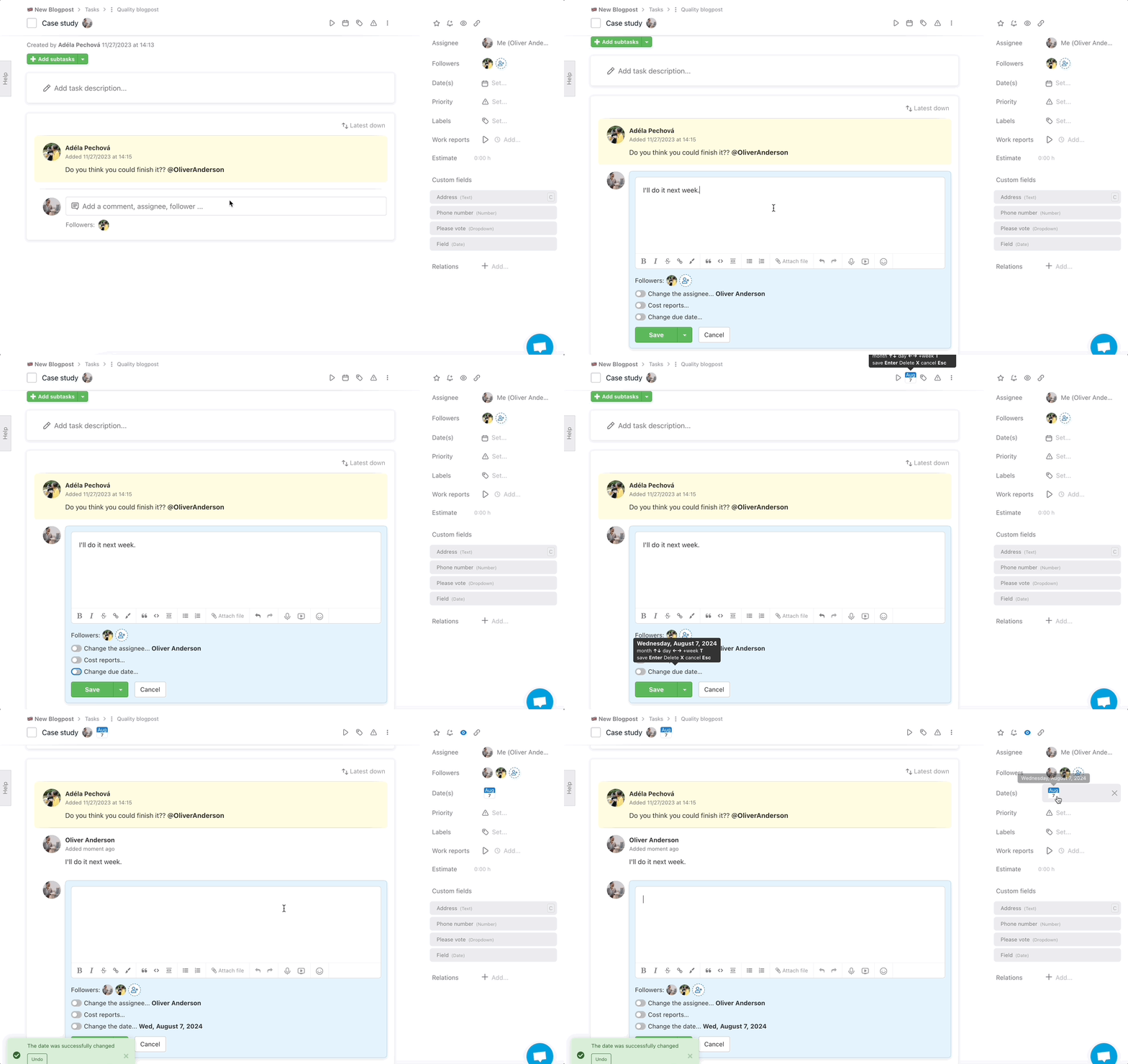
You can also use the T shortcut when writing comments. After finishing your text, press Tab, navigate to the deadline field, press T and save with Enter.
More about task deadlines here.
Quick editing of custom fields
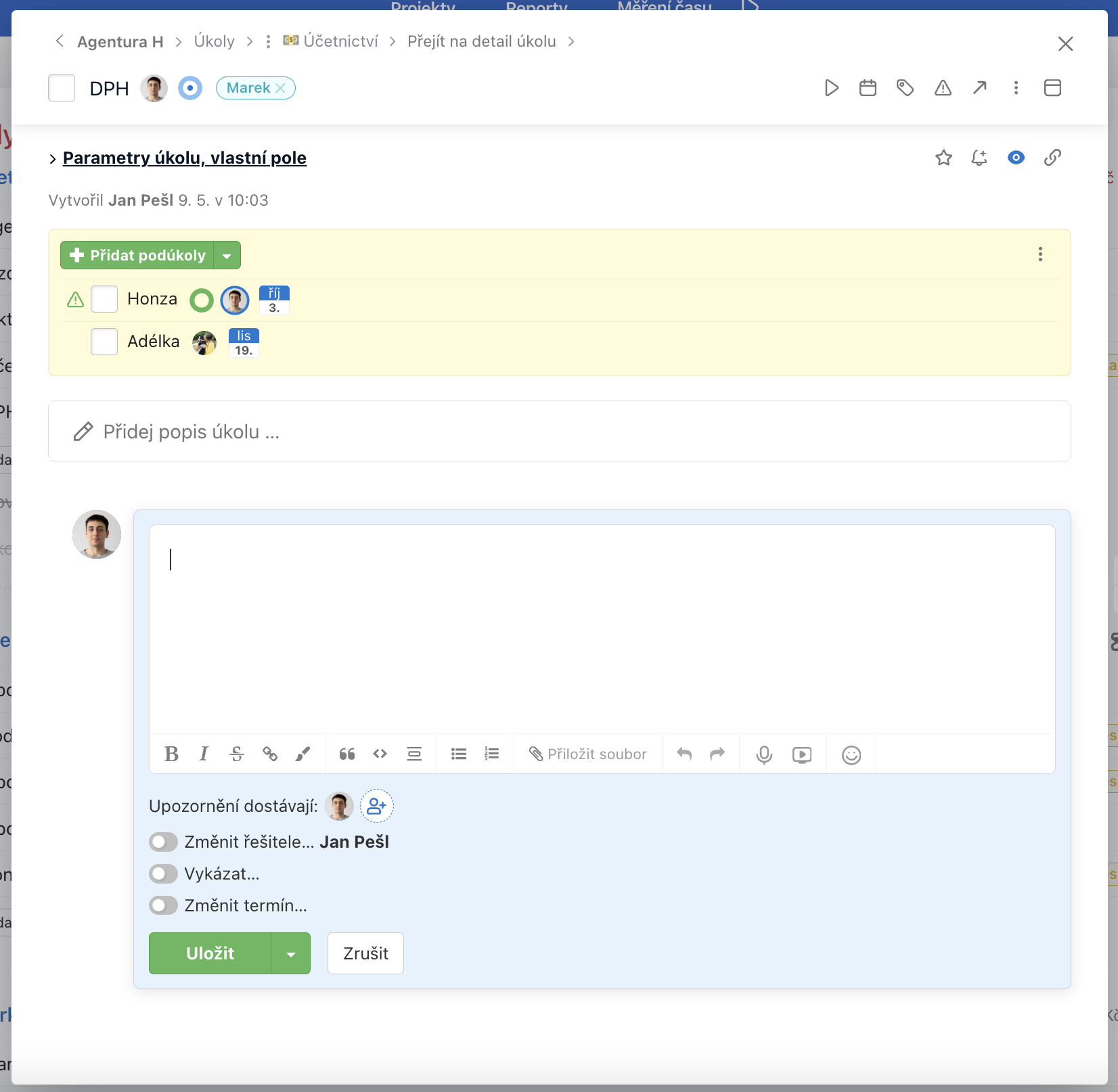
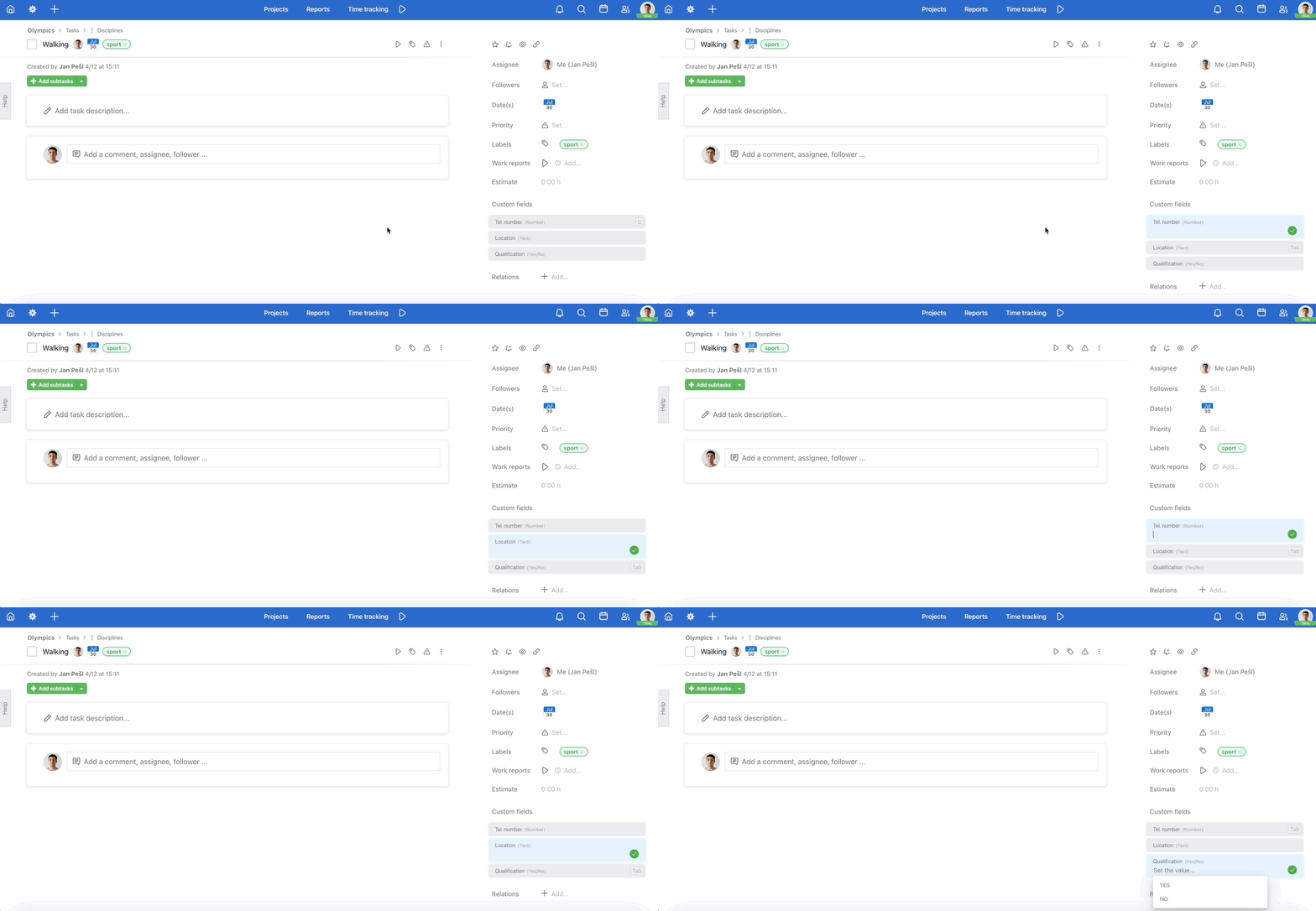
Keyboard shortcut: C selects the custom field window for editing. You can then switch between individual fields using the Tab key.
Useful when filling in data across custom fields on multiple tasks – switch between fields without the mouse and save time.
Quick add menu
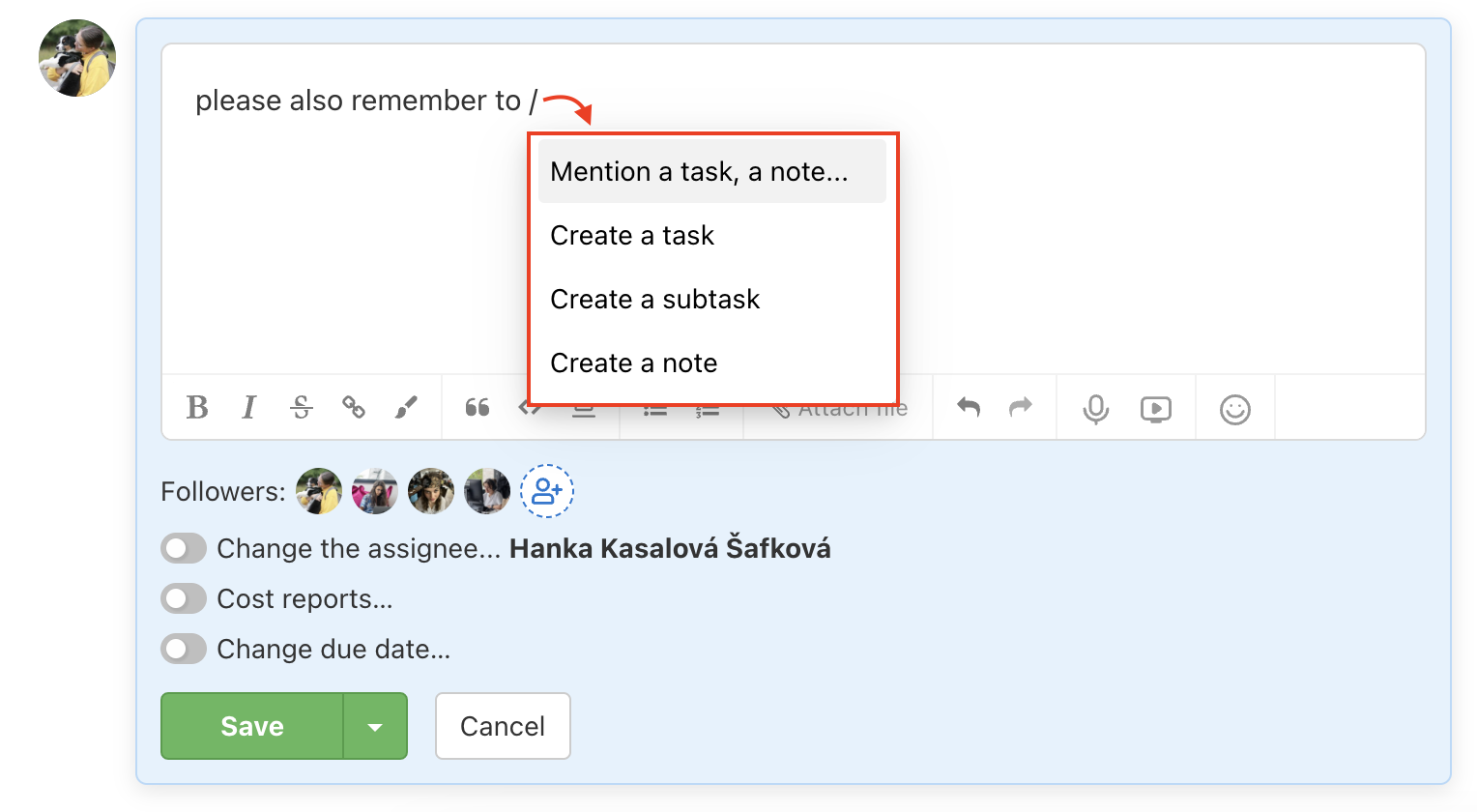
Keyboard shortcut: / in the comment or task description field opens the Quick add menu. You can use it to:
- Quickly create a new task and mention it in the text right away – useful when you're writing up work and other tasks come to mind, you can add them including all attributes (assignee, follower, deadlines, labels etc.)
- Quickly create a new note
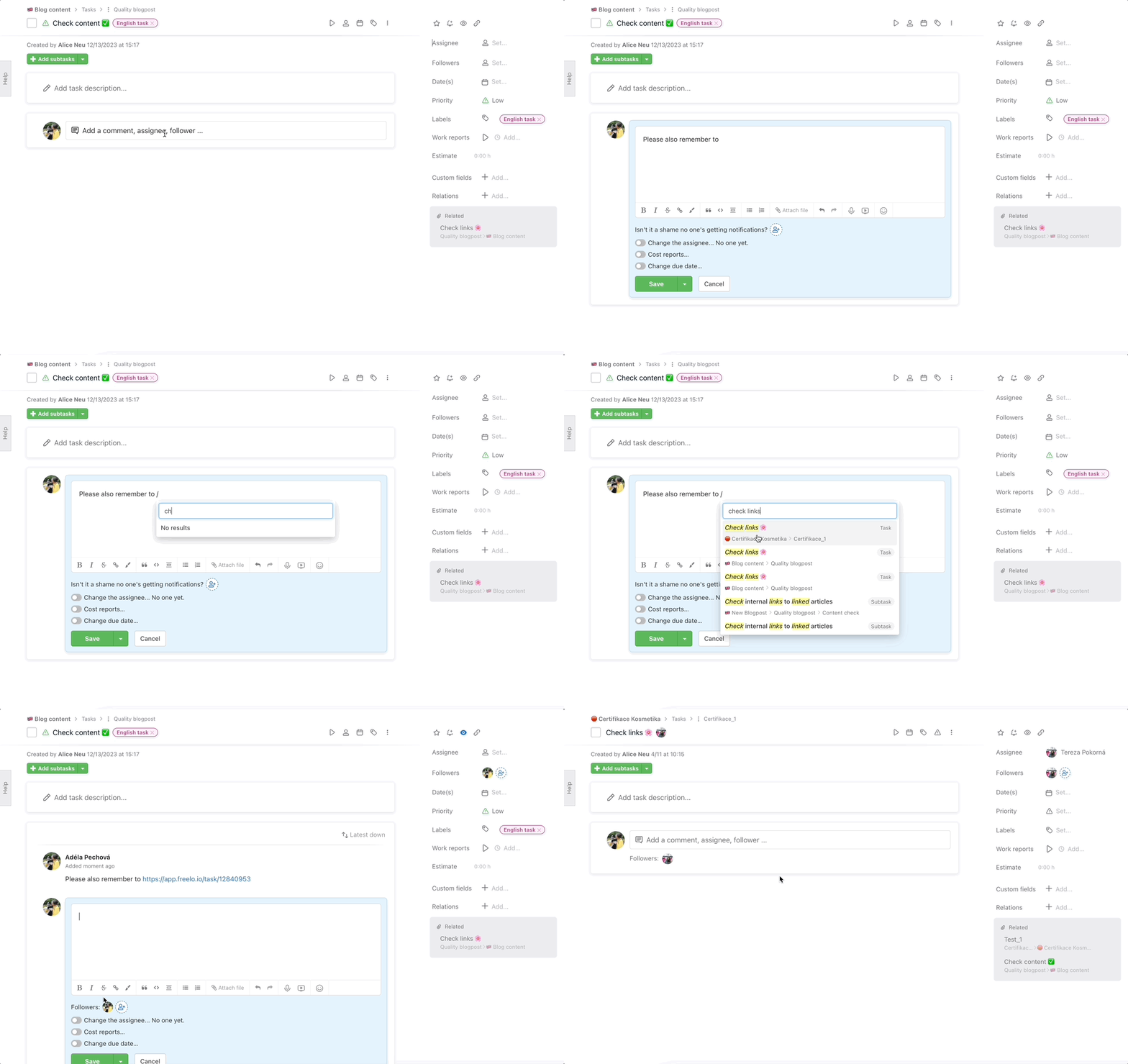
- Quickly mention an existing task, note, project or To-Do list – just start typing the name and select it from the menu
Useful when writing a comment and a follow-up task comes to mind – add it directly in the text as a mention without interrupting your writing.