
Editing a To-Do list lets you quickly update its name, deadline, task assignments, or budget – all in one place. The editing panel also supports bulk operations: set a due date or assignee for all tasks in the list at once. This article covers everything you can adjust in the To-Do list editor.
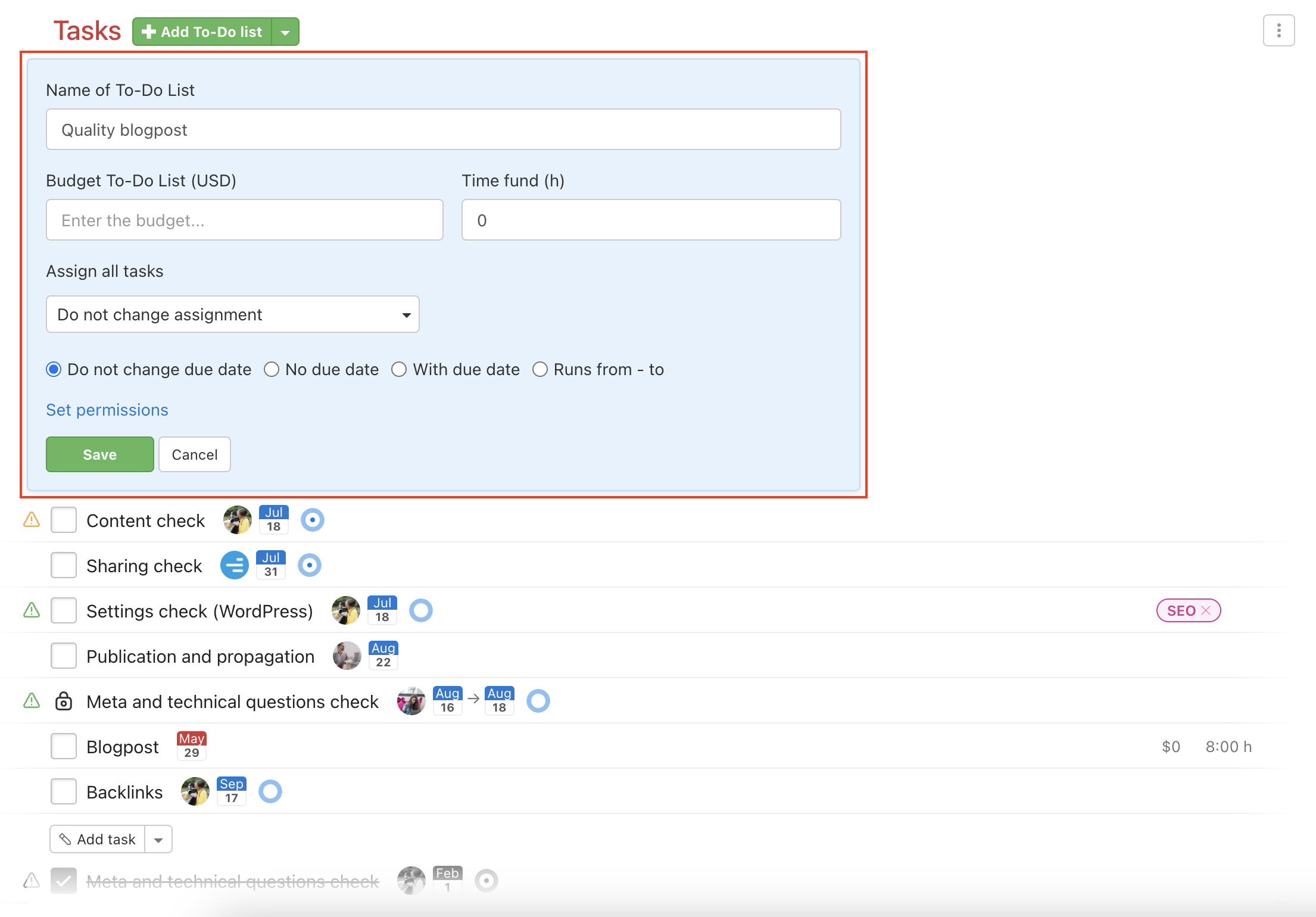
When editing a To-Do list you can:
- Change the name of a To-Do list
- Assign all tasks to one user
- Add the same due date for all the tasks
- Add a budget for To-Do list if you are a Captain or an Admin of the project
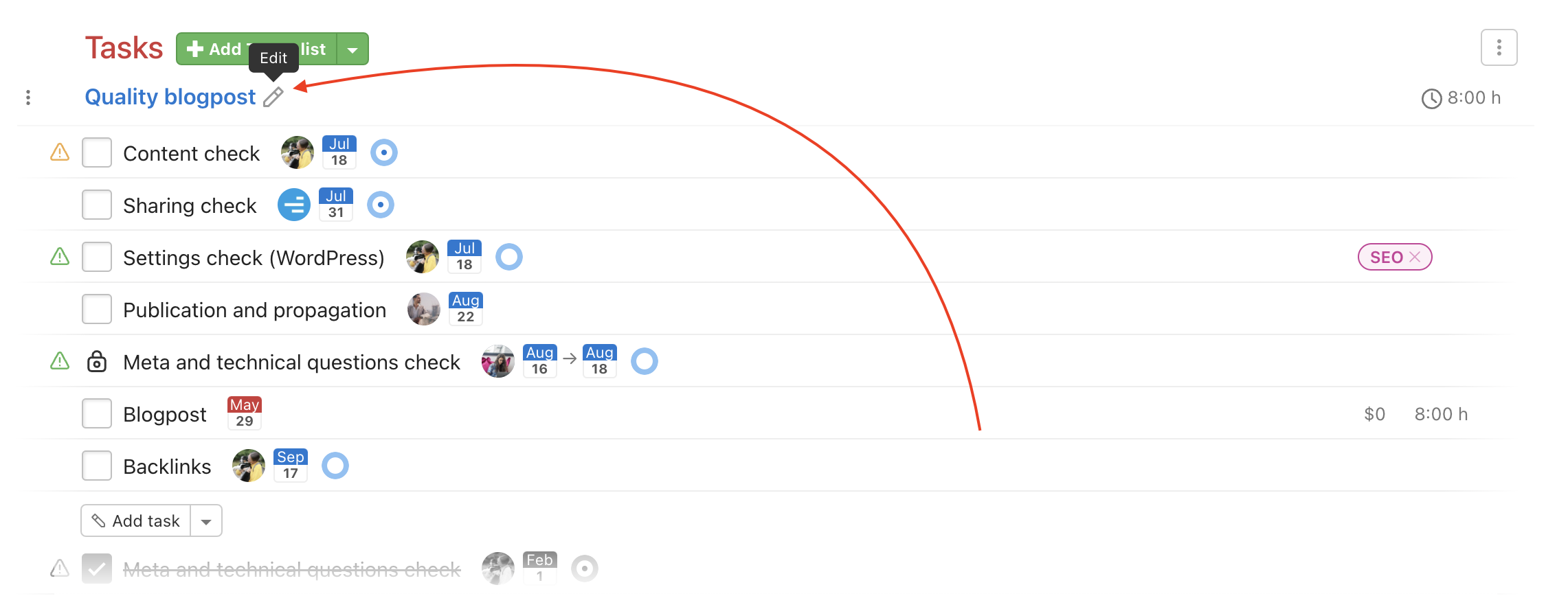
Editing a To-Do list is available via the pencil icon on the right from its name (when you hover over it with the mouse cursor).
After that, you can set a due date for all tasks in this To-Do list or assign a single user to all tasks. The changes to assignee and due date apply only to existing tasks. Confirm by clicking the Save button.
Practical Use
Editing a To-Do list comes in handy in these situations:
- Renaming the list – when the scope of work or sprint focus changes, quickly update the name without creating a new list.
- Bulk reassignment – a new colleague joining or someone taking over? Reassign all tasks in the list to a new user in one step.
- Setting a deadline for the whole list – useful when planning a sprint or milestone where all tasks should be closed by the same date.
- Budget management – Captains and project Admins can set or adjust the To-Do list budget directly in the editor.
Last updated: