
Content
Do you know how much a specific phase of your project actually costs? The budget and time fund on a To-Do list give you a real-time overview – work logs from tasks are automatically deducted and you can see how close you are to the limit. Useful anywhere you need to keep an eye on costs or capacity.
Budgets in To-Do lists help you to be aware of the costs and expenses related to your projects. Cost reports are gradually deducted from the preset budget.
Only the Captain or the Admin of the project can set and change the budget.
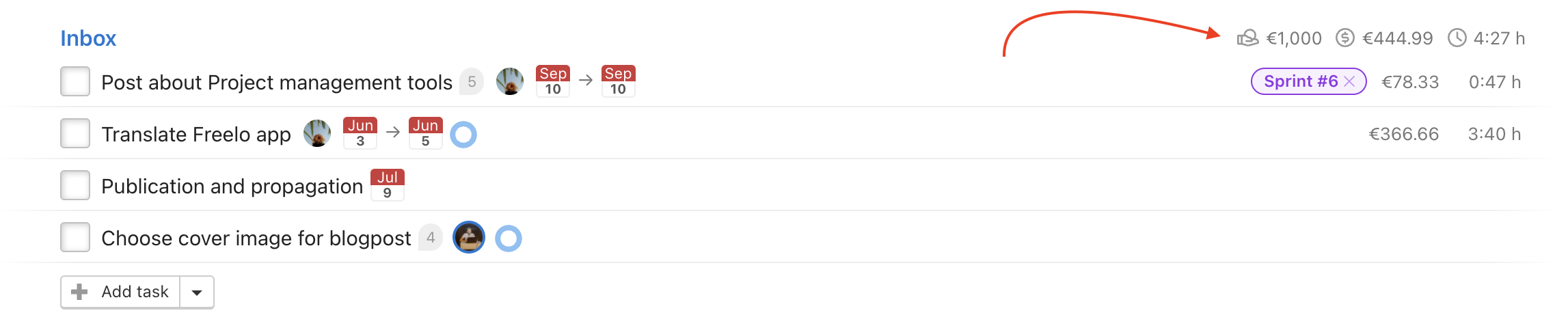
You can create a new budget or edit an already existing one for each To-Do list. Based on task reports, corresponding amount will be deducted from the budget.
What is a budget of a To-Do list
A budget in a To-Do list makes it easier for you to have an overview of money and time resources for the project and the particular To-Do list.
How to set a budget for a To-Do list
There are two ways how to set a budget for a To-Do list - when creating a new To-Do list and when editing an already existing one.
When creating a new To-Do list
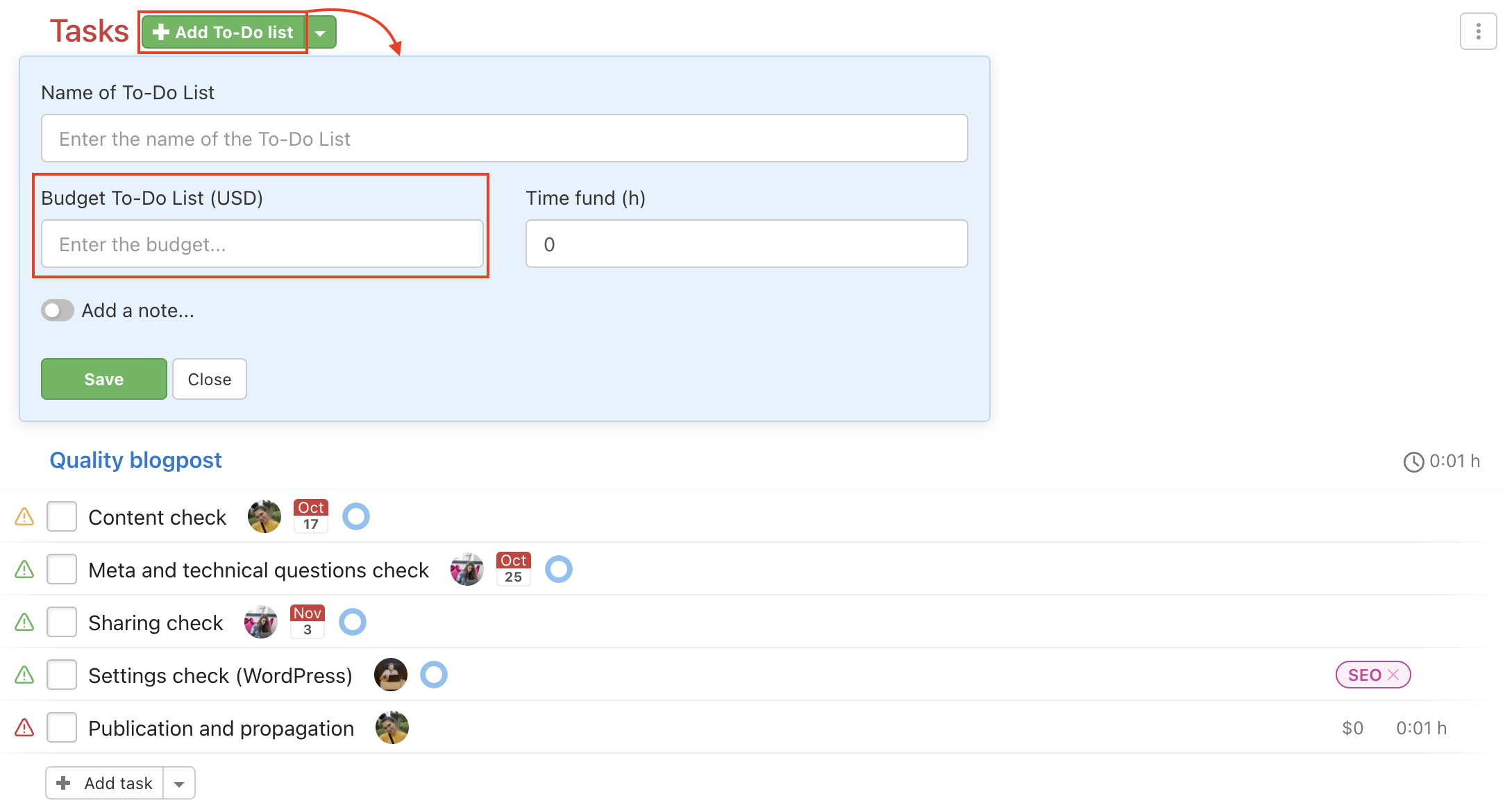
You can create a new To-Do list in a particular project via the green Add To-Do list button in the section Tasks. Go to the project detail, find the section Tasks and add a new To-Do list. Enter its name and set the Budget. Confirm by clicking Save.
When editing an already existing To-Do list
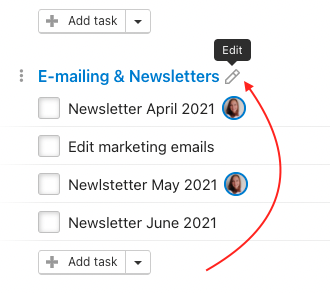
In an already existing To-Do list, you can set a new budget or edit it. Click the pencil icon right from the To-Do list name.
In the following form, you can set or edit the budget. Confirm your changes by clicking Save.
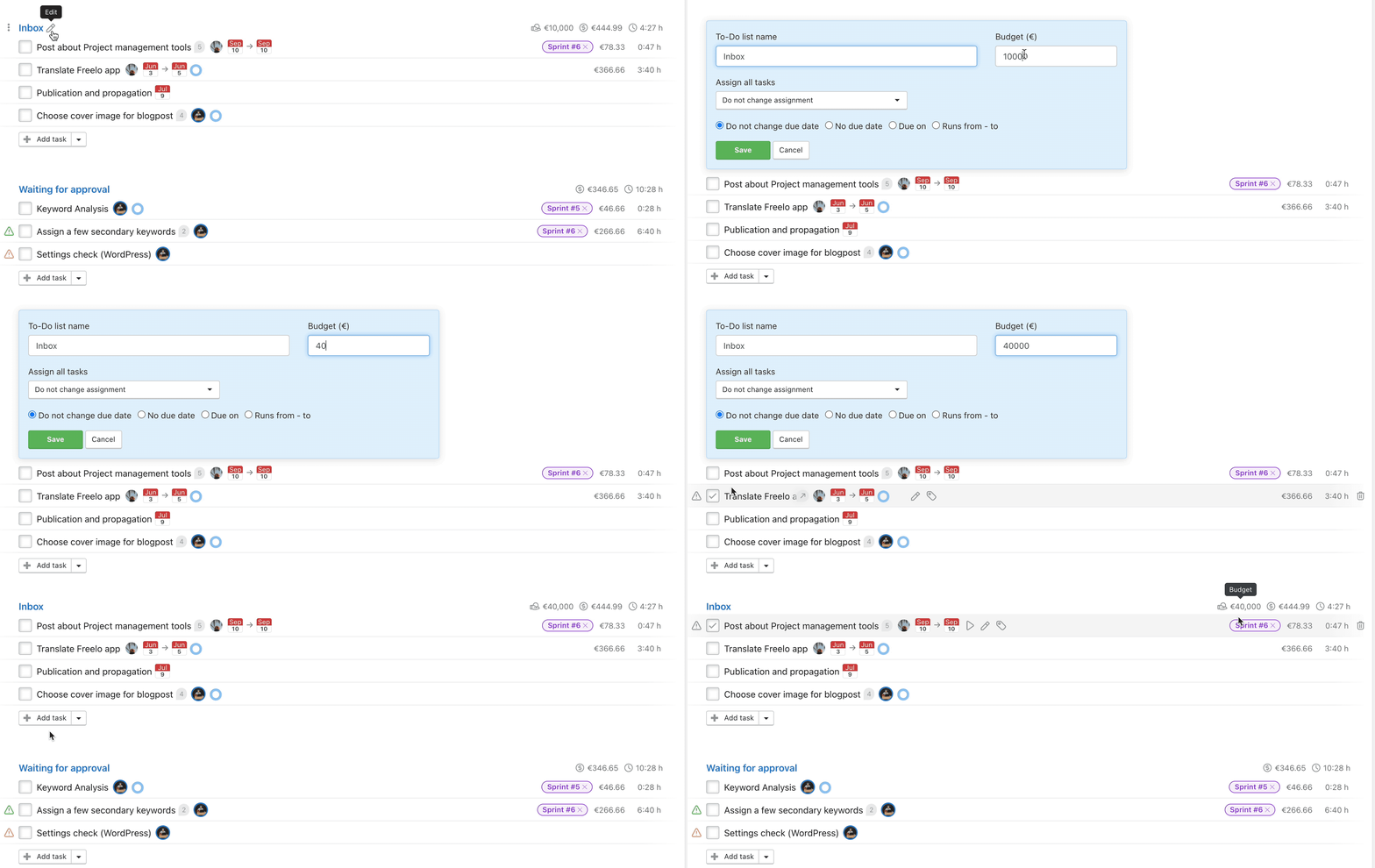
You can remove a budget of a To-Do list exactly the same way.
How to set a time budget for a To-Do list
You can set the Time budget only if you are the Captain or a Project Manager. Similarly to the To-Do list budget, you can change it during creating or editing it.
When editing an already existing To-Do list
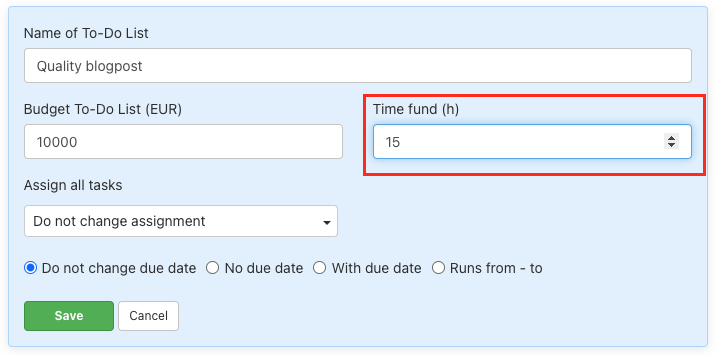
Hover over the To-Do list name and click the pencil icon that appears. This will open a modal window with all the To-Do list settings, including the time budget. In the Time fund field, you can change the value from zero to any number you want to set for the list. Save your changes by clicking the green Save button.
Where to find remaining budget and time fund
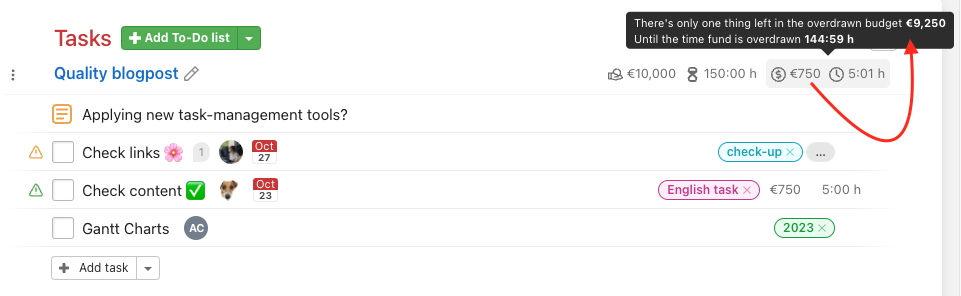
When you hover over the clock or finance icon, a text box will appear. In there, you will see how much budget and time fund you have left for the particular To-Do list.
Practical use
- Tracking campaign costs – set a budget on the To-Do list and see at a glance how much remains, without opening any spreadsheets
- Managing team capacity – the time fund shows how many hours are allocated and how much is left before the limit is reached
- Basis for client invoicing – work logs from tasks in the To-Do list accurately map completed work and serve as the foundation for a client invoice
- Monitoring individual project phases – each phase has its own To-Do list with a budget, so you can see where you're over-spending and where there's still room