
A To-Do list is the foundation of every project in Freelo – this is where all tasks live, organised into meaningful categories. Whether you're creating a single list manually, importing an entire structure in bulk, or using a template, here are the three fastest ways to add a To-Do list.
A To-Do list is one of the core elements in Freelo. It contains tasks that are related to the same activity or project, or belong to one client.
Add a new To-Do list
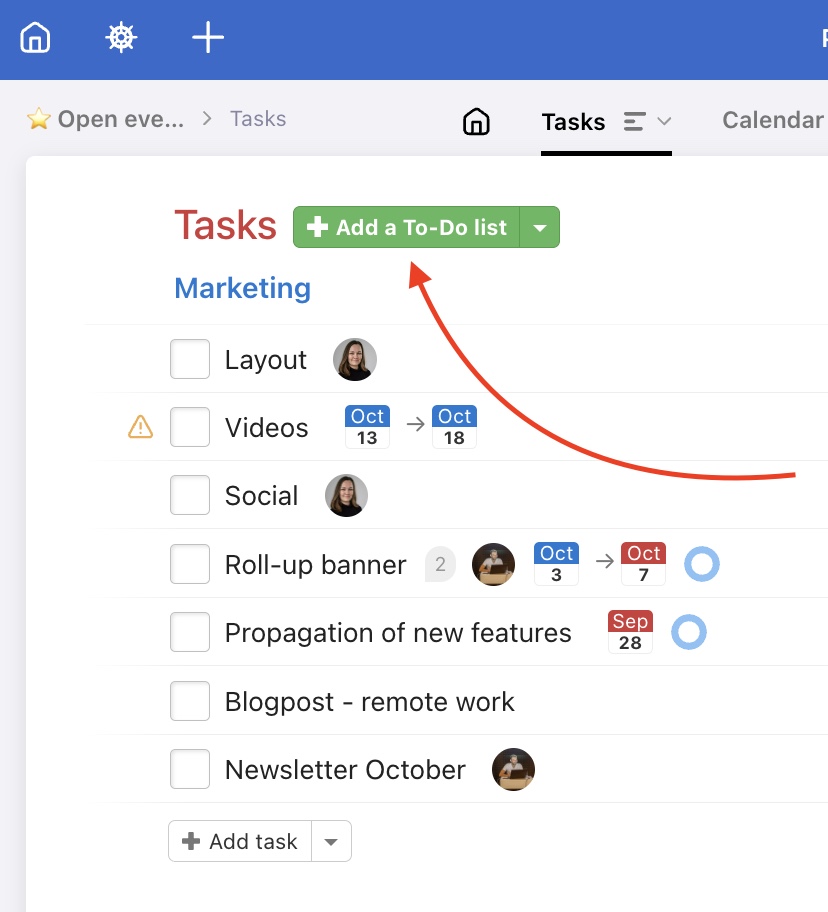
Go to the Tasks page in a project and click on the green Add a To-Do list button.
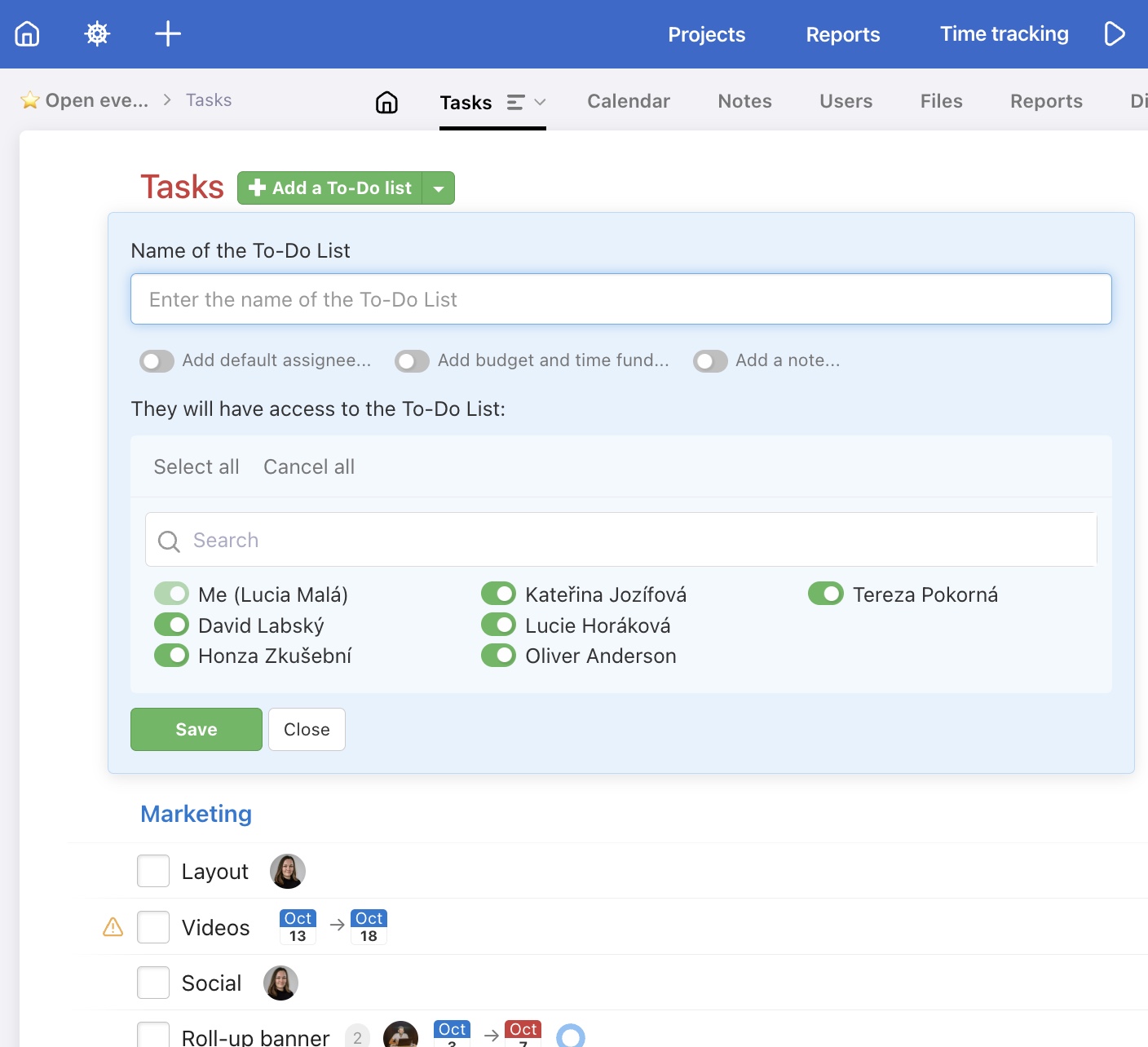
Then, a modal window will appear where you can choose a name for your new To-Do list. You can also set its budget, default assignee, users who will have access to this To-Do list, a time fund, and pin a note to it.
Add multiple To-Do lists or sub/tasks
Do you know that your To-Do list will include certain sub/tasks? You can enter all of these directly when creating a To-Do list.
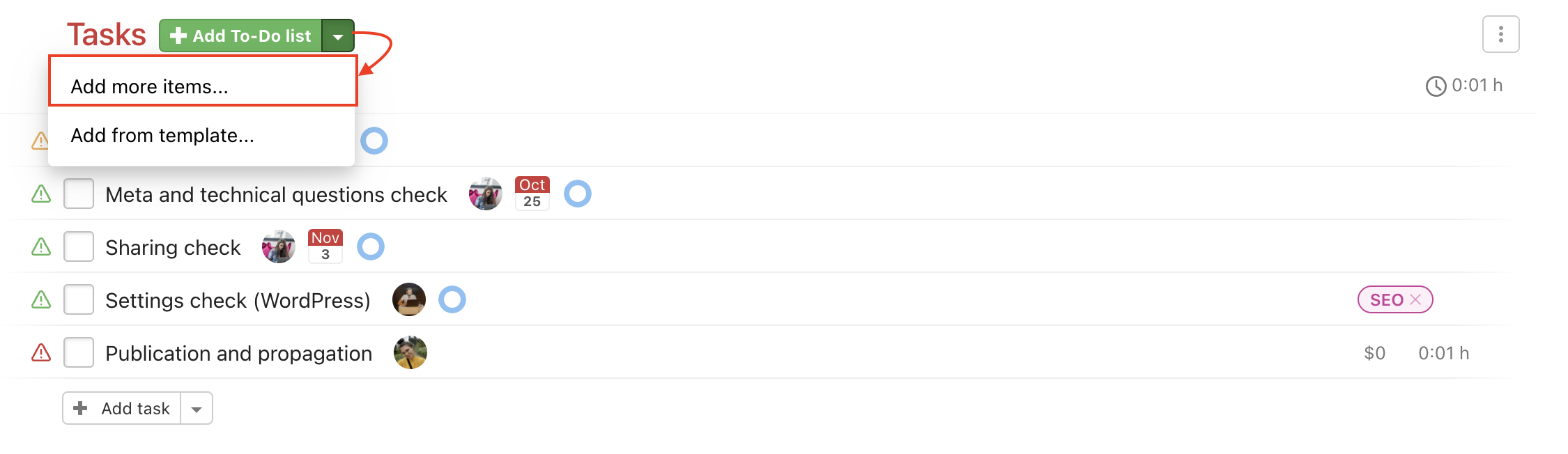
Click the arrow next to the green button Add To-Do list and select Add more items…
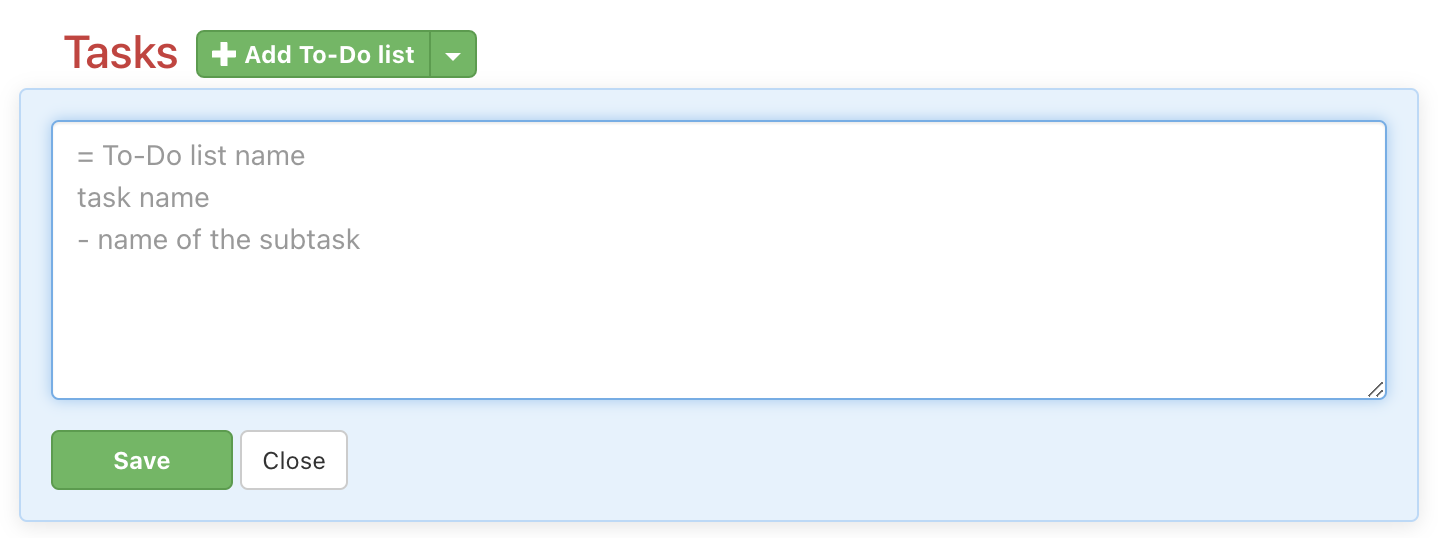
Then you need to keep the text structure so the items are created correctly. Take a look at how to create multiple items from text templates. You can keep text templates in Google docs and share them with your team.
= Name of a To-Do list
Name of a task
- Name of a subtask
Confirm via Save button.
Add To-Do lists from a template
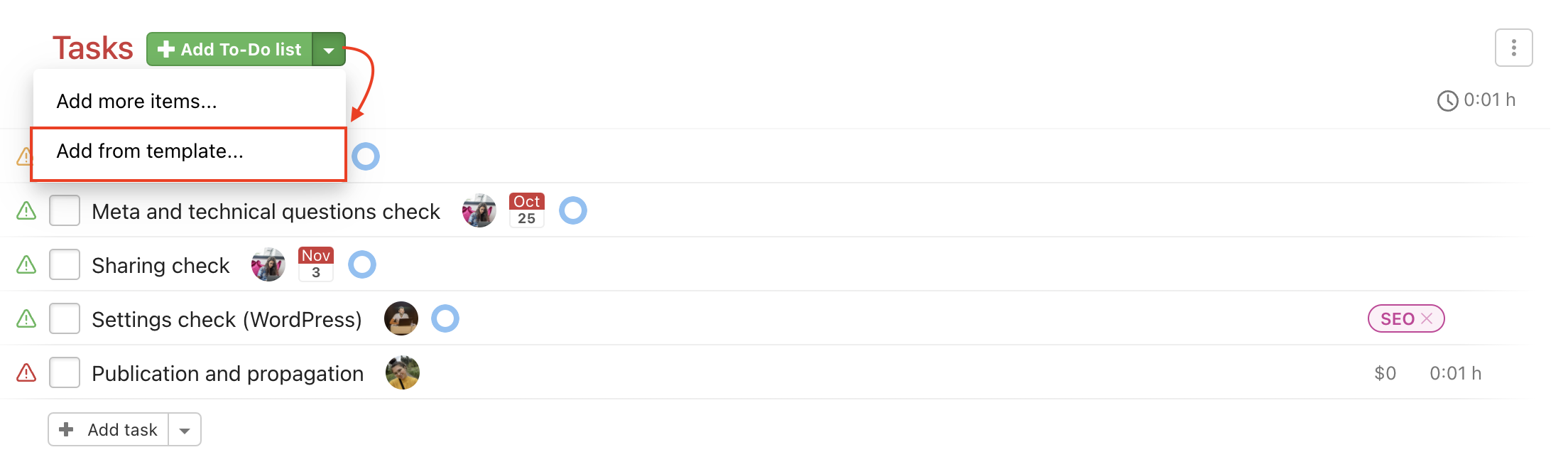
In case you have some project templates, you can add just a part of them such as one To-Do list. Click the arrow button next to the title To-Do lists and choose Add from template…
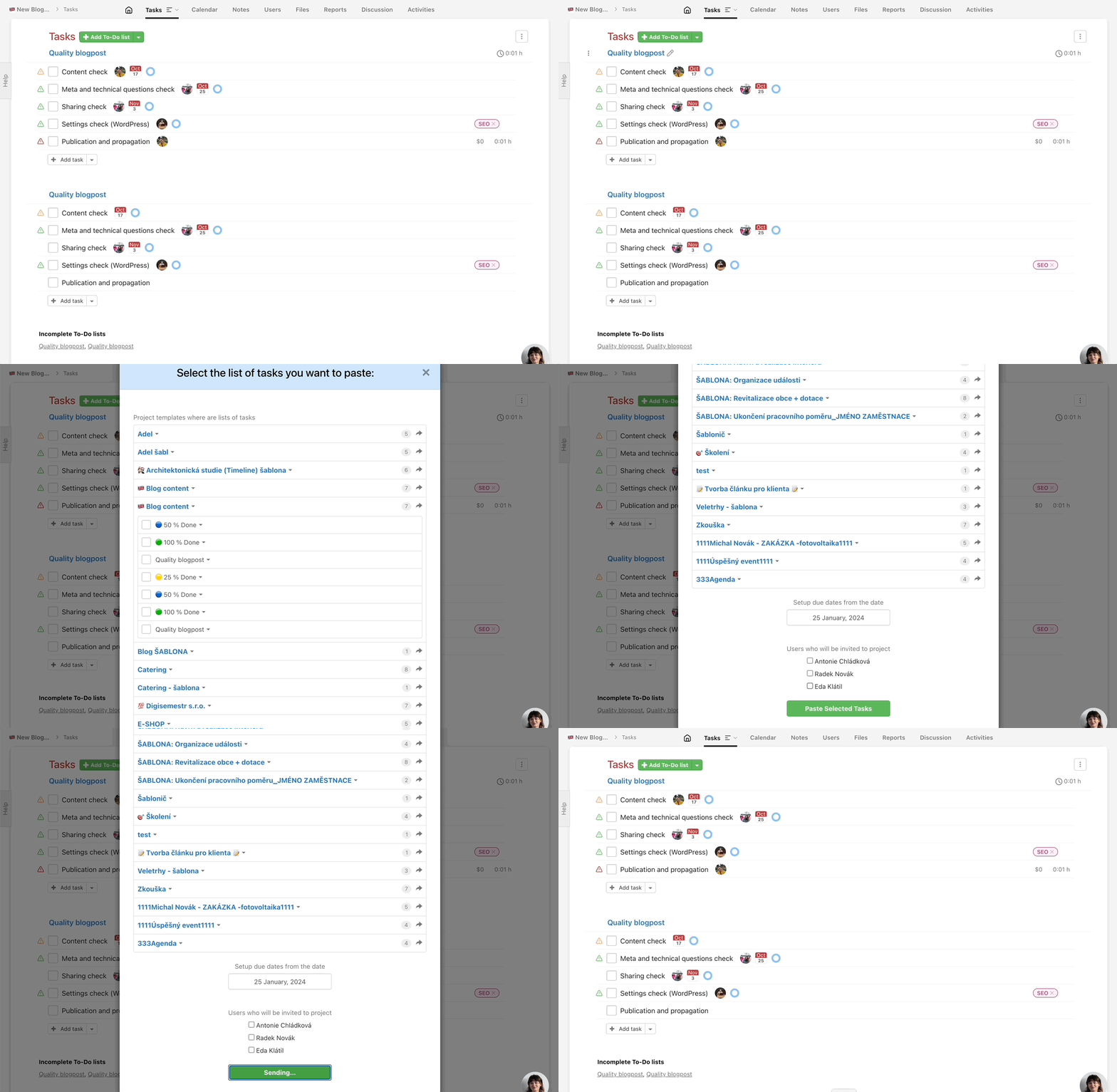
Then choose a To-Do list with tasks that you want to add and confirm via Paste Selected Tasks.
Edit a To-Do list
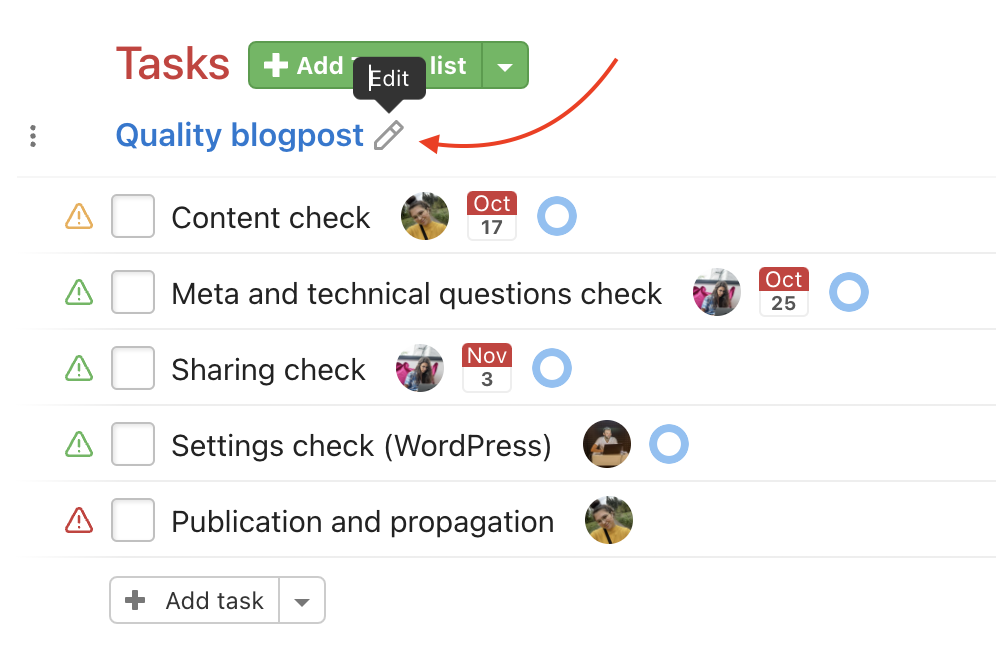
When editing a To-Do list you can set a default assigned user and due date for all the tasks in bulk. Edit a To-Do list via a pencil icon on the right from To-Do list name.
Set an assignee or due date in bulk
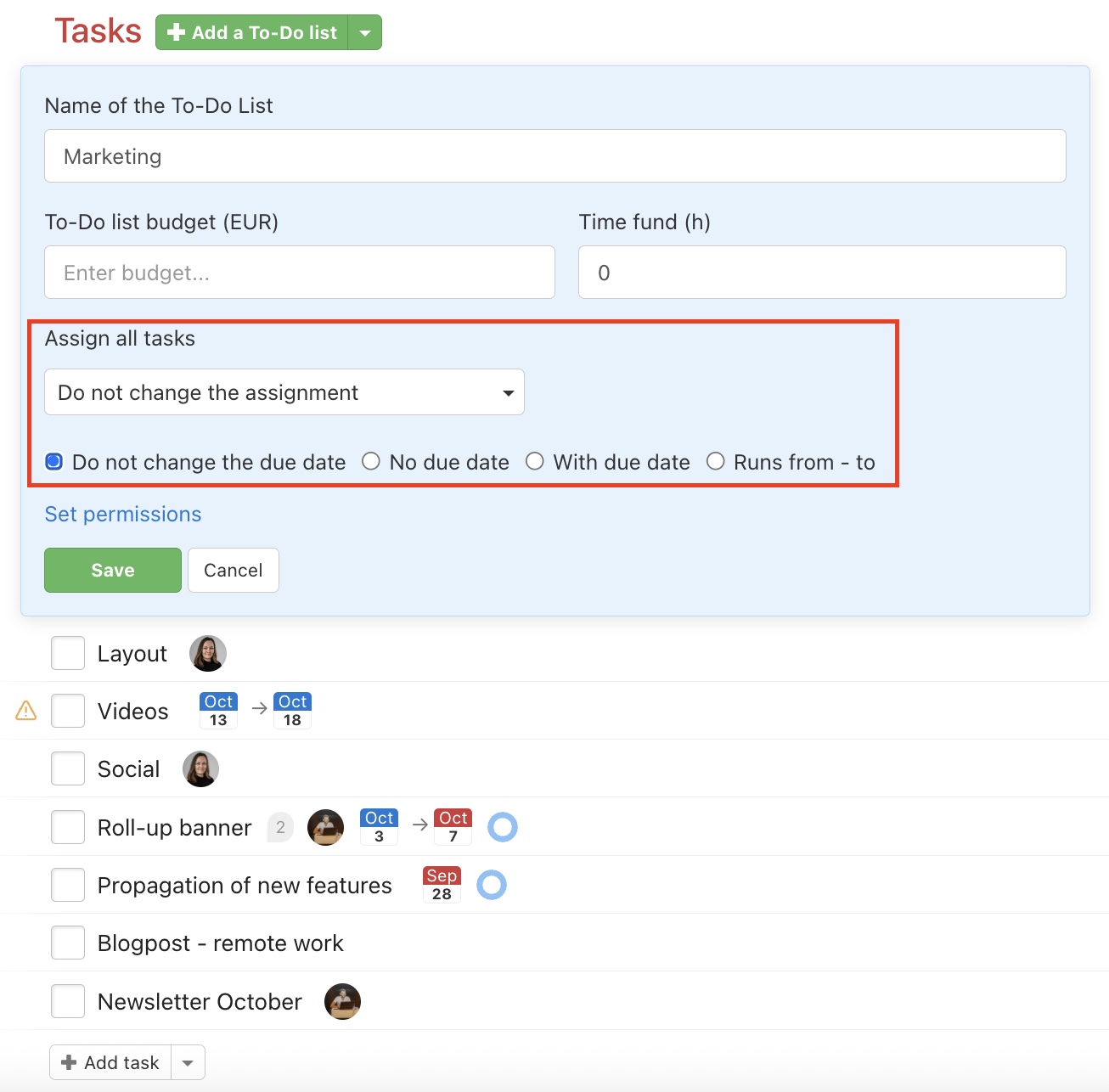
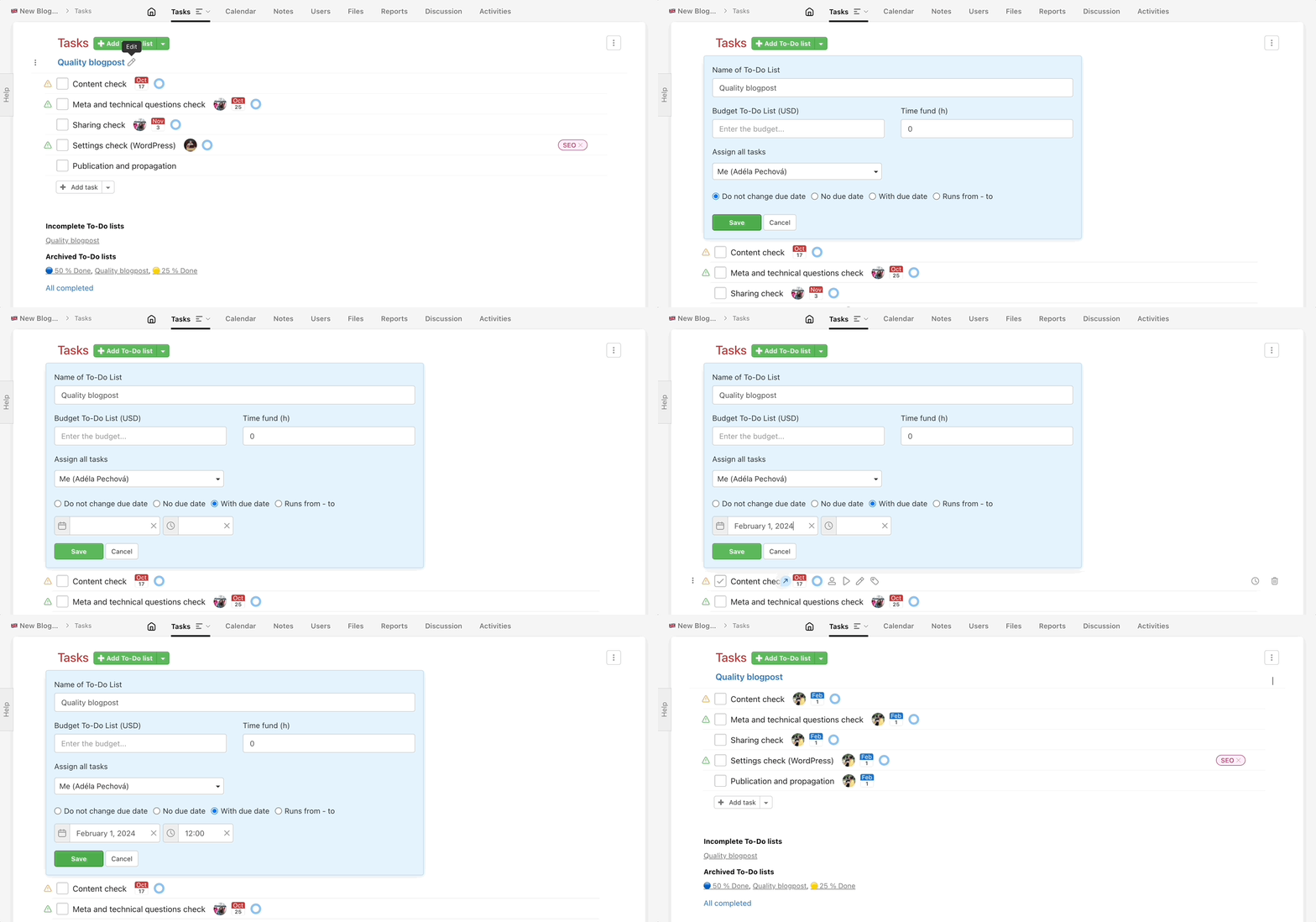
When editing a To-Do list you can select one user and assign all the sub/tasks to him/her in the section Assign all tasks. You can also set the same due date for all the tasks at once in the section below. Confirm via Save.
Practical use
- Starting a new project from scratch – create a single To-Do list via the green button and name it by phase or area of work
- Preparing a project structure in advance – use bulk adding to set up all To-Do lists, tasks and subtasks at once without repeated clicking
- Recurring project type – load the full To-Do list structure including tasks from a template and the project is ready in moments
- Sharing a template with your team – save the text template to a Google document or Freelo Files so the team always has access to the latest version