
Switching from Asana to Freelo? The import takes just two steps — generate a token in Asana and paste it into Freelo. You'll transfer your projects along with tasks, solvers, and invited users all at once. Projects are imported along with tasks, solvers, and invited users. Comments, attachments, and custom fields are not transferred.
1. Generate a token in Asana
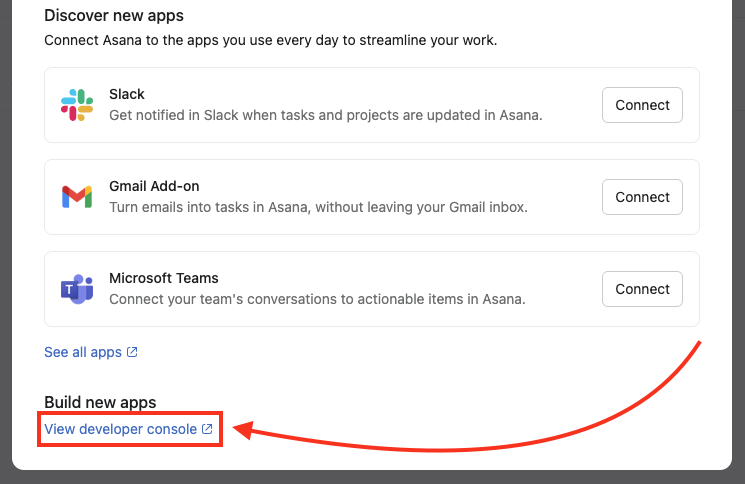
In Asana, go to Settings via your avatar in the top right corner > Apps and click on View developer console.
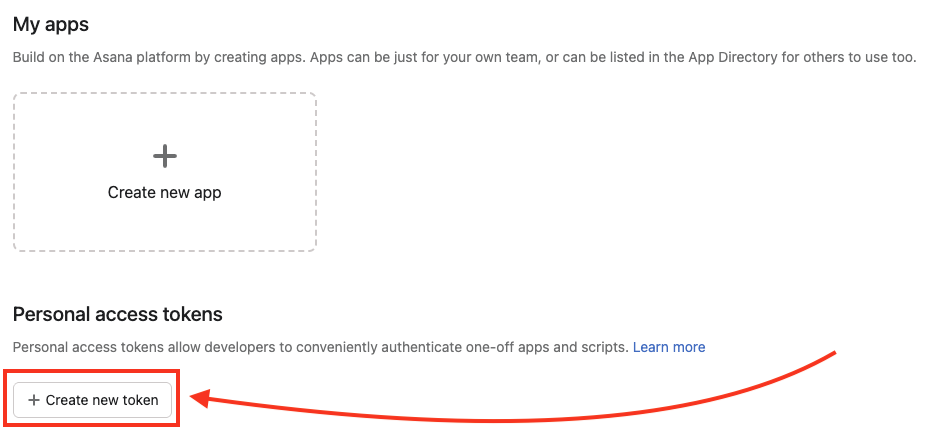
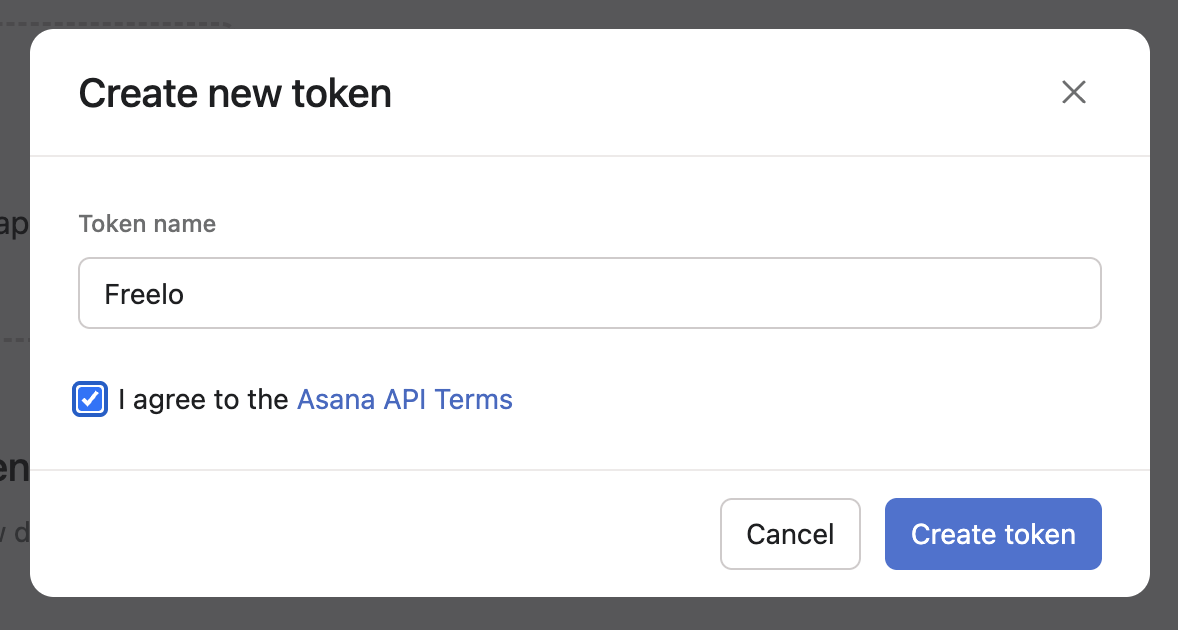
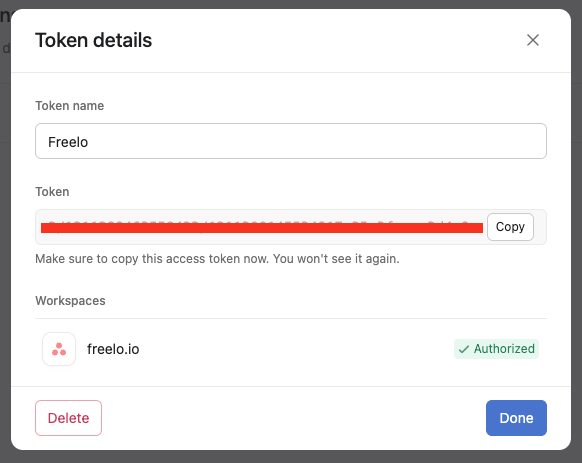
On the next page, scroll down to the Personal access tokens section and create a new token using the Create new token button. See the detailed steps below.
2. Import to Freelo
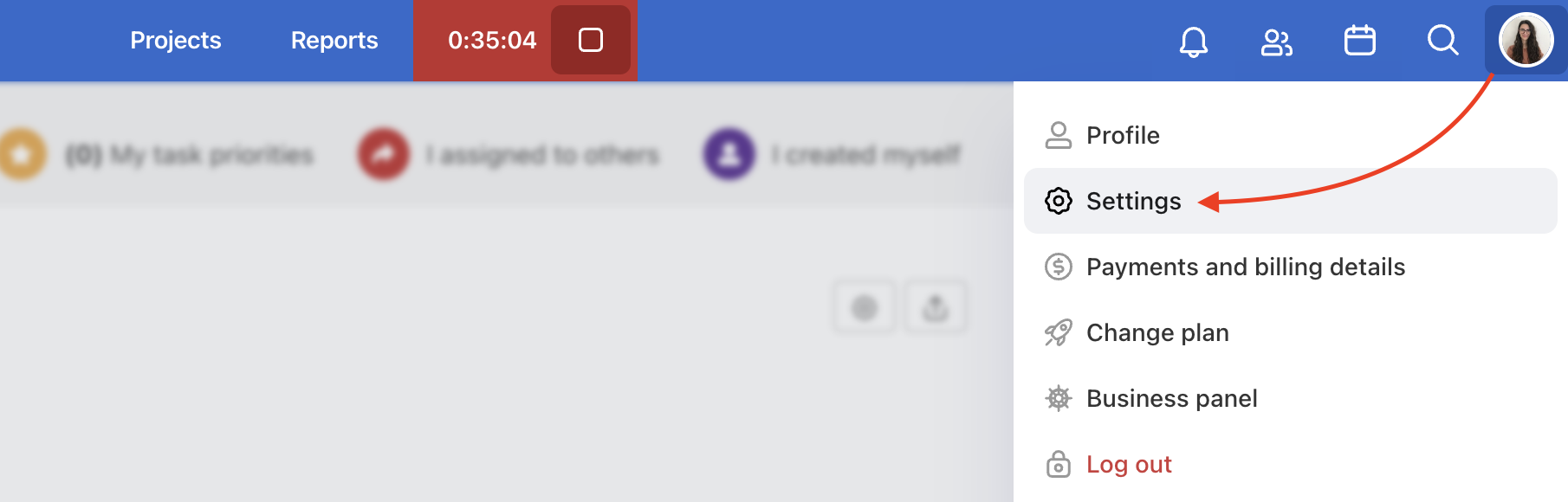
With the copied token from Asana, go to Freelo. Via your avatar in the top right corner, go to Settings > Import & Export > Asana.
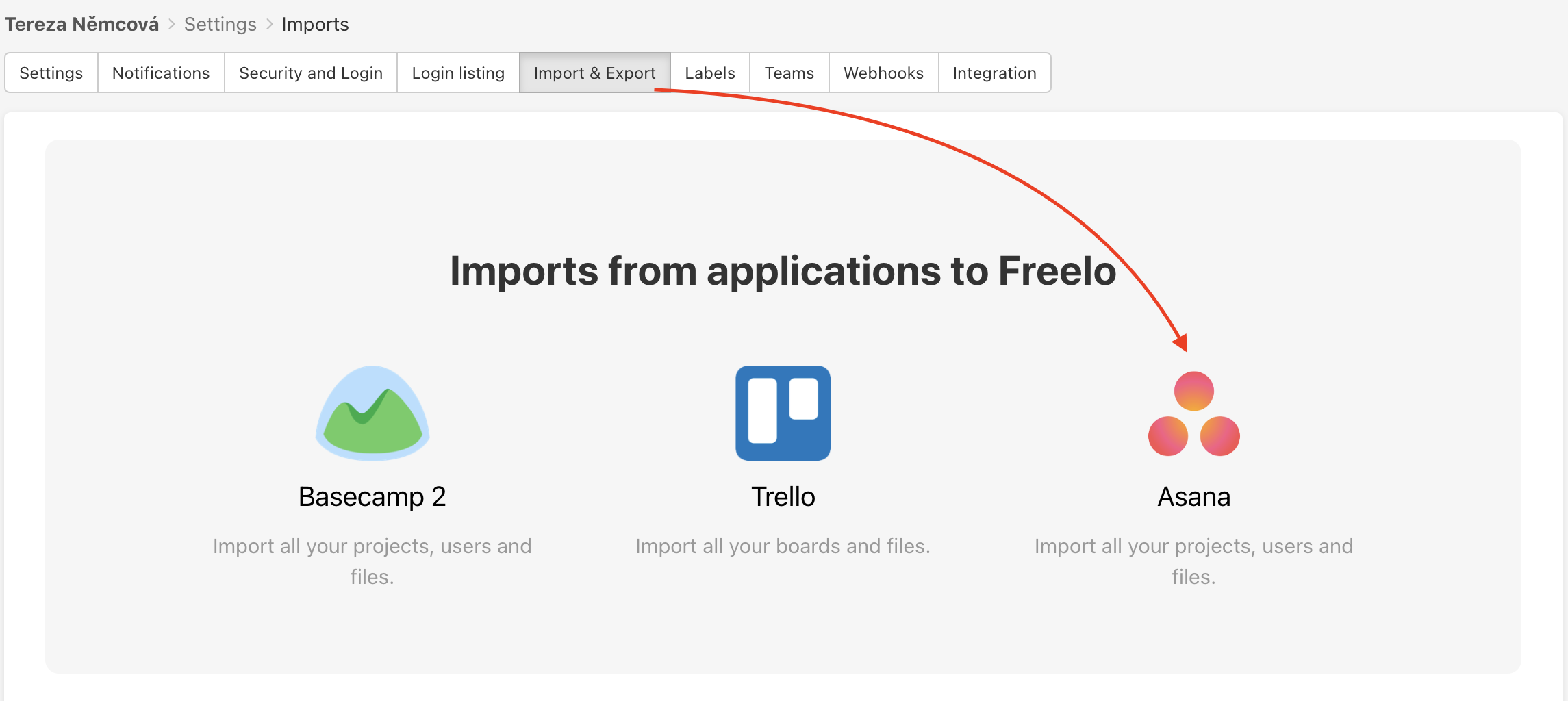
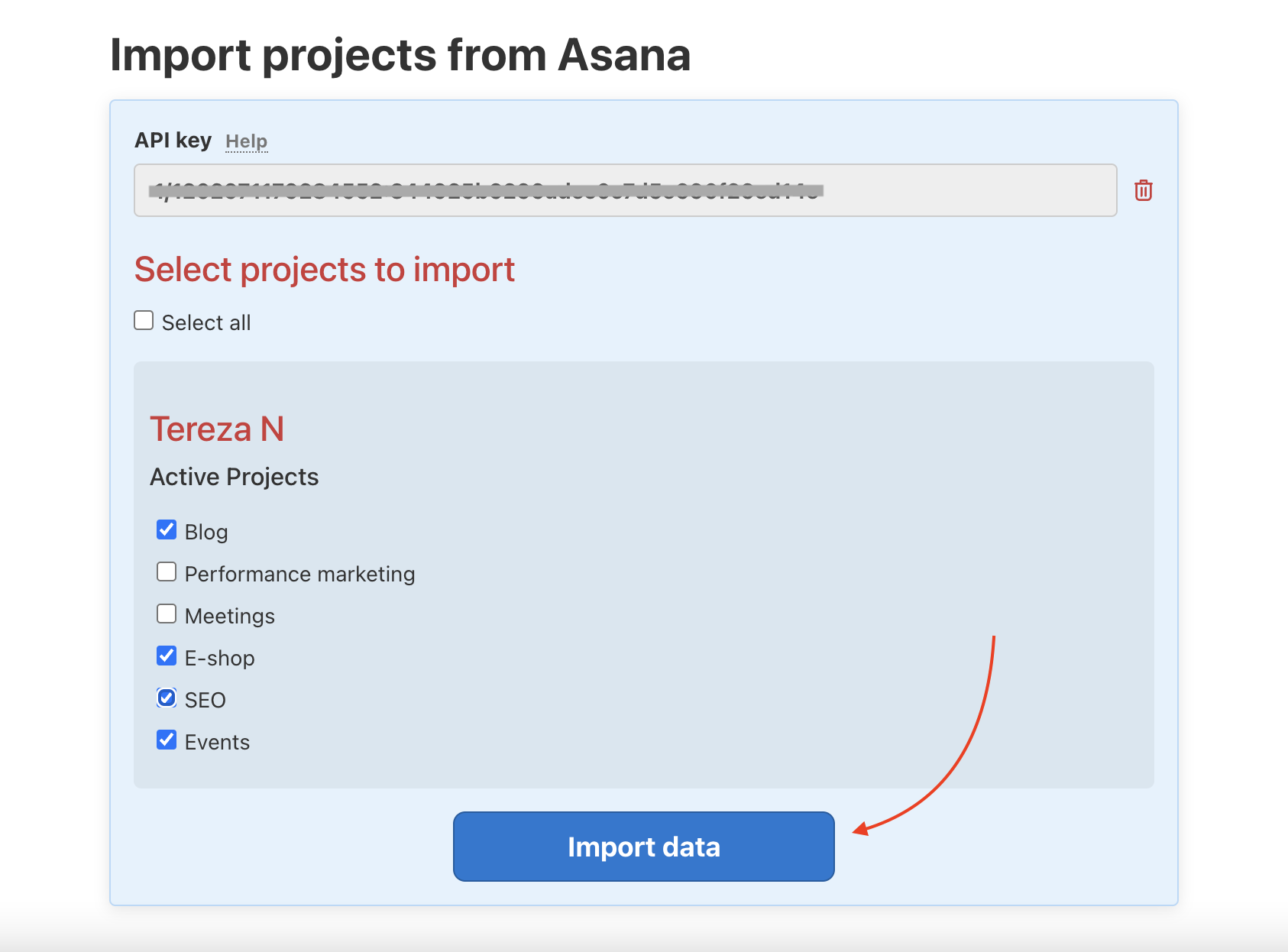
Click on the Asana icon and paste the copied token into the field. Then click Load data for import. You will see a list of your Asana projects. Select which ones you want to import to Freelo and click Import data.
What happens to the invited users and solvers from Asana?
All invited users and task solvers are preserved in the imported projects. Users with a Freelo account will automatically get access to the projects and will see which tasks they are assigned to. They will not receive any notifications about the project or task assignment.
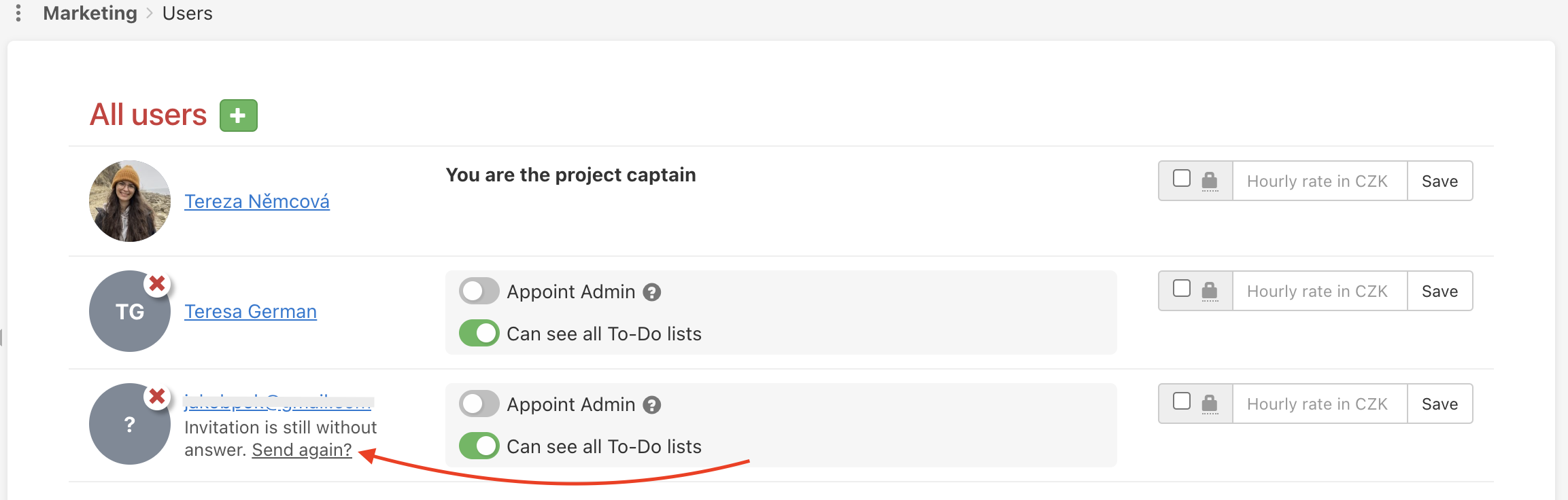
Users not registered in Freelo will appear as invited to the project and as task solvers. They need to register in Freelo to get access. No automatic message will be sent to them from Freelo. However, you can send them an invitation directly from the specific project or from the All Users section.
After the import, we recommend going through the user list in each project and sending invitations to any unregistered colleagues right away, so they can get started immediately.
Practical use
- Full team migration – import all your projects at once; colleagues with a Freelo account get access automatically
- Gradual transition – import selected projects and keep the rest in Asana until your team is ready to make the full switch
- Test run – import one project first and see how Freelo works for your team before committing to the full switch
- Backup from Asana – keep your project data stored outside Asana in case you need to move quickly
- Client project – import a project where the client was already invited in Asana and continue the collaboration in Freelo without having to set everything up from scratch