
Freelo sends notification emails from notifications@n.freelo.io. If these emails are landing in your spam folder in Gmail or Outlook, add the domains n.freelo.io and freelo.cz to your contacts or set up a filter — here's how to do it for both.
Solution for Gmail users
We have two options for you. If marking the email as not spam does not help, the guaranteed solution is the second option — setting up a filter.
1. Mark emails as "Not spam"
This method will help prevent Freelo emails from being sent to spam in Gmail.
1. On your Mac or PC, go to mail.google.com and sign in to your account if needed.
2. Open the email you want to move to your primary inbox.
3. At the top, select "Report not spam".
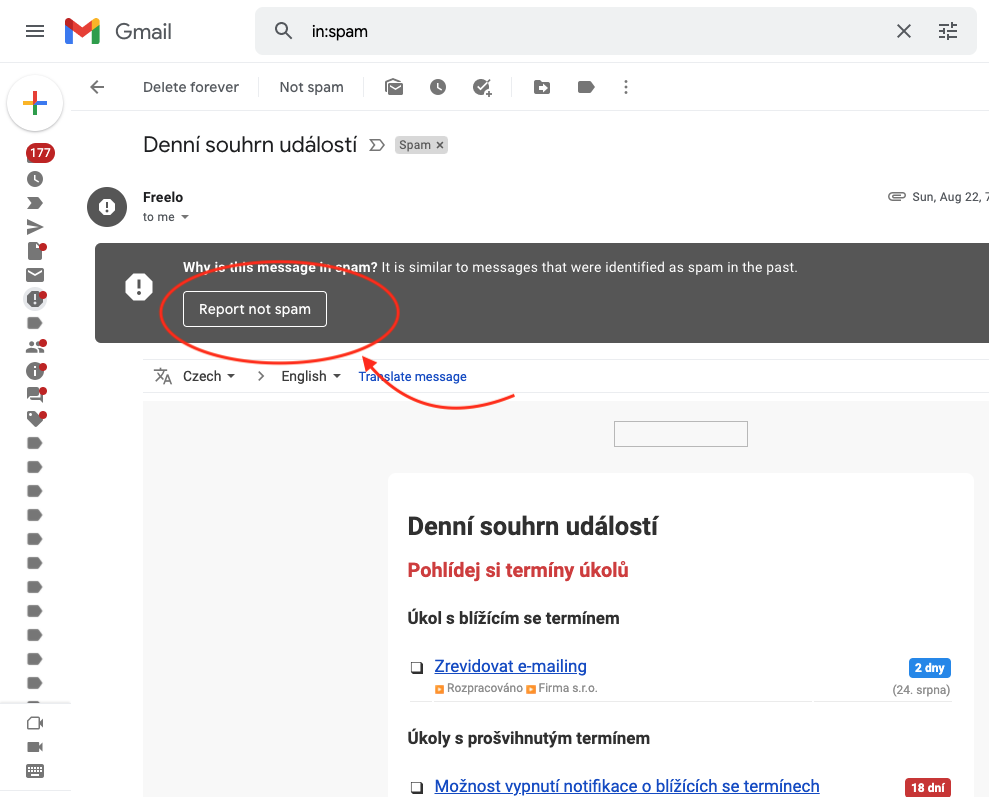
Note that you may need to repeat this process several times before Google applies your preferences to all emails from this sender.
2. Set up a filter for incoming emails
The second option is to set up a filter so that emails are delivered to your inbox.
- Open the email in question.
- Click the three dots in the top right corner of the email.
- Select "Filter messages like these".
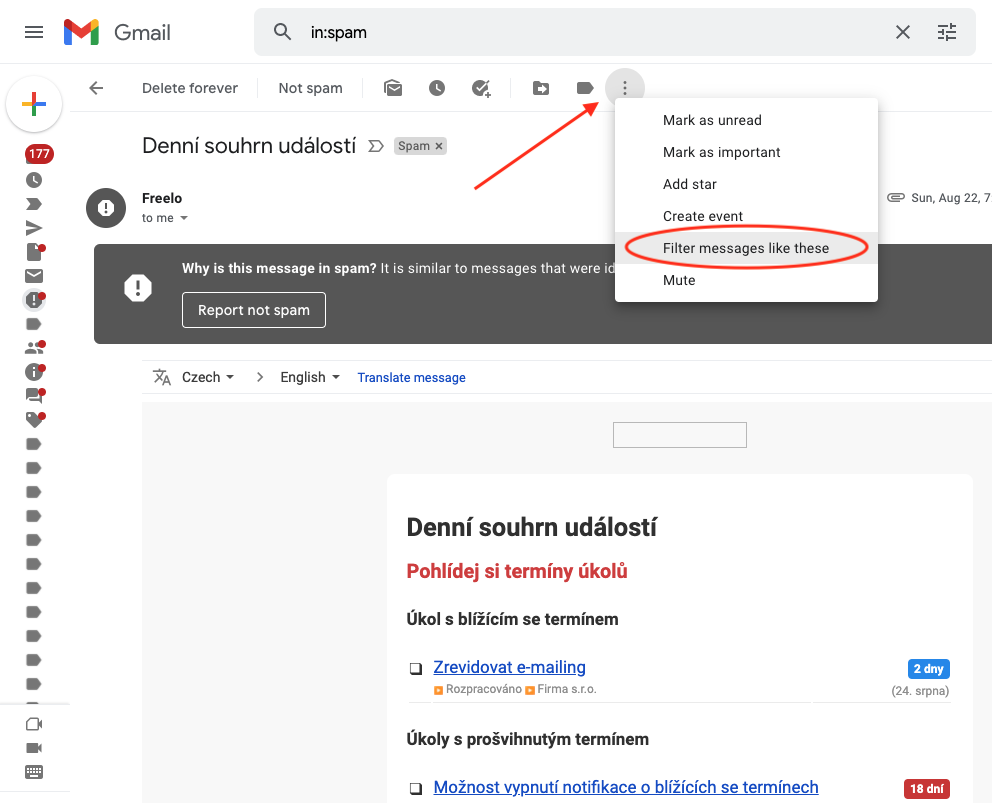
Use the three-dot menu to find the Filter messages like these option. - Set the filter parameters and select "Create filter".
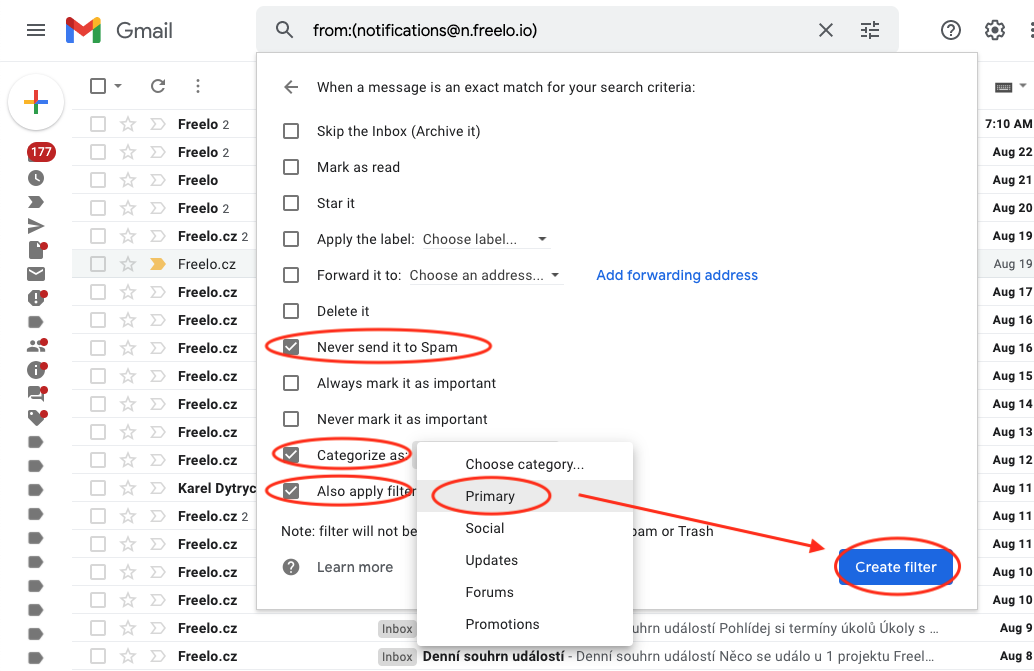
Setting filter parameters and creating the filter.
Paid G-Suite users
For paid G-Suite users, we have a video tutorial showing how an admin can set up a whitelist for the entire domain.
Solution for Outlook users
Please report the issue to your domain administrator (the person who sets up company email accounts). The administrator can add our domain to the whitelist.
We recommend creating a rule in Outlook.


