You can move each task within the To-Do list, between To-Do lists in one project or from one project to another.
Tasks andMove, copy, ... function.
Move within a To-Do list
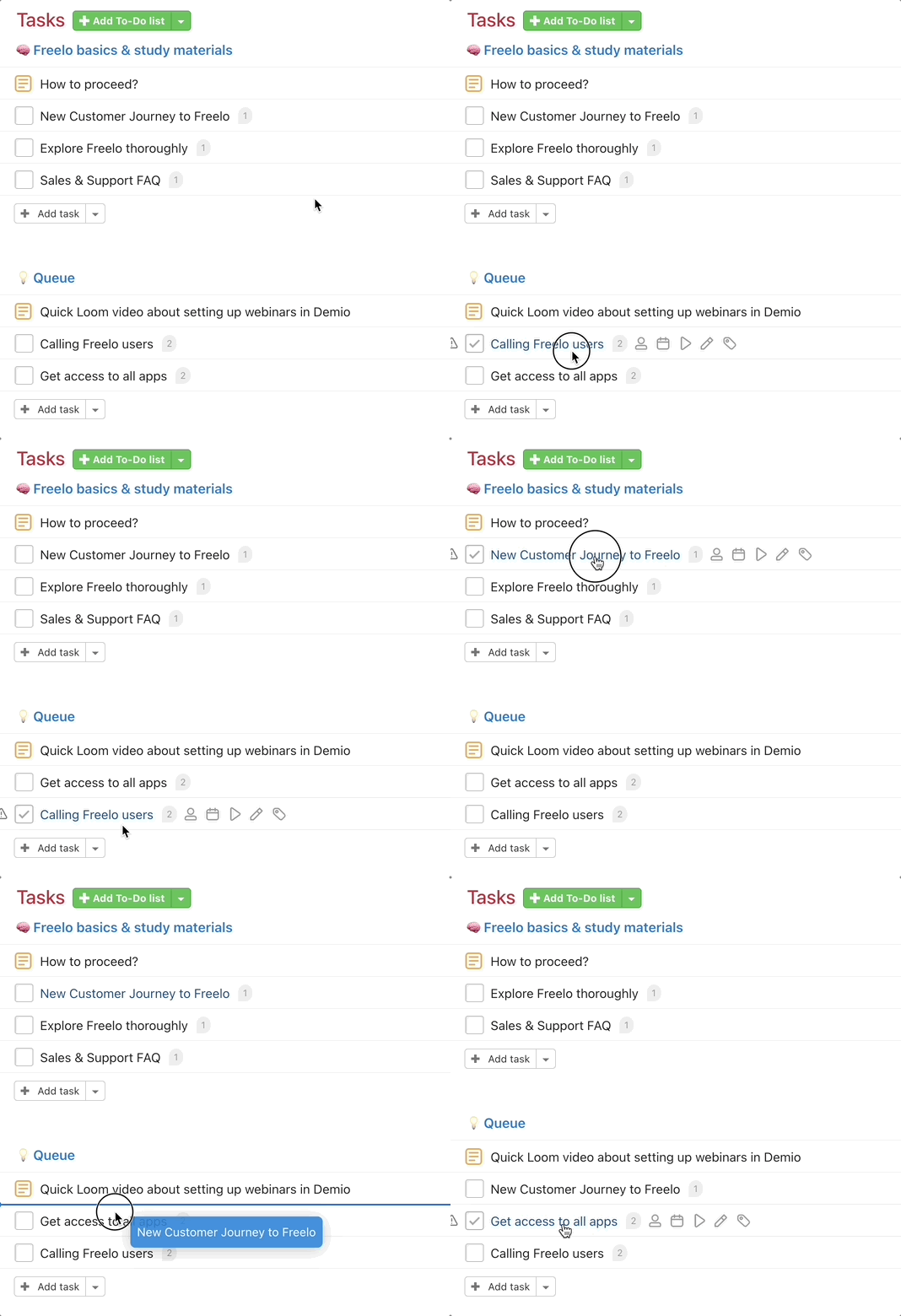
Moving tasks within one To-Do list helps you to set the order. For example when you need the most important task at the top of the To-Do list.
Go to the project details. Drag the task and drop where you want it.
You can use a three-dot menu to sort the tasks by priority or due date. It is also useful in a Kanban view.
Move within one project
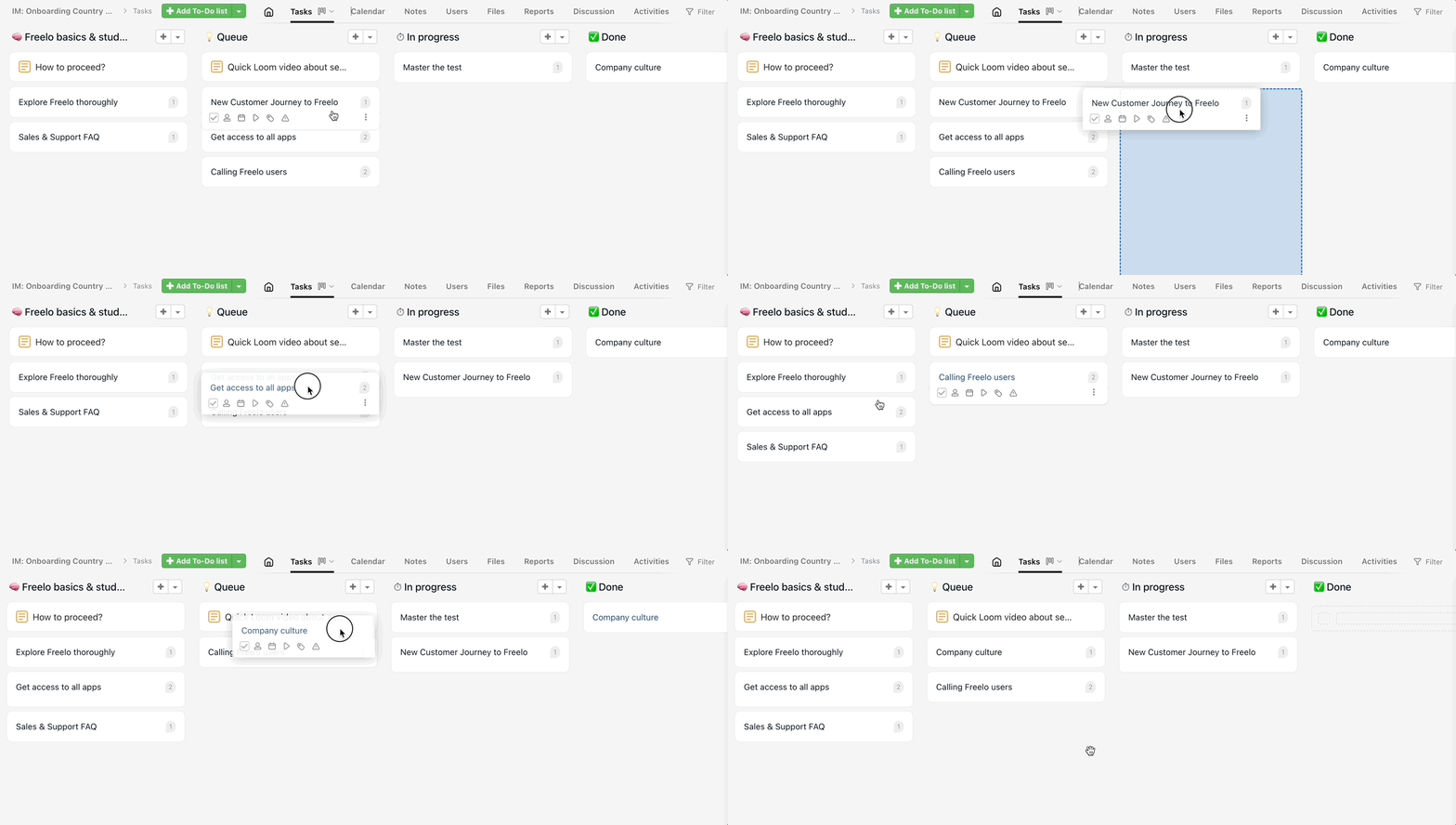
Each task can be moved via drag & drop from one To-Do list to another within one project. This is very useful when using the column view.
Move sub/tasks
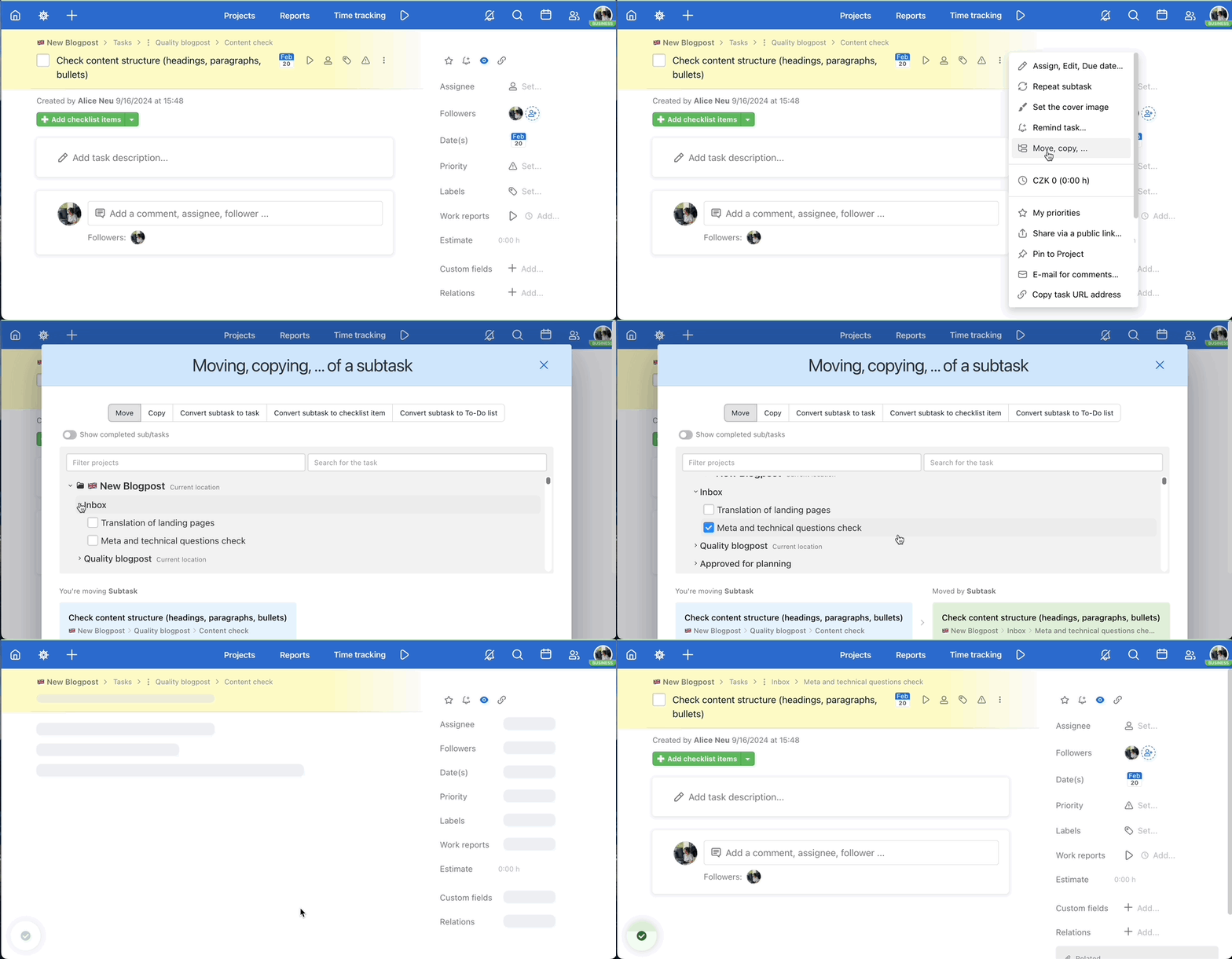
Moving tasks between projects can be done via the three-dot menu on the right from the task name. Click Move, copy, ...
In the following window select project and To-Do list where you want to transfer the task. Confirm via Move task.
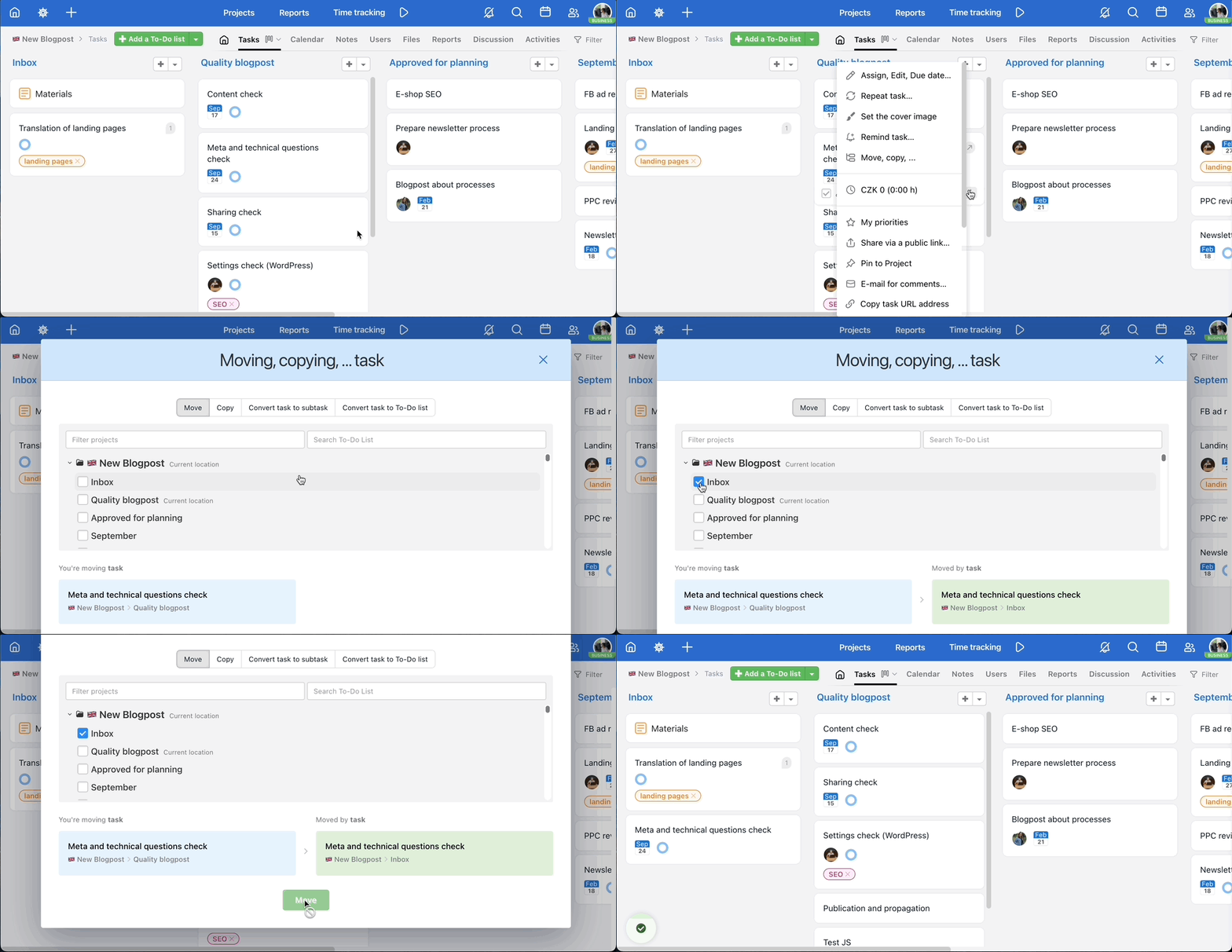
This can be used also when moving a sub/task to a different To-Do list in the same project. Usually when you have too many tasks and the feature drag & drop is not comfortable.
Change the hierarchy of To-do lists and sub/tasks
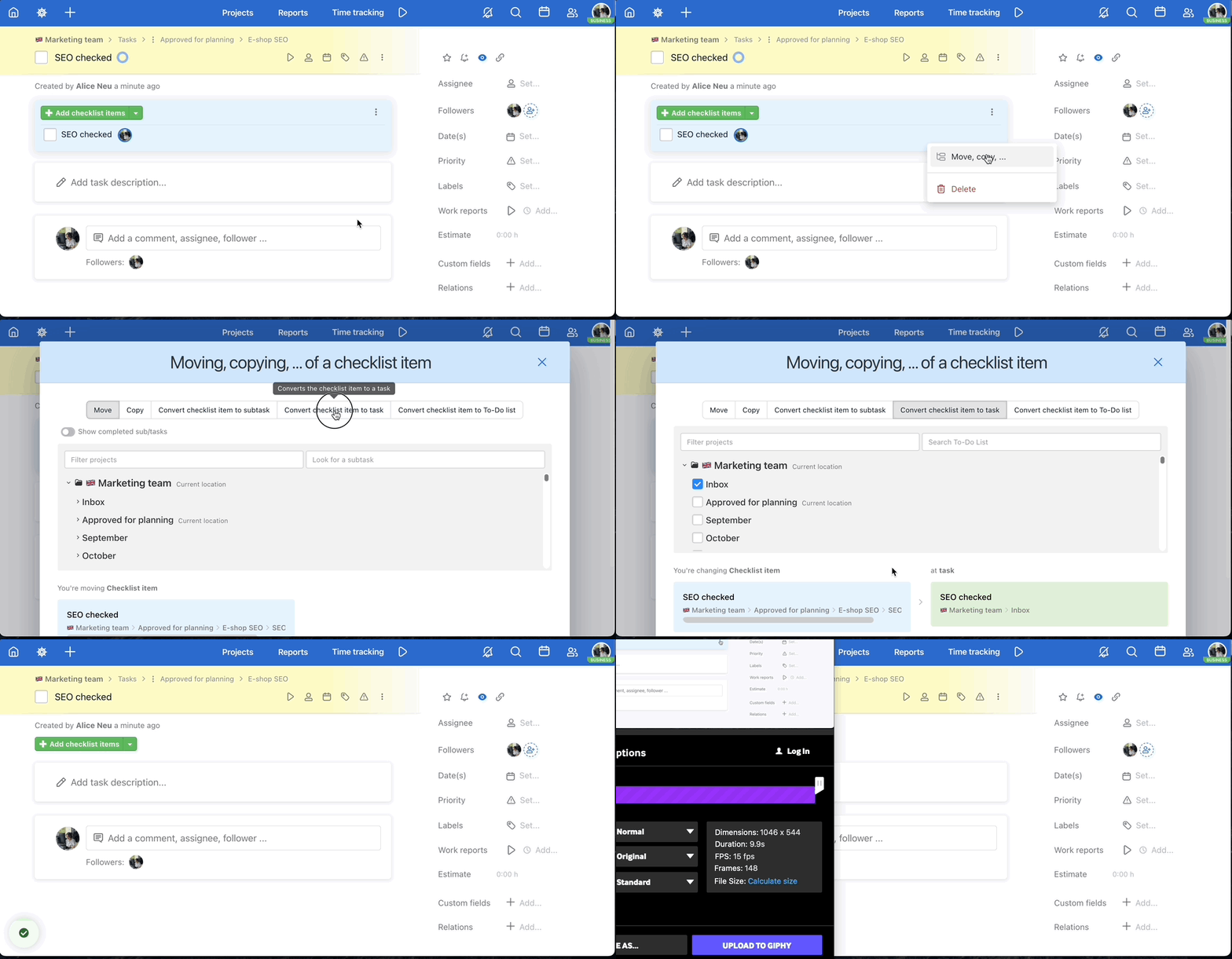
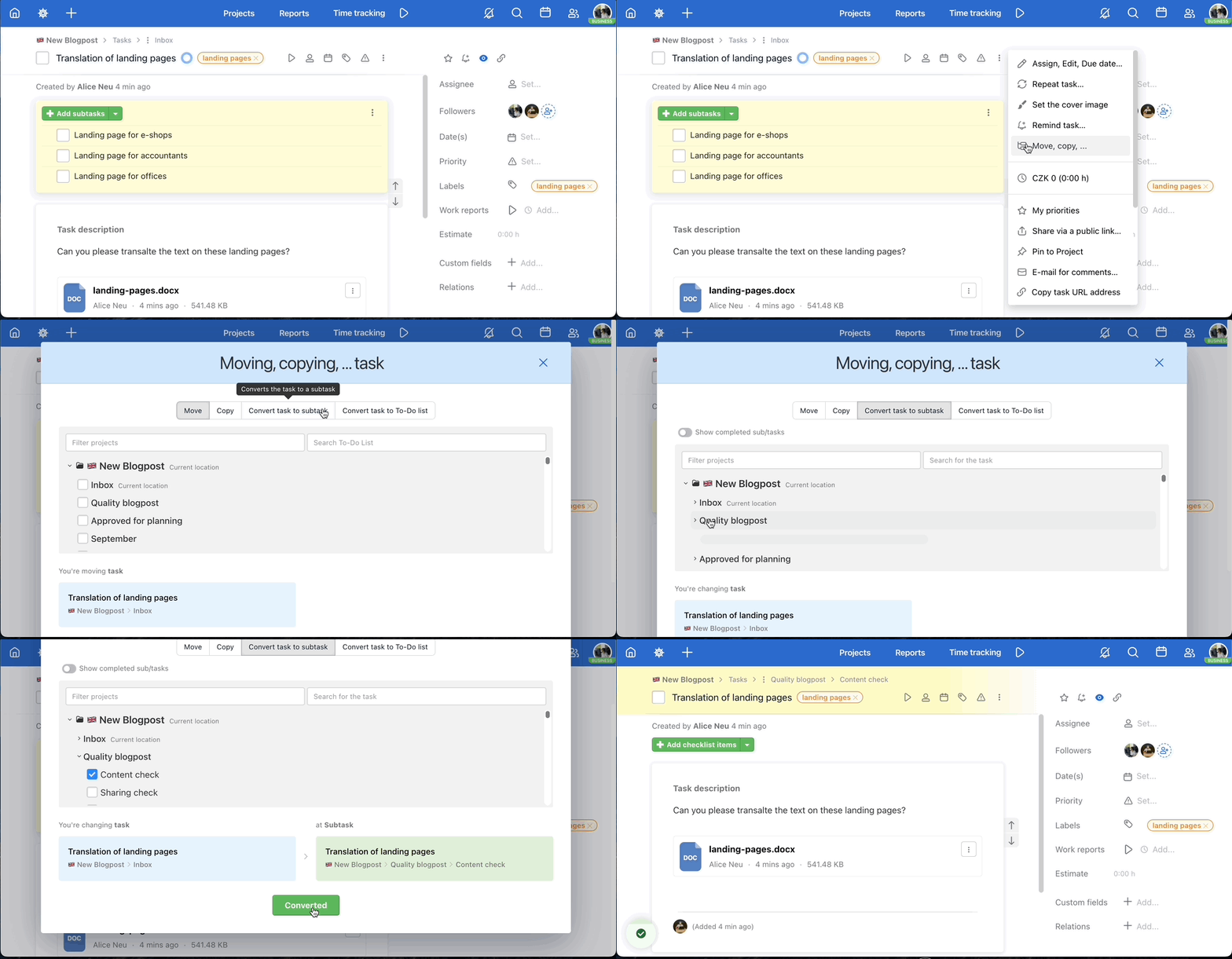
If you created a task but realized it should have been a To-Do list, you can convert it. To change its hierarchy, click the three-dot menu in the task detail view.
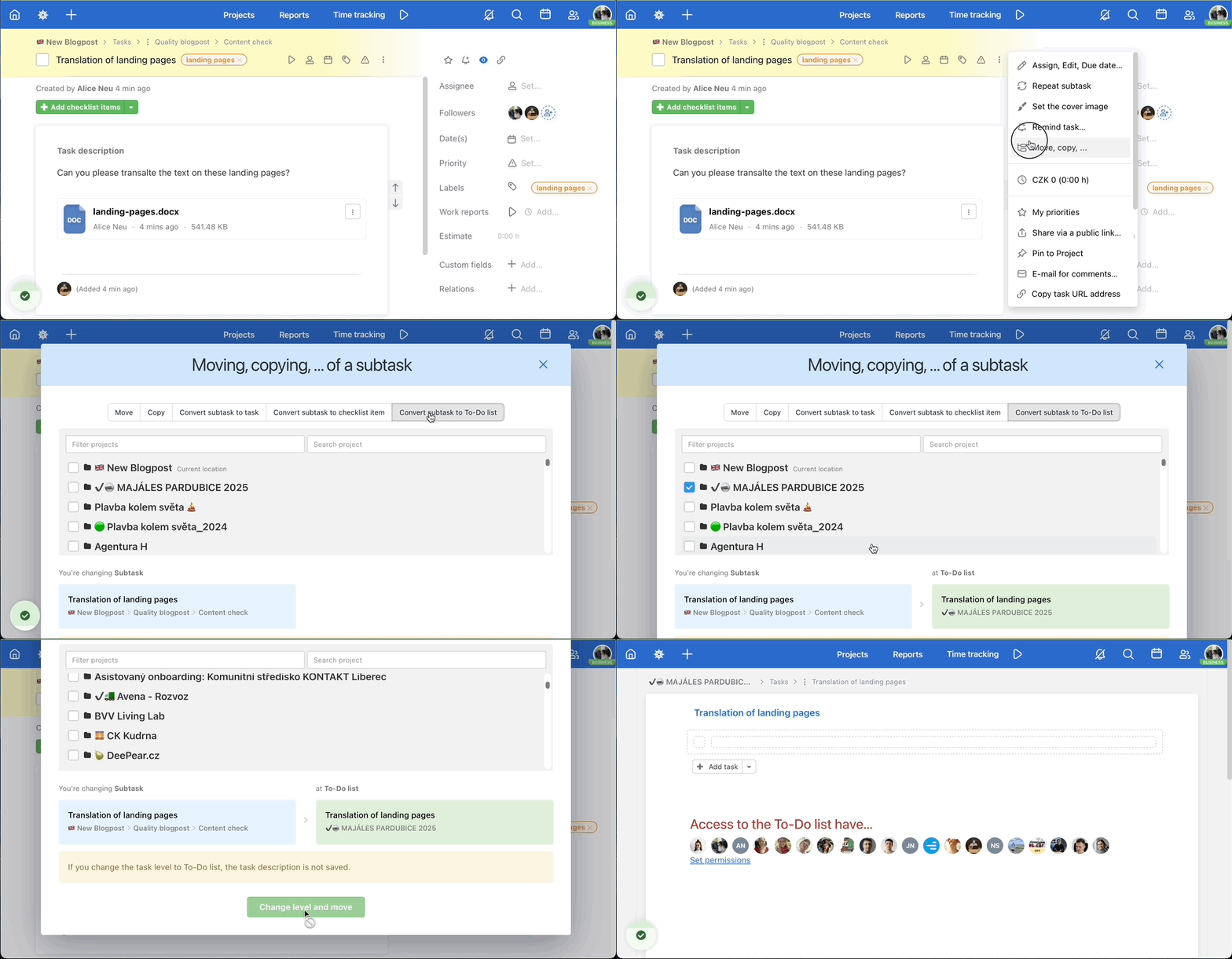
In the modal window, which appears when you do so, select Convert ... to ... (or Move, copy, ... depending on which action you want to perform). Then, choose where the new item should be created.
- When it comes to tasks, these are the possible actions:
- Convert a task to a subtask
- Convert a task to a To-do list
2. When it comes to subtasks, these are the possible action:
- Convert a subtask to a checklist
- Convert a subtask to a task
- Convert a subtask to a To-do list
3. When it comes to checklist items, these are the possible action:
- Convert an checklist items to a subtask
- Convert an checklist items to a task
- Convert an checklist items to a To-do list