
Freelo Help Work with Tasks Copying a task

Copying a task

Just as you can move the task, change the project hierarchy, it also can be copied. Copying is a good way to make it easier to work with typified tasks that are often repeated and have the same process.

TIP: How to use copying tasks for simple processThe task can include subtasks, so it can be used to create a simple process. From this task, you can create a new one by copying and you do not have to create a new one manually every time.

There are two ways to copy a task.

Copy via the three-dot menu

Go to a project detail or particular To-Do list. You can copy a task via the three-dot menu on the left from a task name. Click Move, copy, ... and then just simply Copy task to the new location.
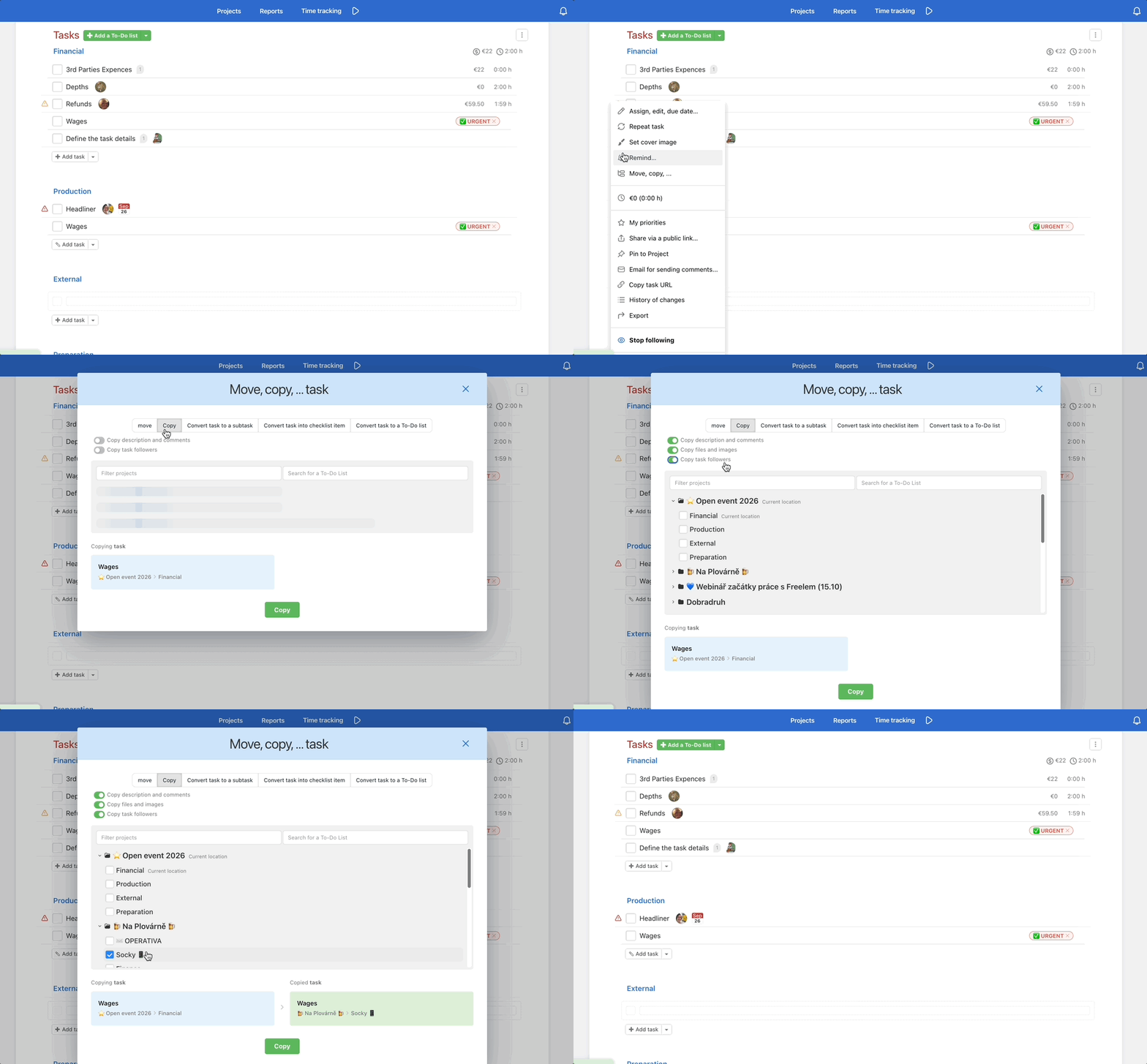
How to copy a task in Freelo.You have to select a project and To-Do list, where you want the copied task to be located. You can choose whether you want to copy comments and files attached and the followers of the task. Confirm by clicking Copy task.

TIP: Use templates instead of copyingCopying the same type of tasks or processes effectively replaces the created templates. When creating a new task, just insert the task or even the entire To-Do list from the template.

Copy from the task detail

Go to the task detail and click Move, copy, … in the three-dot menu in the top section.
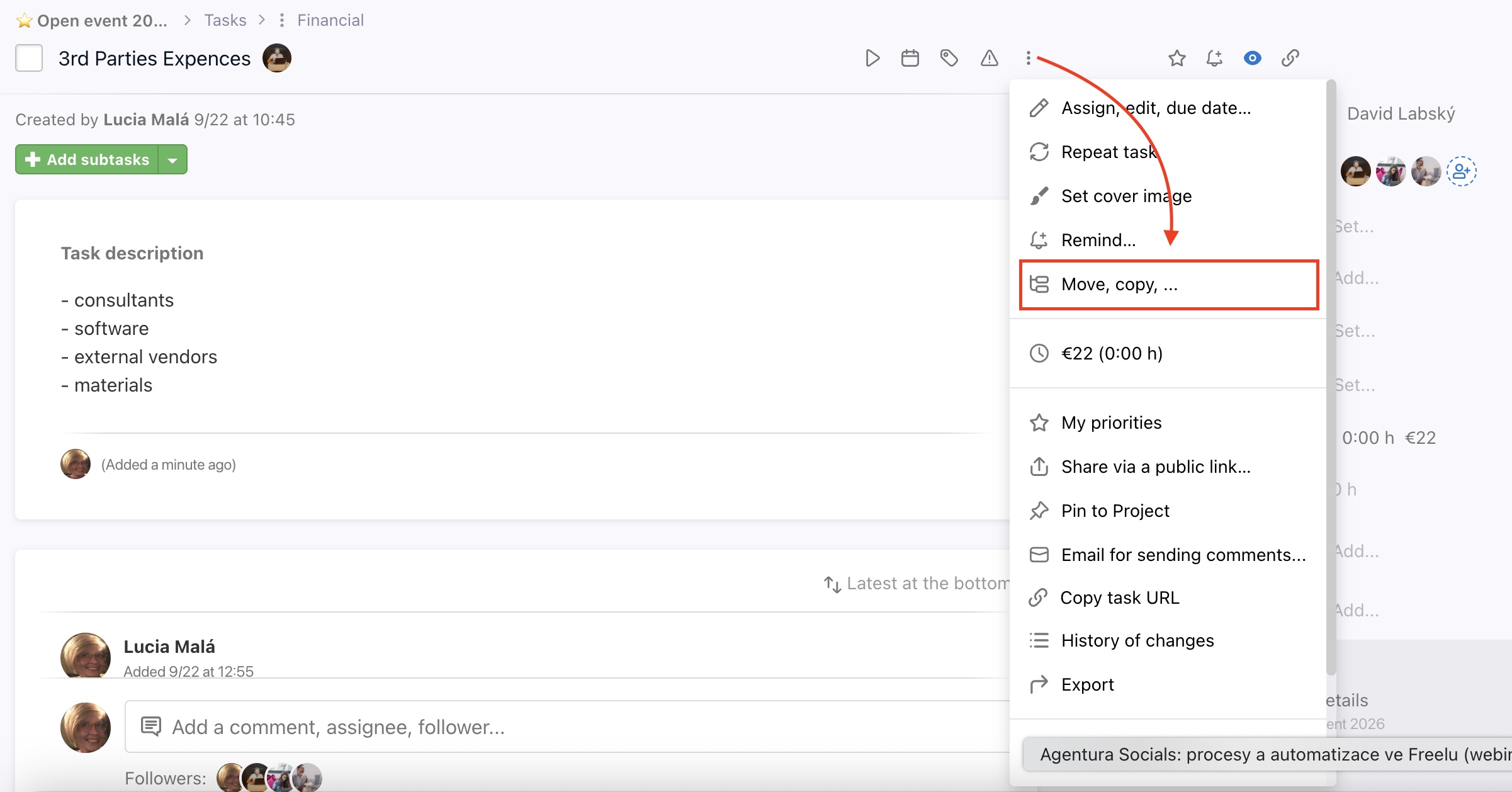
How to copy a task from the detail of the task.

Select a project and To-Do list where you want to place the copied task.
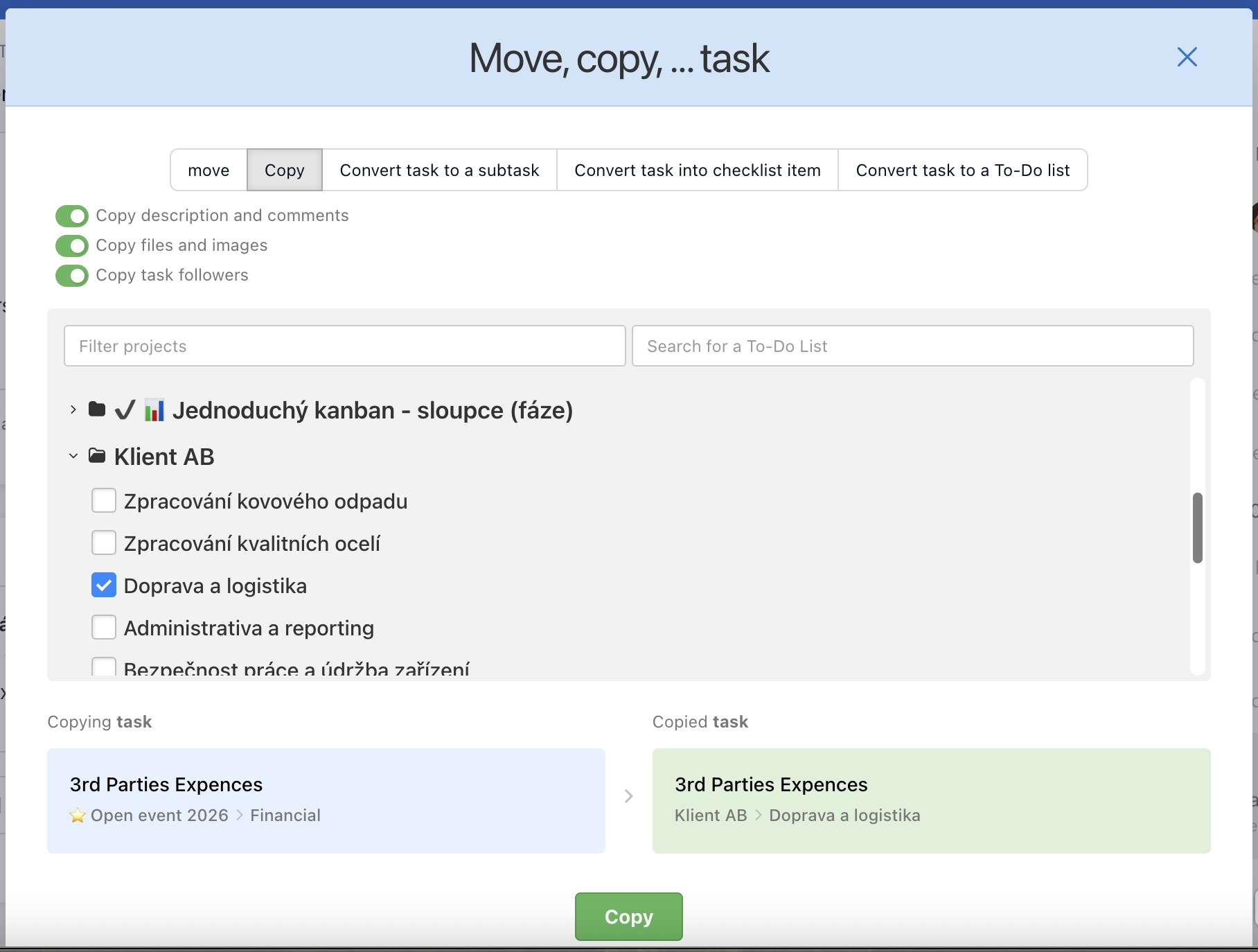
Select project and To-Do list.
Last updated:
Freelo Help Work with Tasks Copying a task

Work with Projects

14 Articles

Work with To-Do lists

10 Articles

Work with Tasks

30 Articles

Account & Settings

20 Articles

Due dates & Notifications

8 Articles

Files & Sharing

8 Articles

Users & Permissions

7 Articles

Finances & Invoices

5 Articles

Reports & Time tracking

5 Articles

Third-Party Integrations

13 Articles

Business panel

6 Articles

Start with Freelo

1 Articles