You can assign just one user to the task in Freelo. That assignee can be changed anytime.
It's because we think, that just one user should be responsible for the whole task. Thanks to clear responsibility you know who has to move the task to the successful completion.
However, you can divide the work over a task to more than one user thanks to subtasks.
Changing the assignee
There is always only one user assigned to a task. The assigned user can be changed at any time.
For example I work on a task, which means I am the assignee. I get to the point, when I need documents from my colleague. I write a comment, what I need from someone and then I assign the whole task to the colleague. When my colleague adds the documents also assigns the task back to me. I can carry on.
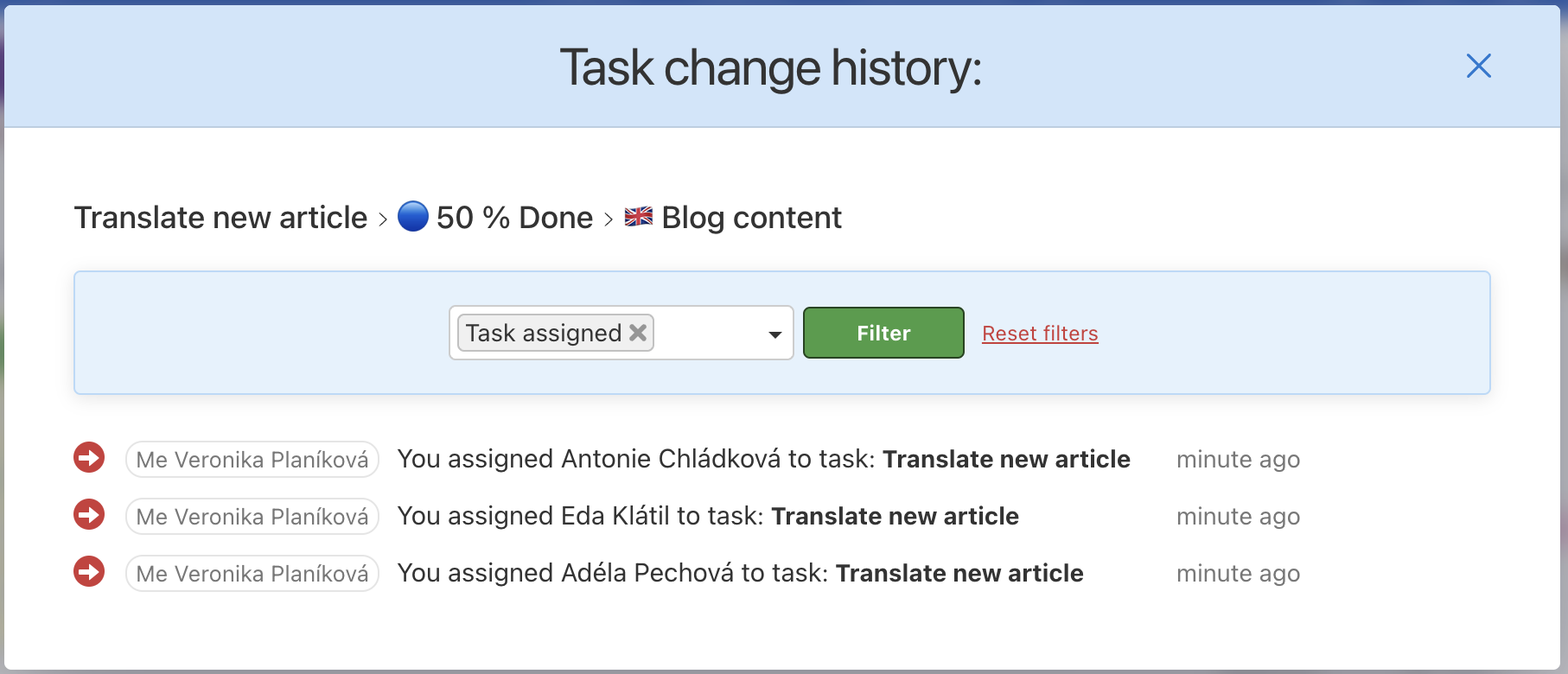
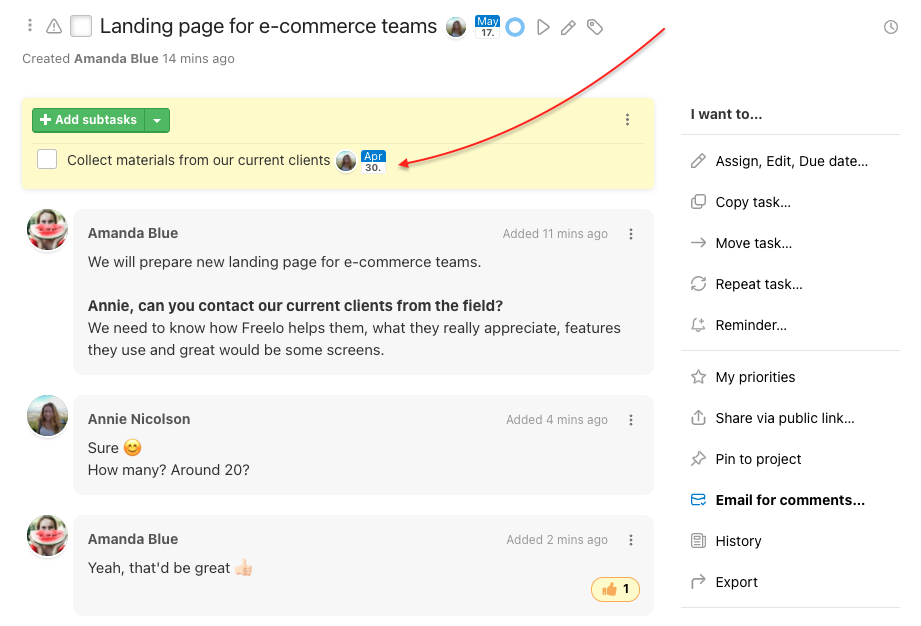
Another way is to create a subtask for my colleague and assign it to her/him. The advantage of a subtask is that I can set up deadline.
More assignees thanks to subtasks
Subtasks are activities that need to be done within the task. It can be process checklist, divided work for more users or keep different deadlines.
You can add subtasks to a task and assign them to multiple users. Assigned subtasks are also visible on Dashboard.
Subtask has own page with discussion, can have due date, label, priority, reminder and you can report time and cost. There is possibility to add another list of subtasks as a checklist.
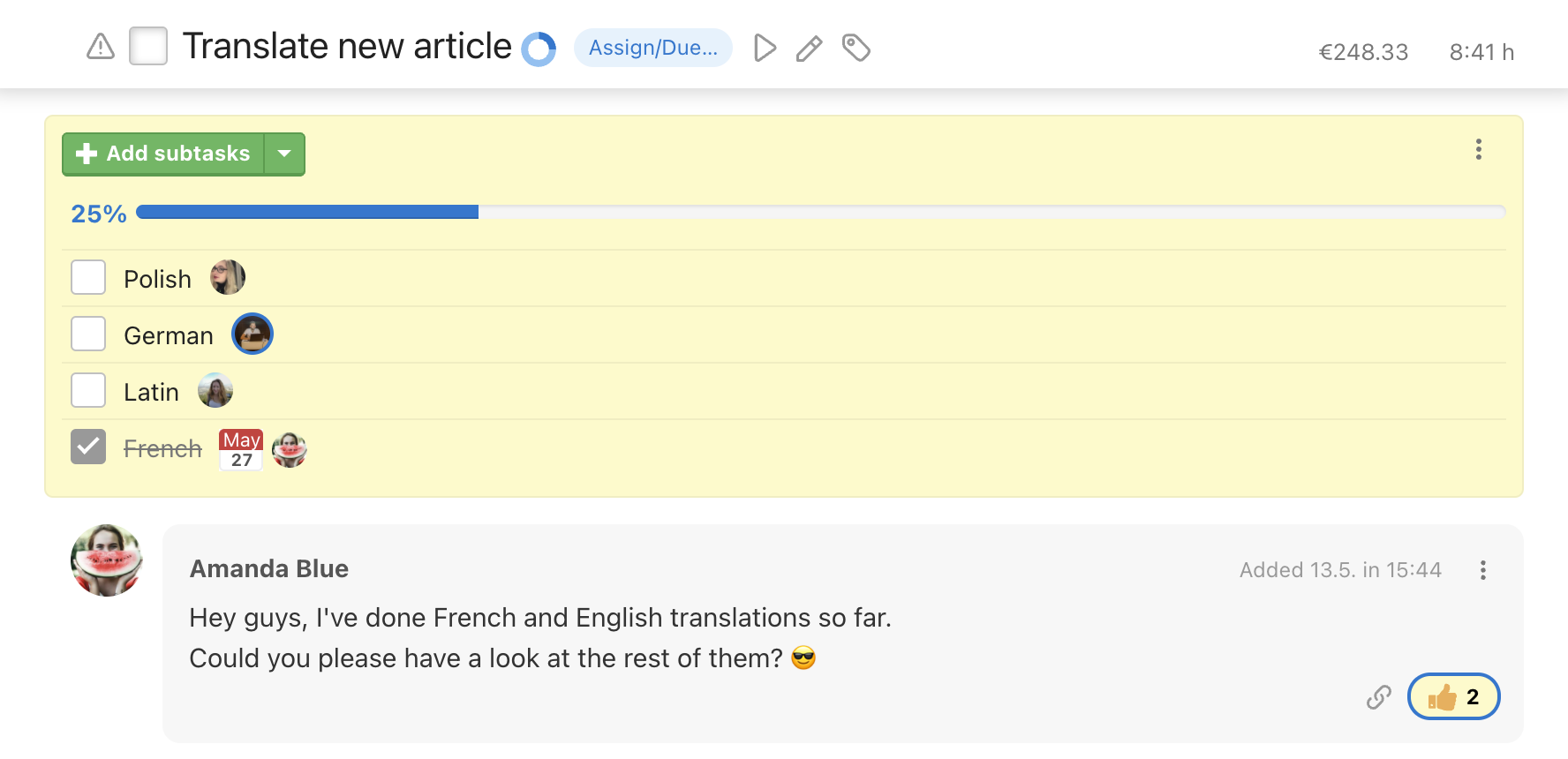
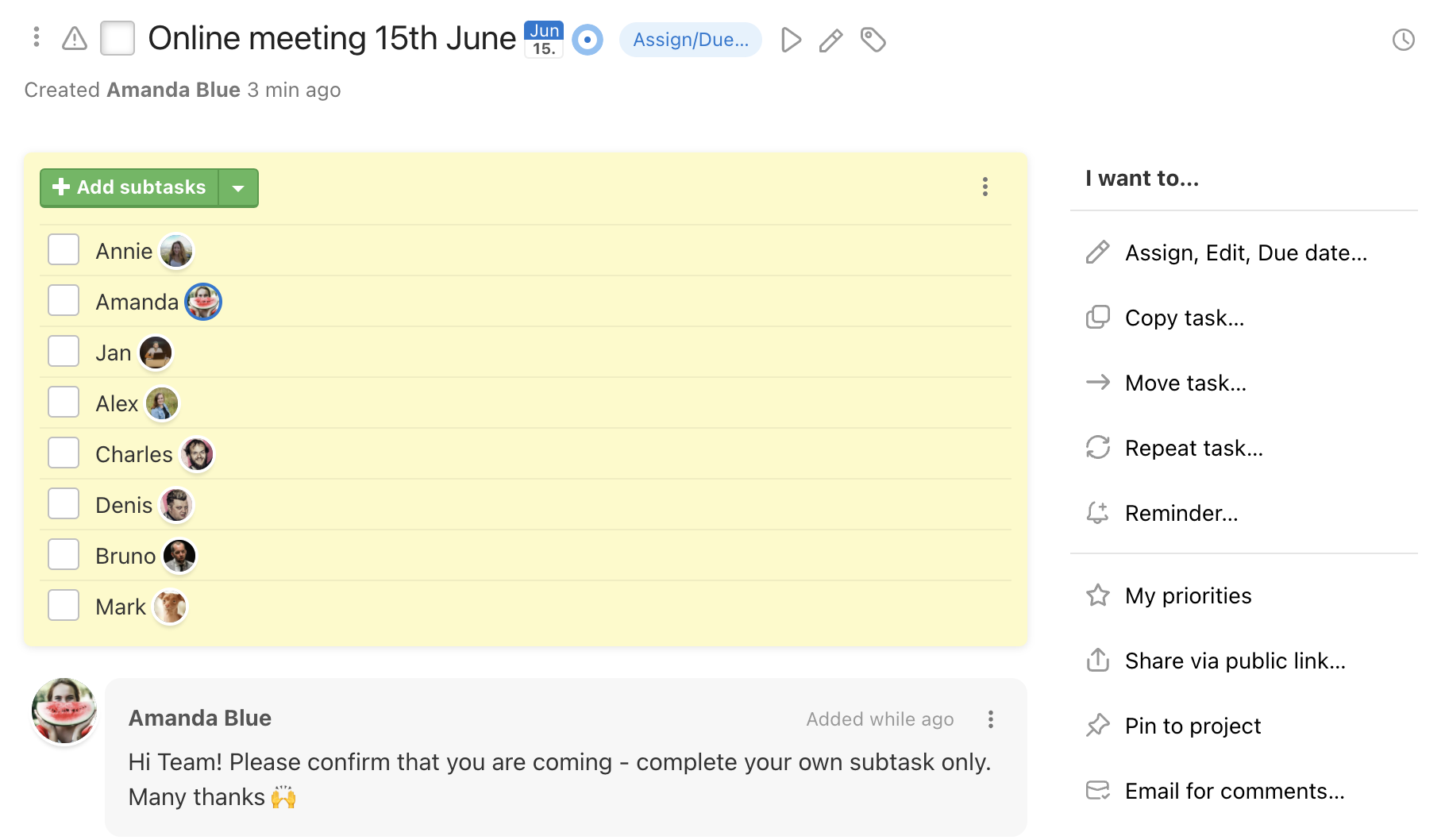
Subtasks as a list of participants - for example meeting attendees or in case of one same task for many users, same work.
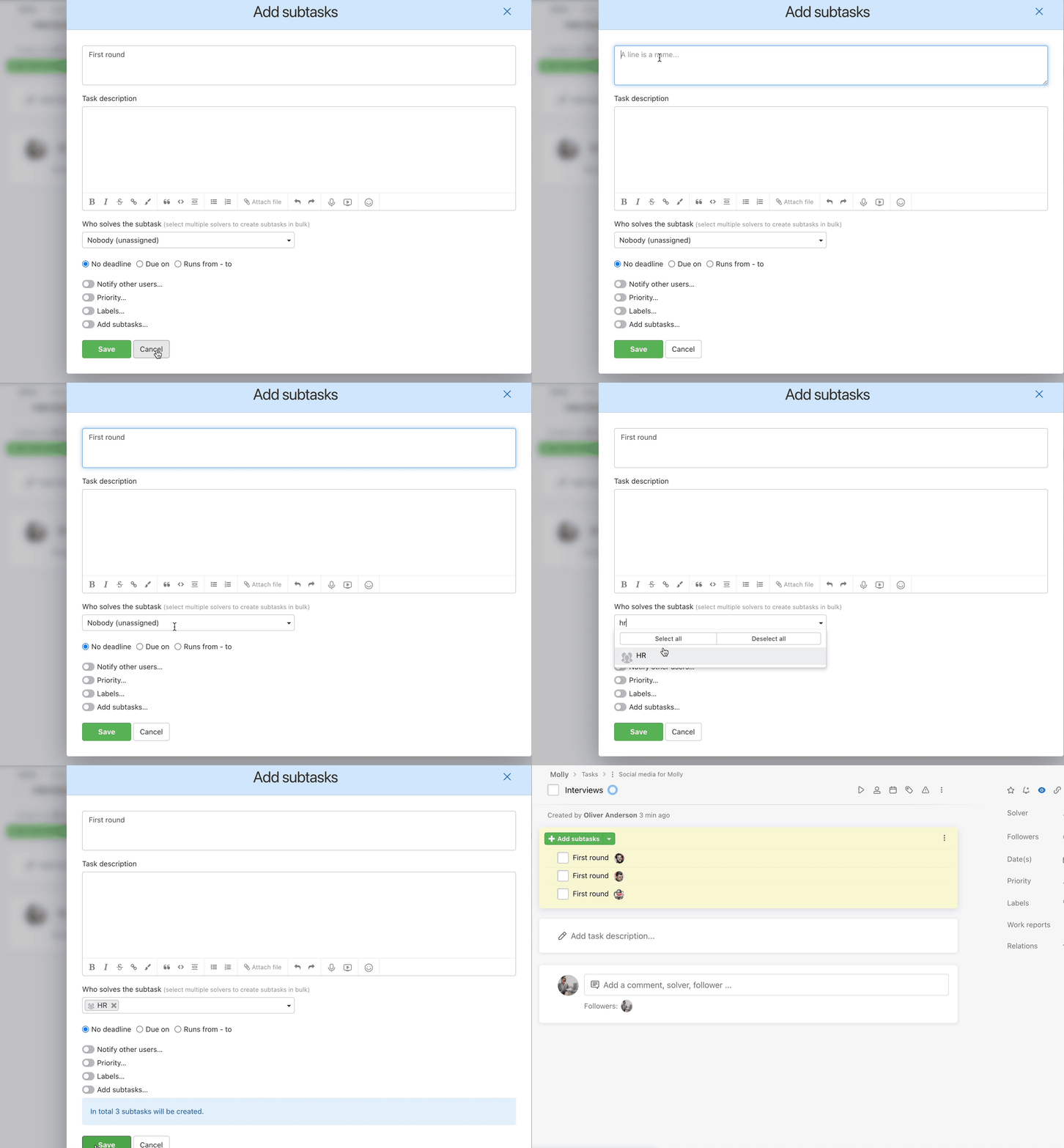
You can simultaneously create multiple subtasks for more users, simply by adding more people or the whole Team when assigning a user to the chosen subtask.