
Using Freelo and Outlook together? Then you’ll love our Outlook Freelo add-in. With just a few clicks, you can turn an email into a task directly in Freelo.
1. Generate an API key in Freelo
First, you need to copy your API key from Freelo, which allows you to link your projects with the Outlook Freelo add-in. Click your avatar in the top-right corner, go to Settings, and scroll down to the API Key section where you can copy your unique key.

Copy the API key and proceed to Outlook.
2. Install Freelo for Outlook
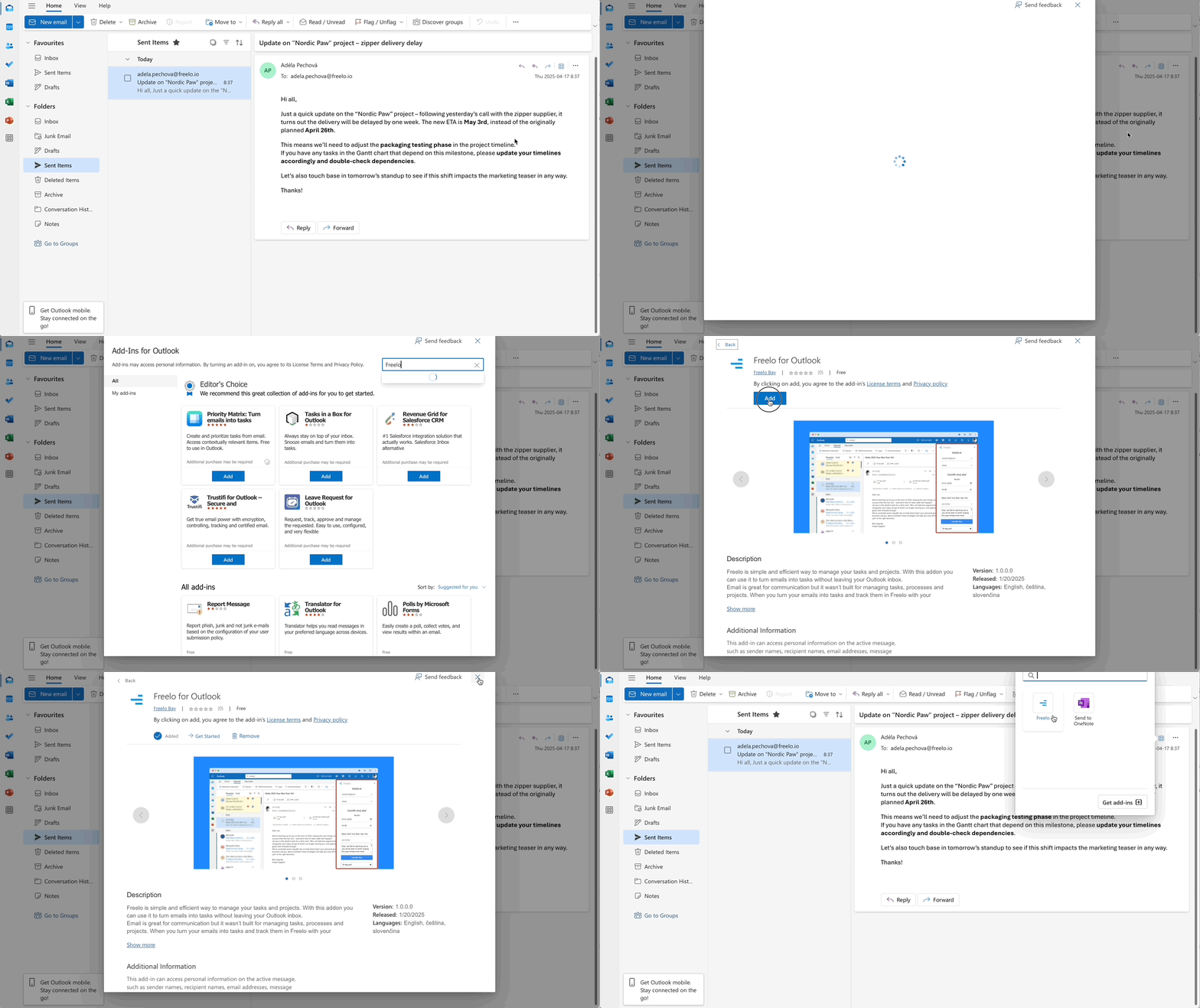
Now install the Freelo add-in as shown in the example:
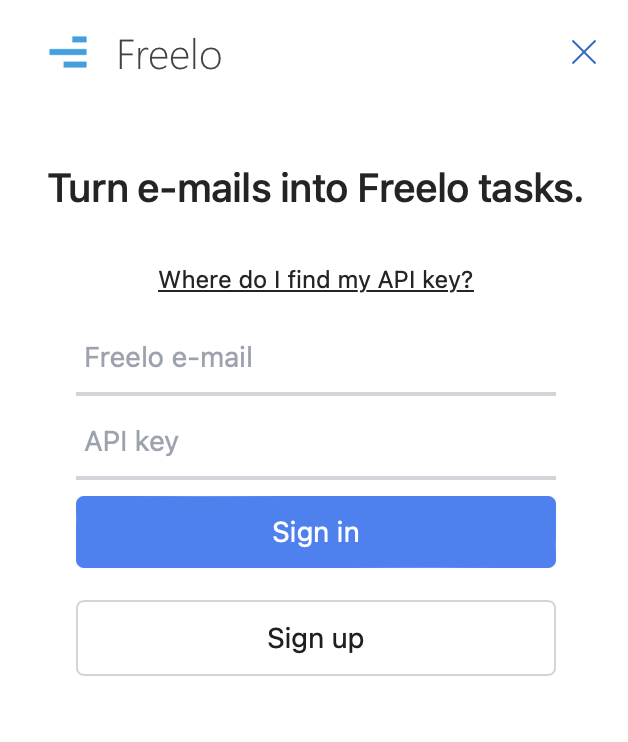
Then sign in using your email and the copied API key from your Freelo account. This will link the accounts.
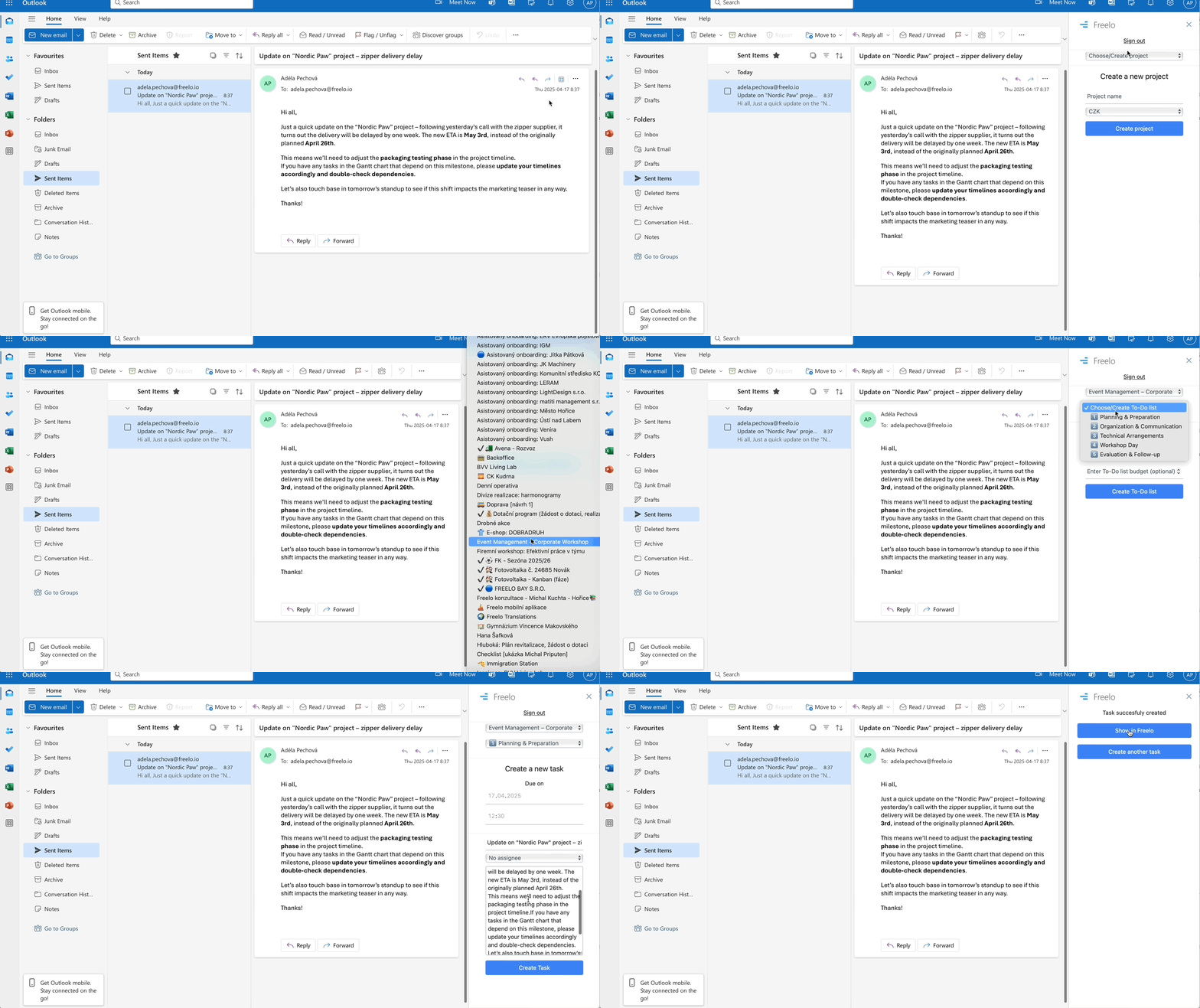
And that’s it! Now go to the email you want to turn into a task in Freelo. Take a look at how it might work in practice:
Availability Limitations of the Add-in
Typical cases where the add-in is not available:
-
You have Outlook, but you’re not using Microsoft 365 (e.g., a traditional installation without cloud connectivity).
-
You’re using Outlook LTSC – a special version of Microsoft Office designed for environments without internet access or with limited connectivity (more info here).
Unfortunately, in these cases, the add-in cannot currently be installed or used. If you want to use the add-in, we recommend switching to Microsoft 365.
Where to find the add-on:
- Outlook on Windows (Microsoft 365),
- Outlook on macOS (Microsoft 365),
- Outlook on the web,
- Outlook on iOS/Android – most of the add-ons work here too, but you need to have an account connected to Microsoft 365 or Exchange.
What if Freelo emails are not arriving on Microsoft 365?
Microsoft Defender sometimes incorrectly flags Freelo emails or links as phishing (reason: URL detonation reputation). This typically affects corporate accounts with a paid Microsoft 365 / Office 365 tenant — personal accounts usually only experience messages ending up in spam.
How to resolve email blocking
If Freelo notifications stop arriving and you're using Office 365, ask your tenant admin to do the following:
- In Microsoft Defender, open Tenant Allow/Block List and Spoof intelligence.
- Add the domain freelo.io (or app.freelo.io) as allowed.
- Report blocked Freelo emails to Microsoft as a false positive.
After allowlisting in the tenant, emails should start arriving normally within a few minutes.