
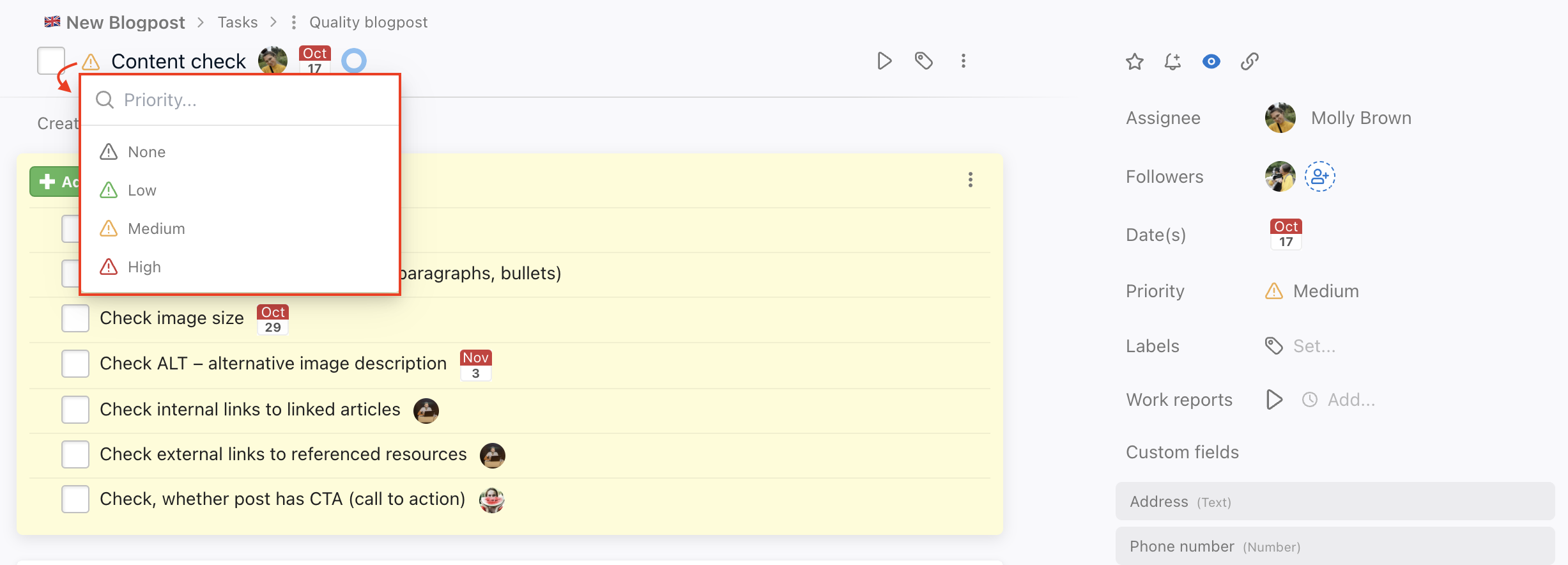
There is a few ways of prioritizing tasks and subtasks in Freelo. It is very simple and straightforward. The priority is symbolized by the exclamation mark icon in different colors:
- No priority (does not display)
- Low priority (green)
- Medium priority (orange)
- High priority (red)
How to set task priority
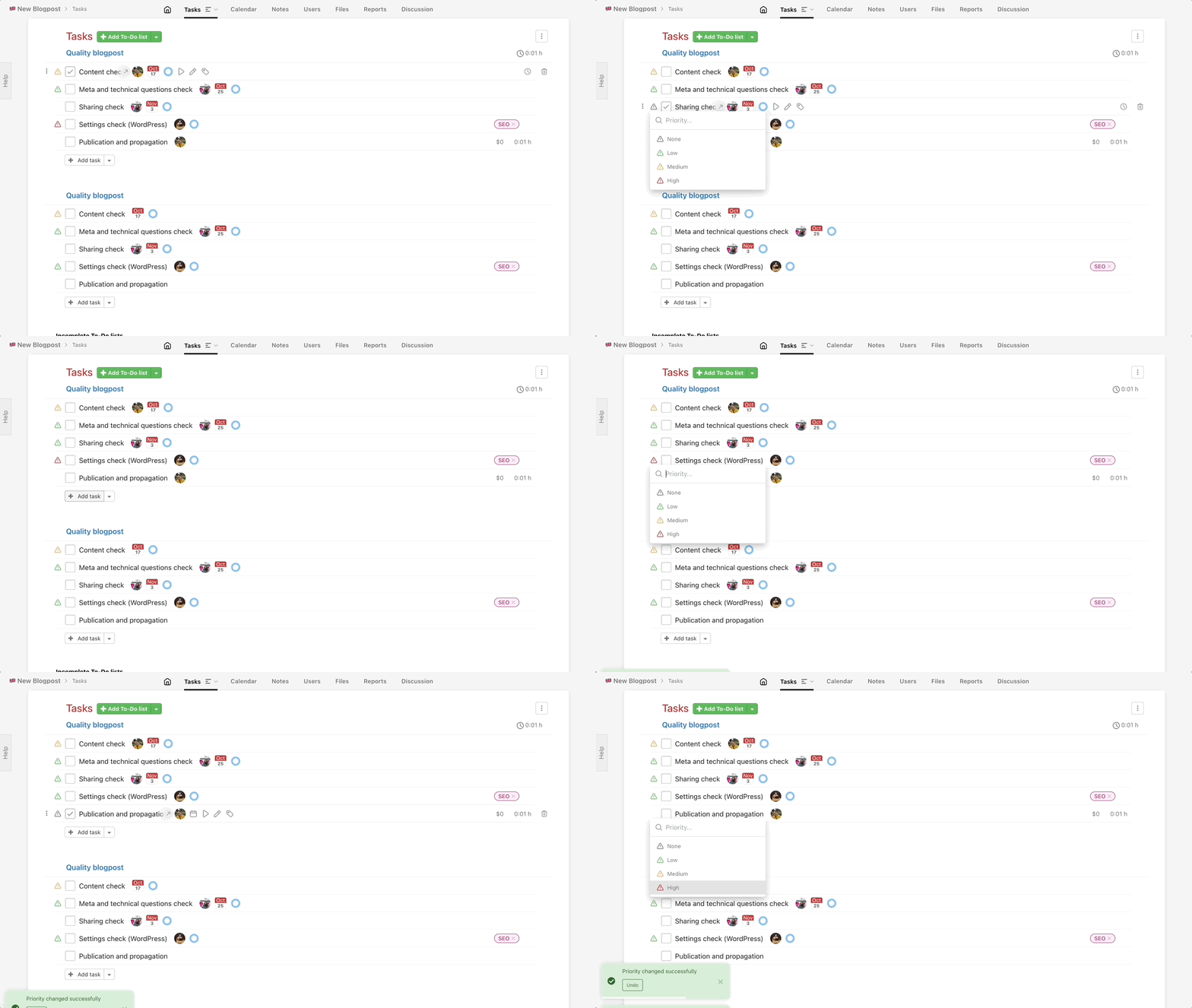
Go to the project detail, To-Do list or task detail. On the left from task name is visible the icon of exclamation mark when you place the mouse over a task.
Click the icon and select one of the priority. The task priority is set immediately.
You can remove the priority just the same way > No priority.
Filter tasks with a priority
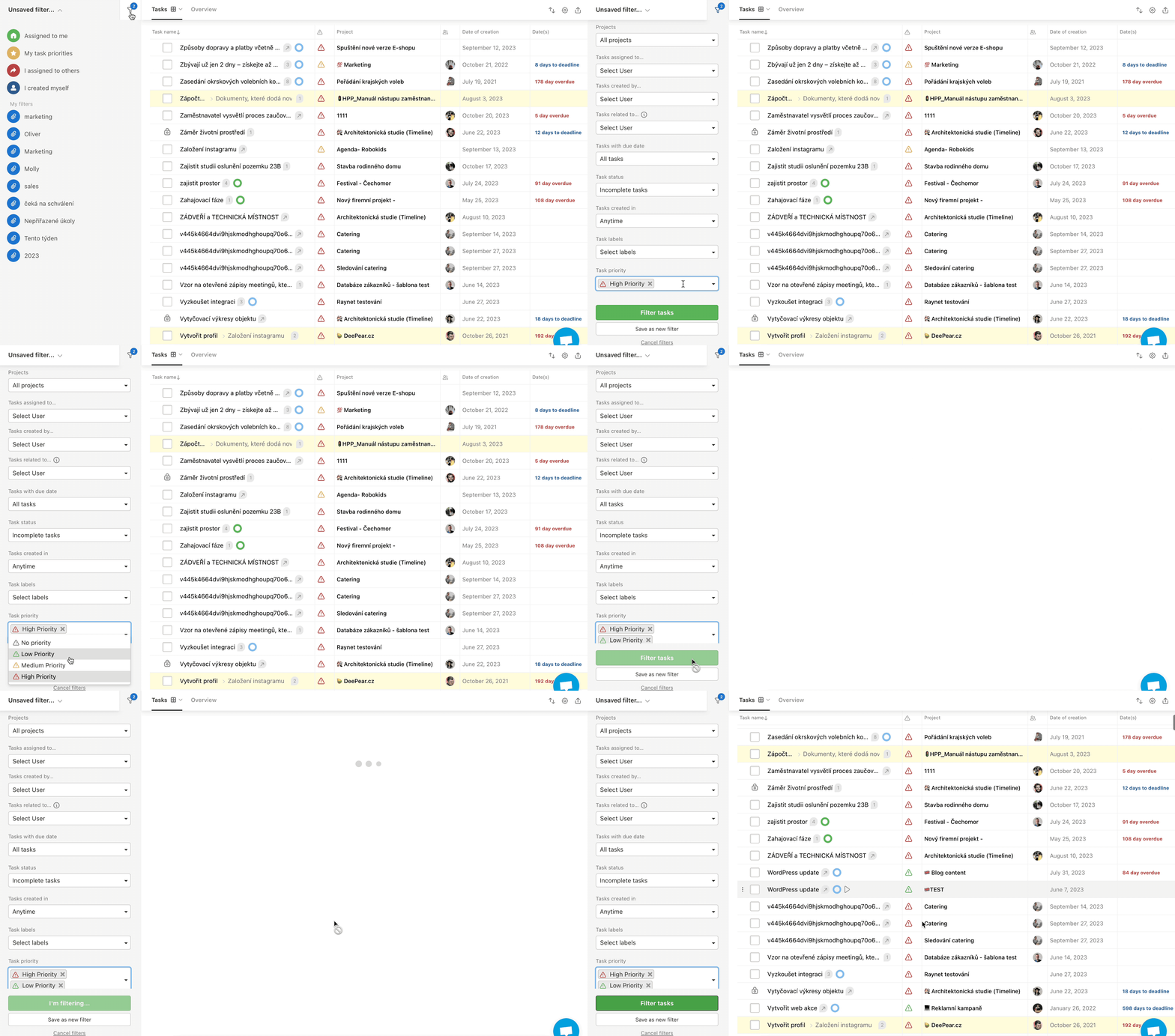
You can filter tasks by priority on Dashboard. Go to Dashboard and in the left menu find a filter Task priority. Click Filter tasks and see which of the tasks have the particular priority.
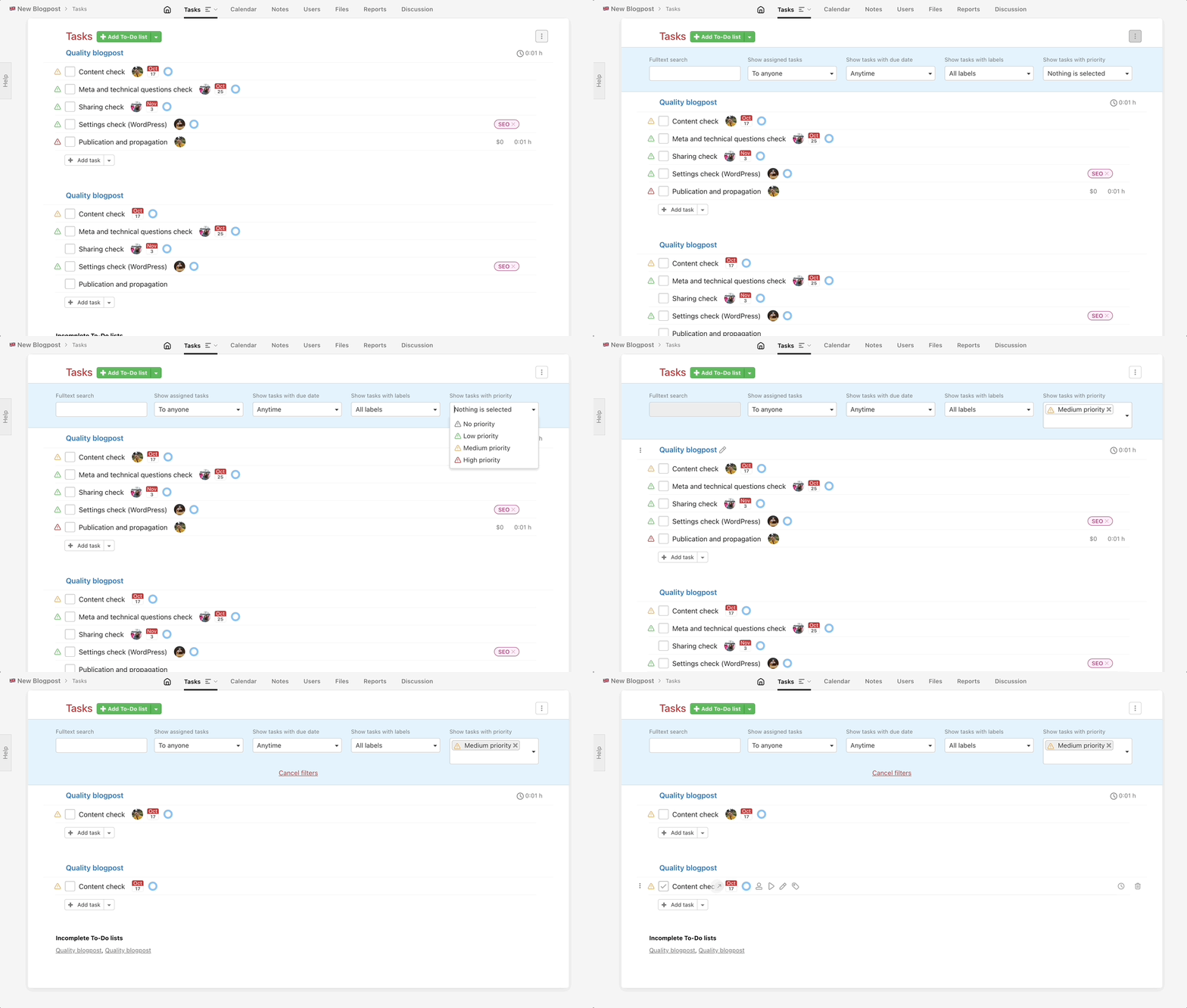
Similarly, you can filter tasks directly in your project.
Labels of the tasks will also help you prioritize tasks. Another way of marking important tasks is adding them to My priority list which only you can view.