
Sometimes you need to move or copy one or more entire To-Do lists from one project to another, along with all their tasks and information. Whether you are reorganising work across projects or starting a new project based on an existing one, Freelo makes it easy in just a few clicks – including comments, files, and time reports. This article covers both copying and moving.
You will find the Move, copy, ... option in the three-dot menu of every To-Do list.
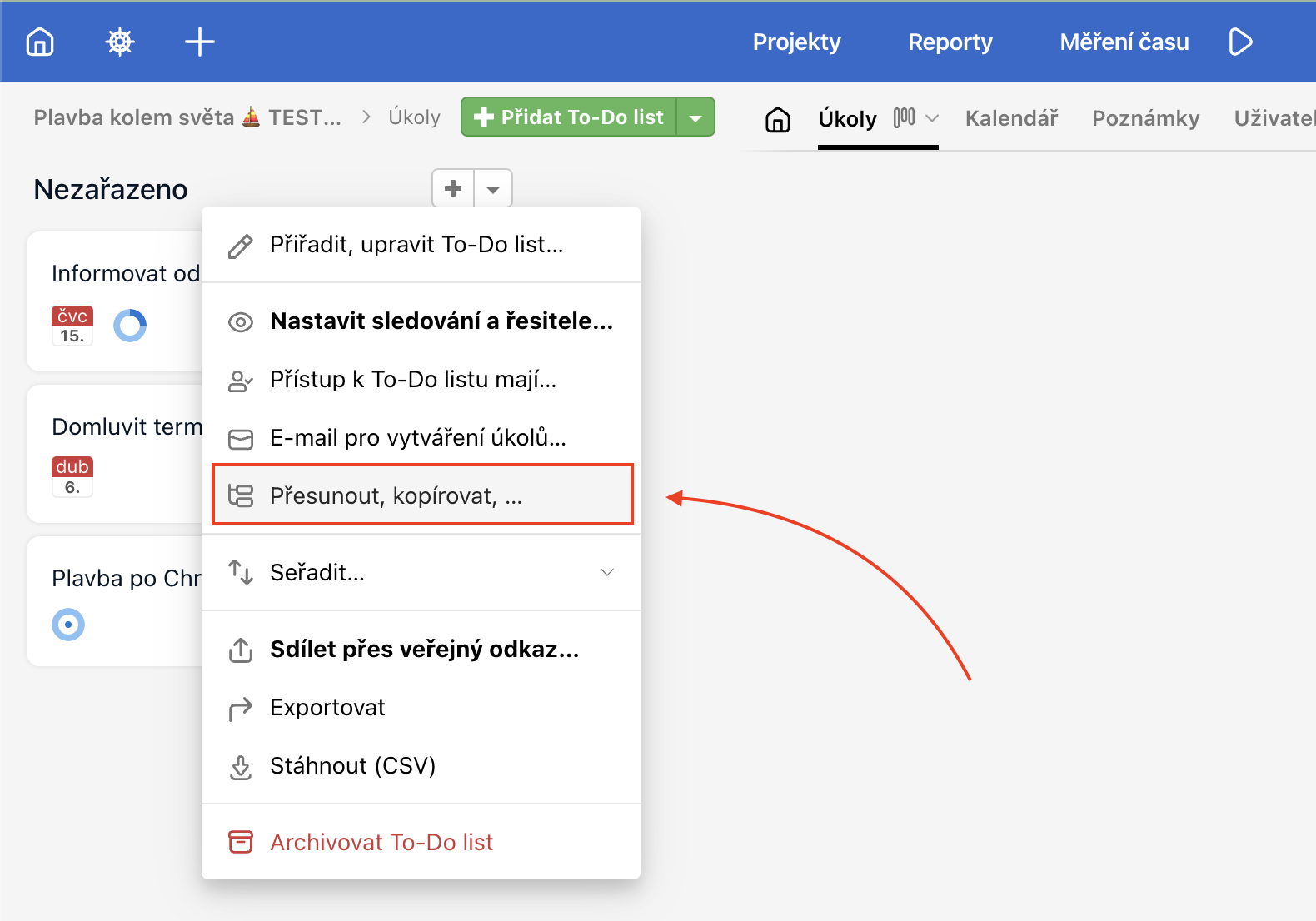
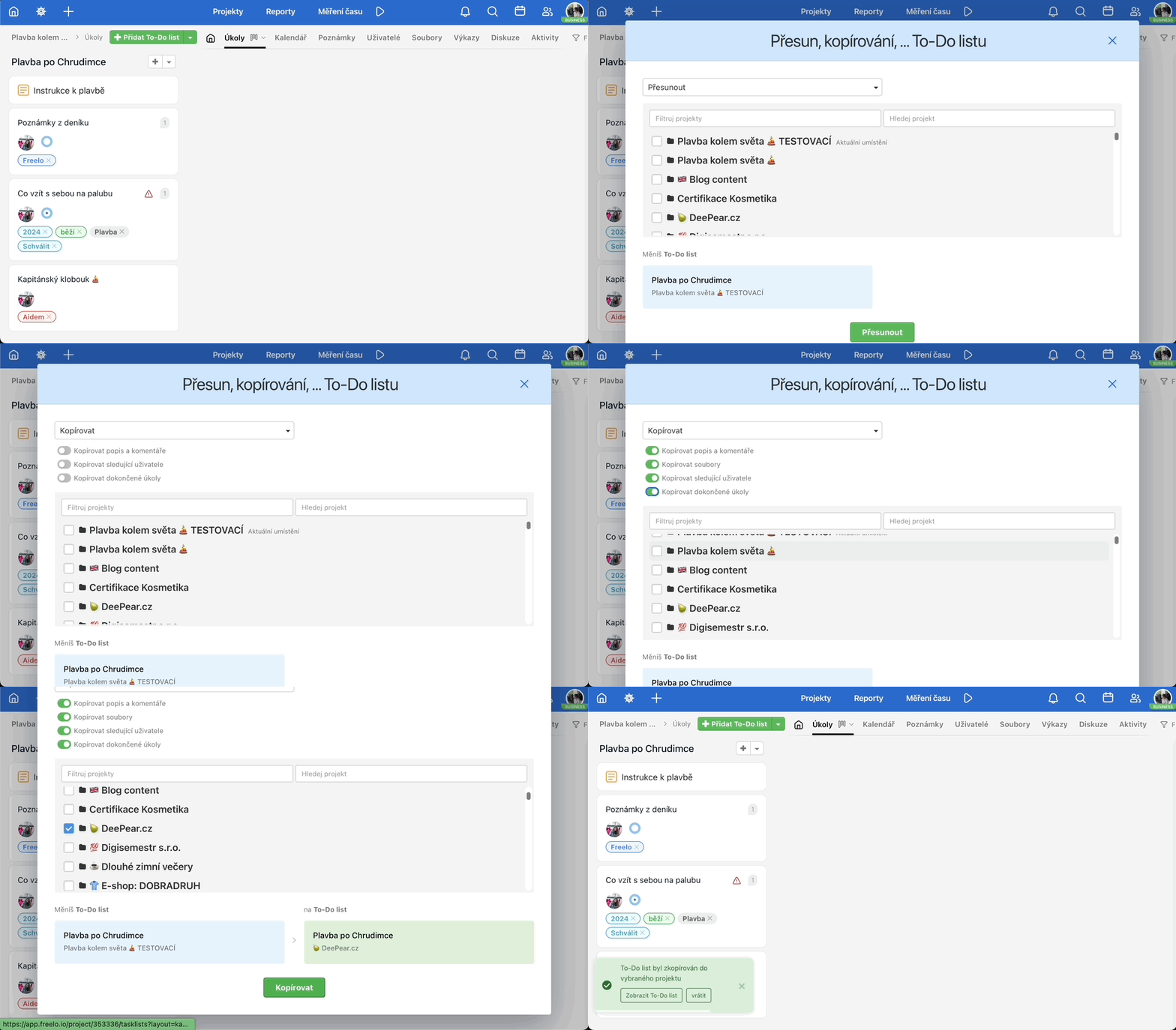
Copy a To-Do list
When copying, you can choose whether to include comments, files, watching users, and completed tasks.
Move a To-Do list
A To-Do list is moved between projects with its complete content — tasks, comments, files, subtasks, deadlines, and assigned users.
Hover over the To-Do list name and the three-dot menu Move, copy, ... will appear on the left. A window will then open where you select the project you want to move the entire To-Do list to.
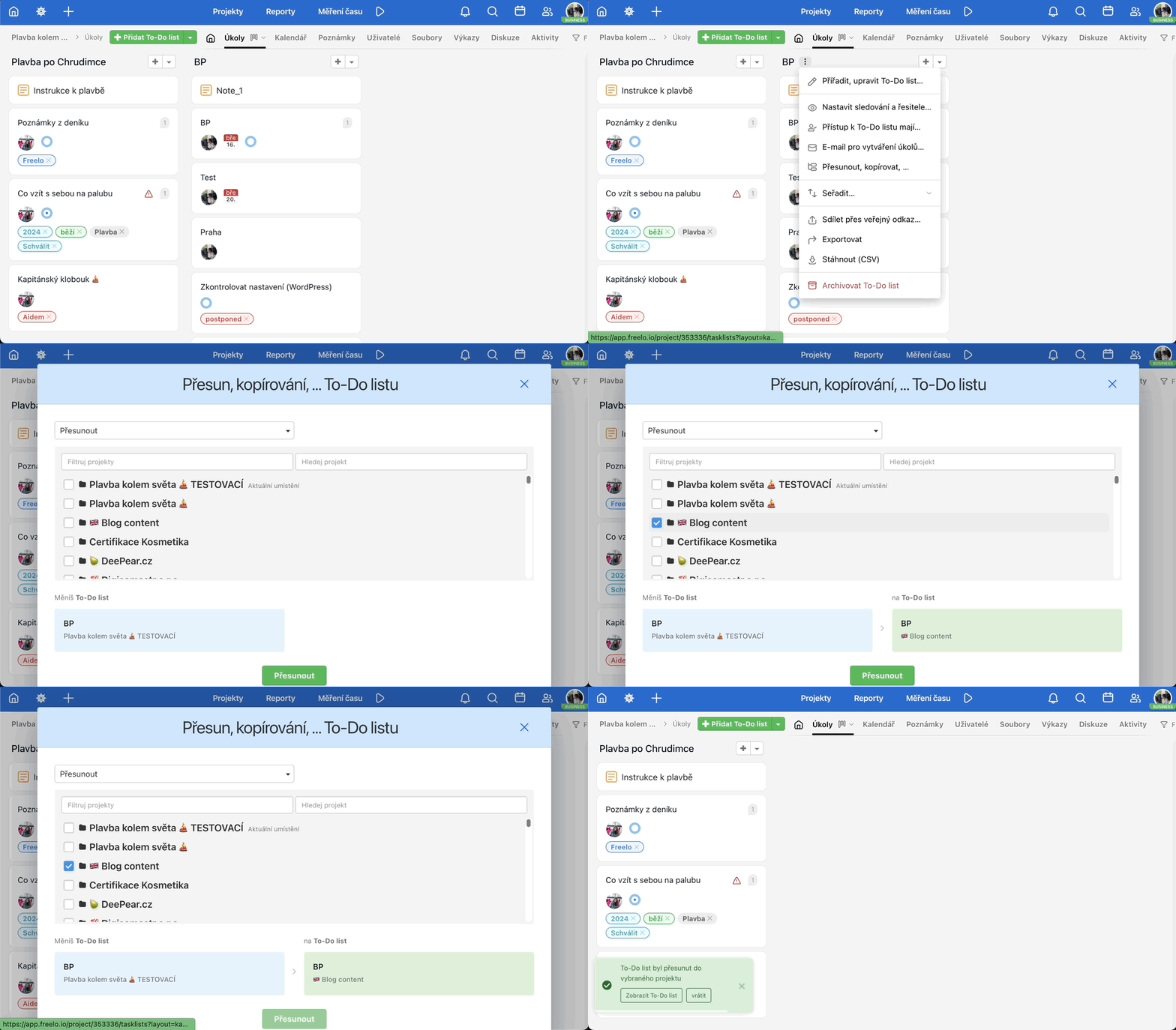
If your To-Do list contains time reports, consider what should happen to them. Do you want to move them to the target project or keep them in the current one? Select the appropriate option in the modal window and confirm with Complete To-Do list move.

You can also move a To-Do list within the same project.
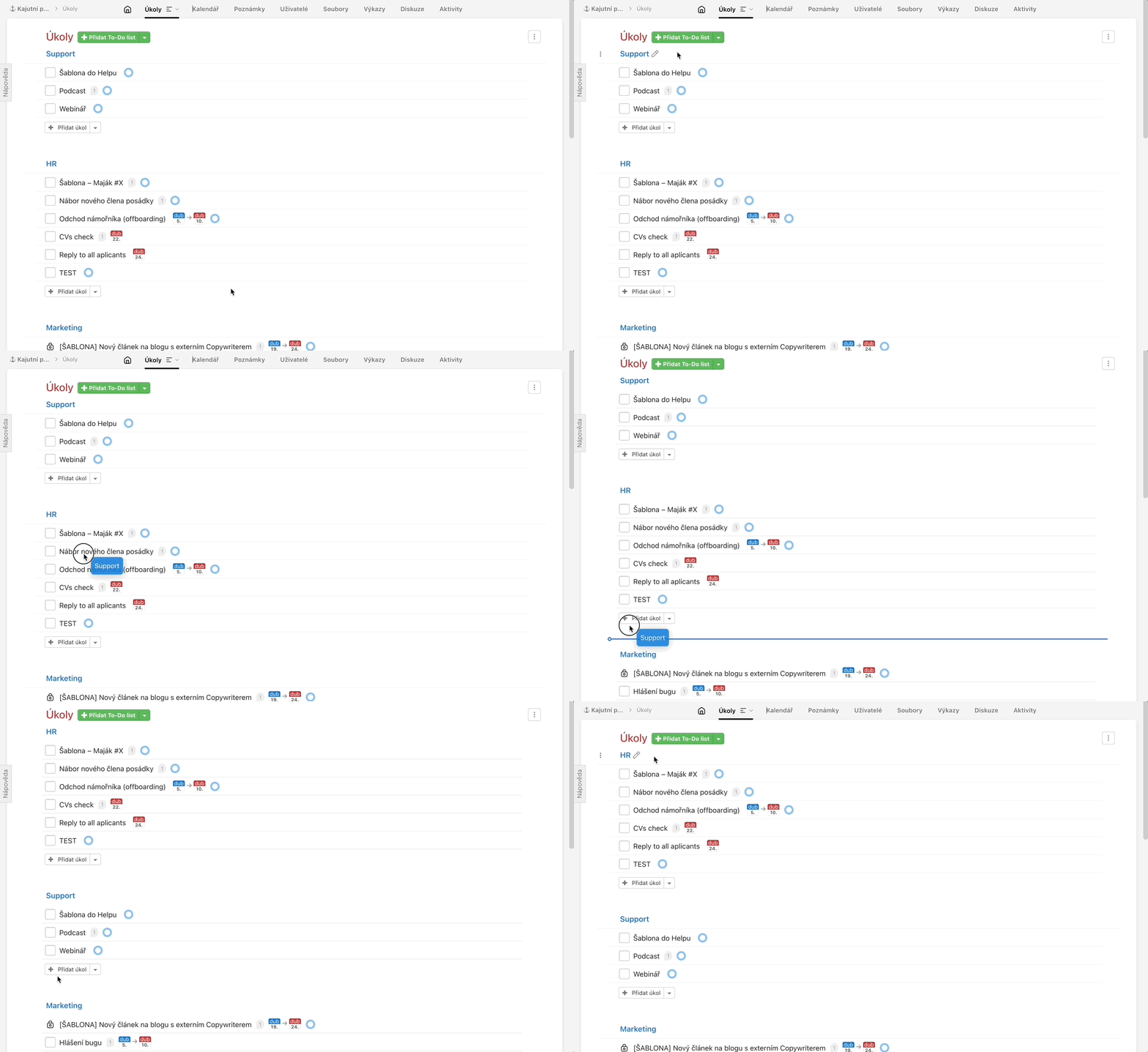
Practical Use
Copying and moving To-Do lists comes in handy in these situations:
- Project reorganisation – redistribute work across projects without losing comments, files, or time reports.
- New project based on an existing structure – copy a proven To-Do list layout as the starting point for a similar project or new client.
- Handing work over to another team – move an entire To-Do list, including its history, to another team's or colleague's project.
- Recurring processes – instead of creating the same tasks manually each time, copy the whole To-Do list (or better yet: use templates).