
If a visual layout works better for you than a plain list, or you need to see the relationships in your structure at a glance, you can use the Mind map in Freelo. It gives you a different view of your project than the classic row view or kanban. Will the Mind map be the ideal solution for you?
How to display the Mind map
You can turn on the Mind map in a project by clicking the Tasks tab, where you'll see the available views. Check the checkbox to set the Mind map as your default view.

Clicking the Mind map box takes you to a special project view that might look something like this:

Working with the Mind map
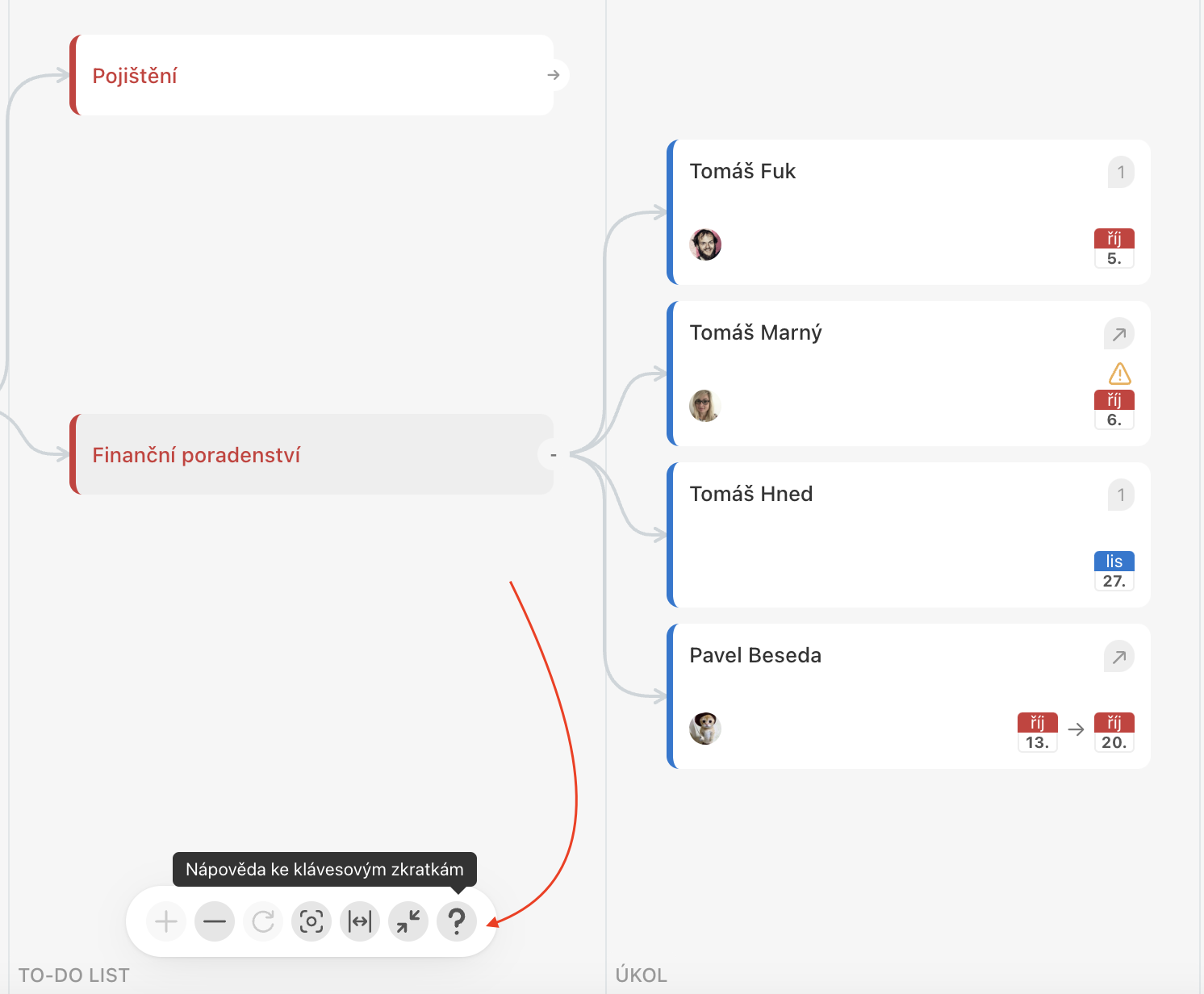
To make working with the Mind map as convenient as possible, we've added a clear control panel to it. There you'll find all the available controls and a list of keyboard shortcuts you can use with the Mind map.

Setting the assignee and due date
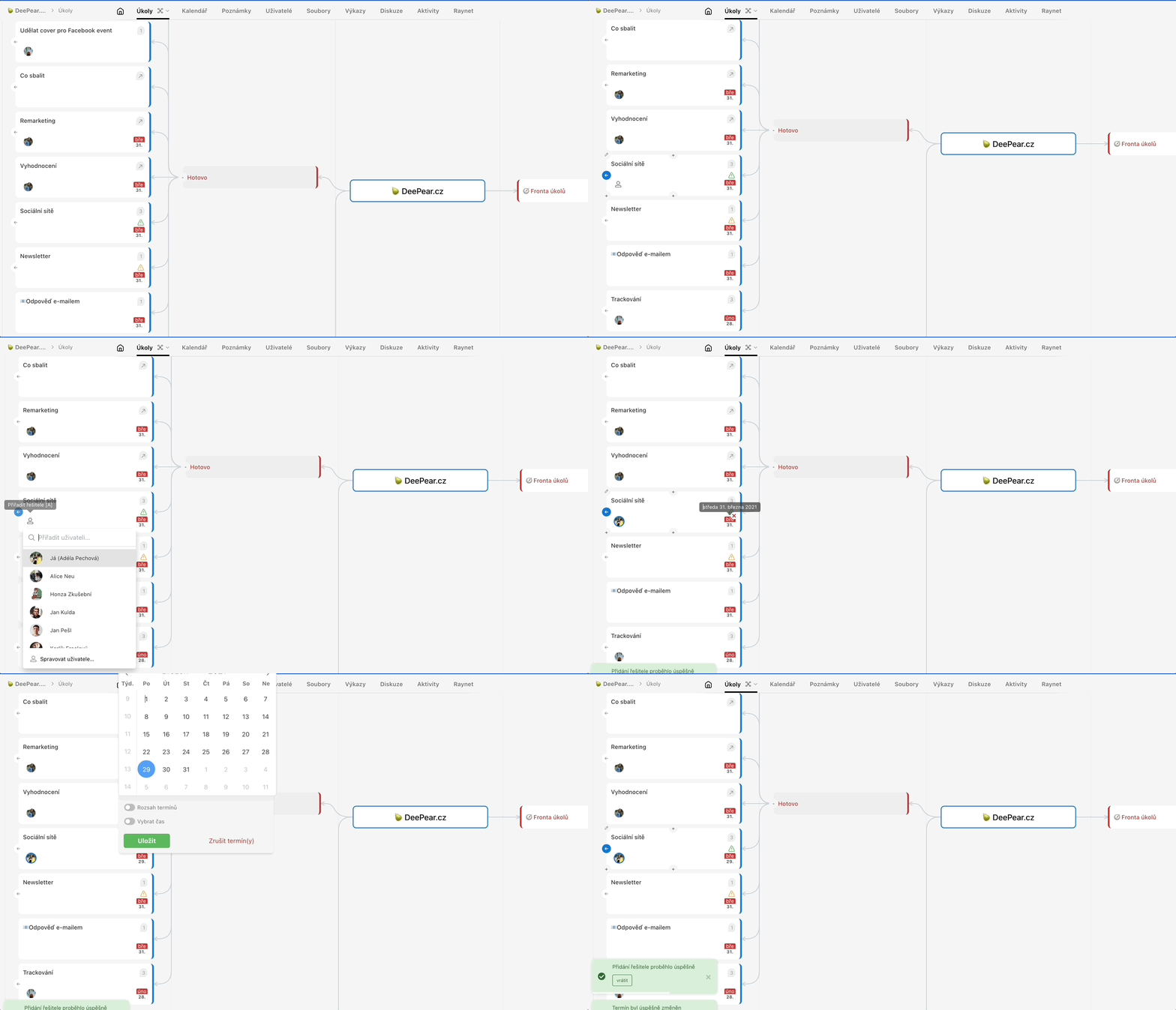
Hovering over a task in the Mind map brings up two icons – with them, you can set the task's assignee and due date in just a few clicks.
Moving between elements
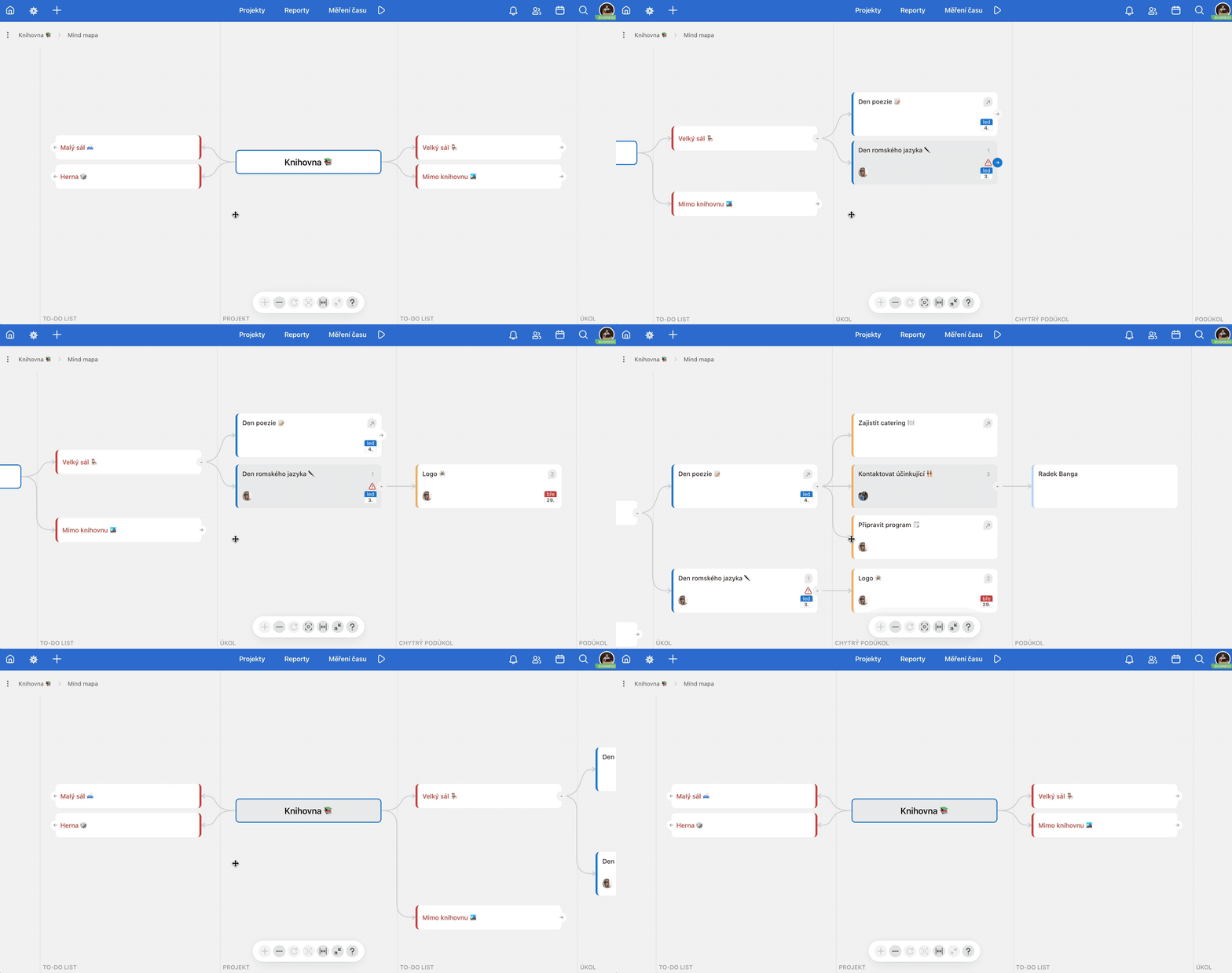
The individual parts of Freelo's structure – the project, To-Do lists, tasks, and subtasks – appear in the Mind map as elements. You move between elements simply with the arrow keys, and open or close the next level with the spacebar.
Zoom in/out
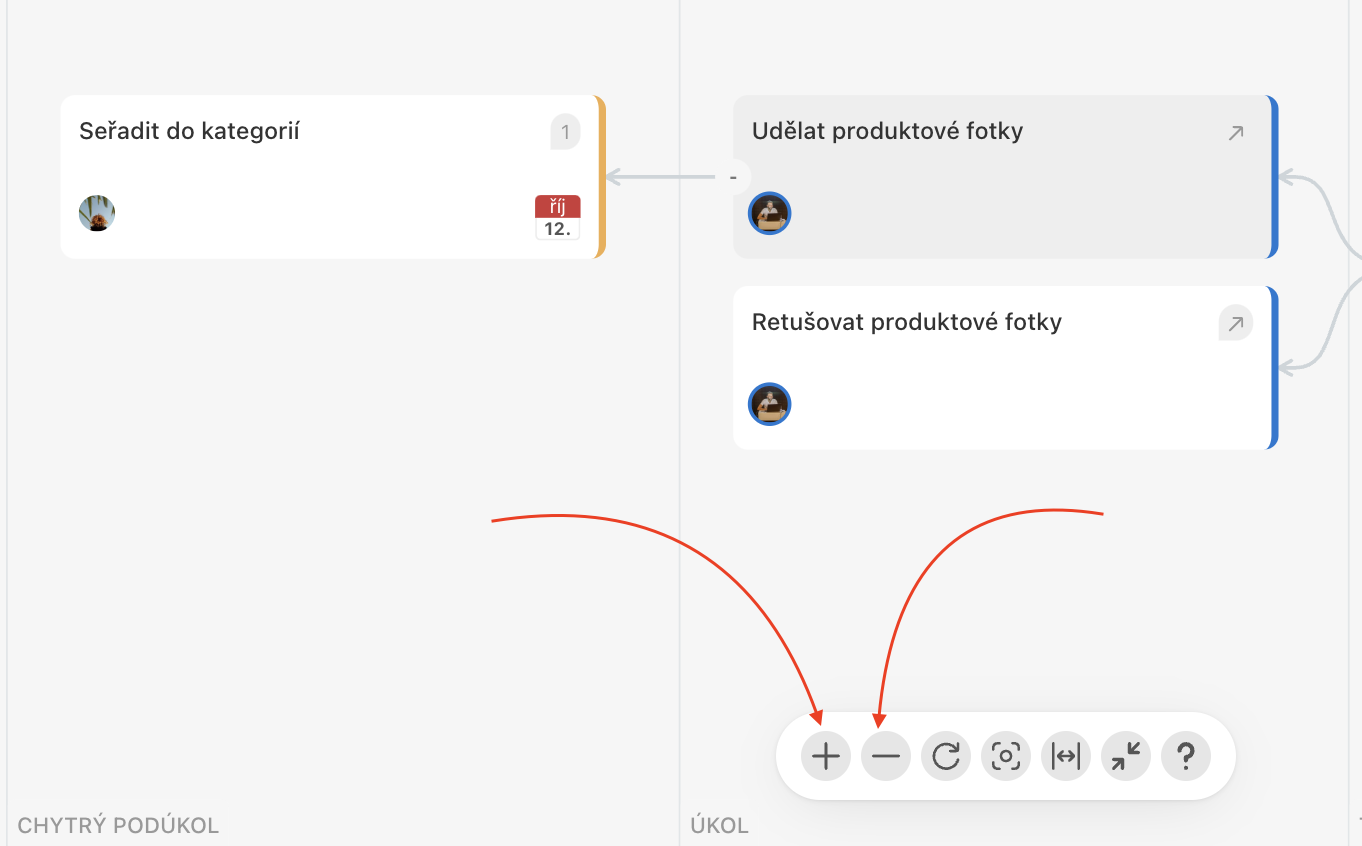
Depending on how much of the Mind map you need to see, or how many elements you have open, you can zoom the view in or out.
You can use either the + and - buttons in the control bar, or scroll with your mouse wheel (on a Mac, remember to hold down the Cmd key as well).
Other keyboard shortcuts
Most keyboard shortcuts in the Mind map are the same as the keyboard shortcuts you normally use in Freelo. For example, you can quickly assign a task/subtask to yourself with the M key, set a due date with T, and open the task/subtask modal window with Q.
The special shortcuts for the Mind map are as follows:
- spacebar = open/close an element,
- F2 (on a Mac, remember to also hold down Fn) = rename an element,
- enter = create a new element at the same level,
- tab = create a new element at a lower level,
- delete (on a Mac, Fn + backspace) = delete an element.
Practical use
- Structure overview at a glance – the Mind map is great for a project kickoff or a client presentation, when you need to show the whole project structure at once.
- Finding your way around complex projects – if you have a project with many To-Do lists and dozens of tasks, the Mind map helps you quickly see the relationships and dependencies between them.
- Planning from scratch – start with a blank Mind map and plan out your project structure hierarchically before adding specific tasks.
- Quick assignment without opening tasks – hover over a task in the Mind map to assign the assignee or due date right from the overview, without having to open each task individually.