
Do you want to organise your project your way? You can set the order of sections for yourself as well as for other users invited to the project.
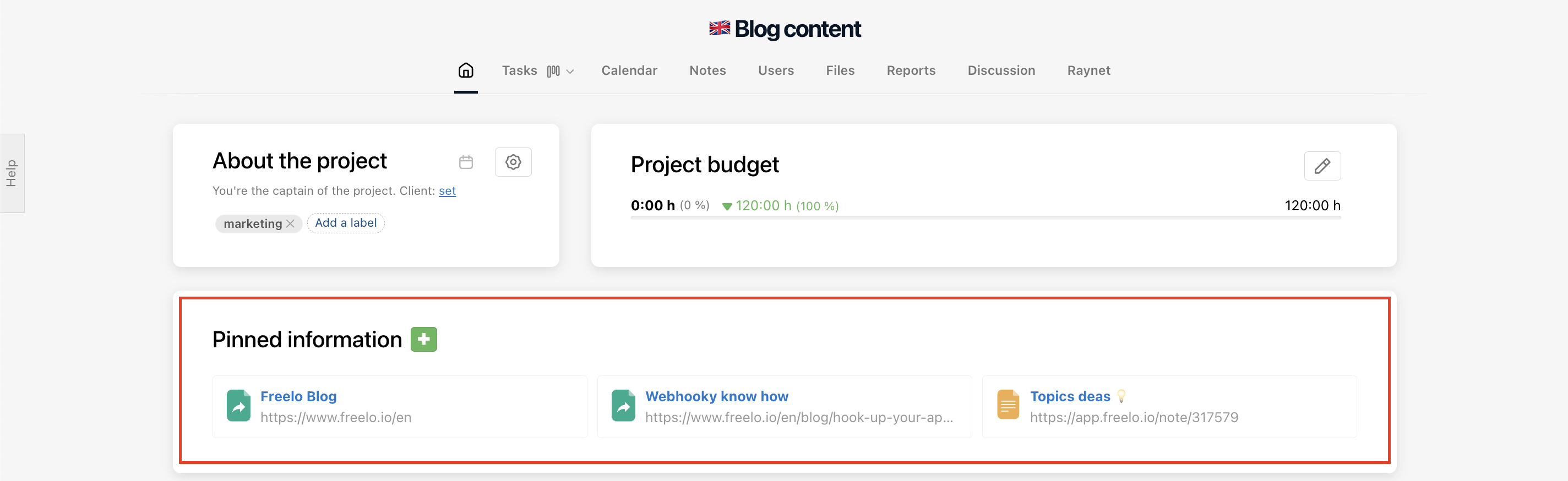
Do you have important links that are related to the project? In the project detail, there is a section called Pinned items, where you can add information and files you want to have easily accessible at all times.
You can refer to important tasks, team rules, external document cloud or project notes. Just enter the URL address.
Project settings
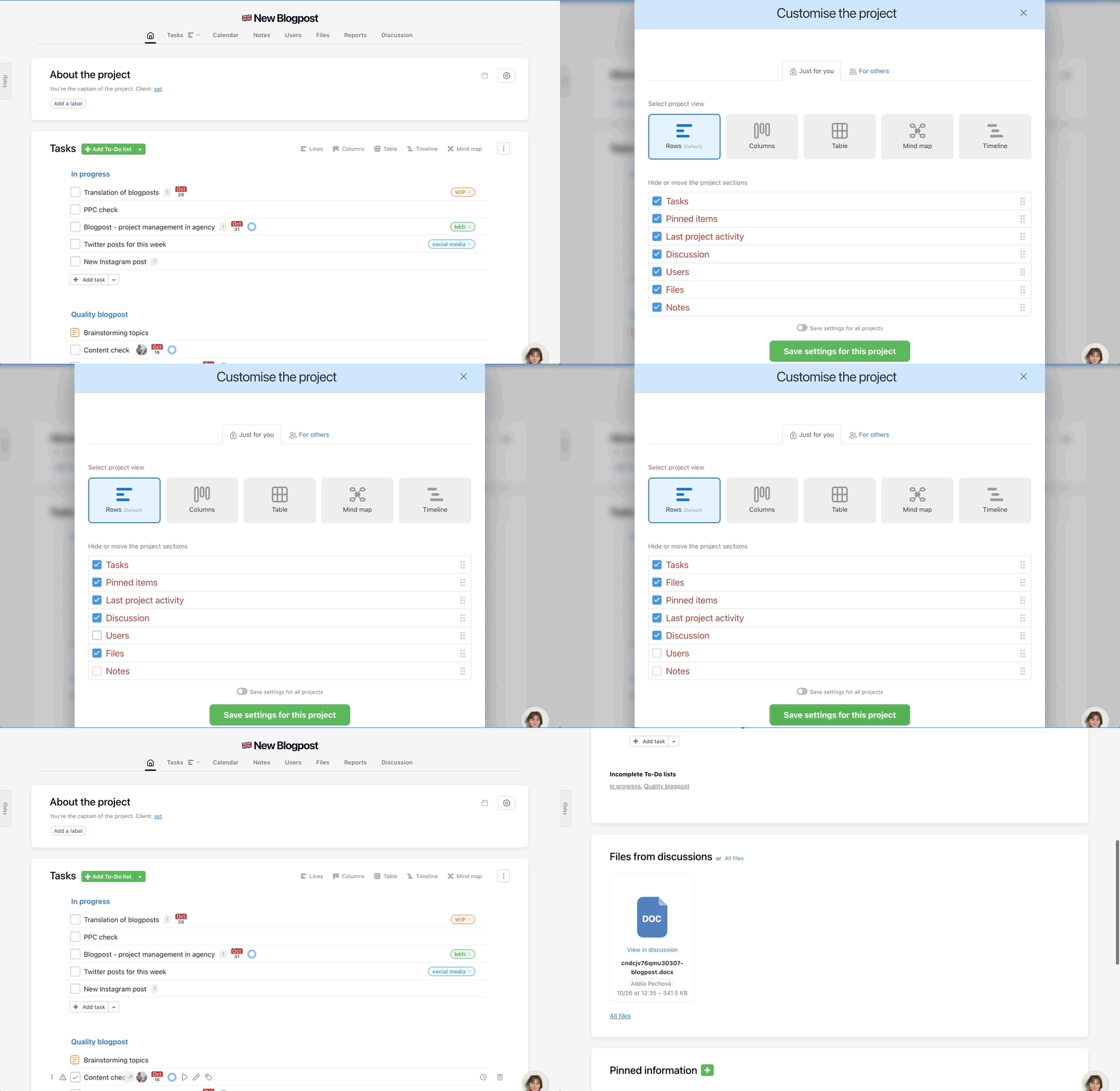
If you want the Pinned items to be visible for everyone, edit the listing of the project sections in project detail. Everyone will see the same list.
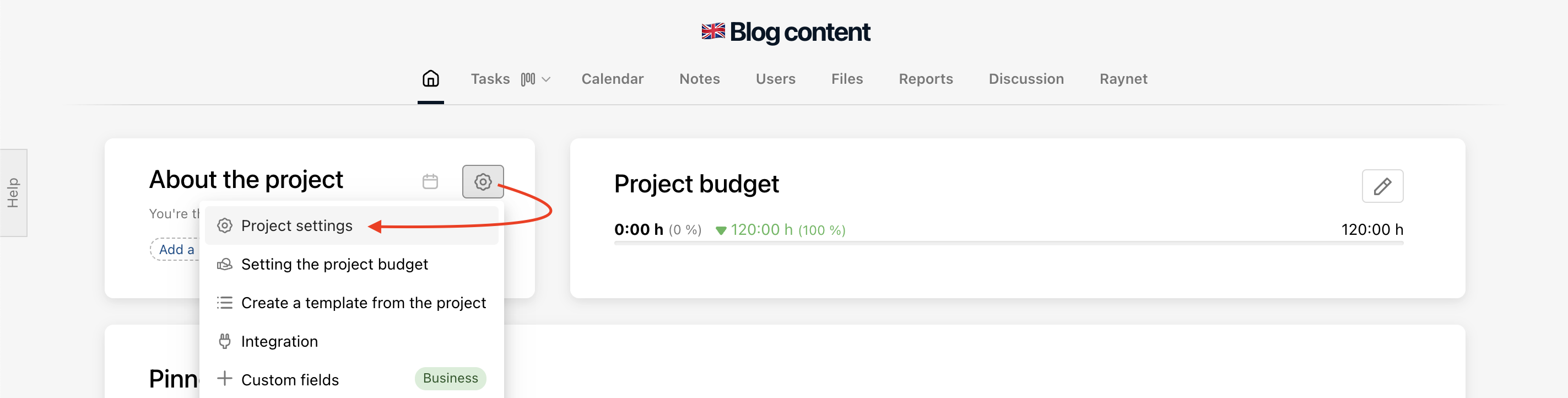
Go to the Project detail > settings icon on the right side and select Project settings.
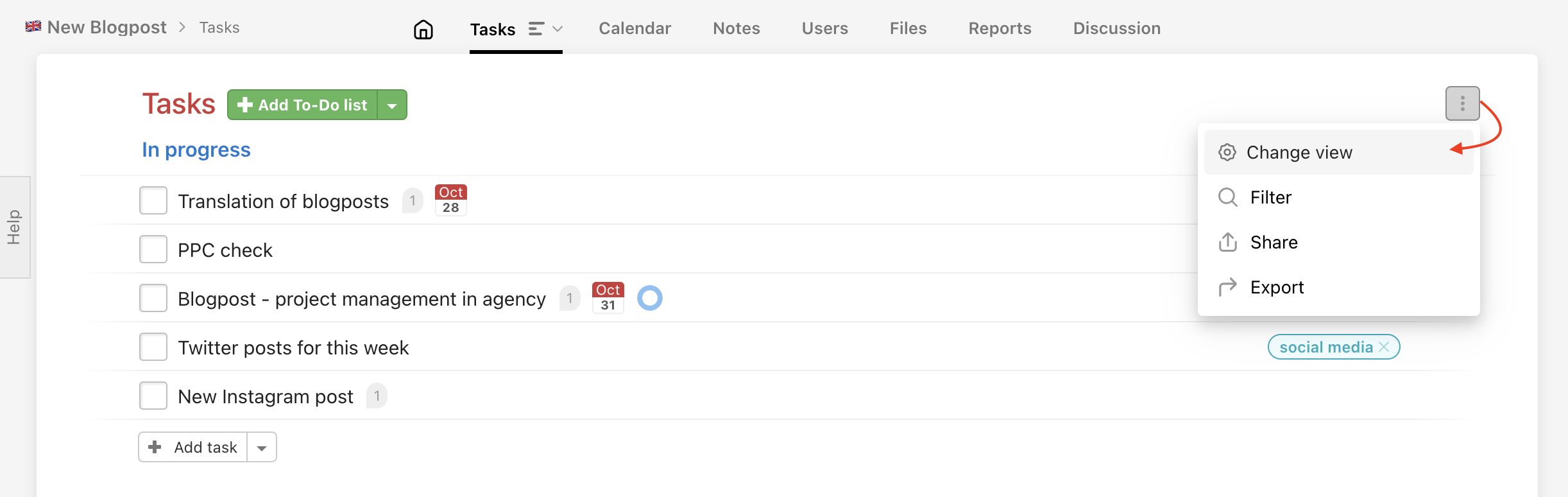
Another way to change the Project settings is to open the three-dot menu on the Tasks page > Change view. This will open the project settings.
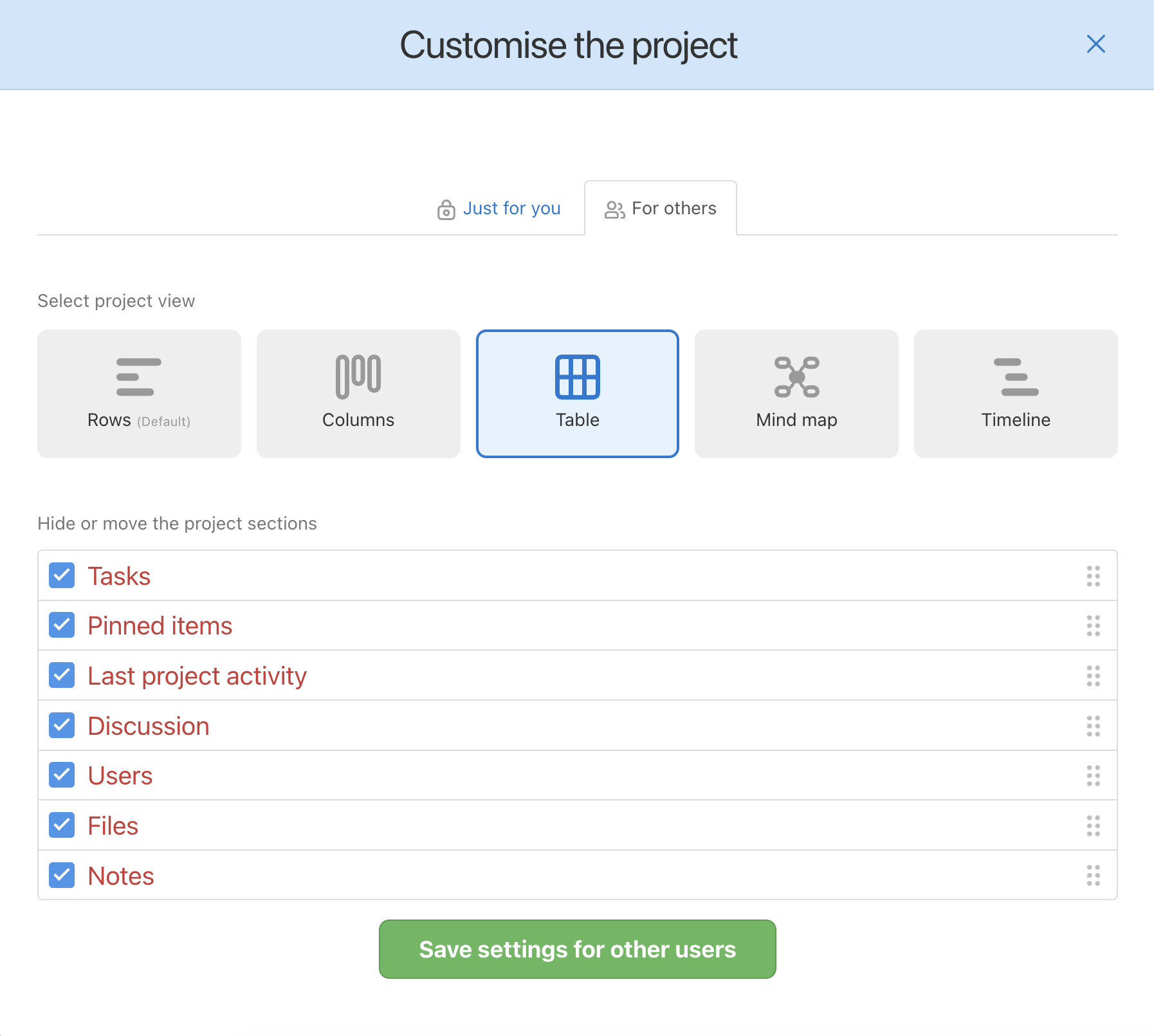
If you are the Project owner, Company Captain or the Admin, you can set the project view and sections for other users. If you are the invited user, you can set this for yourself only.
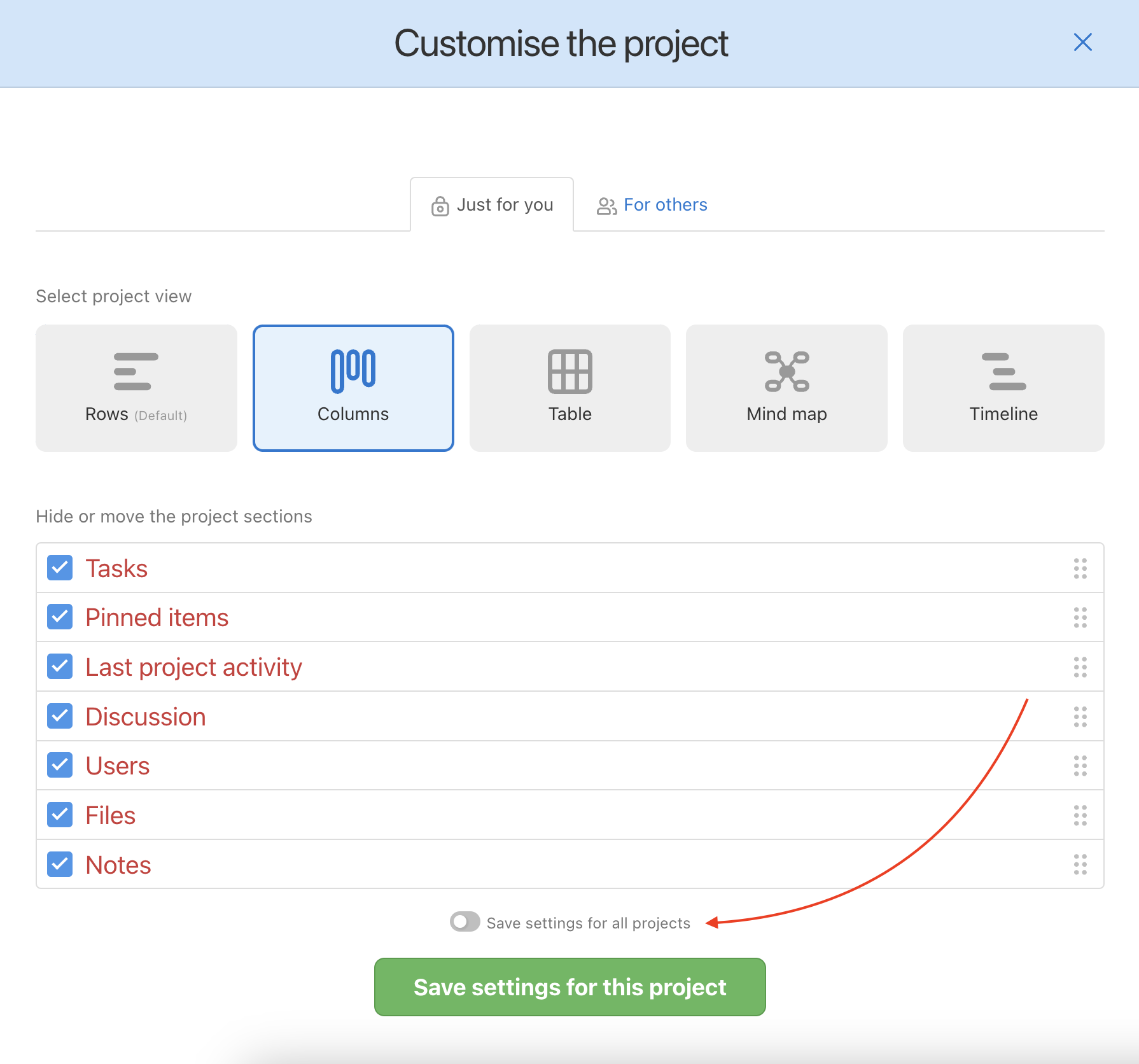
You can set the project details for yourself for a single project or for all of your projects.
Project views
Choose how you wish to view the tasks:
In case you use the methodology Inbox, In progress, Check, Done etc. we would definitely recommend to switch the view to Kanban Board/Column view.
Project sections
The sections in the project detail are shown by default. The sections are:
- To-Do lists
- Pinned items
- Notes
- Discussions
- Last project activity
- Files
- Users
And again, in case you are the Project Owner or Admin, you can set the section view and listing for other users. If you are the invited user, you can set the view for yourself only.
You can set the view for you and the others differently. It is great when you want to see the last project activities/discussions as the Project Manager. The other sections are not as important for other users.
List the sections via drag & drop and confirm.
Project name
You can rename the project by clicking directly on the current name and overwriting it. Confirm the change with Enter or by clicking outside the field. The project can be renamed by the captain, Company Captain, or project admin.
Label
Assign a colour-coded label to the project for better visual orientation in the project list. Set the label by clicking Add label in the About project section.
Deadline
You can set a deadline for the whole project – the date by which the project should be completed. Set it by clicking the calendar icon in the About project section.
Owner
In the About project section you can see who is the project owner (captain). The owner can be changed by transferring the project to another captain.
Create template from project
Do you want to reuse the project structure (To-Do lists and tasks) in the future? Create a template from the existing project. In the project detail, click the gear icon > Create template from project. The template will appear when creating a new project.
Integrations
Freelo allows you to connect a project with external tools. You can find the available integrations in the project detail via the gear icon > Integrations.
Custom fields
Custom fields allow you to add custom attributes to tasks in a project – for example priority, status, numeric values, or a text field. Activate them via the gear icon > Custom fields. This feature is available in the Business or Premium plan. The fields are automatically applied to all tasks and subtasks in the project.
Redirect to tasks
In the project settings (via the gear icon) you will find the Redirect to Tasks toggle. Once enabled, opening a project will take you directly to the Tasks tab instead of the project overview.
Project budget
In the project settings (gear icon > Project budget settings) you can set an hourly or financial budget with the option of automatic reset. You can see the budget usage overview directly in the project detail.
Pinned items to a project
This section contains important links that help your team navigate a project. It is useful for pinning URLs for crucial tasks, notes, external document clouds, or the client’s website.
How to pin new items
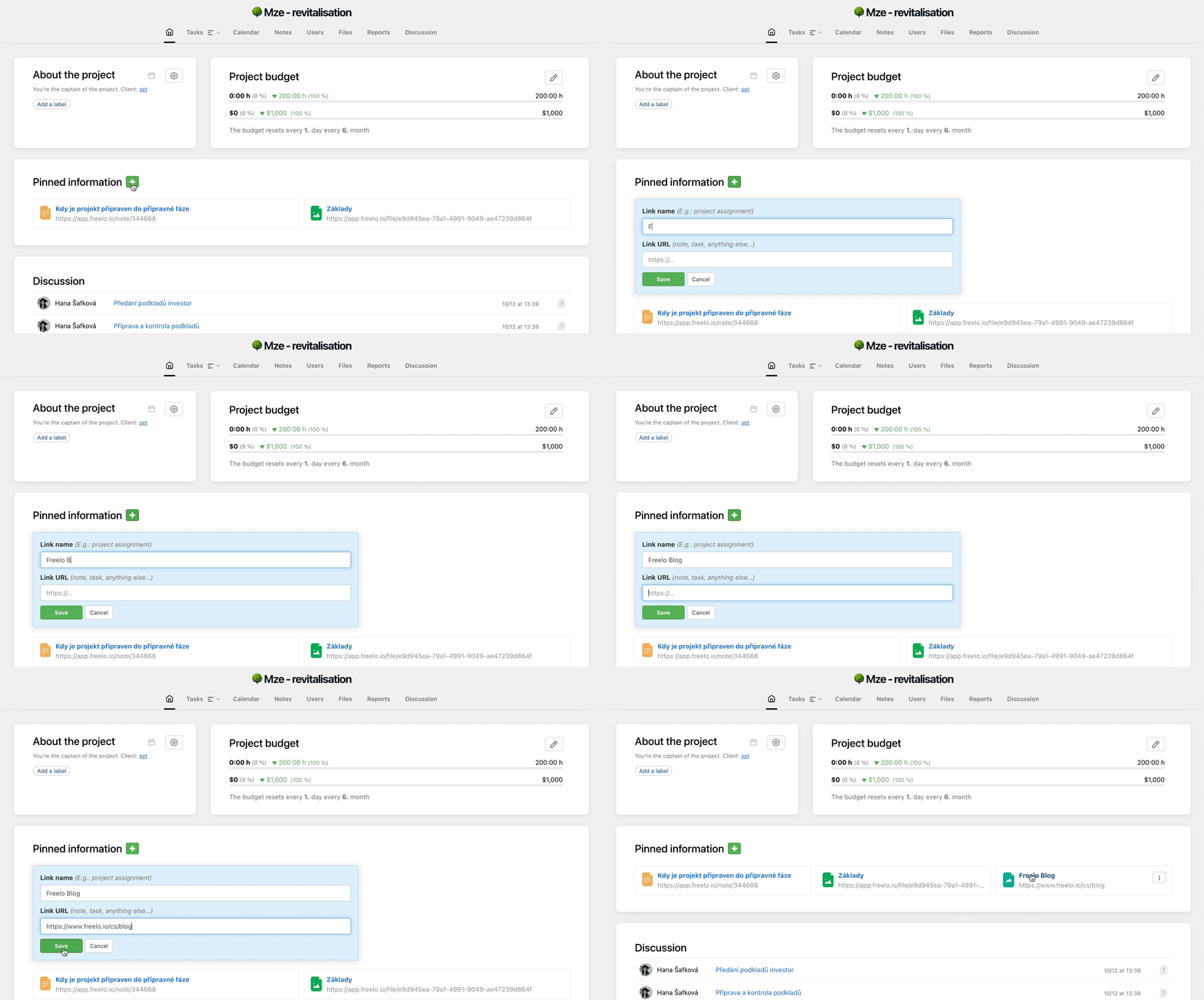
Find the Pinned items section. Add a link by clicking the green plus icon, enter the URL and name for the pinned link, then click Save.
Practical use cases
- Template for recurring projects – do you have a project structure you use regularly (e.g. client onboarding)? Save it as a template and save time on preparation next time.
- Custom fields for tracking priorities – add a custom "Priority" or "Status" field to tasks and keep track of what matters most directly in the task list.
- Project deadline for client work – set a project deadline so all team members know when the whole job is due.
- Budget for cost tracking – set a financial or hourly budget and monitor its usage directly in the project detail without exporting data.
- Redirect to tasks – if your team works exclusively with tasks and doesn't need the project overview, enable the redirect and save one click every time you open a project.