On the page All projects you can find a list of all the projects. Projects are divided into sections by their owners (Captains).
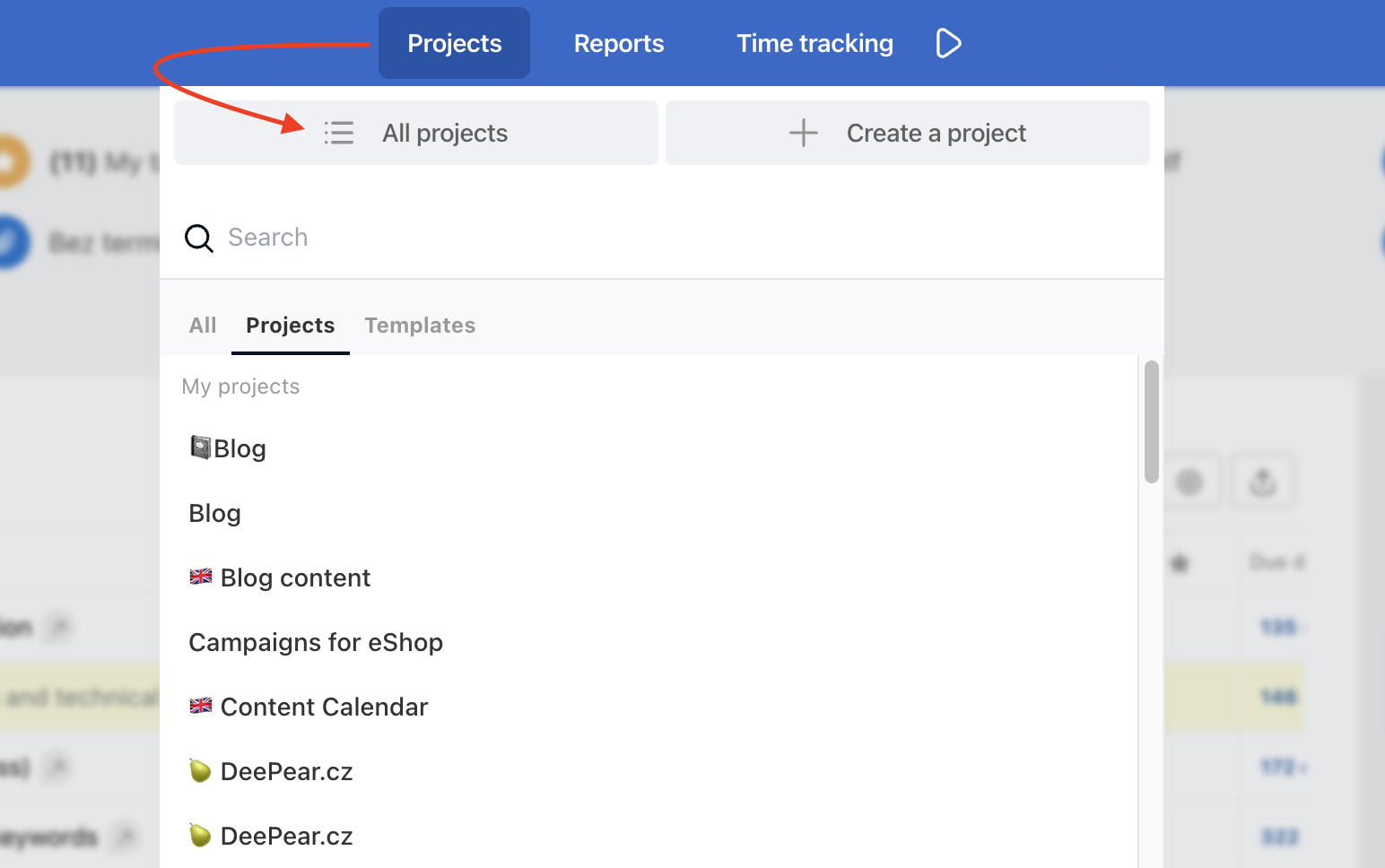
This view (screen below) helps you to move between multiple projects quickly. Just click the Project name and Freelo redirects you to the project detail. Projects are listed alphabetically.
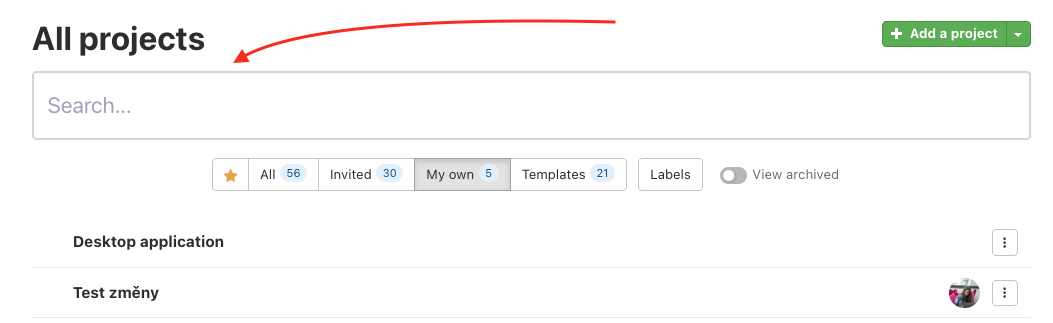
Search
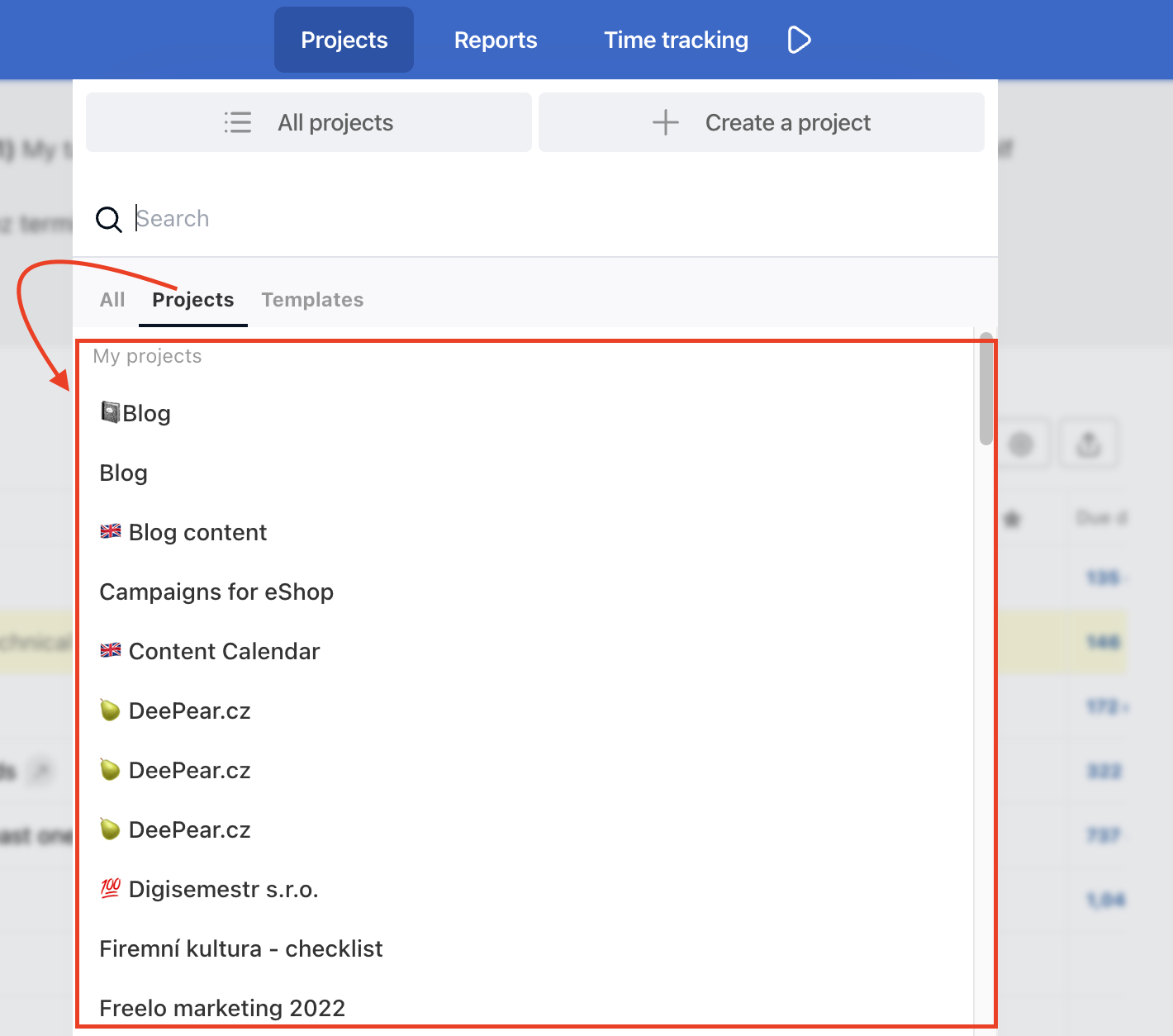
If you have a lot of projects, use the search box. This is in the Projects section just above the list of projects and templates. If you only want to search within projects (not between templates), go to this category.
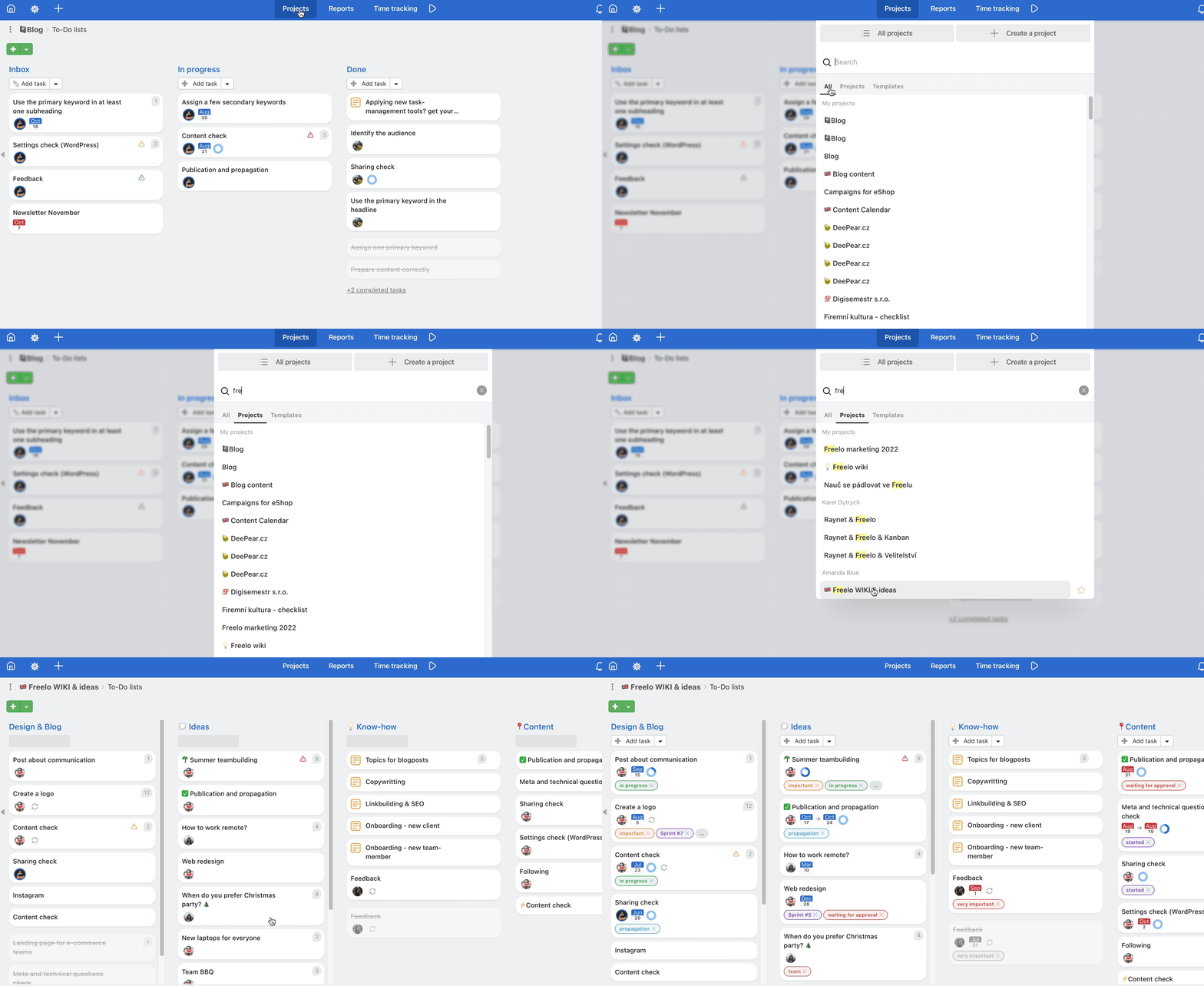
You can also find the project search field via Projects > in the All projects section.
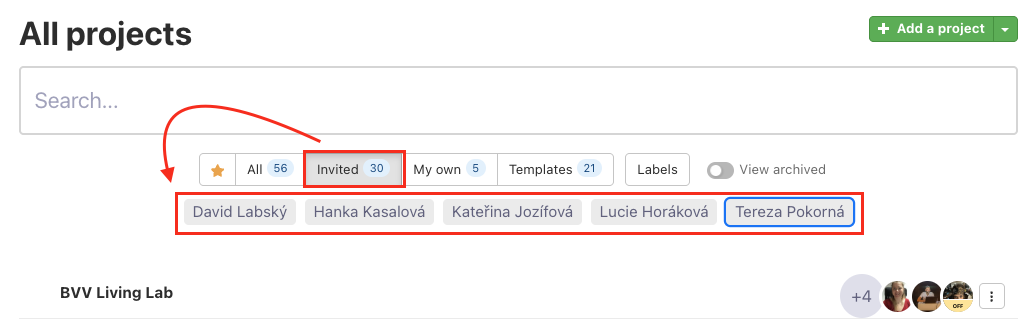
Projects are divided by the user who invited you to the section Invited.
Types of projects
Projects are divided into four categories in Freelo. Check our glossary and understand all Freelo terms.
Invited
This is a project you were invited to by another user. It is most likely your company’s Captain or client’s project you cooperate on. This project is not a part of your plan limit and you do not pay for it.
My own
These are projects you have created yourself under your personal account. The number of active projects depends on your Freelo plan. If you have the Project manager role, you can create projects under someone else's account (the Captain's), such projects appear in the section Invited.
Templates
Templates are projects, where you pre-set the structure of the project and use them repeatedly. You can create a template when you are in the section All projects and then click the three-dot menu on the right side of the project > click Create project from a template.
Archived
Your projects can be archived and "put to sleep". The archived project does not count in the project limit and you can have as many as you want. You can restore archived projects anytime with all data kept, just the way you left them.
How to work with archived projects.
Project filtering & Project labels
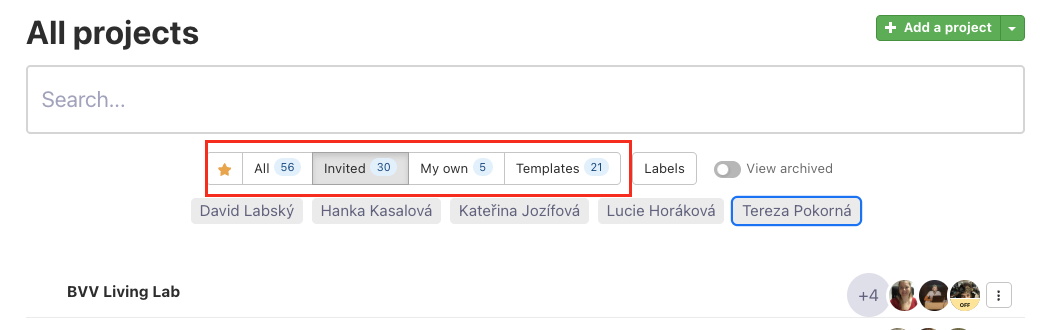
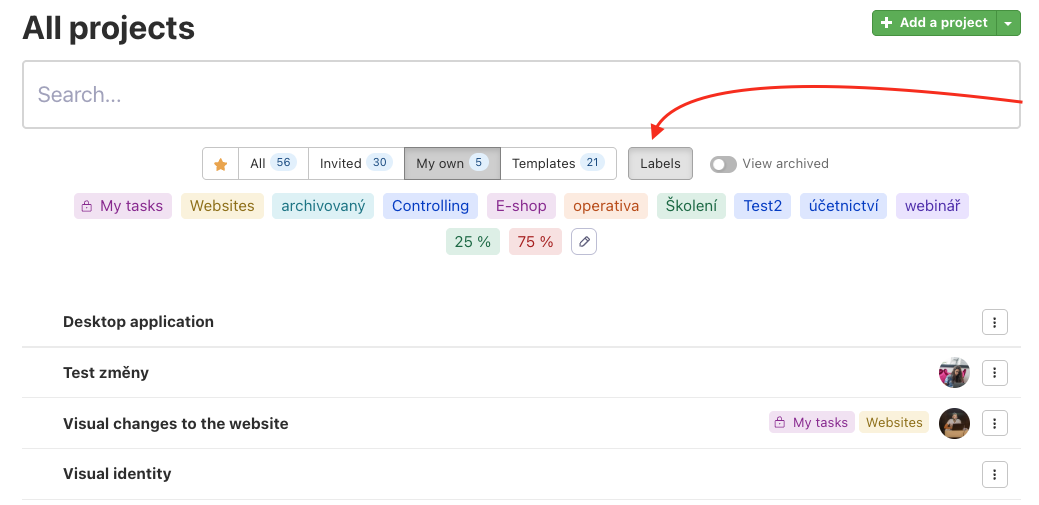
At the top of the page All projects, you can filter projects by type or labels.
Filter projects
In the section project templates, and archived projects.
Project label
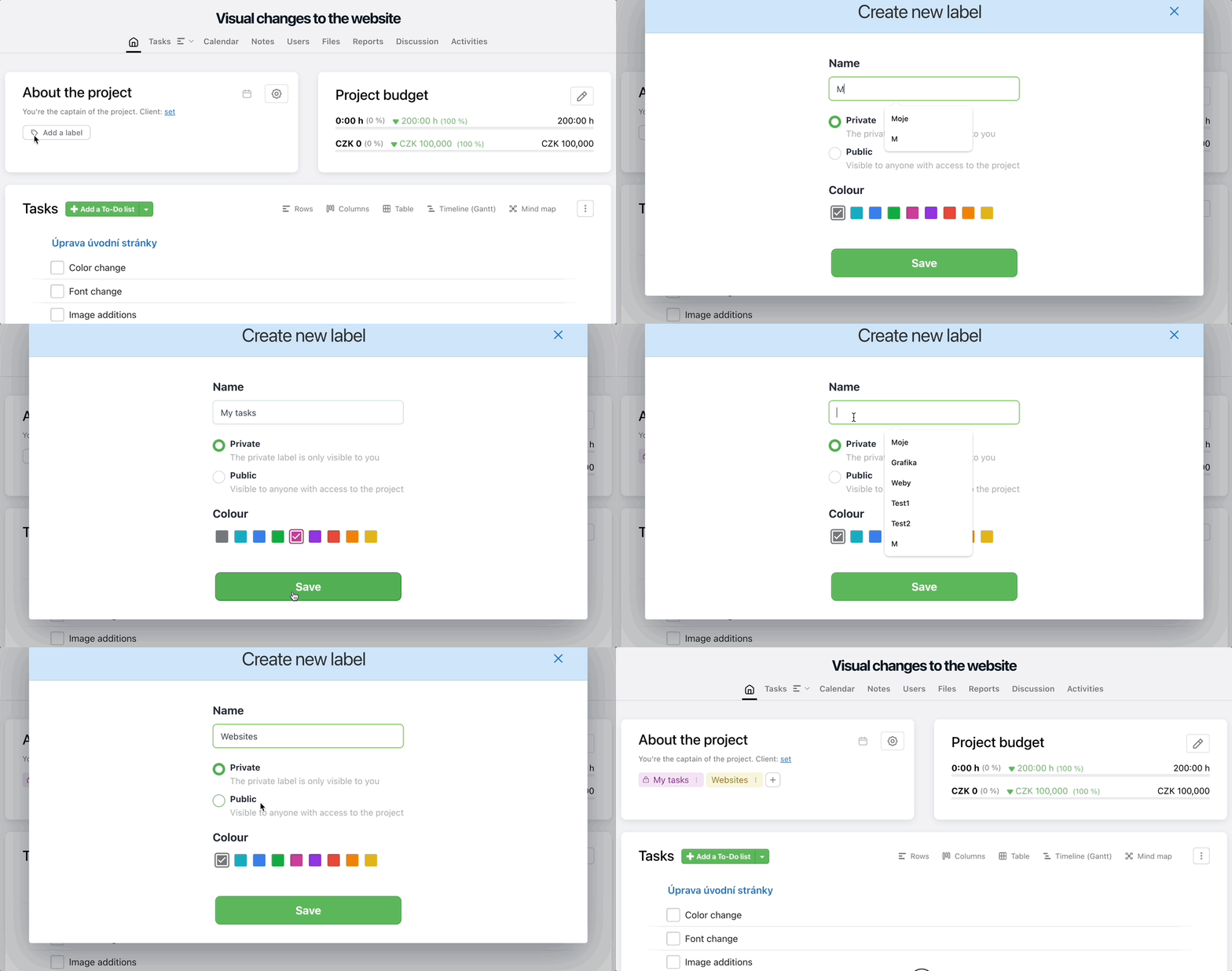
You can set the project label on the project detail right below the project name. Project labels can be private (used only by you) or public (visible to all project members).
How to rename a project
If you are the Captain or an Admin of the project, you can rename it in the project detail view. Simply click on the project name and it will turn into an editable field.
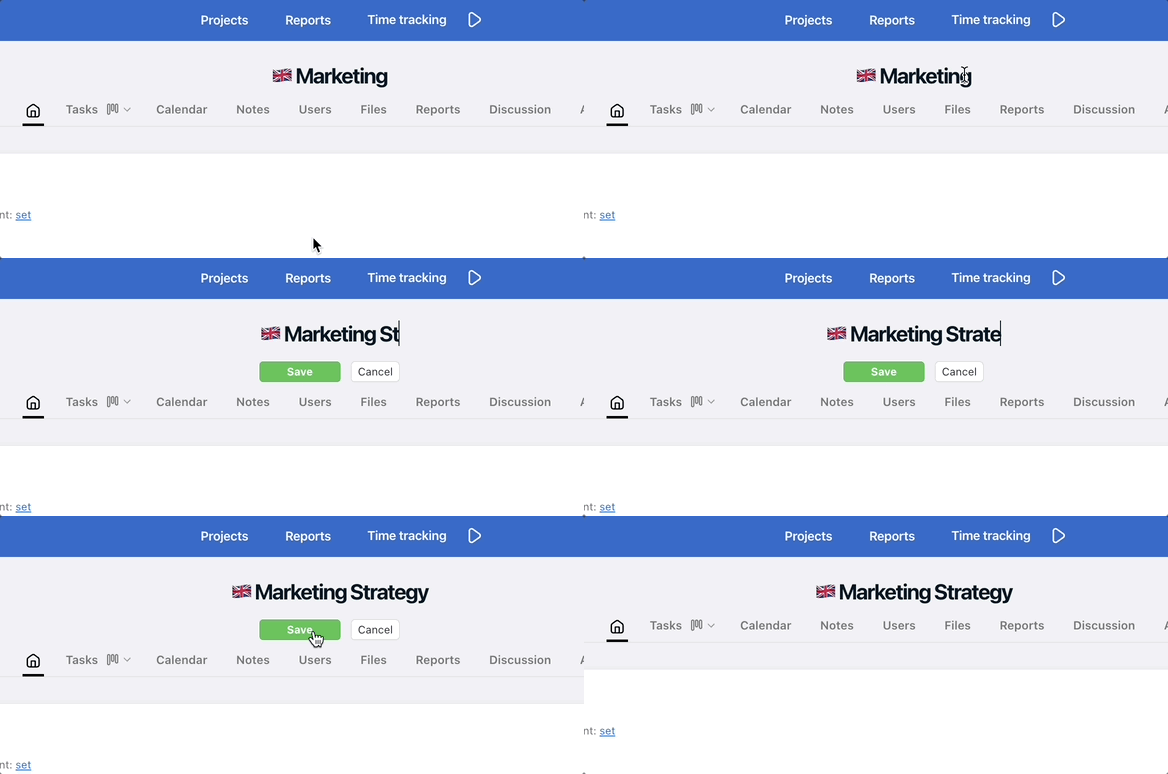
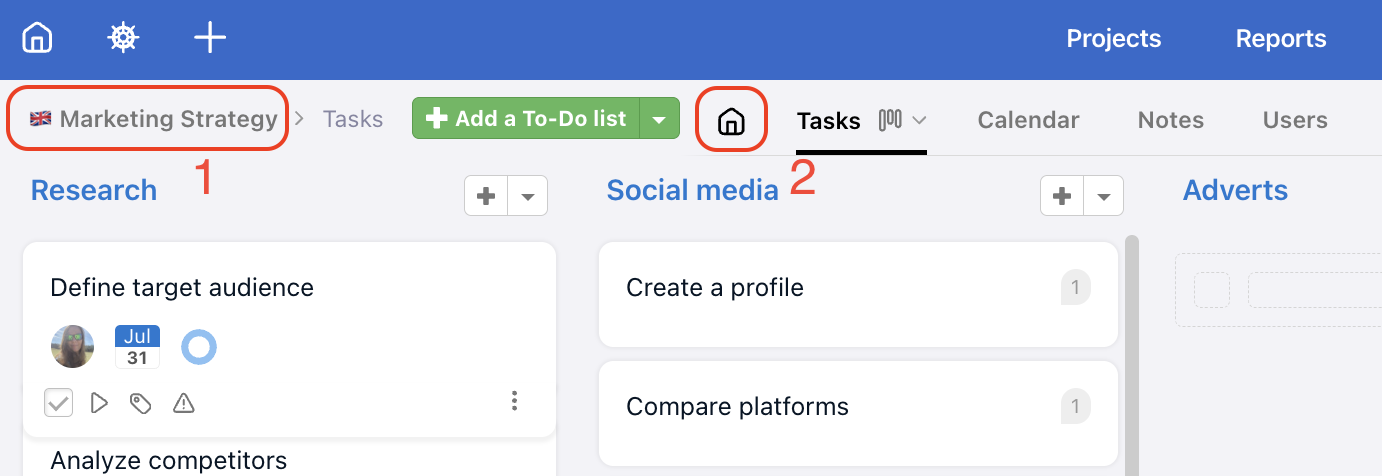
If you're using kanban (columns) view and have switched the project view directly to To-Do lists, you'll need to navigate to the project detail. Click on the Project name (1) on the left, or the Home icon (2).