
There are a few ways to create a new project. Let's have a look.
Creating a new project
A project is the highest entity and level in Freelo’s structure. Before you start assigning tasks to others, you need to create a project. When creating a new project, there are important items you need to fill in.
In the form you have to fill in 4 items:
- Project name (can be edited later)
- Whether you want to create a project from a template (structure can be edited later). Date from which the task due dates will be created (cannot be edited later)
- Display = rows, kanban board, table, mind map, timeline (can be edited later)
- Project currency (cannot be edited later)
- Project Captain = owner (can be changed later) – this should be the user with the paid plan
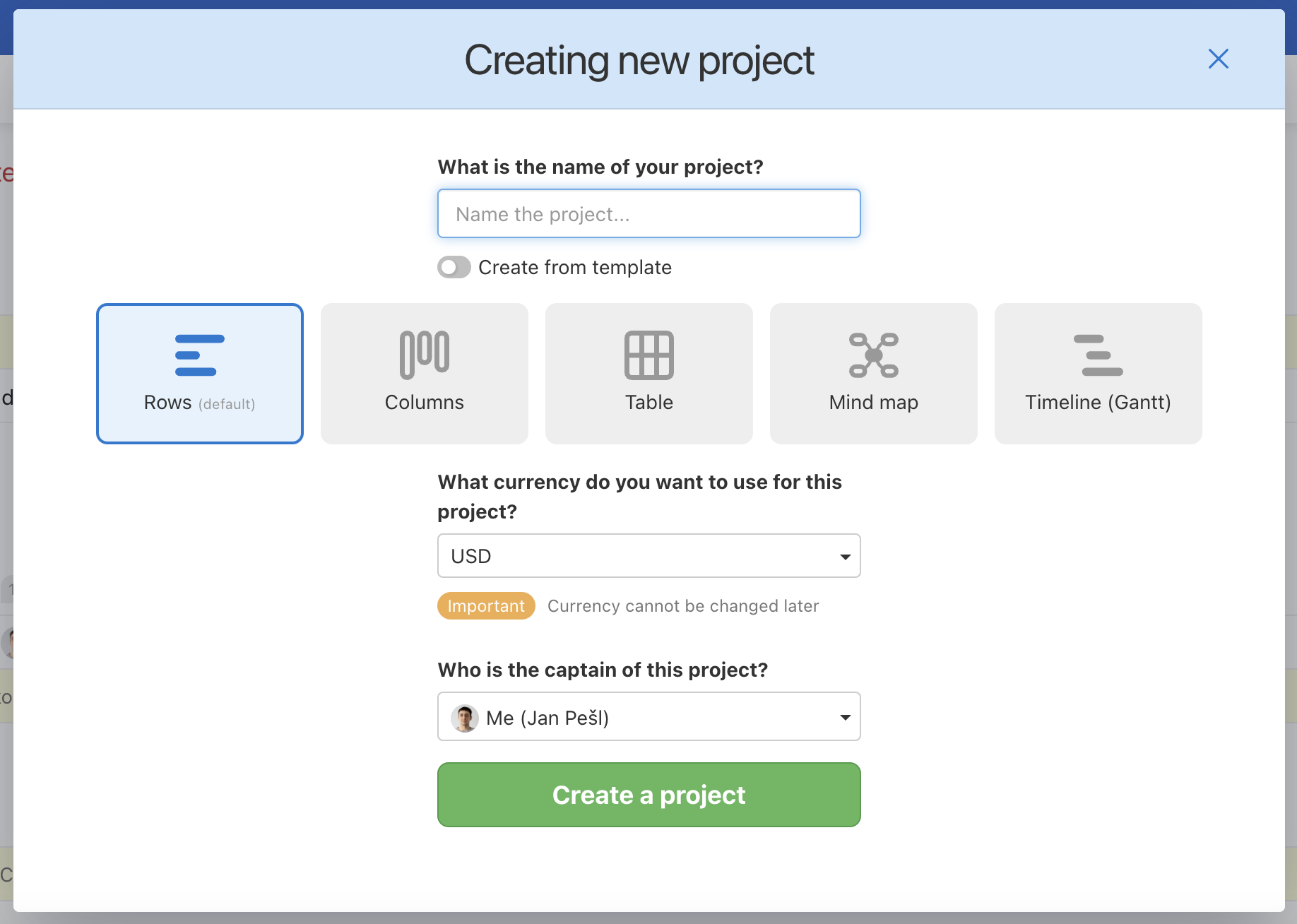
All invited users to the new project have the display according to you. You can change it in the Projects settings.
1. Plus icon in the upper bar
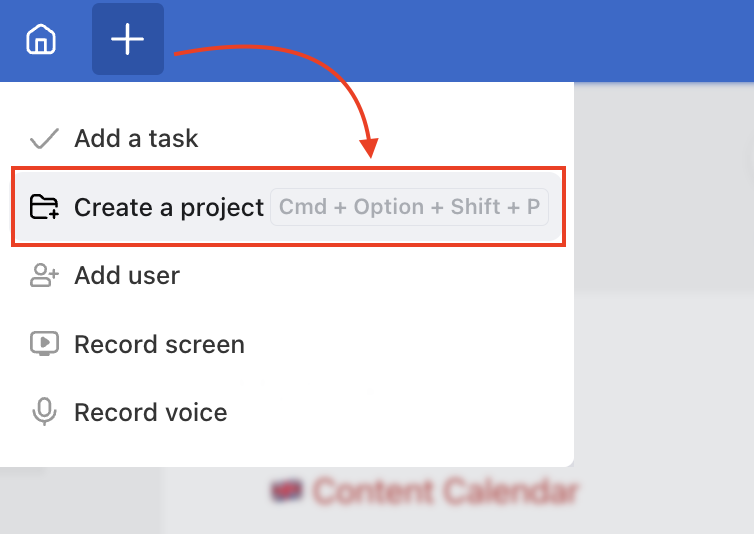
The easiest way to create a new project is via the plus icon at the top of the header > Create a project.
2. In the section All projects
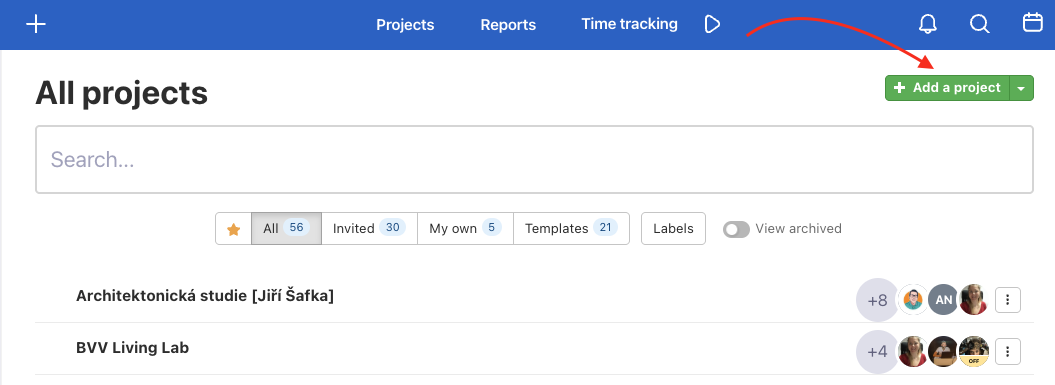
You can also create a new project in the section Projects > All projects > green button Add a project.
3. In the Projects section
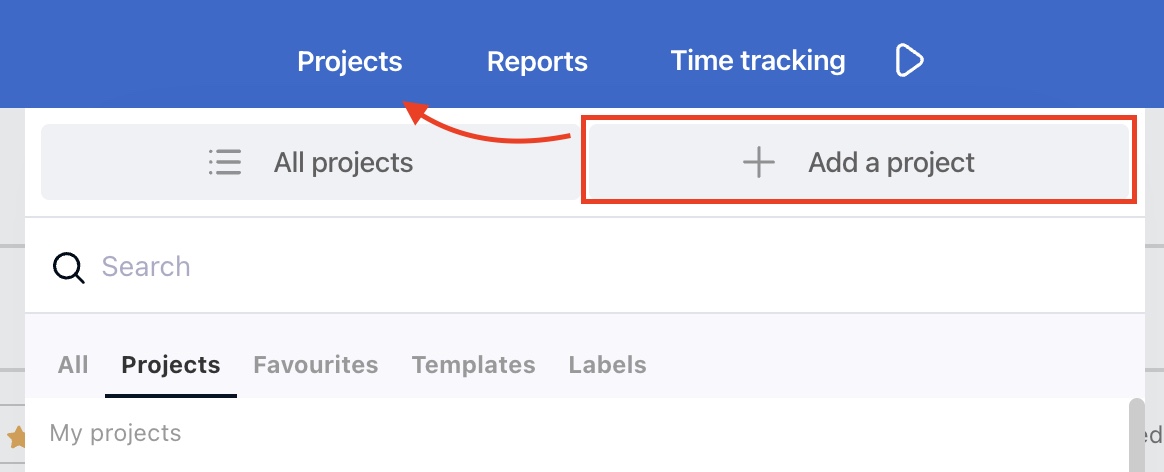
The second option is through the Projects section in the blue top bar Add a project.
4. Keyboard shortcut
The last option is via the keyboard shortcut Ctrl + Alt + Shift + P. Immediately there appears a form to create a new project.
How to rename a project
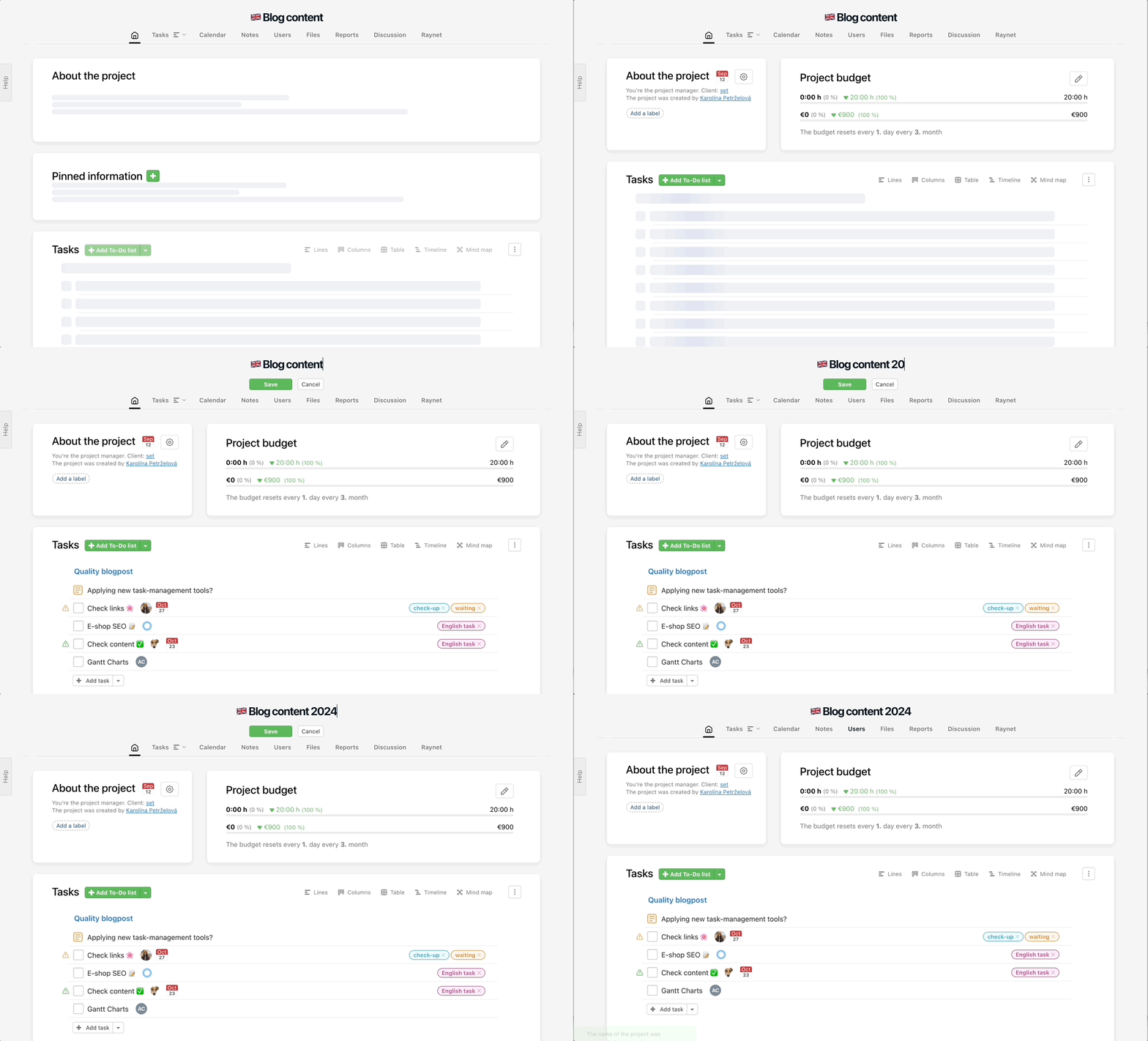
Just click the project name and the editing form will appear. Type the new name and click Save.
Project name can change the Captain and Admin only.
Project deadline
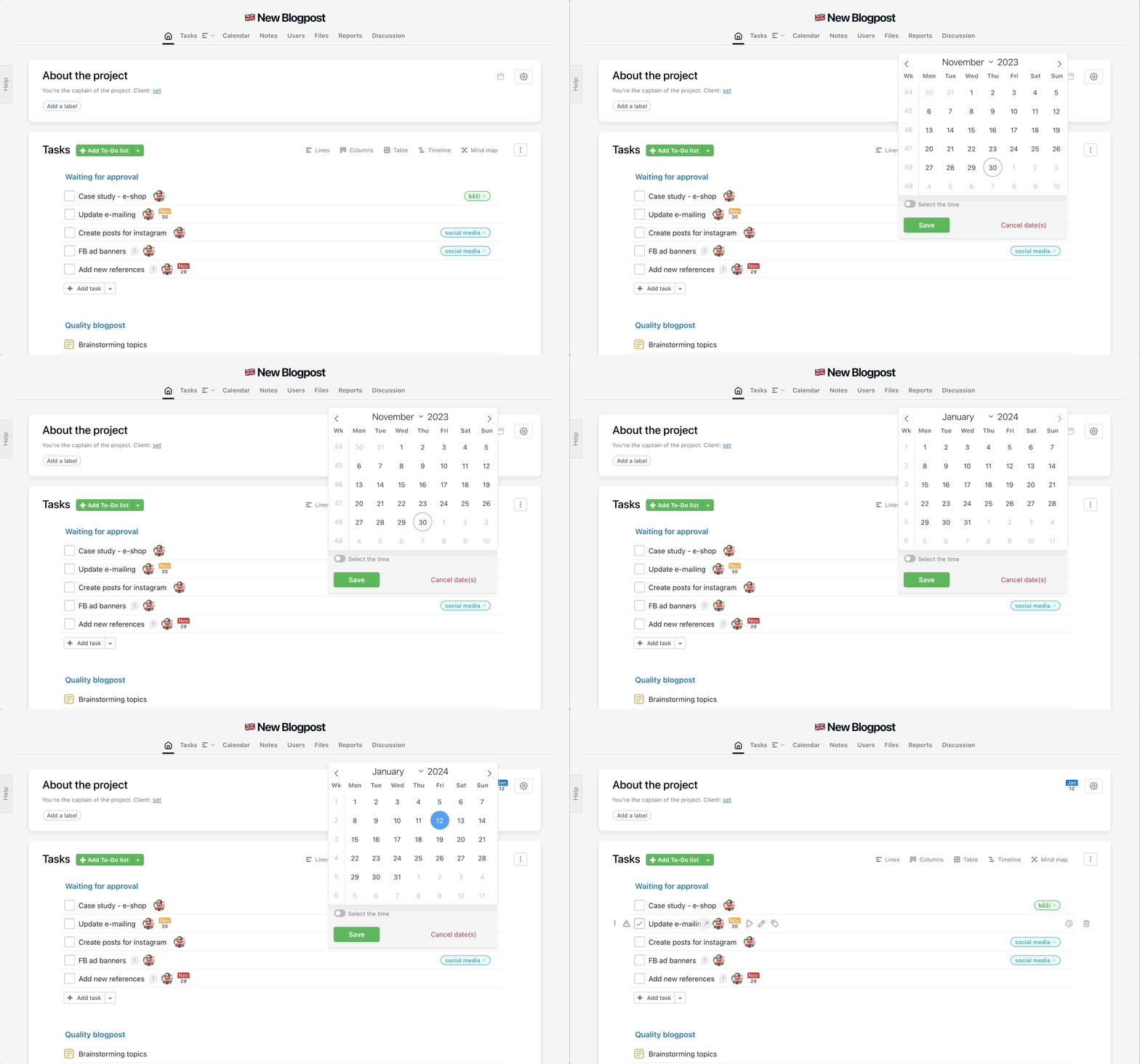
For each project, you can set a deadline. Freelo notifies the Captain by email 14 days before the scheduled project deadline.
Set the Due date under the project name.
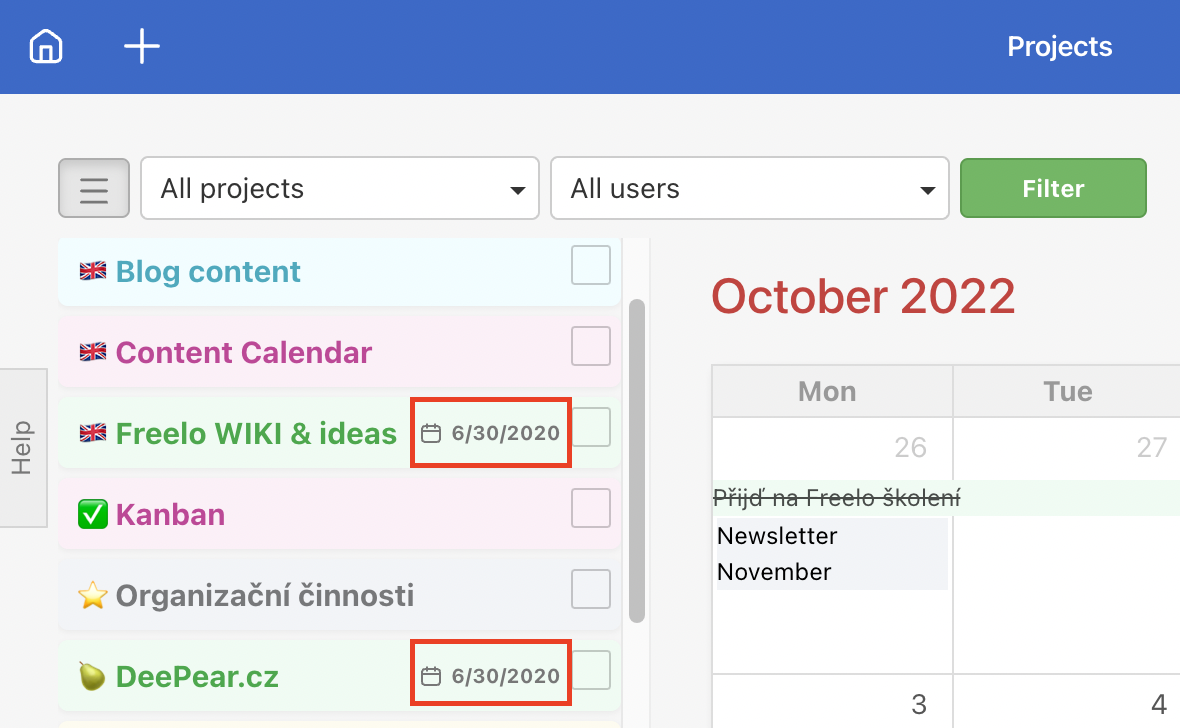
Project due date is visible in the Calendar in the left column.
Create project as the Project manager
If someone has appointed you to the Project Manager role, typically your boss or someone who pays the Freelo plan, you always see the option to select Project Captain.
As Project Manager you should select your boss or someone who pays for a plan. The project will be counted in the captain's project limit. Otherwise, the project is yours and you cannot invite more than 3 users.
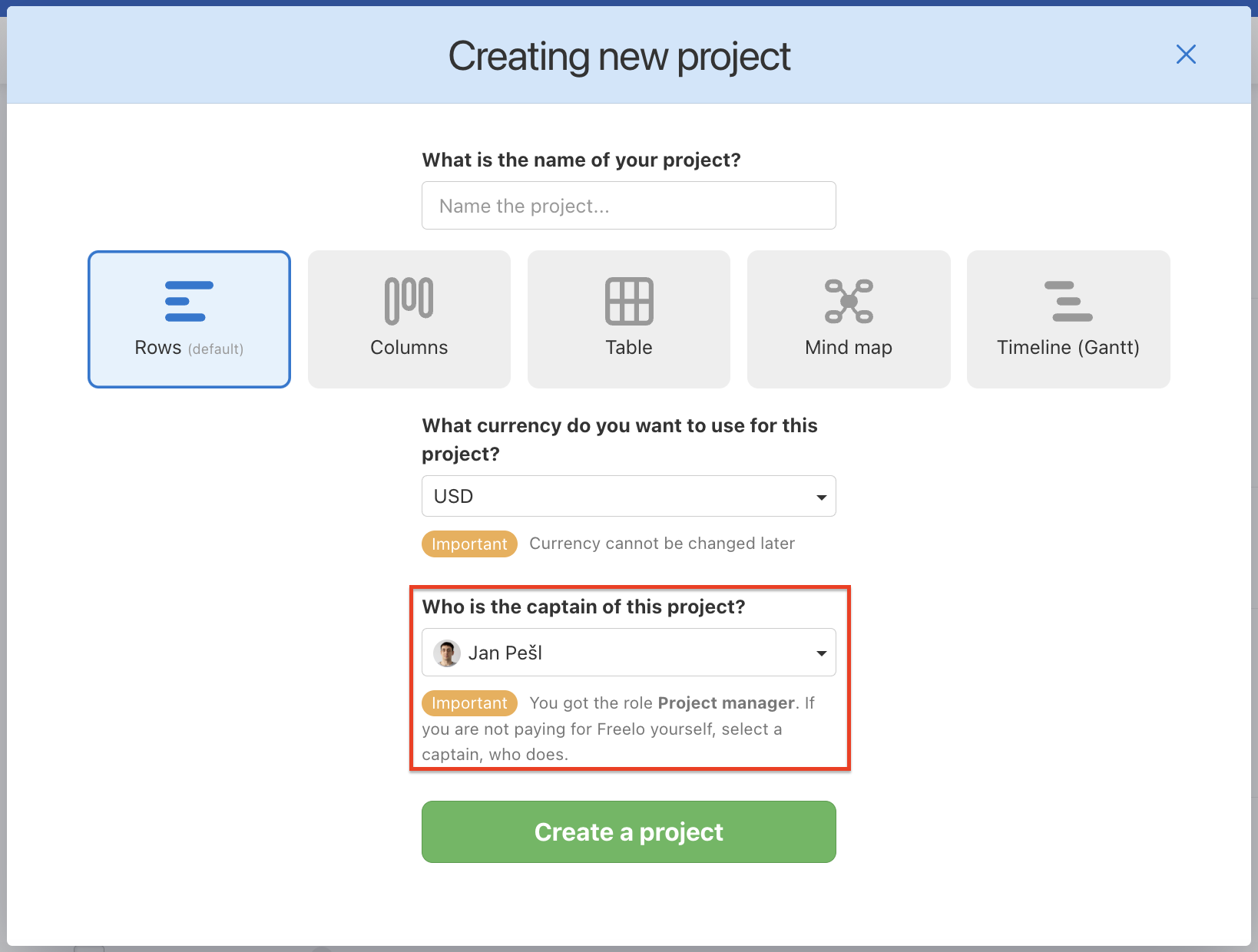
You can choose whether you want to create the project under your own account or under the Captain who has appointed you the Project Manager.
How to think about projects
A project in Freelo can represent anything that forms a logical unit – with its own team, goal, or deadline. There is no single right approach; it depends on how you work. Here are the most common ways to structure projects:
- By client – each client gets their own project. You can see at a glance what is happening where, and invite the client directly into their project.
- By department – marketing, development, operations, HR – each department has its own project and works independently without seeing into other teams' work.
- By service or product – if you offer multiple products or services, give each one its own project. Tasks, deadlines, and people stay clearly separated.
- By type of work – one project for operational tasks, another for development, a third for internal matters. Works well when you work across clients or departments.
- By area or topic – technical infrastructure, content and marketing, administration – projects as drawers for different areas of the company.
- Short-term projects – a project for a single campaign, event, or delivery. Once done, archive it – all history is preserved and it stops counting towards your project limit.
- Long-term projects – for ongoing client collaboration or internal operations with no clear end date. Separate phases or types of tasks using To-Do lists.
A project should have clear boundaries. If it is too large and covers unrelated things, consider splitting it. If it is too small and you are creating it just for a few tasks, a To-Do list within another project may be enough.
Practical use cases
- New client = new project – create a project at the first contact, add the brief as a pinned note, and invite the team. Work can start immediately.
- Template for recurring projects – if you create similar projects repeatedly (onboarding, campaign, audit), build a template with a ready-made structure of To-Do lists and tasks.
- Departments as permanent projects – internal operations, HR, or IT management have no clear end date. Such a project lives on, tasks keep coming, and is only archived when the department ceases to exist.
- Archive instead of delete – don't delete a completed project. Archive it – you preserve access to its history, reports, and files, and it stops counting towards your project limit.
- Project names with emojis – add an emoji at the start of a project name for quick orientation in the list. For example 🔴 for urgent, 🏁 for completed, or 🔧 for internal operations.