
Files pile up fast in projects – and then comes the moment when nobody knows where "that October contract" is. Freelo's Files section has filters and sorting options to help you track down what you need quickly – by name, suffix, or date. Here's how to use them.
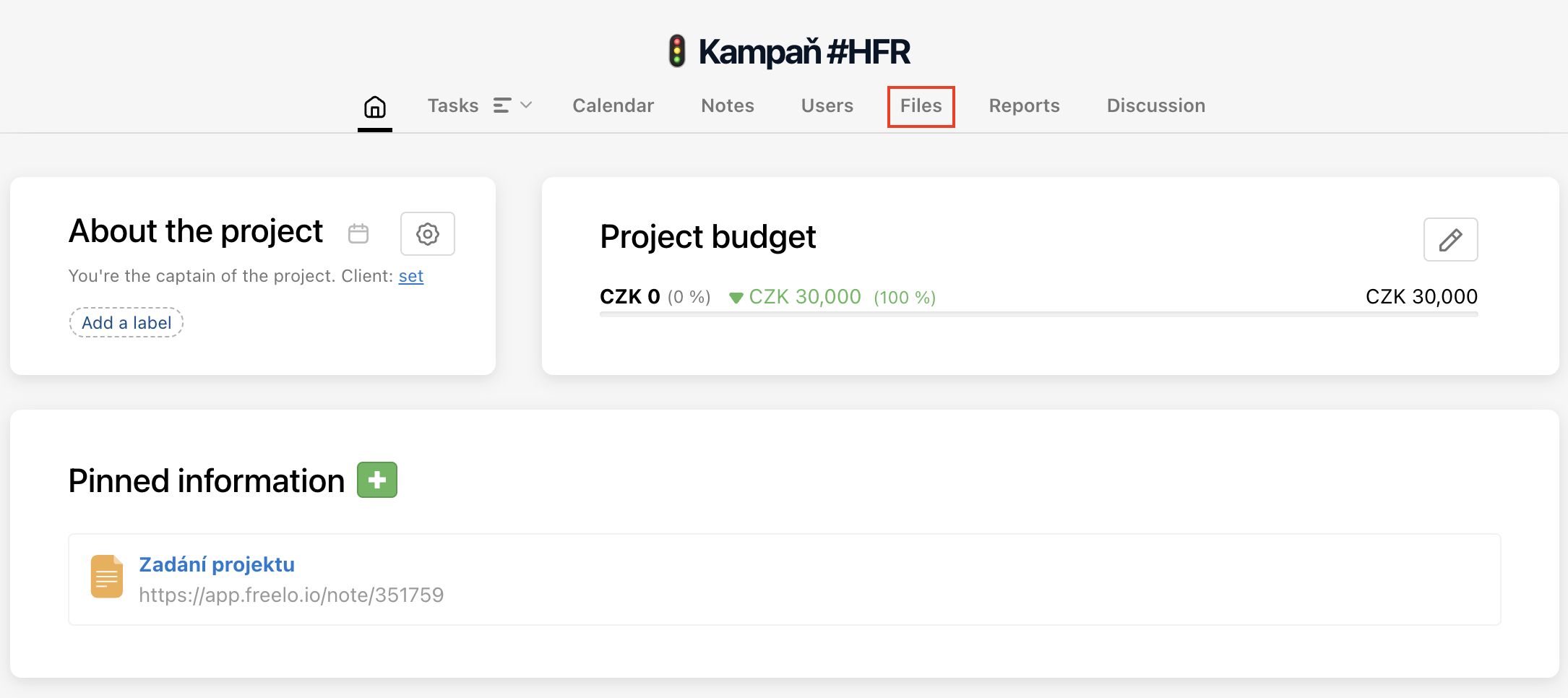
If you need to find a particular file, first go to a project detail. In the project menu find Files. There are all attachments from tasks in that project and also files uploaded to this section regardless of the task.
Next time, when someone sends you a link for a file in cloud storage, add it to the right project and folder as a file type Link. It will be easier to find it in the future.
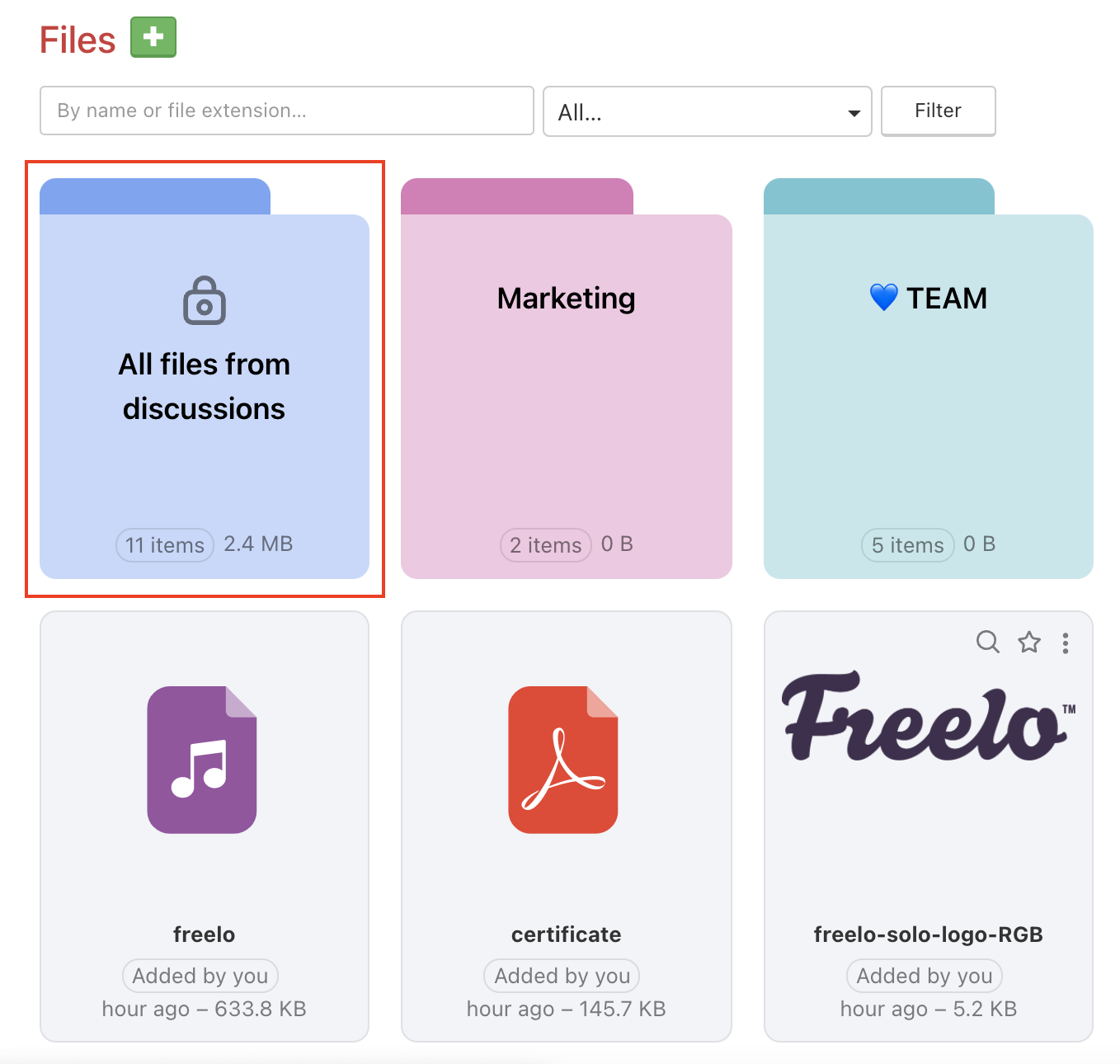
Search items by different parameters. If you are searching for a file uploaded to a discussion, go to the blue folder All files from discussions.
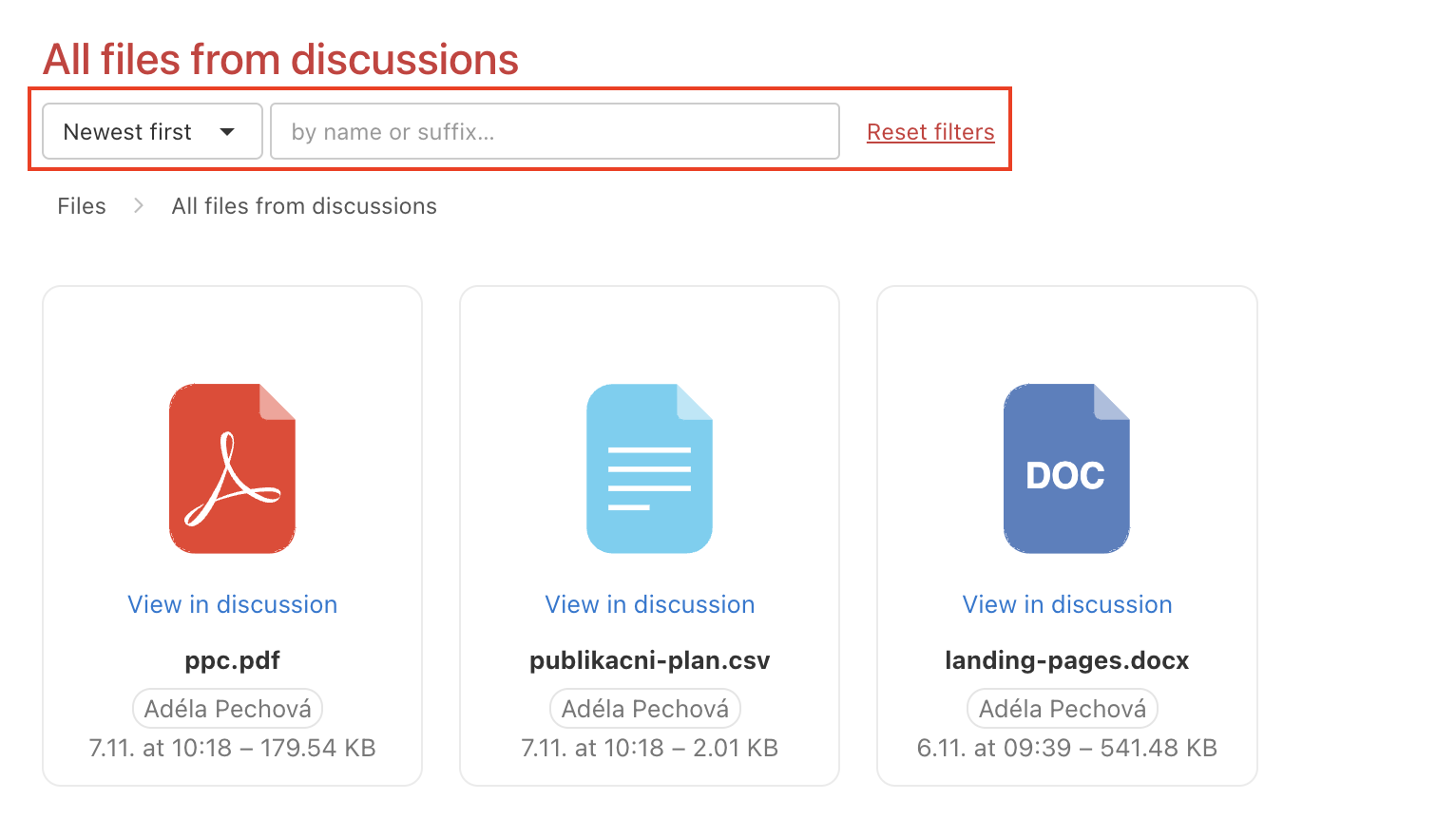
Search and filter in all levels (folders, subfolders) by item title or suffix.
Search by title
Enter what you are looking for by name or suffix… Search can be more refined when you add file type. Confirm the parameters via Filter.
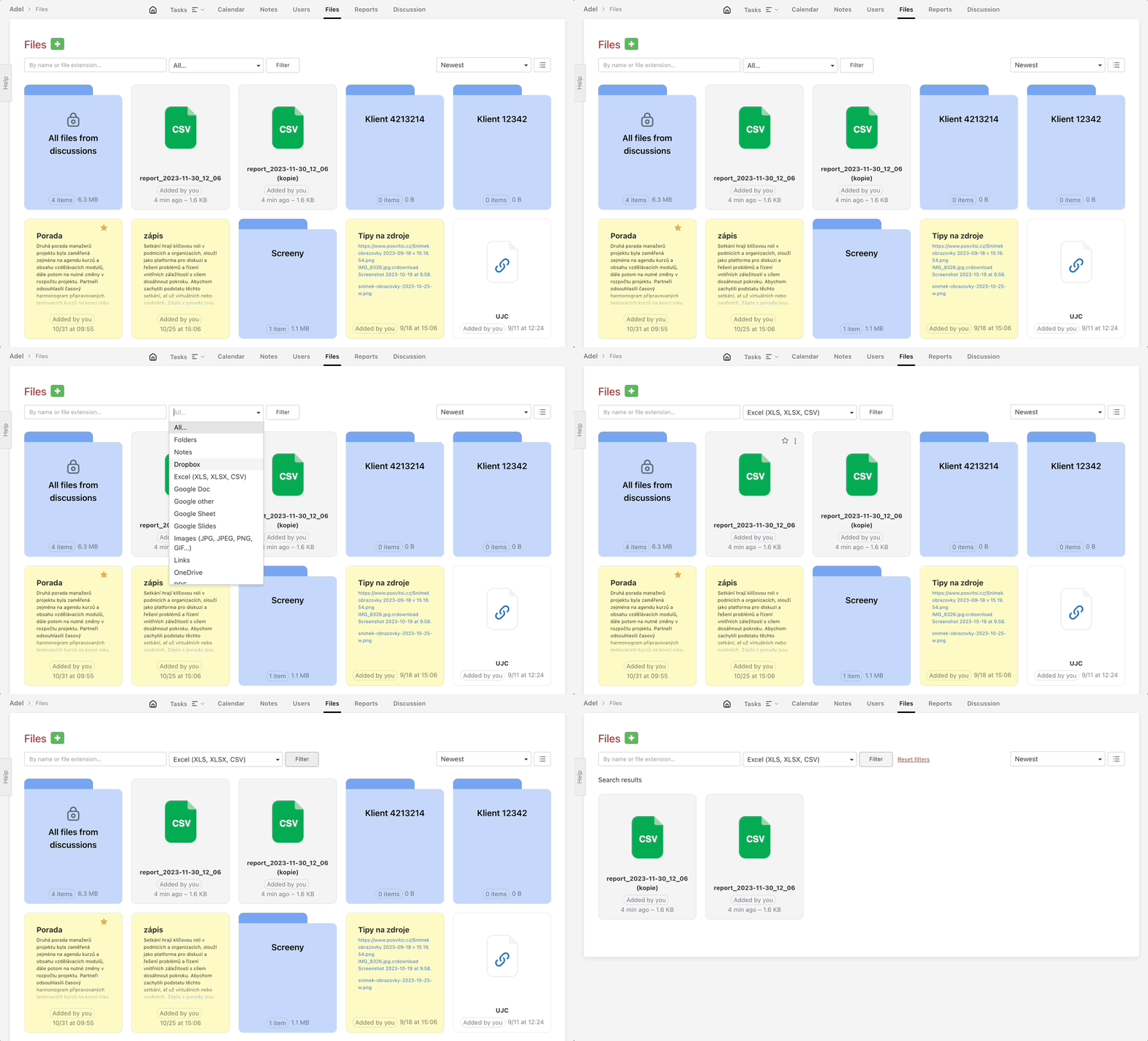
Search by suffix
In menu All… select a particular item type by the suffix. Options are:
- Folders
- Notes
- Excel
- Google documents
- Dropbox
- OneDrive
- Videos, MP3 and others…
Search by order
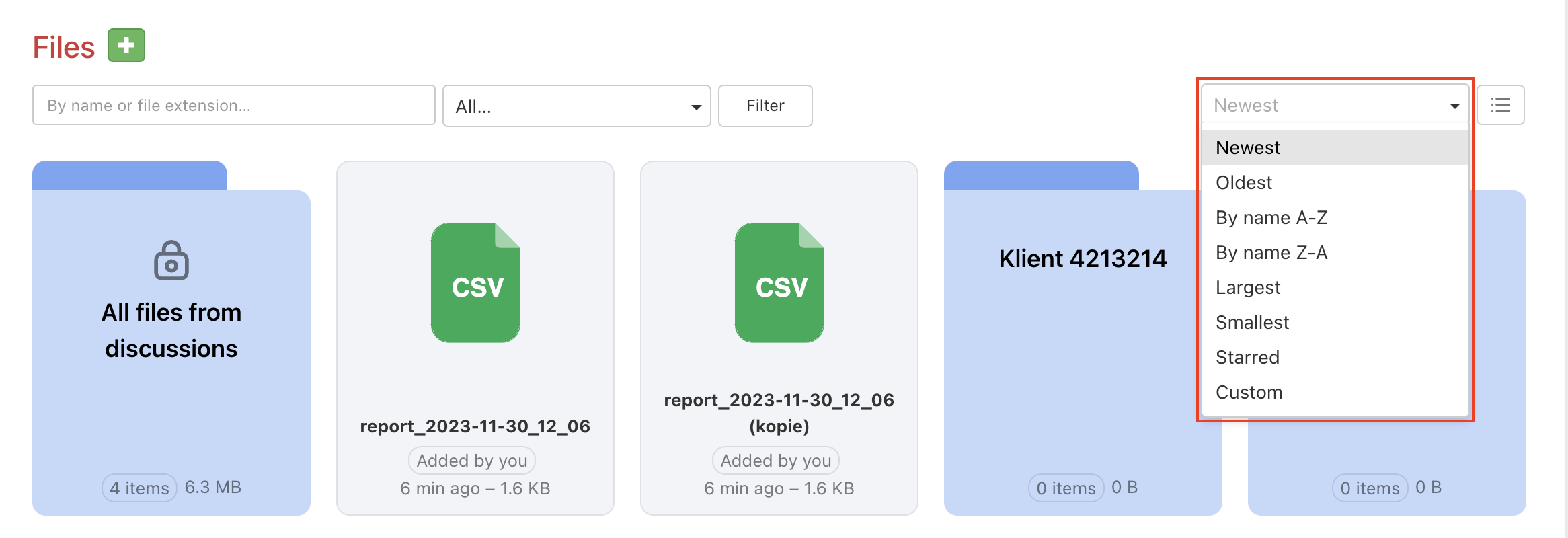
You can set up the view as you need. Order the files by:
- Newest or oldest
- Alphabetically
- Biggest or smallest
- Priority
- Custom view
Practical use
- Finding a specific document – type part of the name into the search field and Freelo instantly narrows down the selection from hundreds of files
- Overview of contracts or invoices – filter the type to PDF and see only documents, without images or links
- Auditing visual assets – the Images filter shows everything graphic in the project in one place
- Finding attachments from discussions – in the blue folder All files from discussions you'll find attachments uploaded in task comments
- Quick overview of recent uploads – sort files from newest and immediately see what was added recently