
Do you keep project materials in Google Drive, Dropbox or OneDrive? Instead of forwarding links via email or chat, add them directly to Freelo as a file – type Link. Everyone in the project finds them in one place, without endless searching through conversations.
Next time, when someone sends you a link to the cloud, put it directly to the project in Freelo. Add it to the folder where everyone from your team can easily access it as the item type Link.
For example, solve the proofreading in the Google document or directly under the file in Freelo, where there is discussion. Just copy the file URL address.
First of all, copy the link from the cloud.
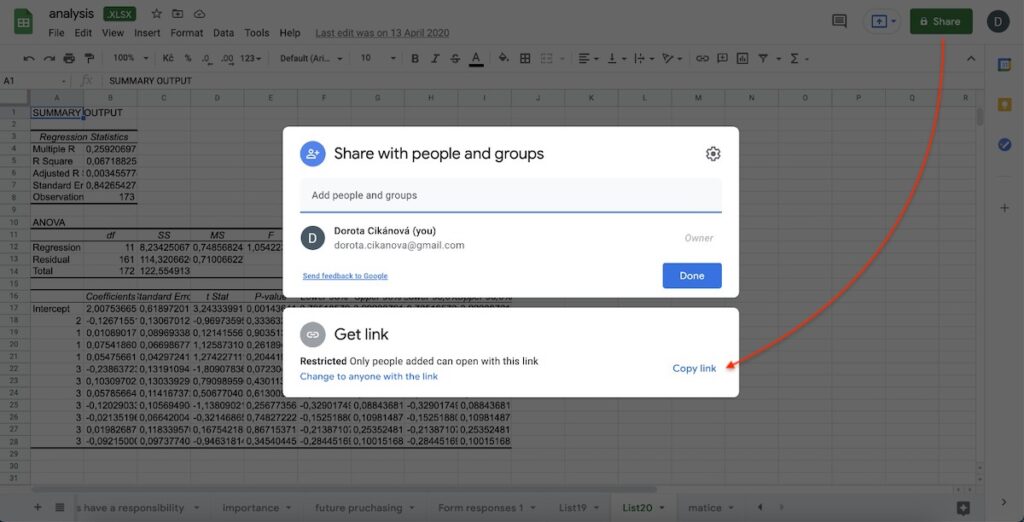
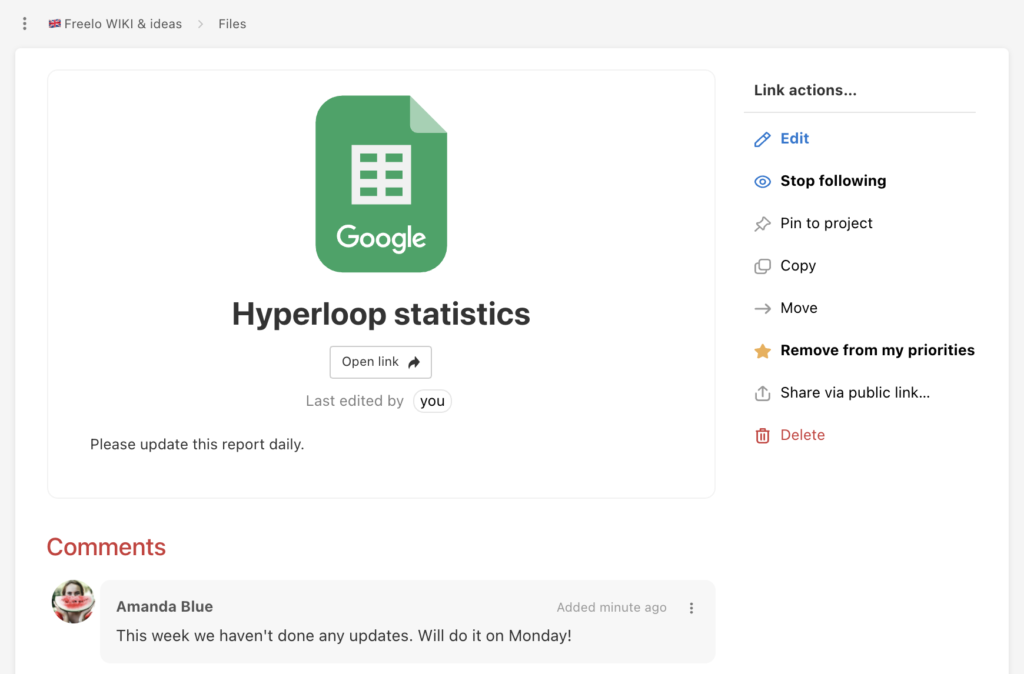
How to add Links from clouds
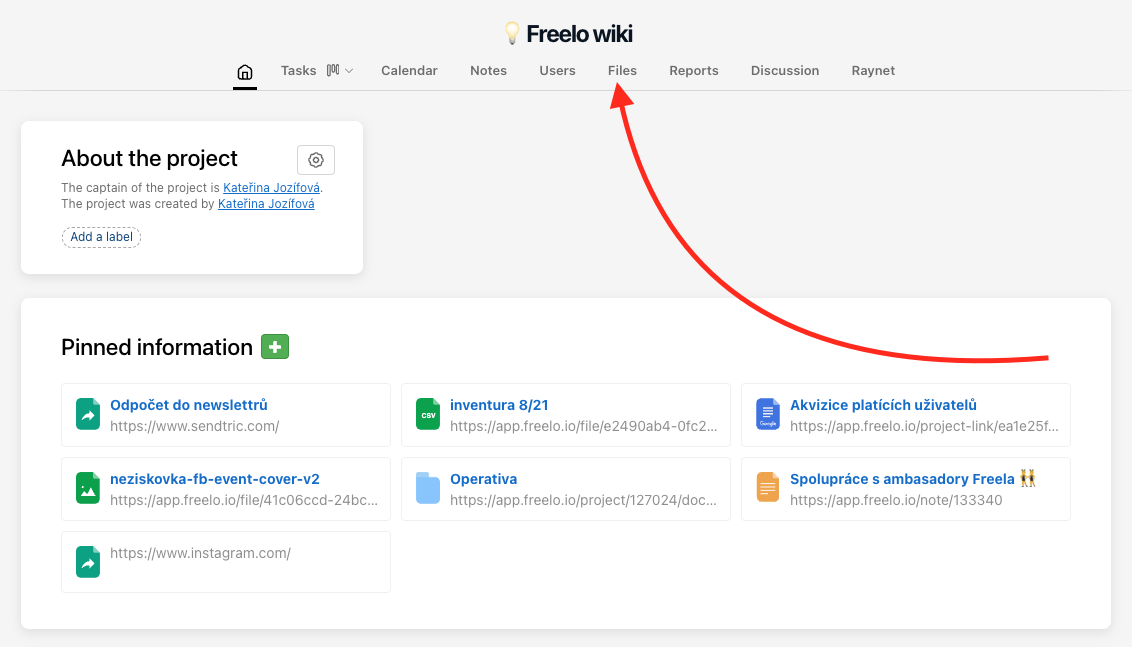
Links for files in external storage can be still added to comments in tasks. In the section Files you can add a link regardless of the task.
Files are in every project.
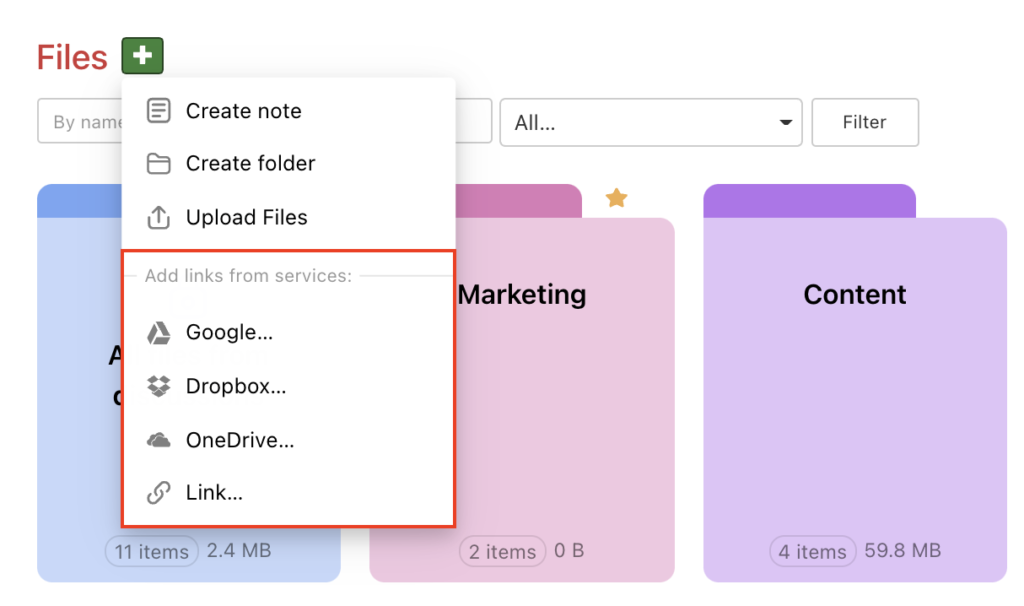
You can choose from following connected services:
- Google Drive
- Dropbox
- OneDrive
- Other link – any URL address
Click the green + and select one from the section Add links from services.
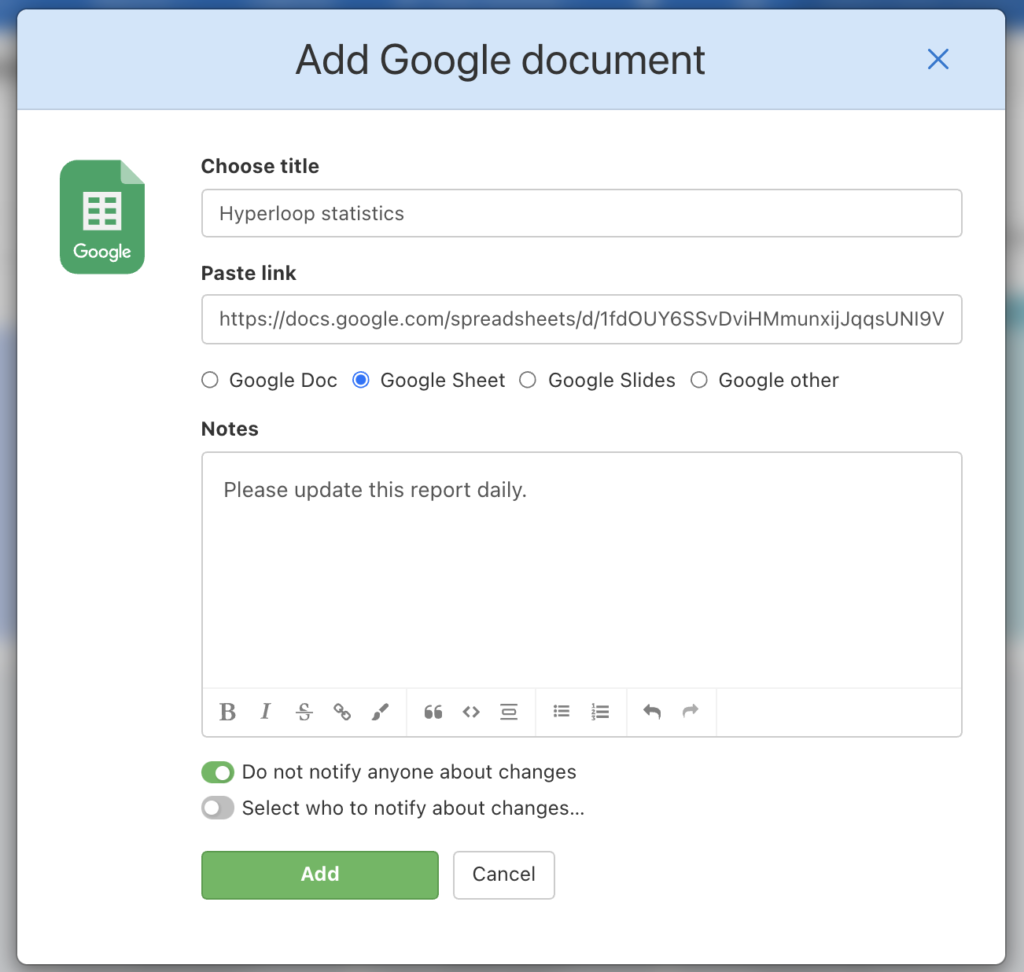
In the form you have to input the Title and paste the link. If it is Google document, you need to select document type. It is up to you whether you ass a note – what does the file contain or some instructions, how to work with it. Form the text as in common comments in Freelo.
At this point you can also choose other users, that you would like to notify about the changes.
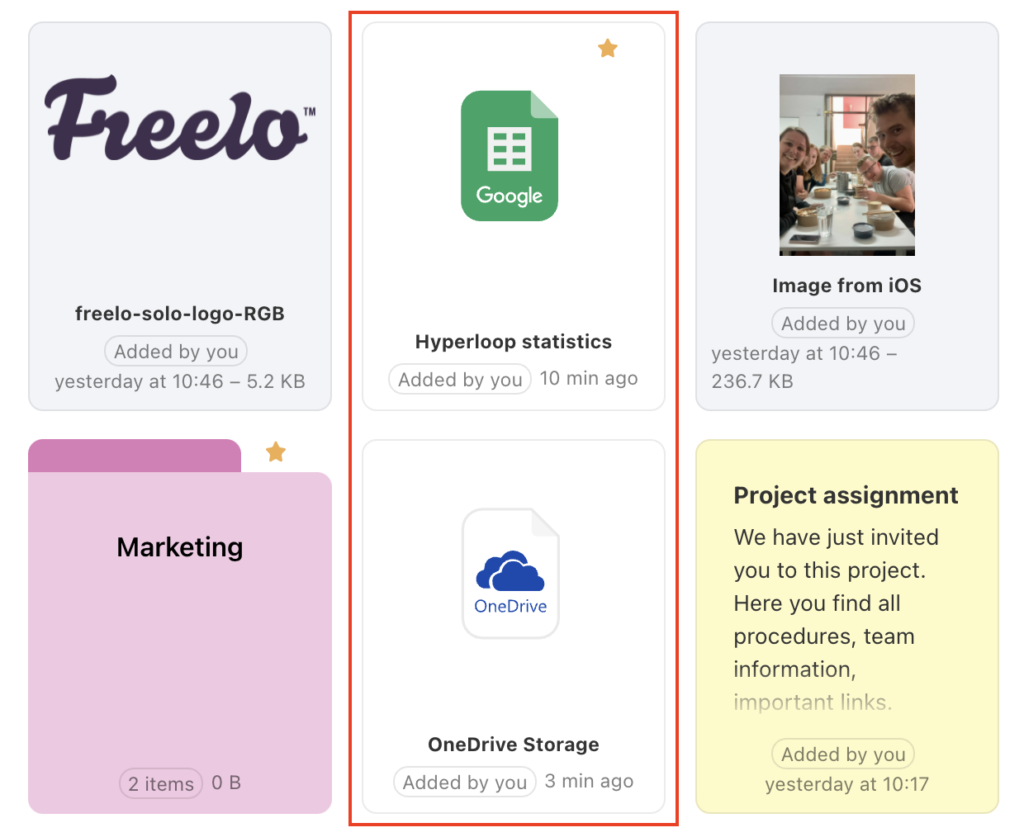
Added link has icon of the particular cloud service. When you click the icon, it redirects you to the link detail in Freelo. There you can discuss over the file with your colleagues, add it to your priority or create a public link.
In link detail click Open link and go to the document on Google Drive, OneDrive etc.
Practical use
- Central storage for project materials – add a link to a shared Google folder to the project and the whole team always has it at hand
- Collaborating on documents – add a Google document as a link and handle text revisions in the discussion directly beneath it in Freelo
- Sharing designs or prototypes – add Figma, Miro or any other tool via Any link and colleagues can comment on the result in the discussion
- Connecting to a company server – add files from internal storage via URL address and they're accessible just like any other attachment
- Overview of all external sources – instead of searching through emails or Slack, find all cloud files together in the Files section