
Working on a task and need to quickly show what's on your screen? No need to save a file to disk – just a few keys and the screenshot lands straight in the task comment in Freelo. Works on both Mac and Windows.
Sharing screenshots is a very easy way to show others your view. There is a difference according to the device you use.
MacOS device
Use Shift + Command (⌘) + 3 (for the whole desktop screen) or Shift + Command (⌘) + 4 just for selected area. More detailed instructions here.
Windows device
Use keyboard shortcut with Windows logo + PRTSCN (for whole desktop screen) or use Snipping Tool for selected areas only. More detailed instructions here.
Paste this copied image directly from the clipboard in a comment form in Freelo. Use well known keyboard shortcuts:
- Mac CMD + V
- Windows CTRL + V
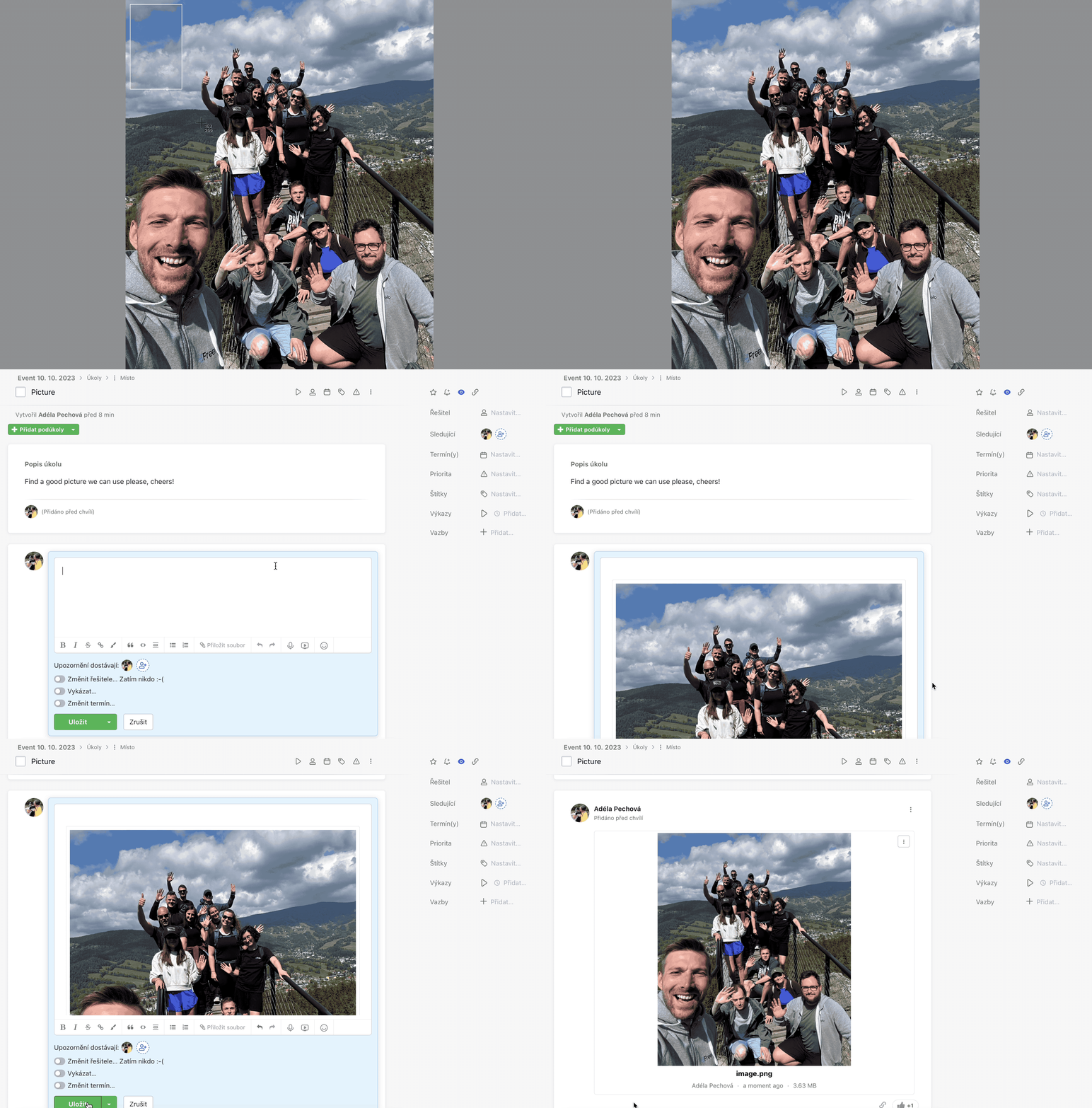
Among the embedded files you can easily write texts and describe pictures. This is useful if you want to explain the individual files or screens.
Practical use
- Reporting a bug or error – capture a screenshot of the problem and paste it directly into a comment without saving any file
- Visual feedback – a picture shows exactly what you mean, faster than a long written description
- Sharing work progress – use a screenshot to show what's done or what you're working on without exporting anything
- Commenting on designs or documents – crop a specific part of the screen and add an explanation text directly in the discussion