
Do you have processes for frequently recurring activities? If not, we highly recommend starting with project templates in Freelo. You can use a template simply as a checklist of steps. It helps you follow the same steps every time and never miss anything important.
Project templates help you to create projects with established processes quickly. To make everything even easier, they can also have already set due dates, sub/task, or assignees.
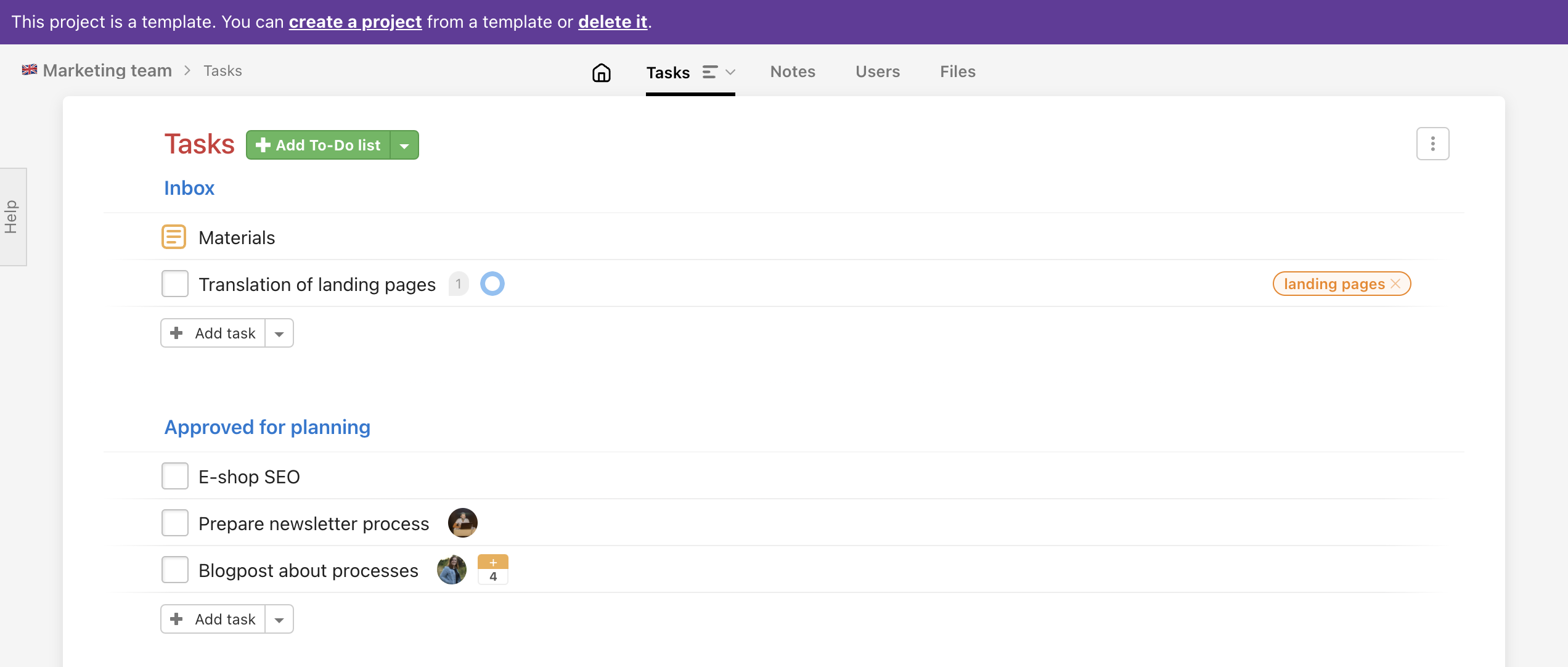
When to use templates
A template is useful wherever the same or a similar process repeats. It saves time, reduces errors, and ensures the team works consistently. Here are some examples of how companies use them:
- Client onboarding – a checklist of first steps when starting a new collaboration: signing the contract, handing over access, kick-off meeting, first deliverables. Every new project starts with the same structure and nothing gets overlooked.
- Employee onboarding – a task list for HR and the new colleague: setting up accounts, meeting the team, training, first 30/60/90 days. Every new hire goes through the same process regardless of who is managing it.
- Marketing campaign – a workflow from brief through content creation, approvals, launch, and evaluation. The template ensures no phase is skipped.
- Content creation – a recurring process: topic proposal, research, writing, proofreading, SEO check, publishing, sharing on social media. Every article or video goes through the same steps.
- Website or app development – project phases with pre-assigned tasks for developers, designers, and testers. The template defines the workflow and deadlines so a new project is up and running in minutes.
- Sales pipeline – a process from first contact through demo, proposal, negotiation, and closing the deal. Every sales case follows the same playbook.
- Event or conference preparation – a checklist from securing the venue and catering through promotion and registrations to post-event follow-up. Nothing is forgotten even when a new team member is handling it.
- Regular audits and reviews – a monthly or quarterly checklist for billing, security, quality, or process checks. The same template is reused every cycle.
- Order or complaint handling – a standard process from receipt to resolution. Customer support works consistently regardless of who is on duty.
- Internal projects and company management – templates for month-end closing, new-year transition, budget preparation, or regular team reviews. Recurring admin tasks get done faster.
Don't have your own processes set up yet? Get inspired in our public template library – you'll find ready-made templates for marketing, HR, sales, web development, legal, events, and more, put together by specialists.
How to create a template
In order to use templates for individual tasks, To-Do lists, or projects, you first need to create a project template.
1. New project template
You can create a brand new project template and build it out by adding To-Do lists and sub/tasks. Go to Projects > All projects > click Add a template.

After clicking Add template, you will see the form. It is similar to creating a new project. Enter a name for the template and select the Captain.
The template Captain should always be the user with the paid plan – typically the person who assigned you the Project Manager role.
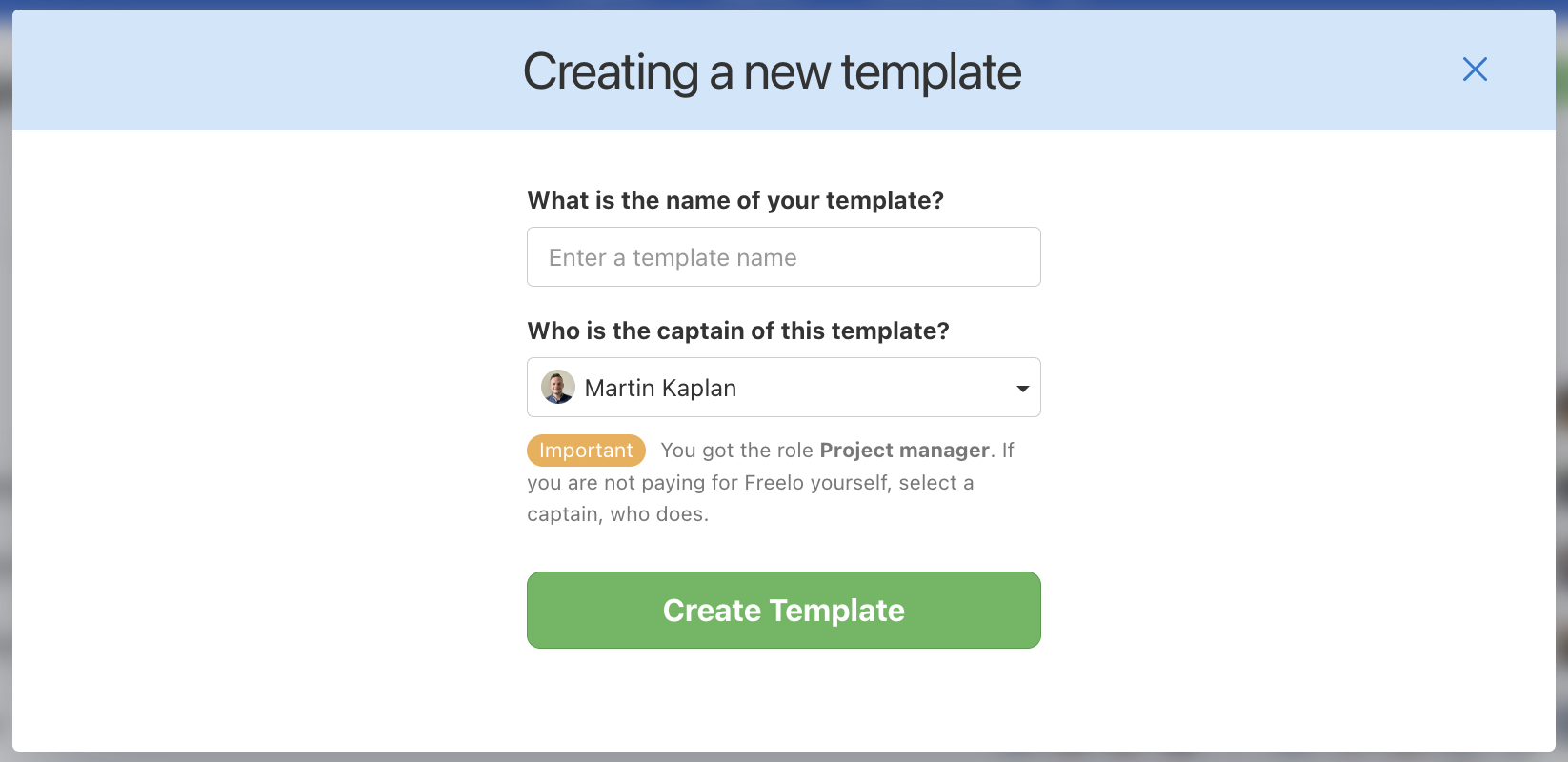
Now you have a project template where you can define To-Do lists and sub/tasks. You can also invite other users, assign them tasks, or preset due dates to the tasks.
2. Template from an existing project
If you have a well-structured project with recurring tasks, you can create a template from it. In this case, a new project template is created. It includes:
- To-Do lists
- Incomplete tasks and subtasks
- Task labels
- Invited users and their hourly rates
- Followers of To-Do lists and tasks
- Optional sub/task descriptions
- Assignees
- Files and notes
- Relations between sub/tasks
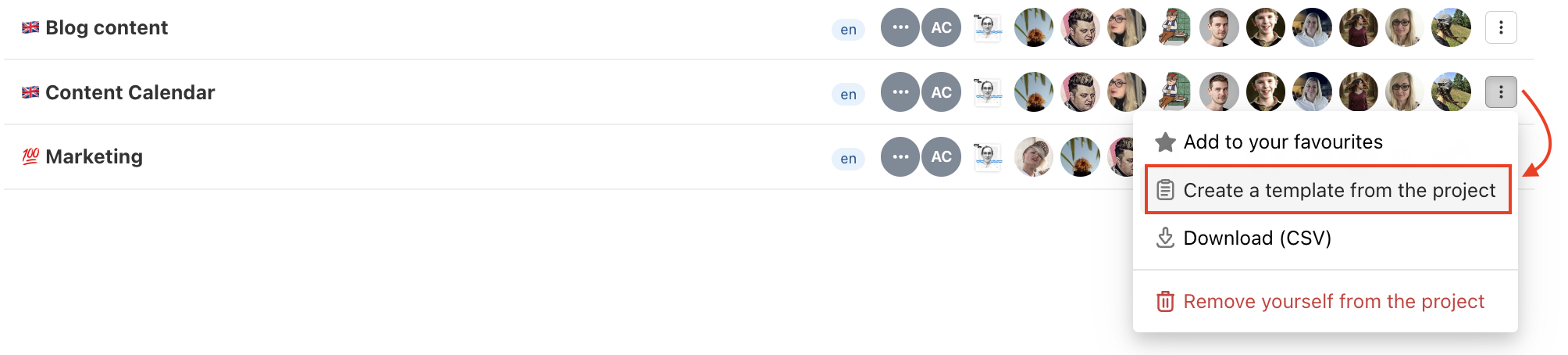
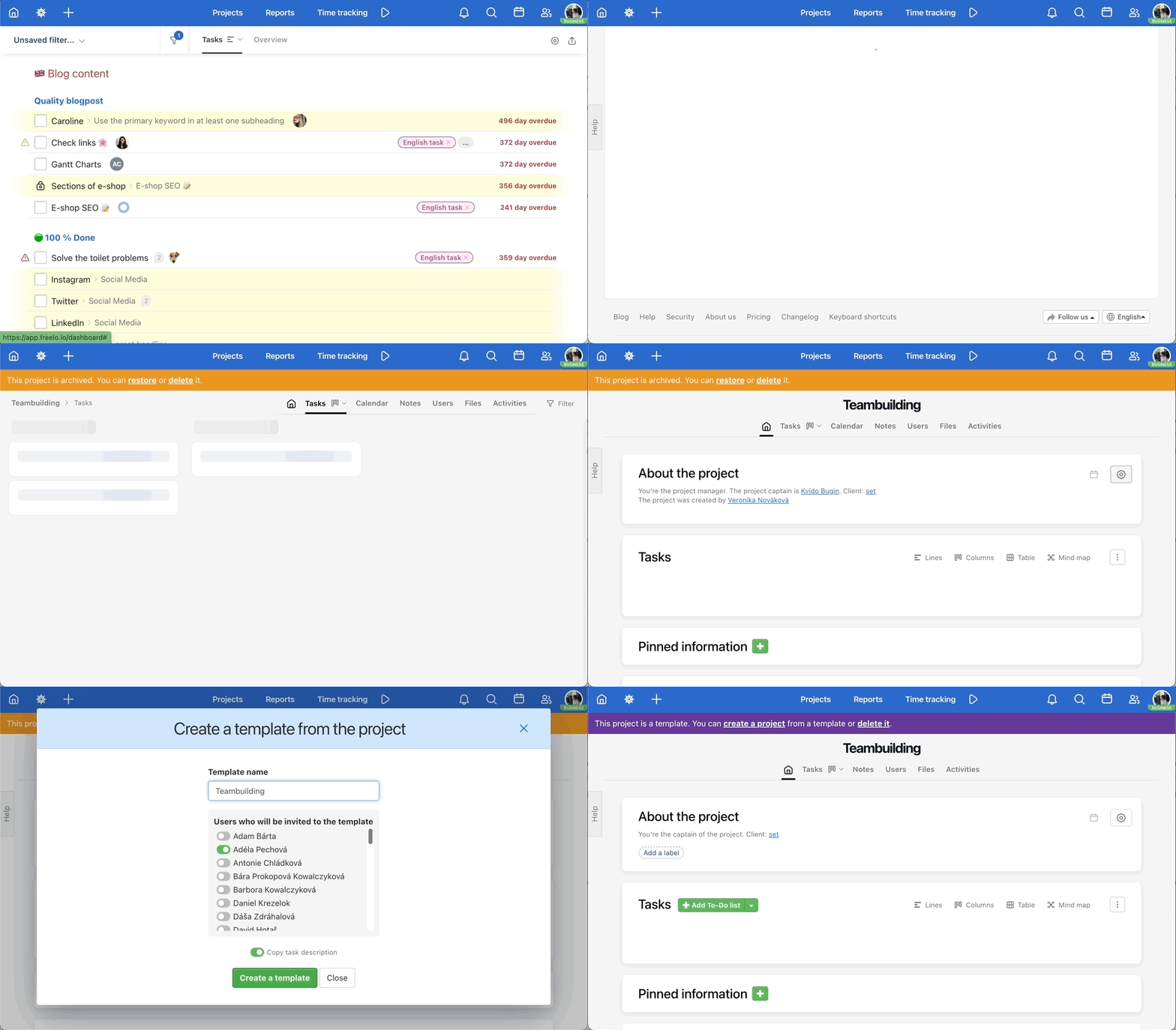
Go to All projects and in the three-dot menu on the right click Create a template from the project.
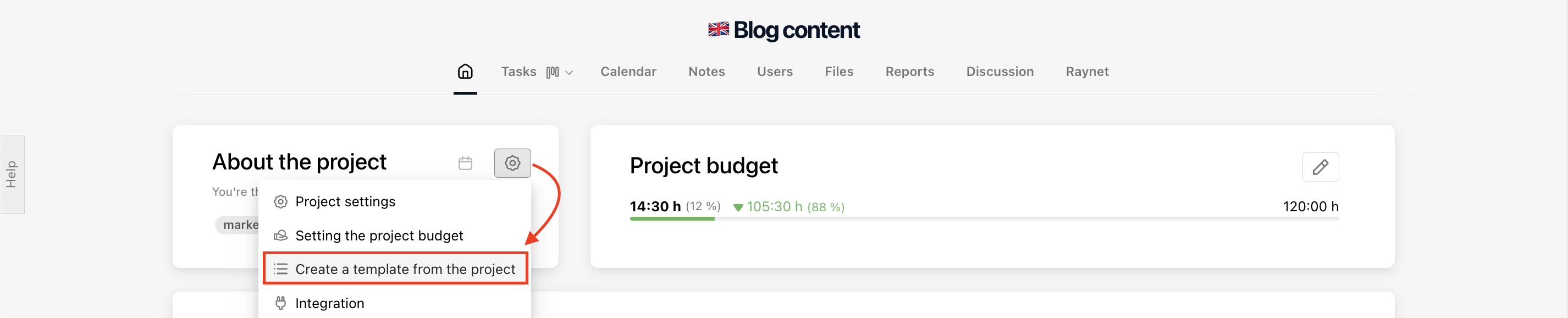
If you're creating a template from your own project, you can do so in the project detail. Click the settings icon and then Create a template from the project.
3. Template from an archived project
If you archive a well-structured Project, you can easily create a Template out of it. This way, all the information is transferred into the template, just the same as when creating it from an active project.
- To-Do lists
- Incomplete tasks and subtasks
- Task labels
- Invited users and their hourly rates
- Followers of To-Do lists and tasks
- Optional sub/task descriptions
- Assignees
- Files and notes
New project from a template
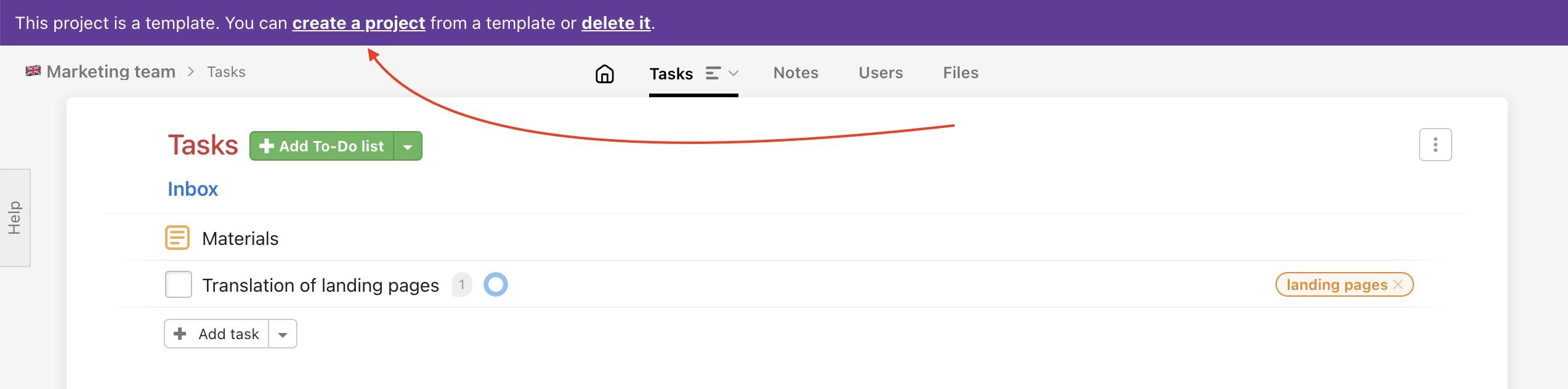
To create a new project from a template, click Create a project in the top purple section.
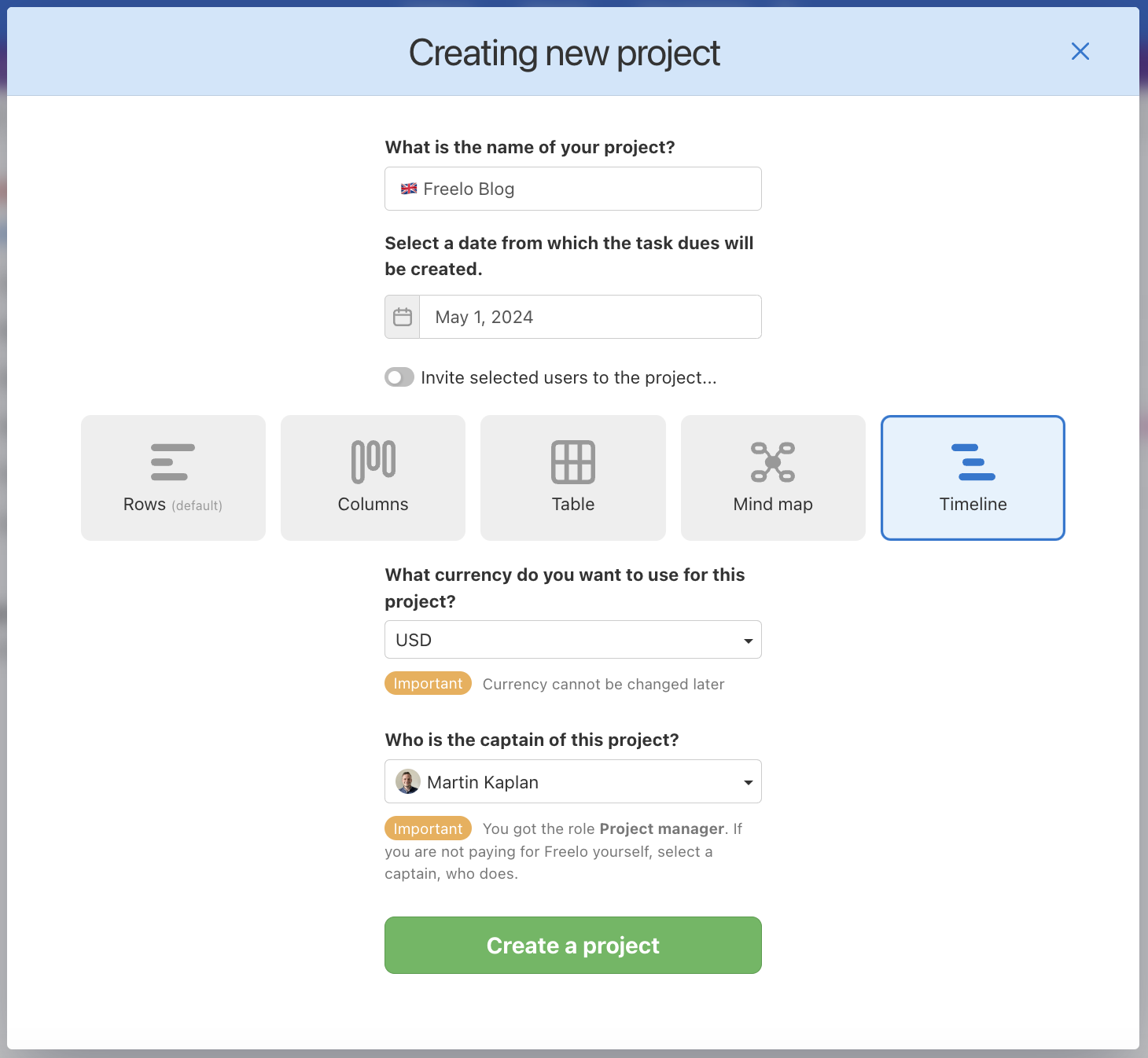
After this, a form will appear where you can fill in the details of the new project:
- The name of the project
- The date from which the deadlines of sub/tasks you have preset in the template will be set
- The users who will be invited to the new project (by default, users who are assignees of sub/tasks in the template will be selected)
- Default view of the project
- The currency (cannot be changed later)
- The Captain (owner) of the project – this should always be the user who pays for the plan
Confirm by clicking Create a project.
Date for creating task deadlines
In the form, there is a section called Select a date from which the task dues will be created. This means you should choose the date from which the sub/task's deadlines will start.
For example, today is the 5th. I set the date from which the task dues are created on the 15th. In some tasks, I have preset due dates of -10, -5, -1, +1, +5, and +10 days. The real due dates of these tasks will be on the 5th, 10th, 14th, 16th, 20th, and 25th.
New To-Do list from a template
You can add one or more To-Do lists from the project template with:
- sub/tasks
- assigned users
- due dates
- priority
- task labels
- followers
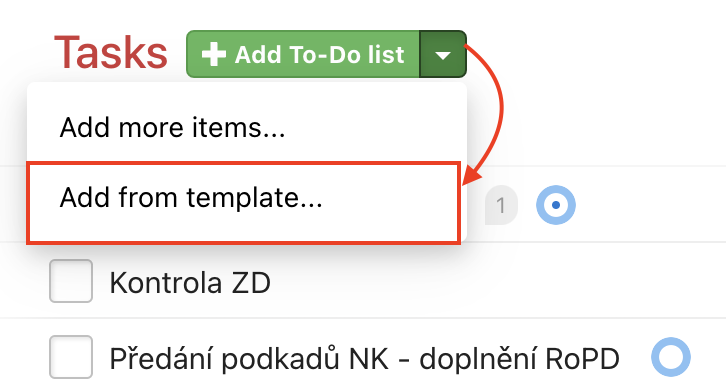
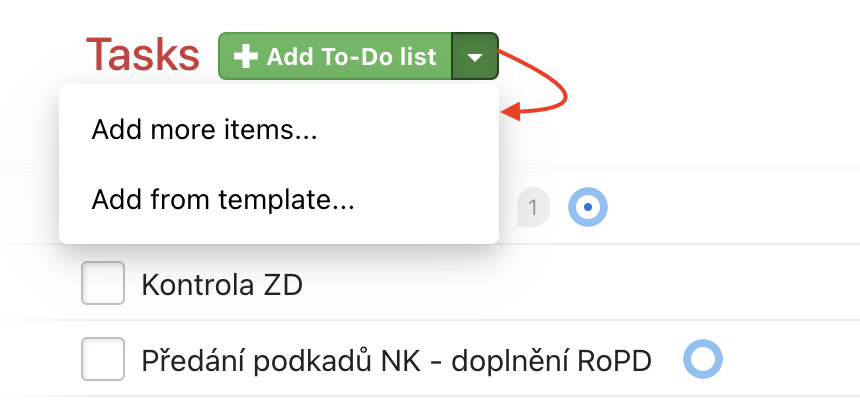
Go to the task list, click the arrow, and then select Add from template... All you need to do now is select one or more To-Do lists from the templates.
New sub/task from template
From the project template, you can add a task with a checklist or a procedure in subtasks. They can have pre-assigned users, due date, and assignment in the first comment.
Go to the task list, click the arrow next to the Add task button, and select Add from template… Then, simply choose one or more tasks from the template.
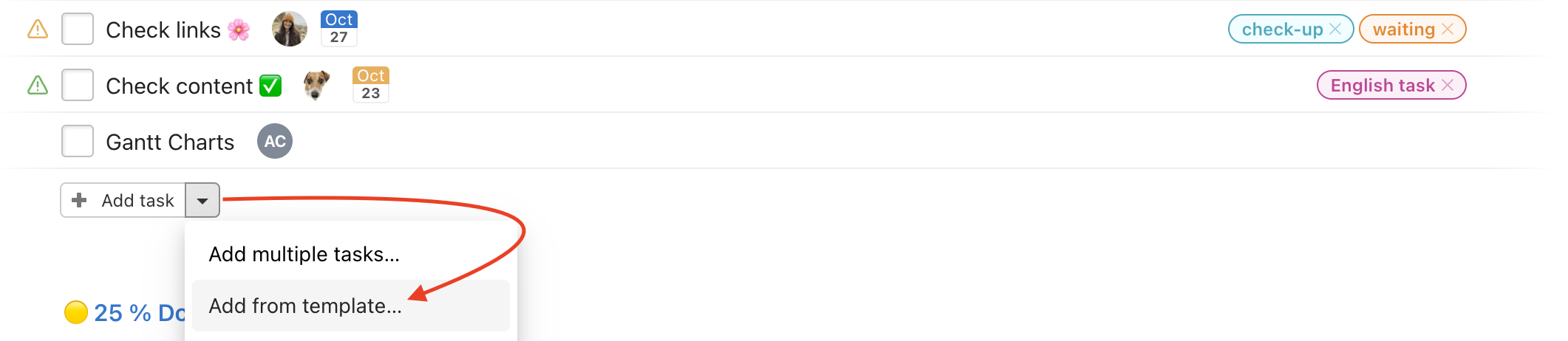
Select the tasks you want to add from the list. They can also contain subtasks. If you have a due date defined in the template, set the Set up due dates from the date at the bottom and they will count from that date. Save the tasks by clicking on the Paste Selected Tasks button.
How to add a subtask
You can add an entire list of subtasks to an existing task in bulk. Go to the task detail and click on the arrow next to the green Add subtasks > Add subtasks from template...
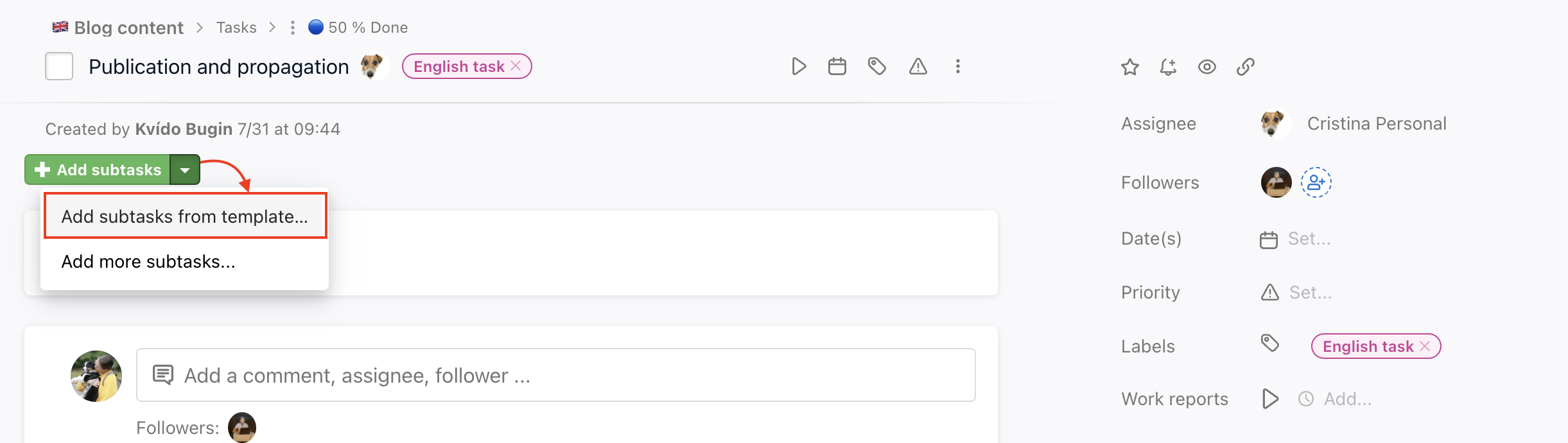
Similar to adding a task, you will see a list of tasks that have subtasks. Select which subtasks you want to add to the task and confirm with the Insert selected subtasks button.
Managing your templates
As soon as you have some project templates, you can find them in the section All projects > Templates.
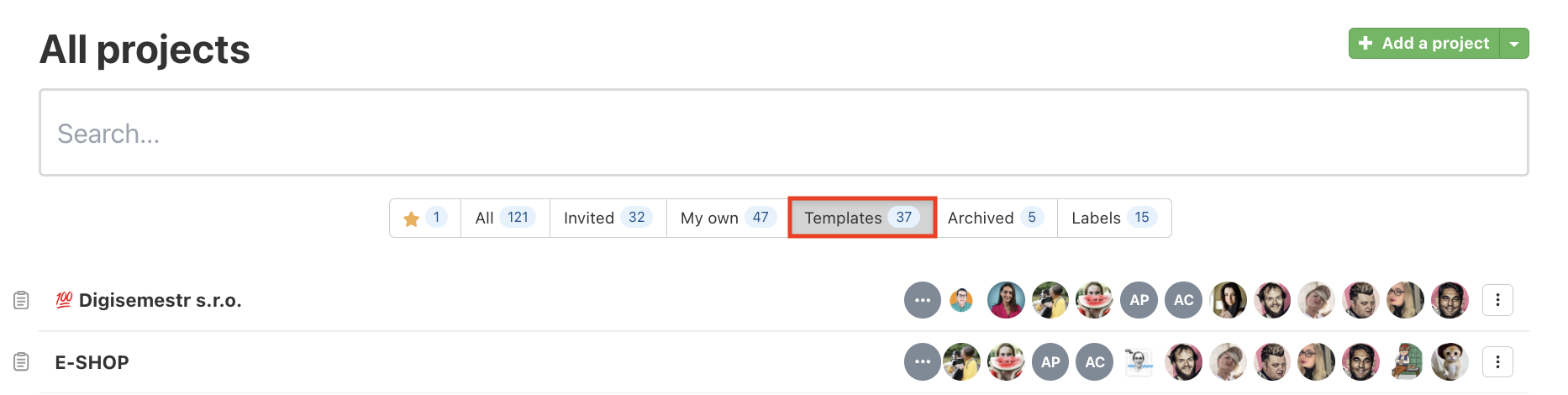
Then you can add particular To-Do lists or tasks with the defined processes for running the project. Also, it helps you create multiple tasks more quickly and efficiently.
Kanban and workflow
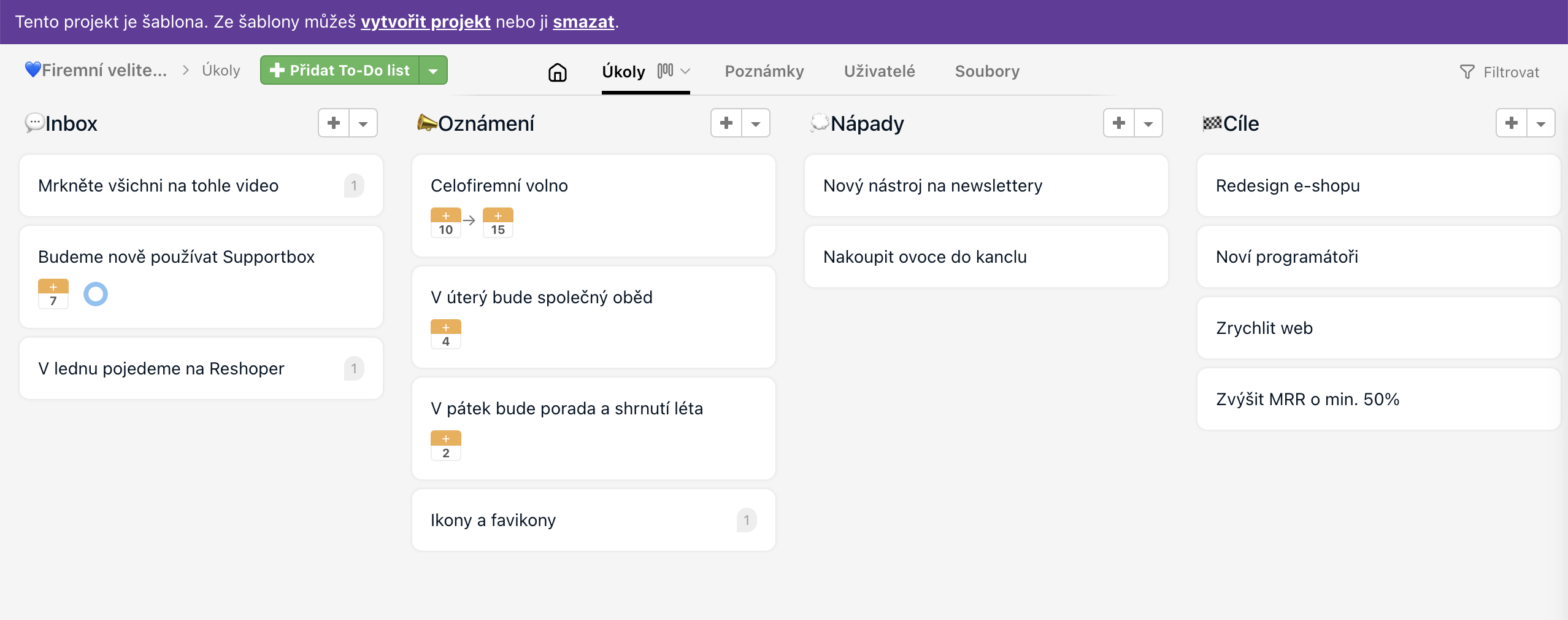
All your tasks can be displayed on a board. From a template, you can create a new project with pre-defined columns that match your workflow. In Freelo, you can switch from To-Do lists stacked vertically to To-Do lists placed side by side as columns – this is called the Kanban view. You can name the columns after the phases your tasks go through.
You can use our ready-made Kanban template – just copy it from the public template library.
Invite users to a template
It is also possible to invite users to a template of a project. This lets you share the template with others so they can use it too.
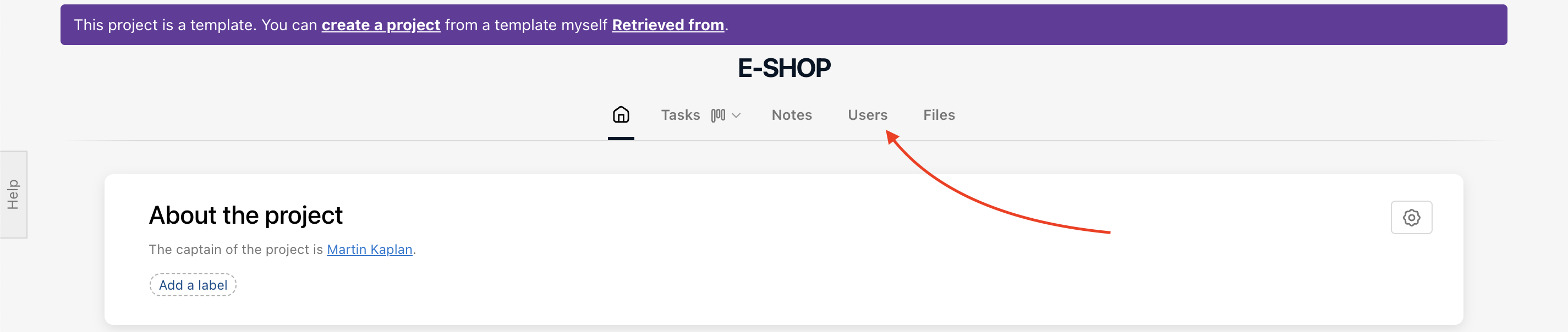
Go to the section Users via the template detail or in any task view via the top menu section.
And click the green plus icon to invite others.
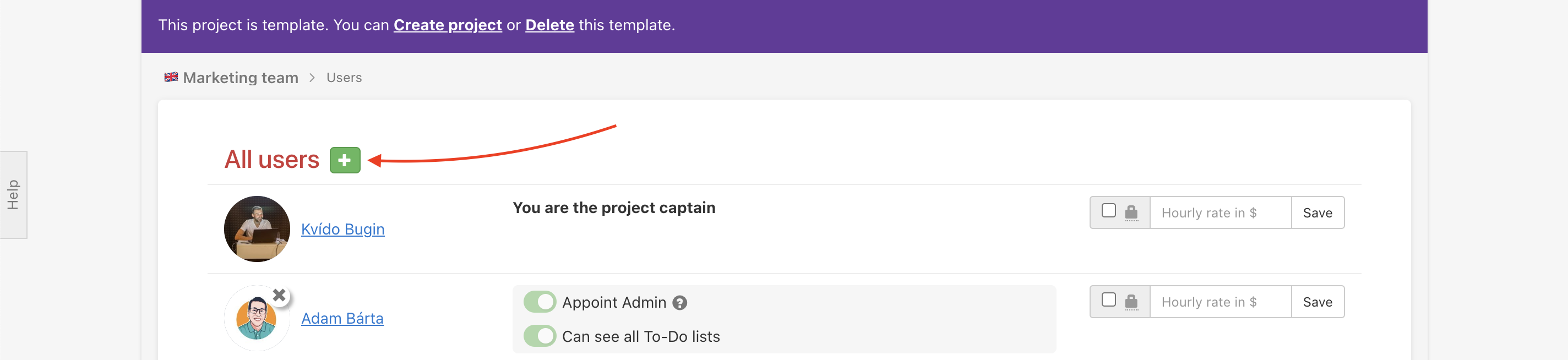
You can set the user's hourly rate or appoint admin users in the template, both of which will be transferred to the project when being created from the template.
As soon as you invite users to the template, you can assign them sub/tasks. When you create a project from the template, the users will still have tasks assigned to them in the newly created project.
Task description in templates
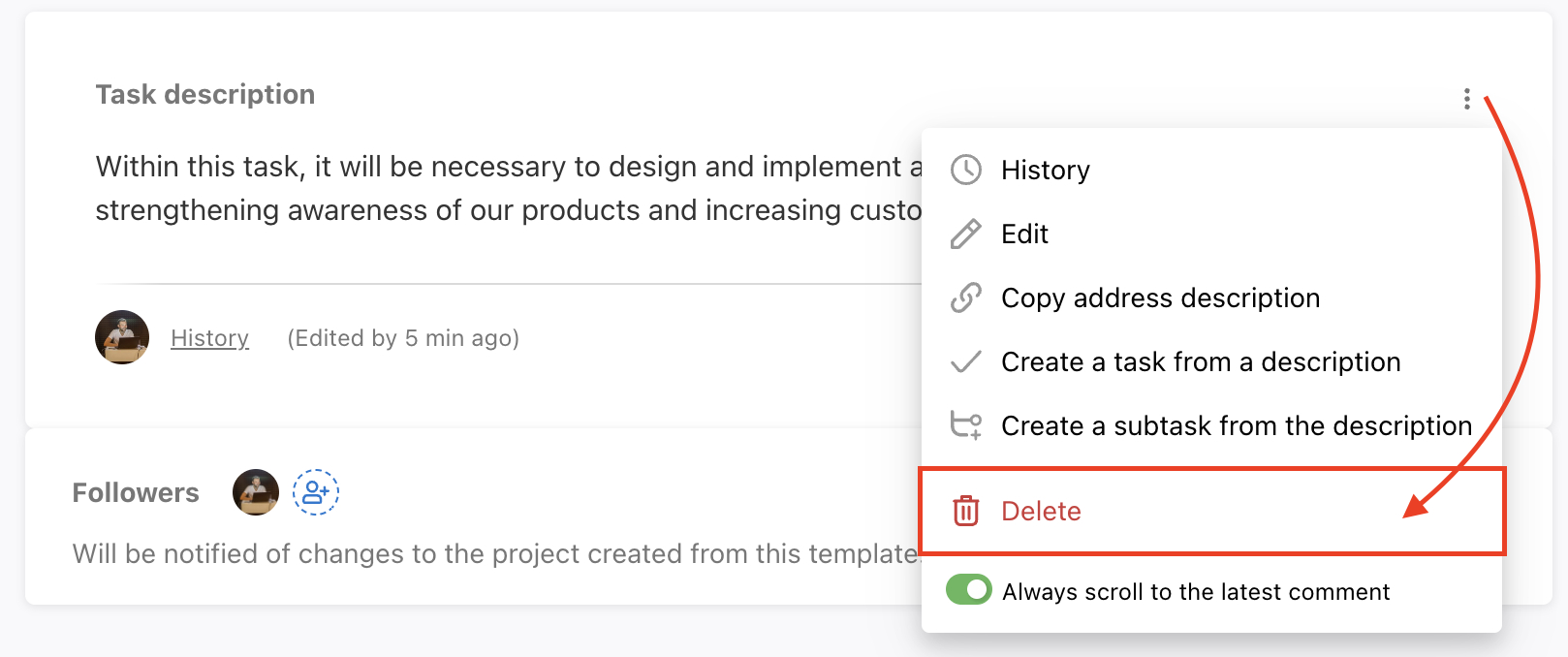
In templates, you can add a Task description, the field will remain blank. However, you can still view full history of all changes even after its removal.
Set up due dates
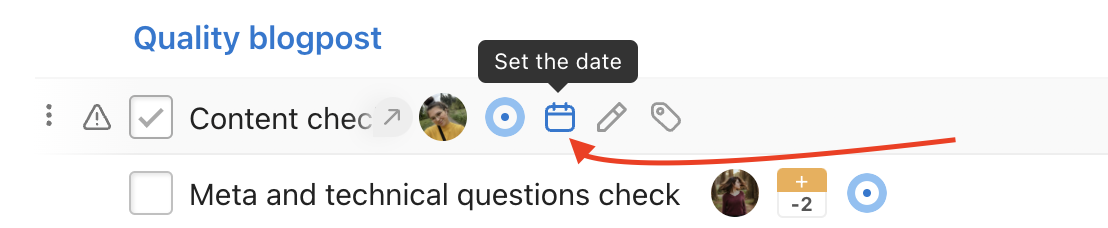
You can set up floating due dates, for example + 7 days or −7 days from the date you choose when creating a new project from a template. In the template, you preset the deadline for a sub/task.
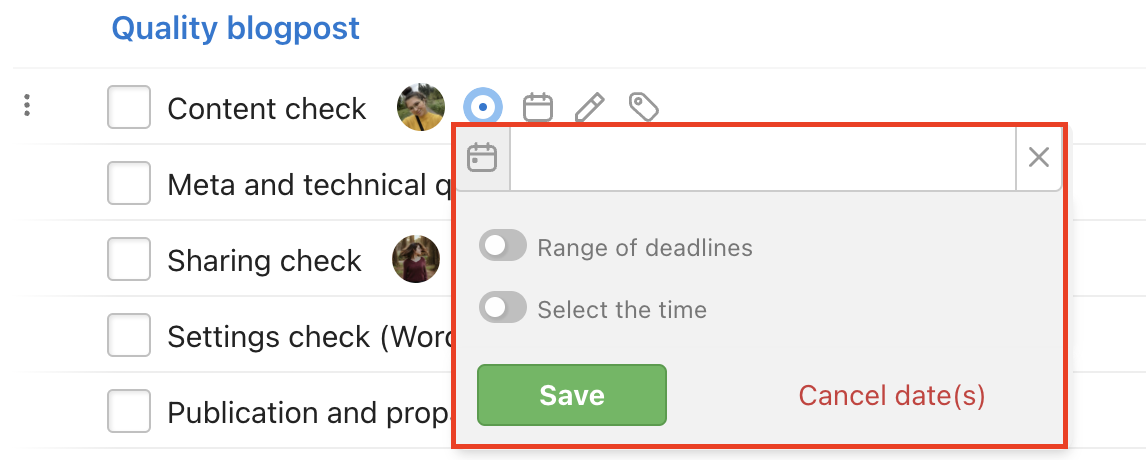
Add a due date just as in a normal task. Click the calendar icon and add a due date. Or use the keyboard shortcut > the cursor on the task + T.

What is carried over from the template to a new project?
- The structure of To-Do lists, tasks, and subtasks
- Task descriptions
- Sub/task assignment to other users (assignee must be invited to the template and the new project)
- Pre-set floating due date based on the date you chose when creating a new project from the template
- User's hourly rate
- Admin role
- Relations between sub/tasks
- Custom fields
- Followers of tasks and To-Do lists
- Time estimates for tasks
Text-based templates
You can have every template ready in a text form.
Creating multiple To-Do lists
Go to a particular project and click the arrow icon next to the red title Tasks > Add more items…
In the form, follow this structure:
= To-Do list name
Task name
– Subtask name
–– Checklist item name
Multiple task creation
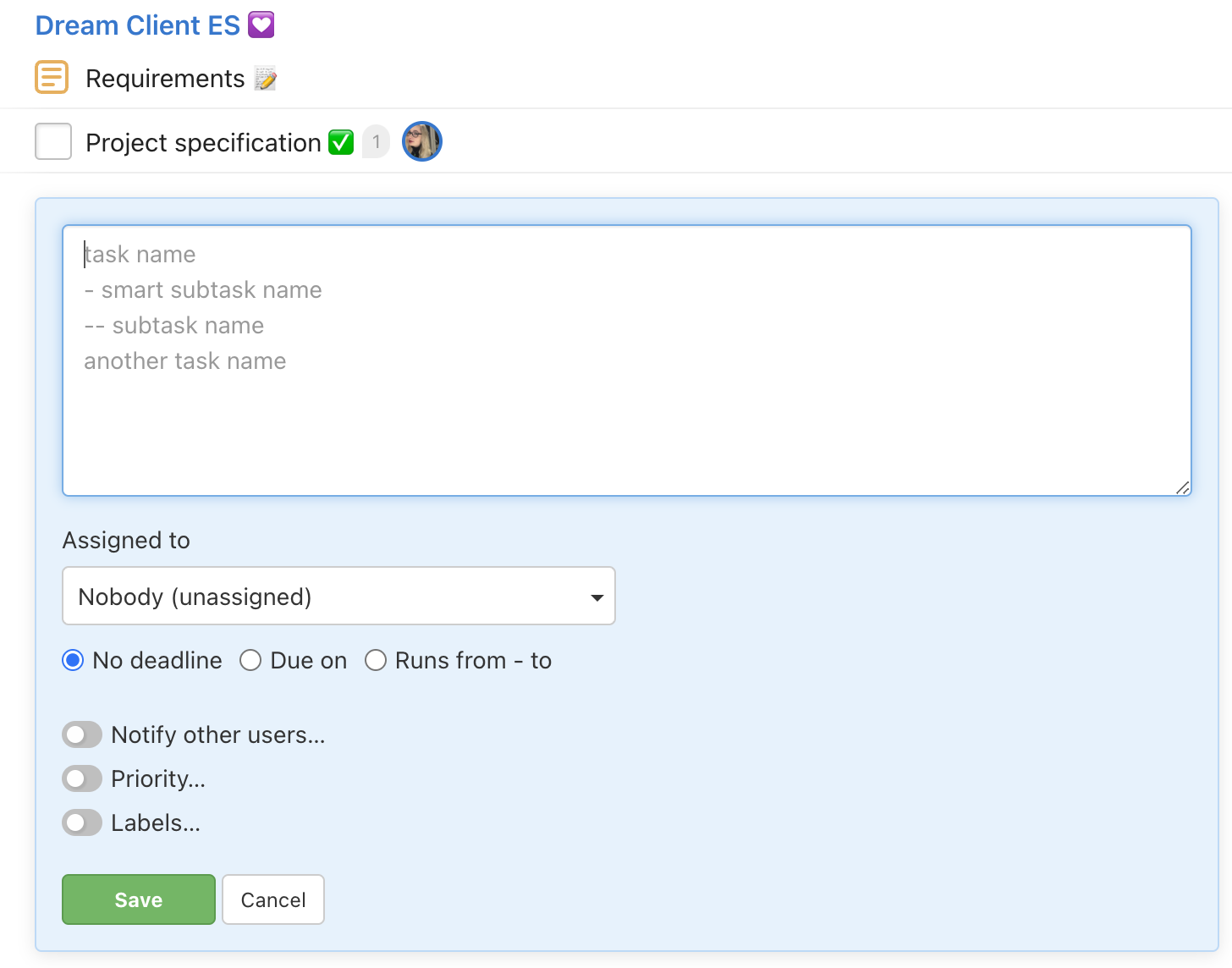
Click the arrow next to Add task > Add multiple tasks…

In the following window add sub/tasks. Enter task names without any special characters. Enter one task per line. In case you want to add a subtask, use a dash in front of the name of the subtask and use a double dash for the subtask in front of its name.
You can also assign all of them to a user via Assigned to or add a due date. Confirm via Save.
Priority
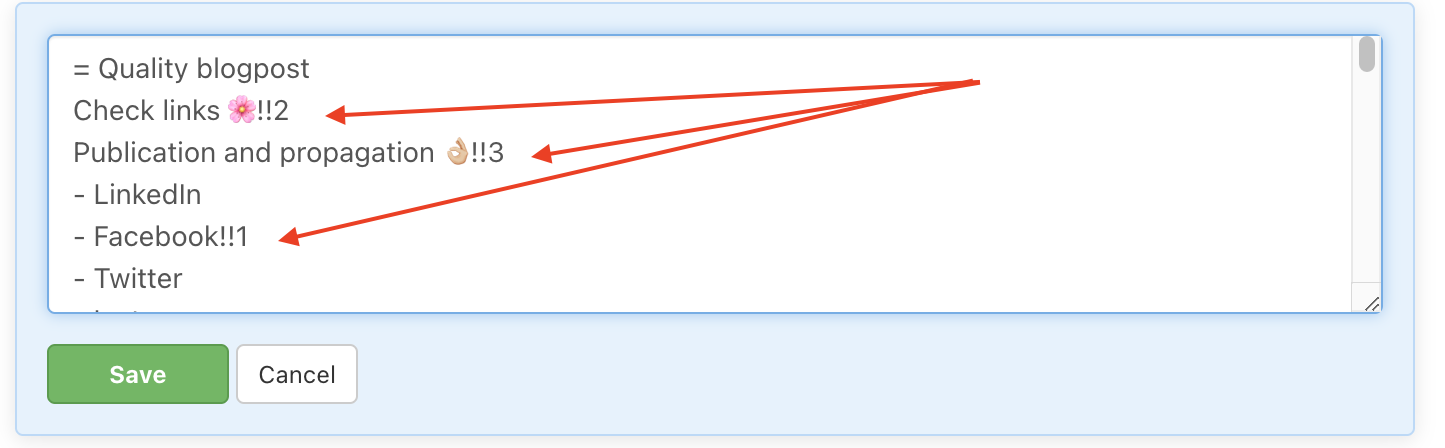
If you want to set up the priority just add !!number 1 to 3 behind the sub/task name. Number 1 means low priority, number 2 stands for medium priority and number 3 is a high priority for the task.
Assign user
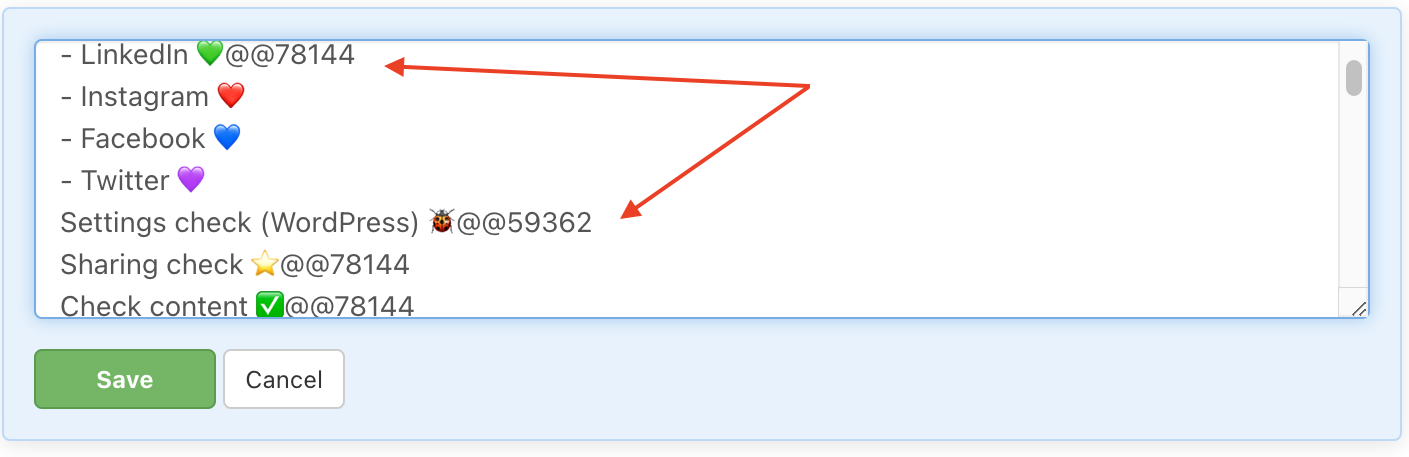
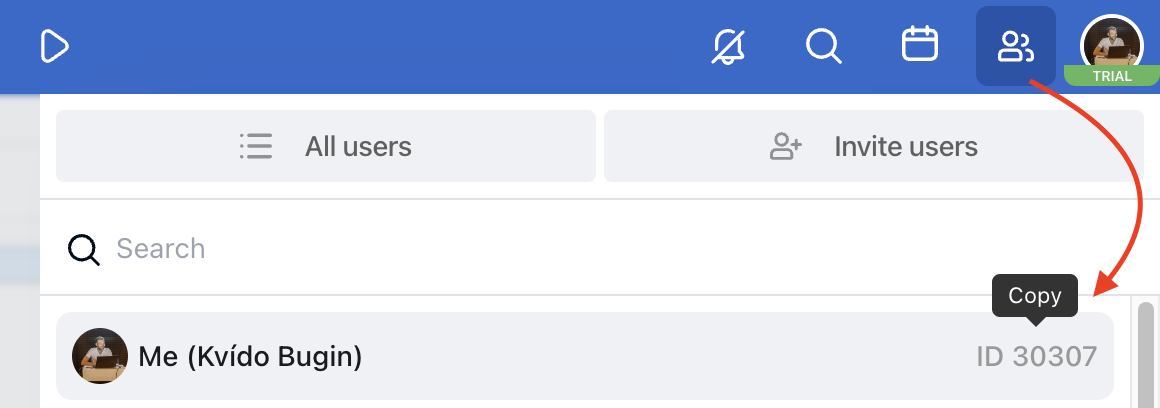
To assign the task to a user, add @@the user ID behind the sub/task name.
Deadline
For adding the due date just put //due date (the number of days from today for which the due date should be set OR simply add the date, which can also contain the exact time).
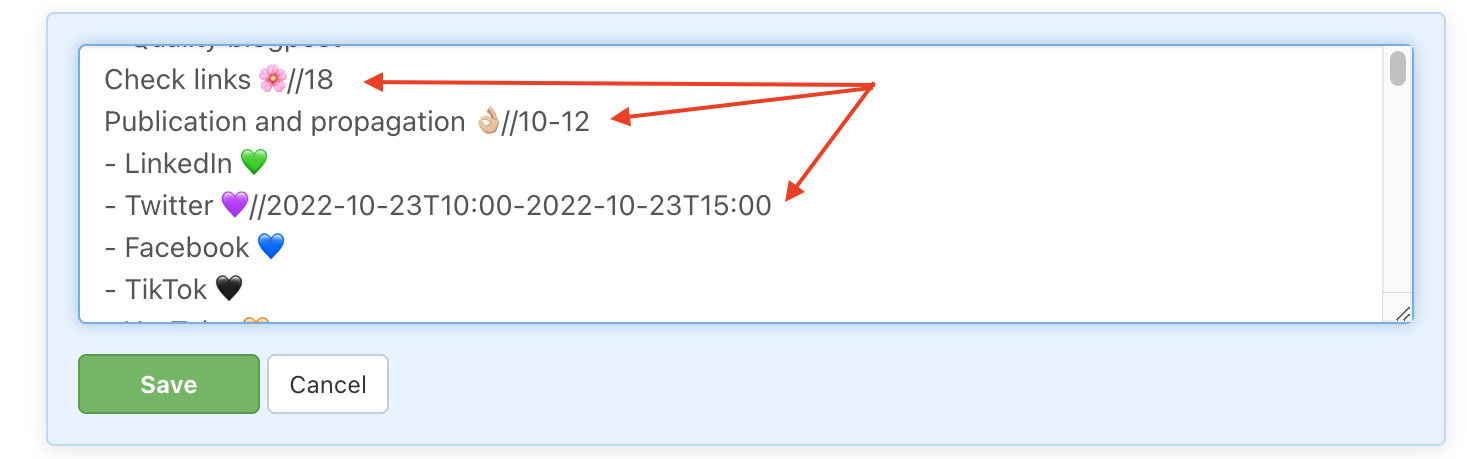
You can find more information about setting the due date via text here.
Task description
If you need to add a task description to your sub/tasks ready in the text template, add::text of a task description behind the sub/task name.
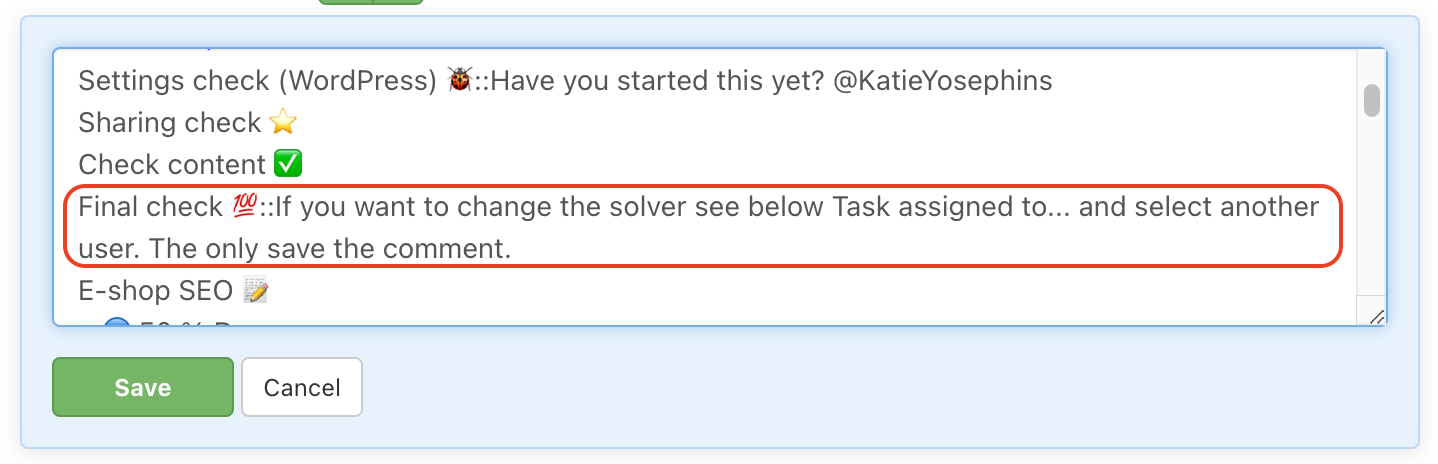
You can even use HTML to prepare templates for task descriptions.
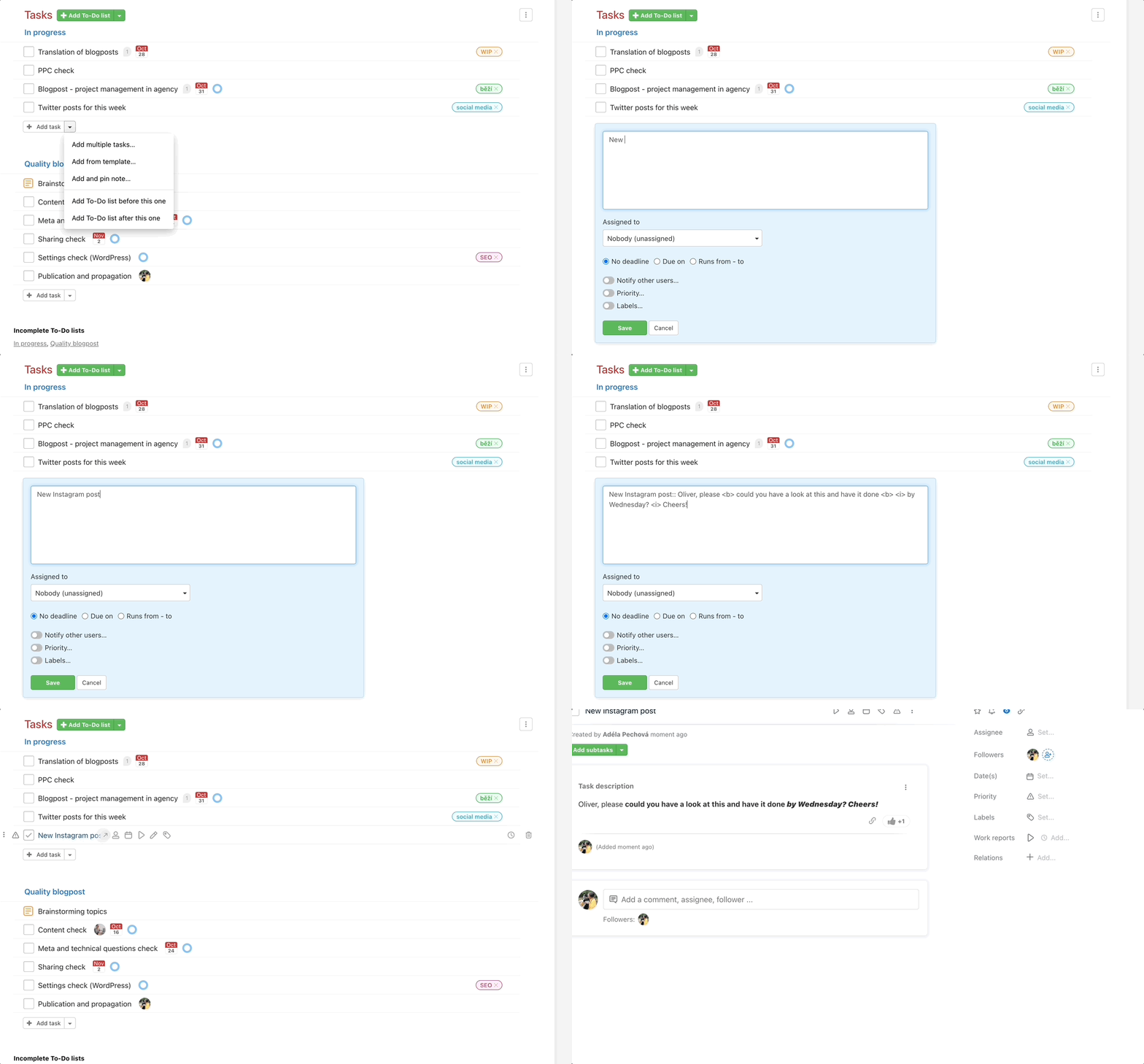
To create a text template from an existing structure, use the export feature. You can export the structure of a To-Do list, task, or subtask. Find out how here.
If you use the Add more items option and want to include due dates, you must use the YYYY-MM-DD format – for example Task name//2026-06-01 – to set the due date to a specific day.
Template transfer
The template transfer works the same way as the project transfer. It might come in handy when Project managers accidentally create templates under their accounts or when you have a new team Captain.
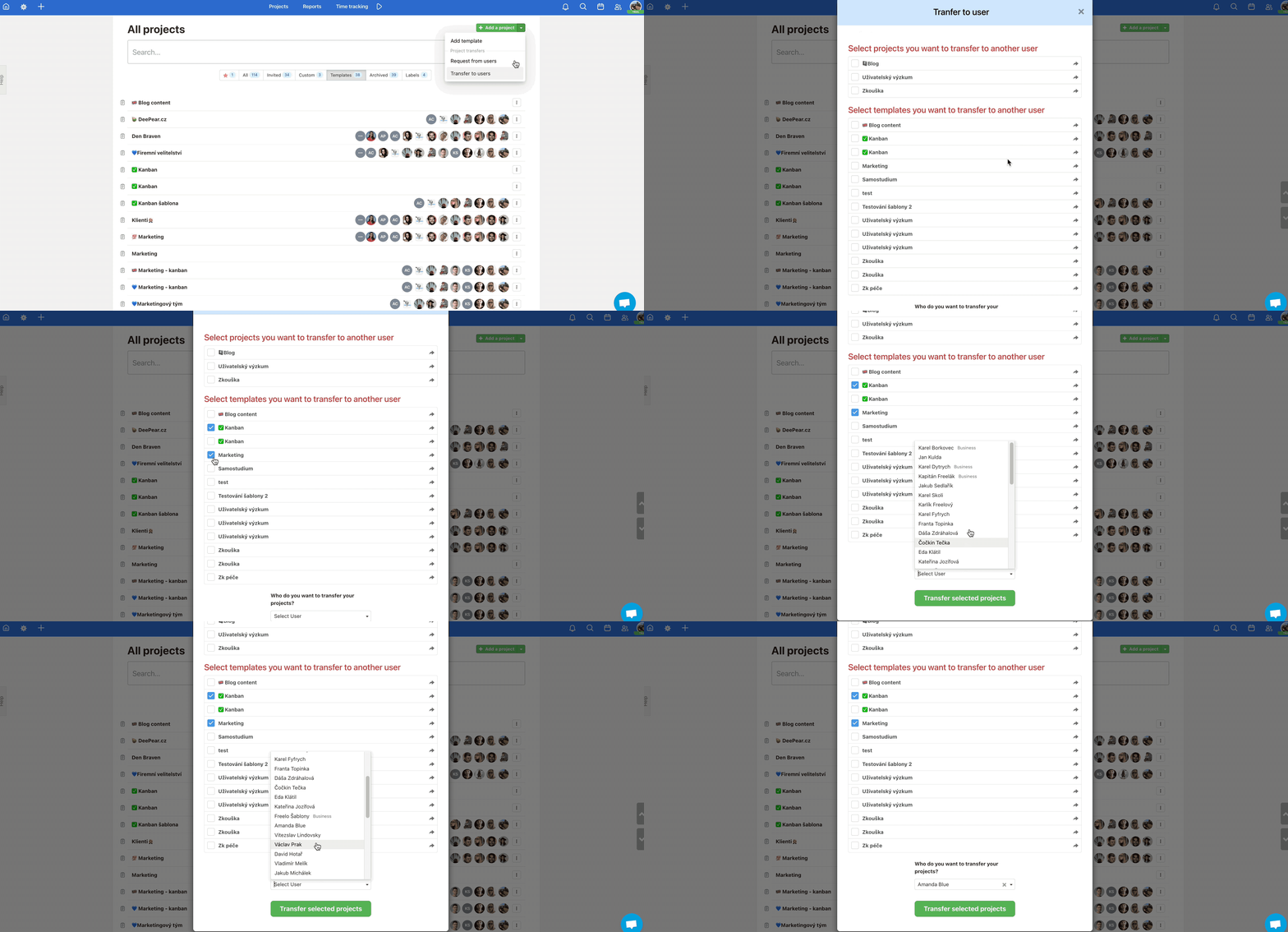
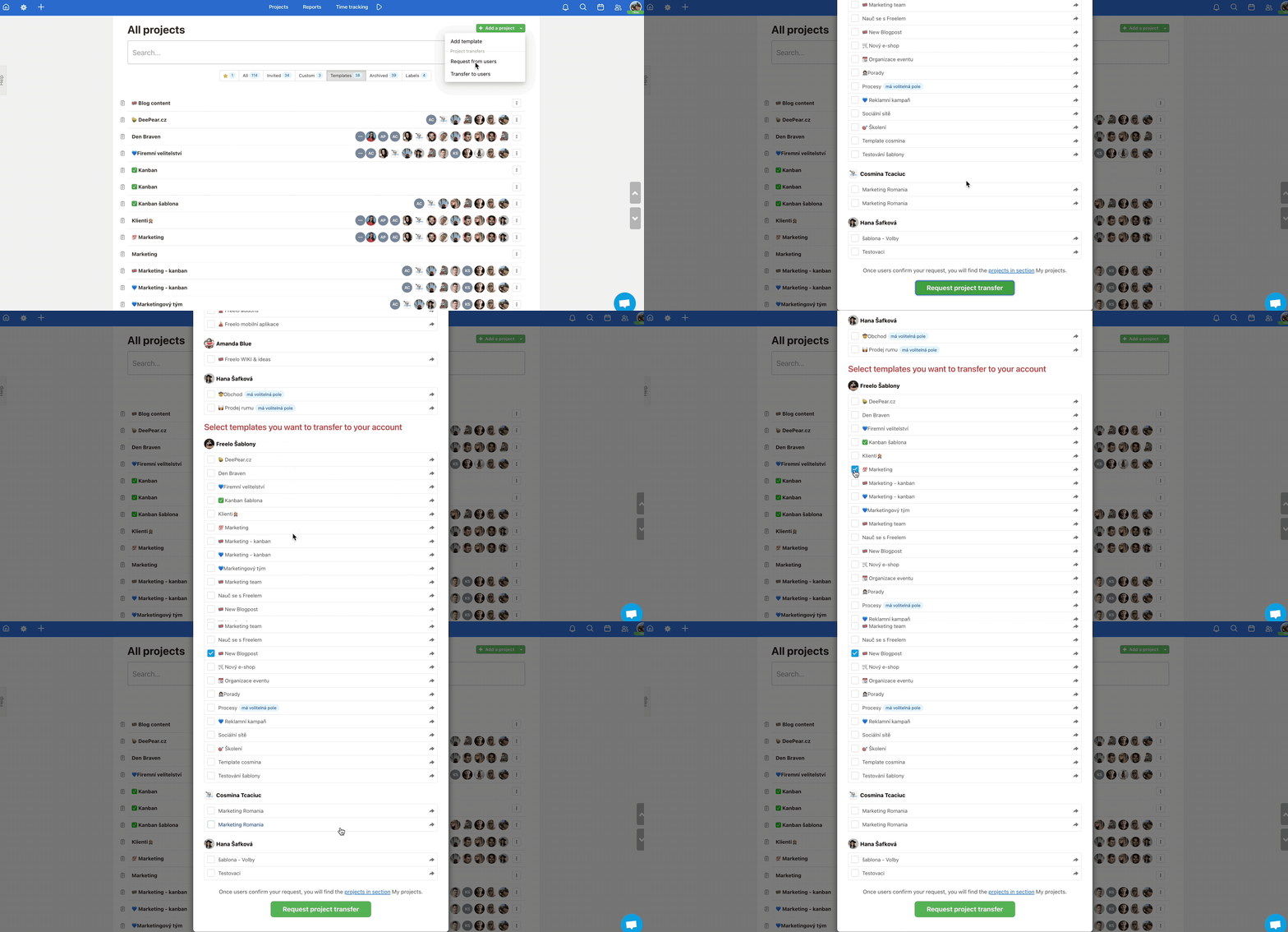
Go to section Projects via the top blue bar > All projects > go to the Add Project button and open the menu under the arrow > Request from users/Transfer to user.
You can transfer your own templates to another user – ideally the Captain with a paid plan – via Transfer to user. Another way is to request template transfer from the current owner to you (only if you are invited to the template) – Request from users.

Template transfer to another user
If you want to transfer your own template to someone else, you have to click checkboxes next to the template name. Below select the new template owner > Who do you want to transfer your projects to? and confirm via Transfer selected projects.
Request a template from a user
You can request a template transfer only if you are invited to the template. Via checkboxes, select the templates that you want to own. Confirm via Request project transfer.
Template library
Explore the Freelo public template library – a collection of project templates, processes, and checklists put together with specialists across industries:
- Web – templates for web projects, including security checklists, SEO audits, and analytics.
- Project management – templates to help you stay on top of your projects.
- Marketing – inspiration for campaigns, content, and everything that comes with it.
- Sales – closing deals starts with a solid strategy.
- HR – build your dream team with templates from leading HR professionals.
- Events – organising a successful event is easy with the right checklist.
- Miscellaneous – everything from training preparation to office tidying.
Practical use cases
- New project in 2 minutes – instead of manually creating To-Do lists and tasks, select a template, set a date, and the entire project structure is ready. The team can start working immediately.
- Consistent quality across the team – every team member follows the same process. The template acts as a safety net: if someone new joins or a project is handed over, nothing is lost.
- Template from your last project – did a project go well? Create a template from it before you archive it. Next time, use the proven structure.
- Adding a single To-Do list to an existing project – you don't need to create a full project from a template. Just add one To-Do list with a template task set to an existing project – for example, a final handover checklist.
- Share a template with the whole company – invite your entire team to the template. Every member can use it, and when creating a project, they'll see pre-assigned task owners.