
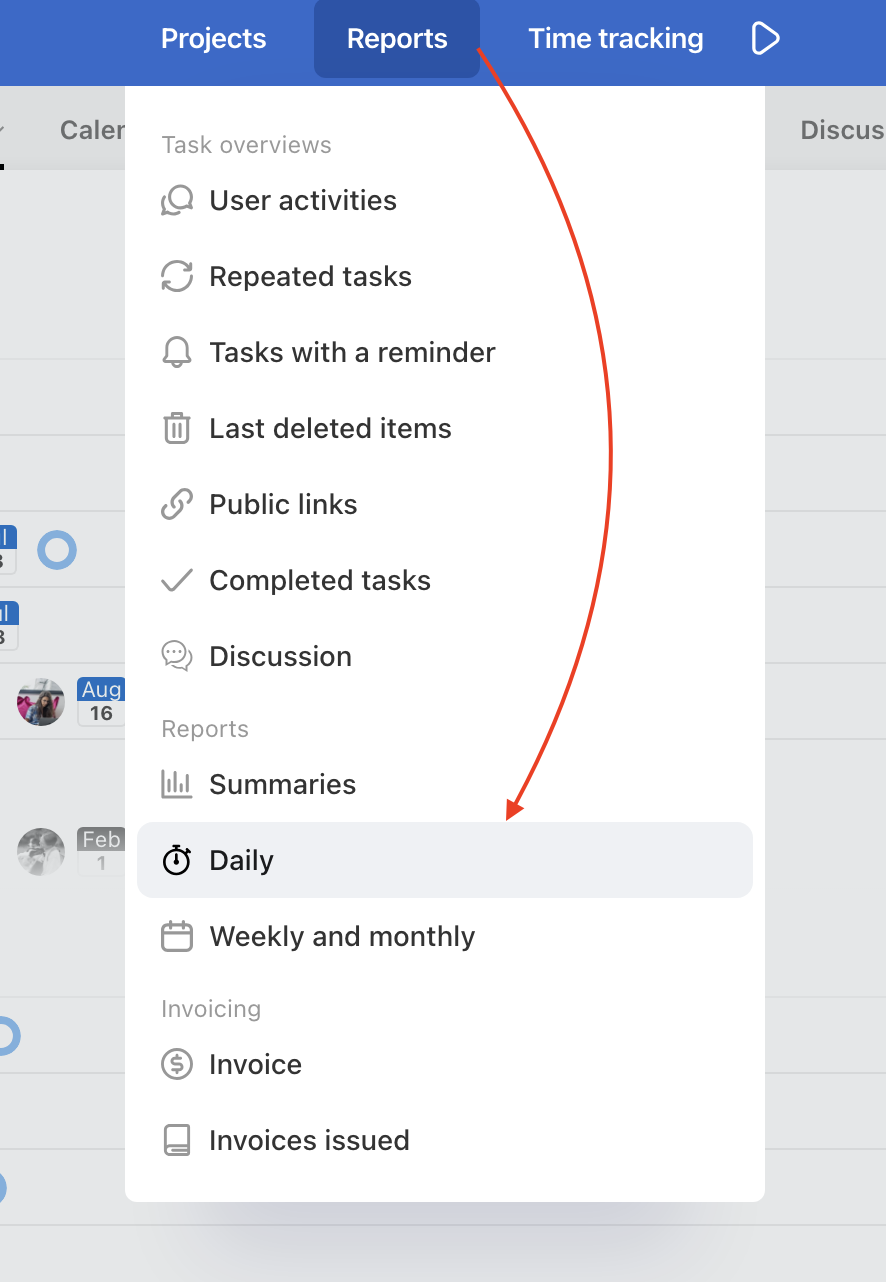
The daily cost reports give you a complete overview of tracked hours and amounts across projects – yours and your colleagues' – filtered by user, project, or time period. Find them via Reports → Reports → Daily in the top menu; captains and admins see reports for the whole team, invited users only their own. In this article you will find a description of filtering, CSV export, and the Invoice section for billing preparation.
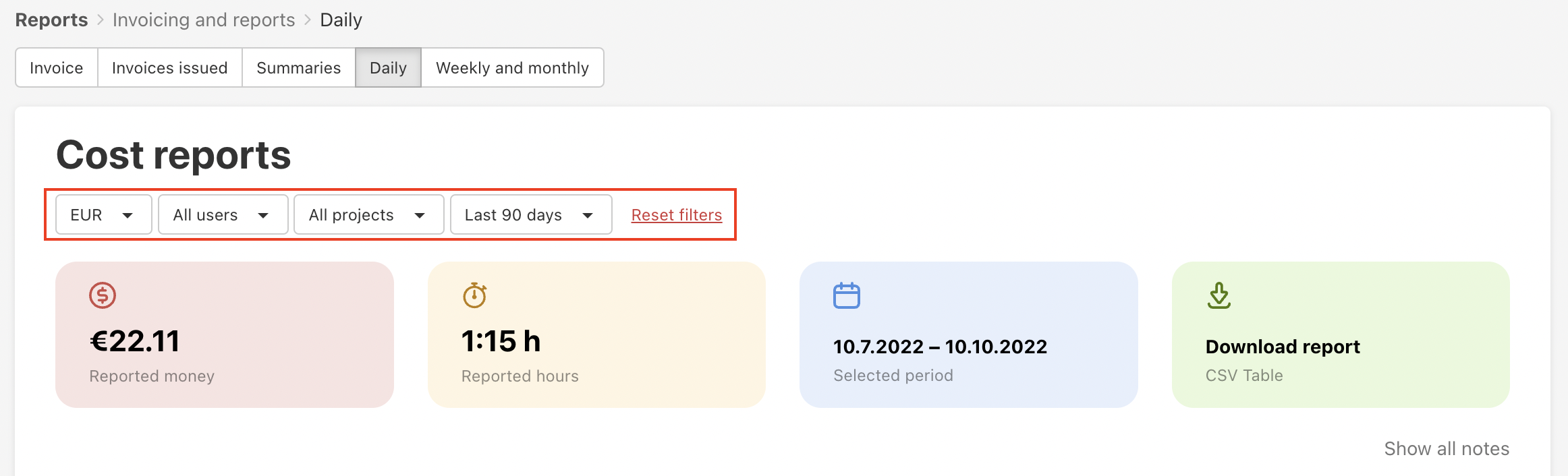
Set up the filters - choose users, projects and time period for which you want to see the summary report.
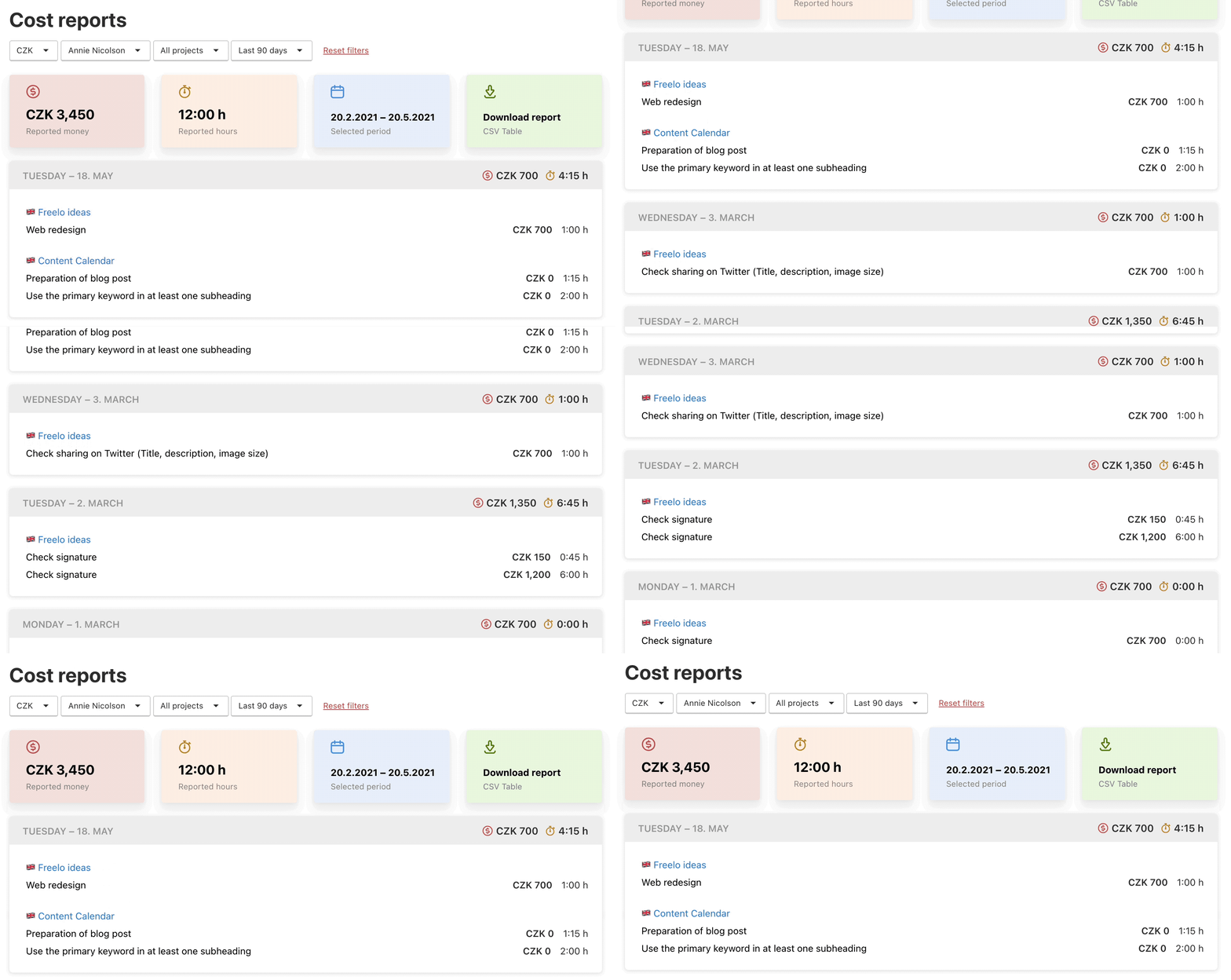
These reports are sorted by days. If you filter a particular user, you can check his/her work reports per day.
Detailed reports, month and week overviews found in the section Weekly and Monthly.
Export CSV report
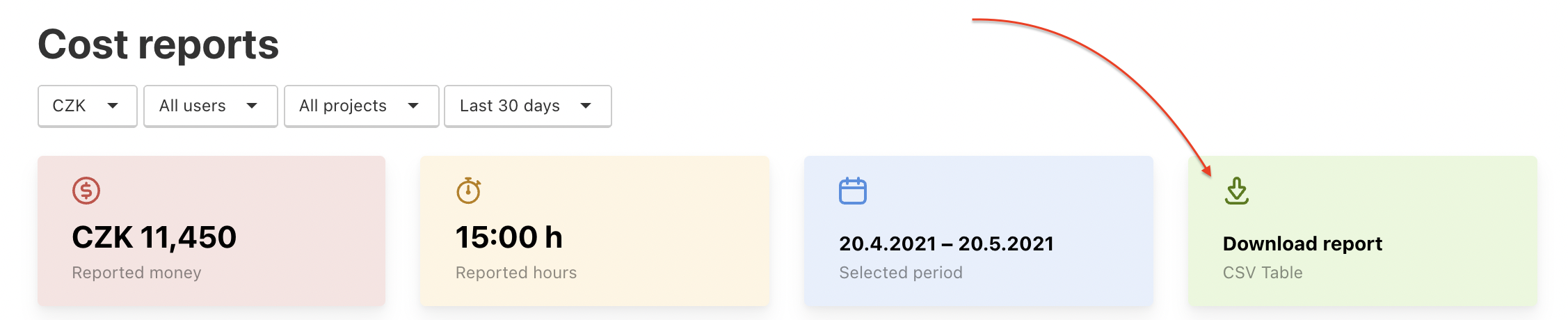
In the top coloured bars are totals of reported money and hours. The last green bar enables you to download the CSV report of the filtered overview. Click Download report and save the file in your device.
Section Invoice
One of the many great features of Freelo is the billing option. You can find everything you need in the Invoice section of the Reports page, on the path: Reports > Invoice in the Invoincing section.
In this place, you can easily filter which reports you need to invoice using the filters in the side menu.
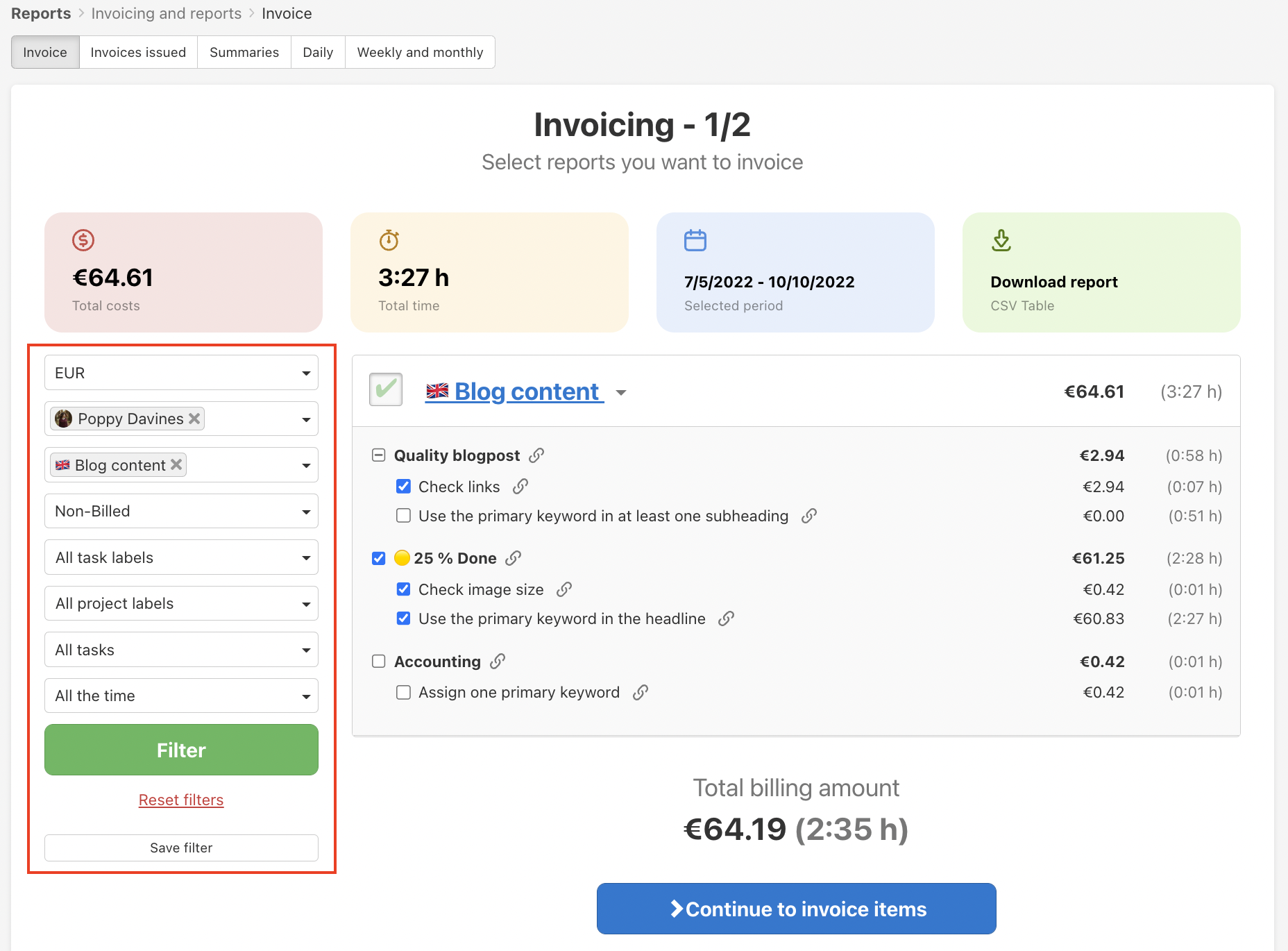
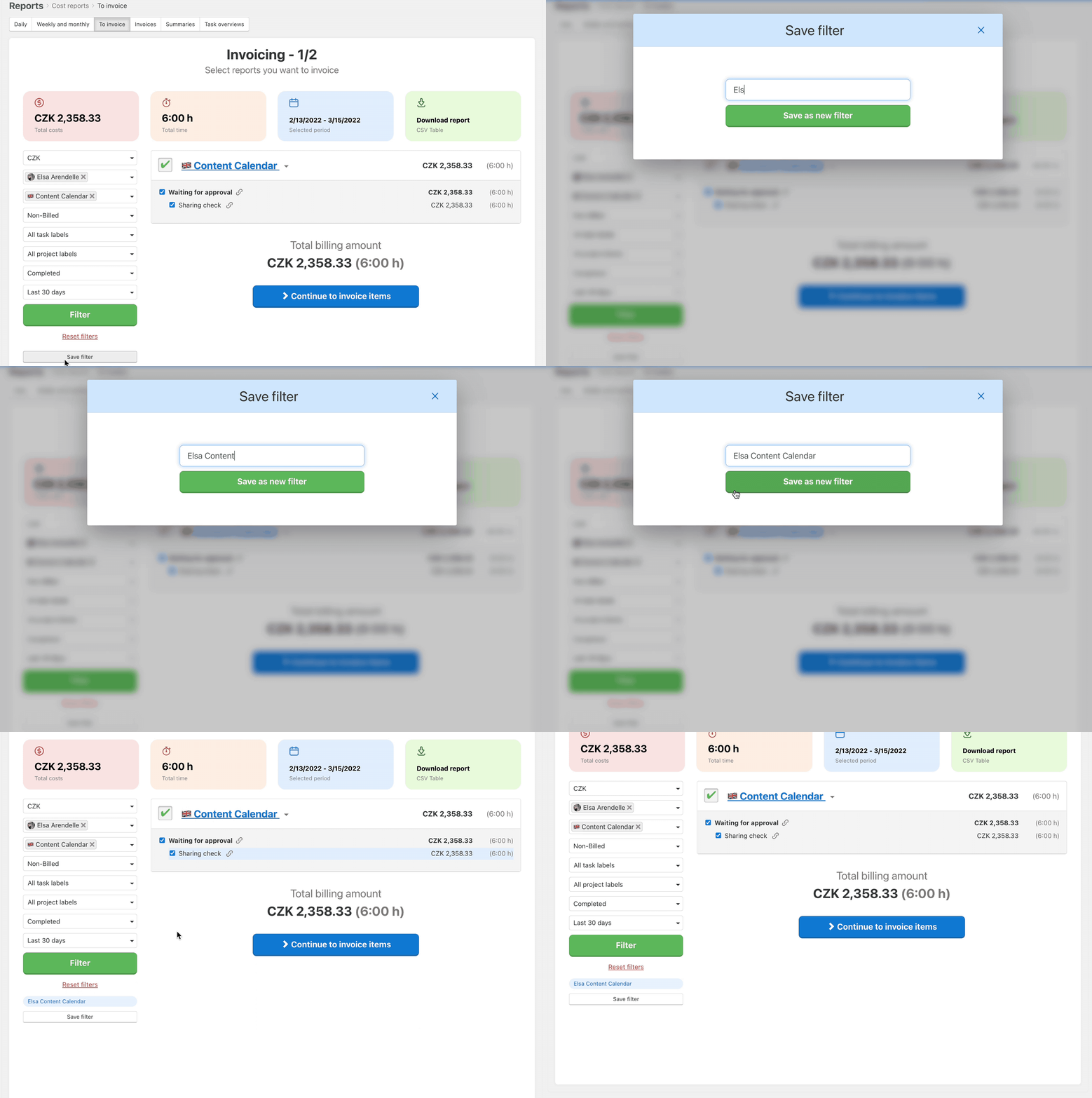
Saving these filters is also a useful feature that will definitely save you a lot of clicking in the future.
You can also download the filtered reports in this section in CSV table format.
Practical Use
- Daily overview of tracked time – check what the team reported each day without browsing individual projects.
- Invoicing preparation – filter reports for a given period and download the CSV, ready to use as a billing document for your client.
- Pre-invoicing review – in the Invoice section, mark reports as invoiced so they are not counted again next time.
- Team transparency – as a captain or admin, you can see all team members' reports and have a clear picture of actual hours worked.
- Saved filters for recurring reports – set up a filter once, save it, and select it with a single click next time.