
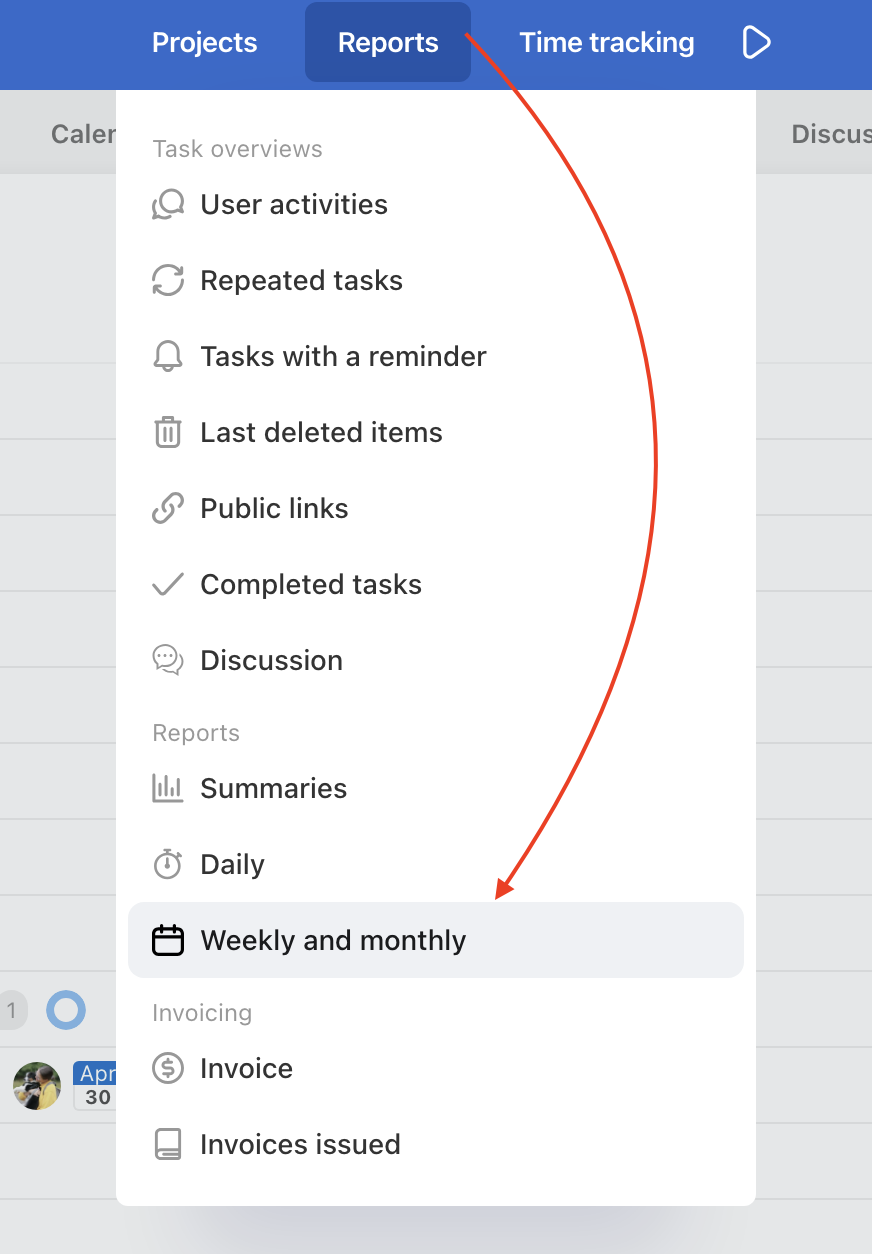
The weekly and monthly reports table gives you a complete overview of tracked hours and costs across your entire team – broken down by people, projects, To-Do lists, or tasks. Access it via Reports → Weekly and monthly in the Cost reports section. In this article you'll find a description of the different table views, how to work with filters including saving them, and how to export to CSV.
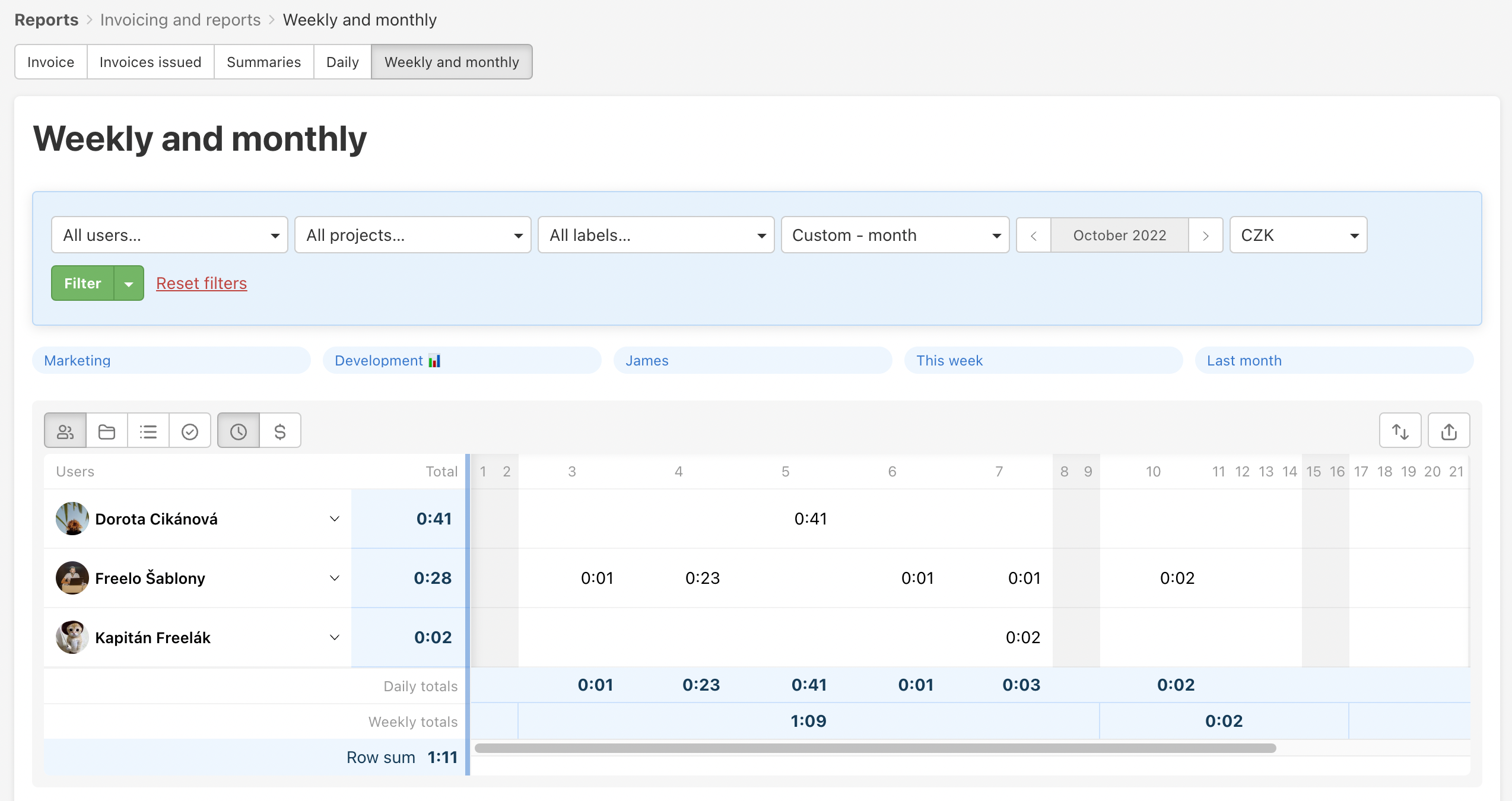
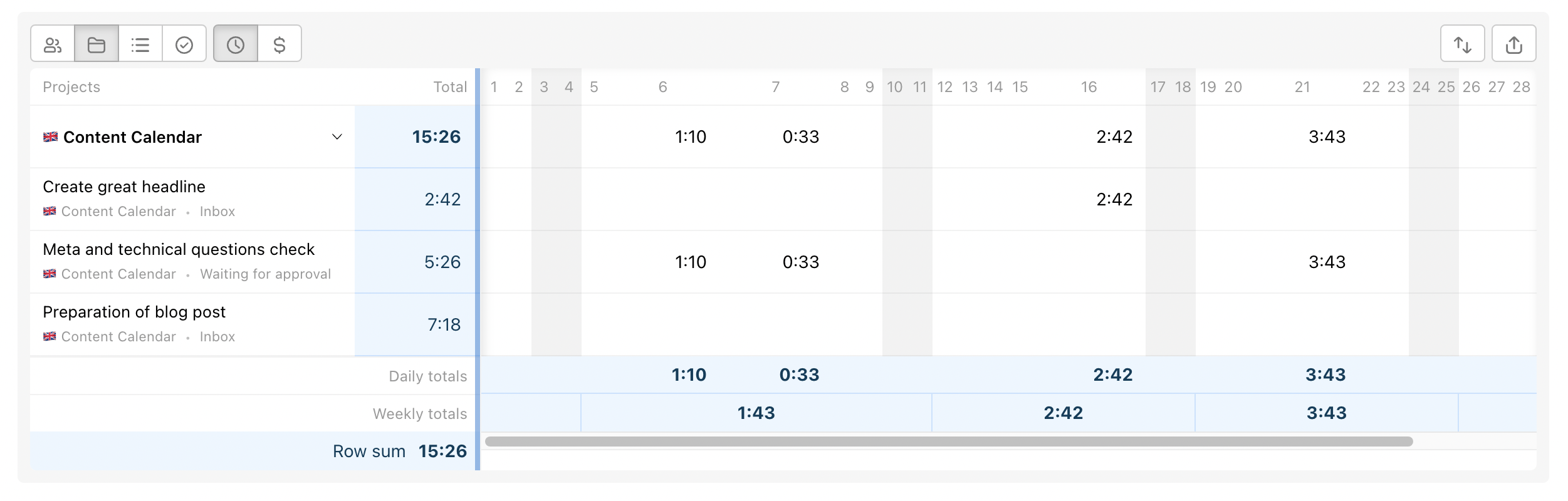
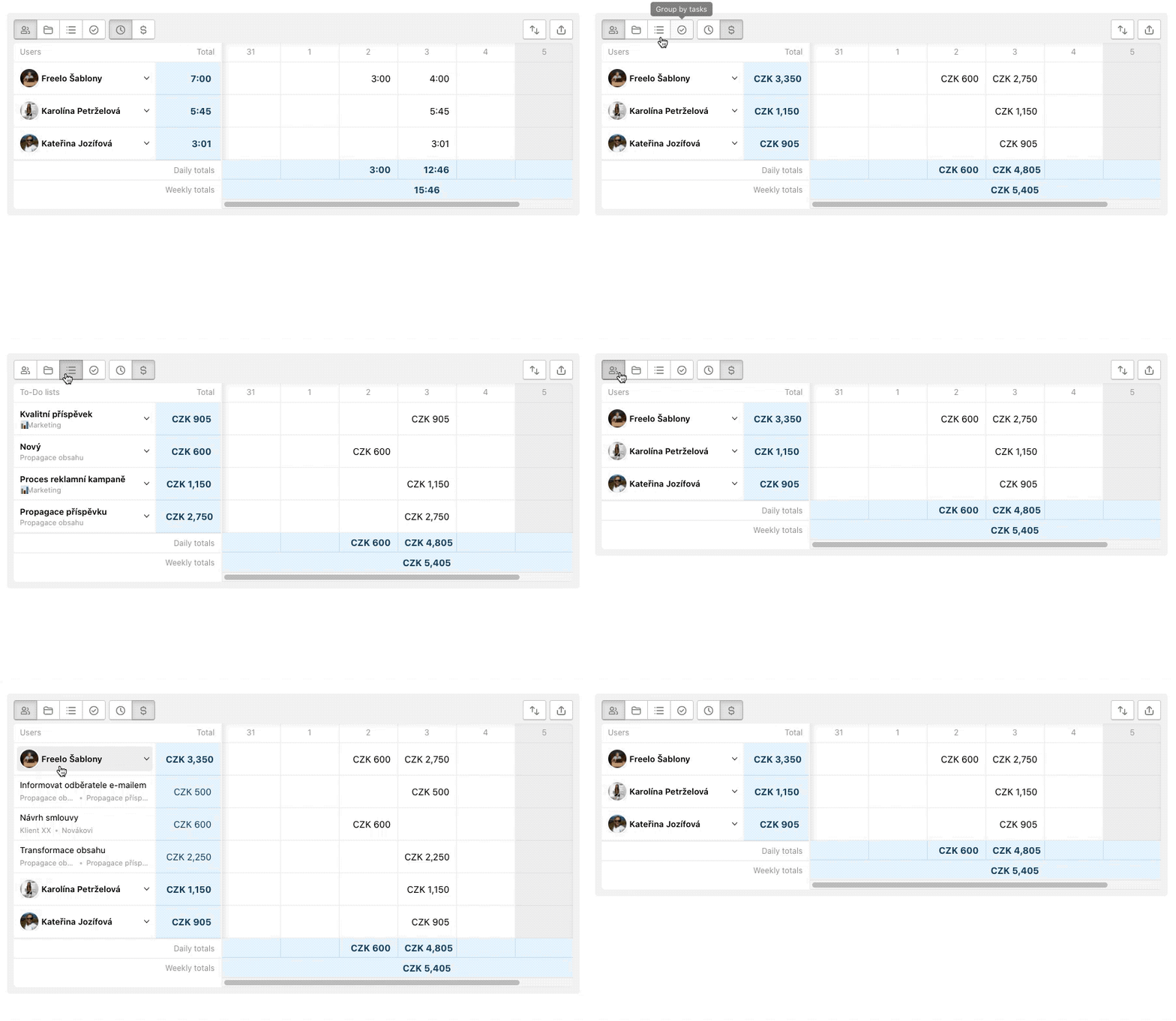
Each day = one white field. There can be day cost or time total or nothing.
Total amount = light blue field. There is total cost or time per particular task / project / To-Do list / user or total per day /week below.
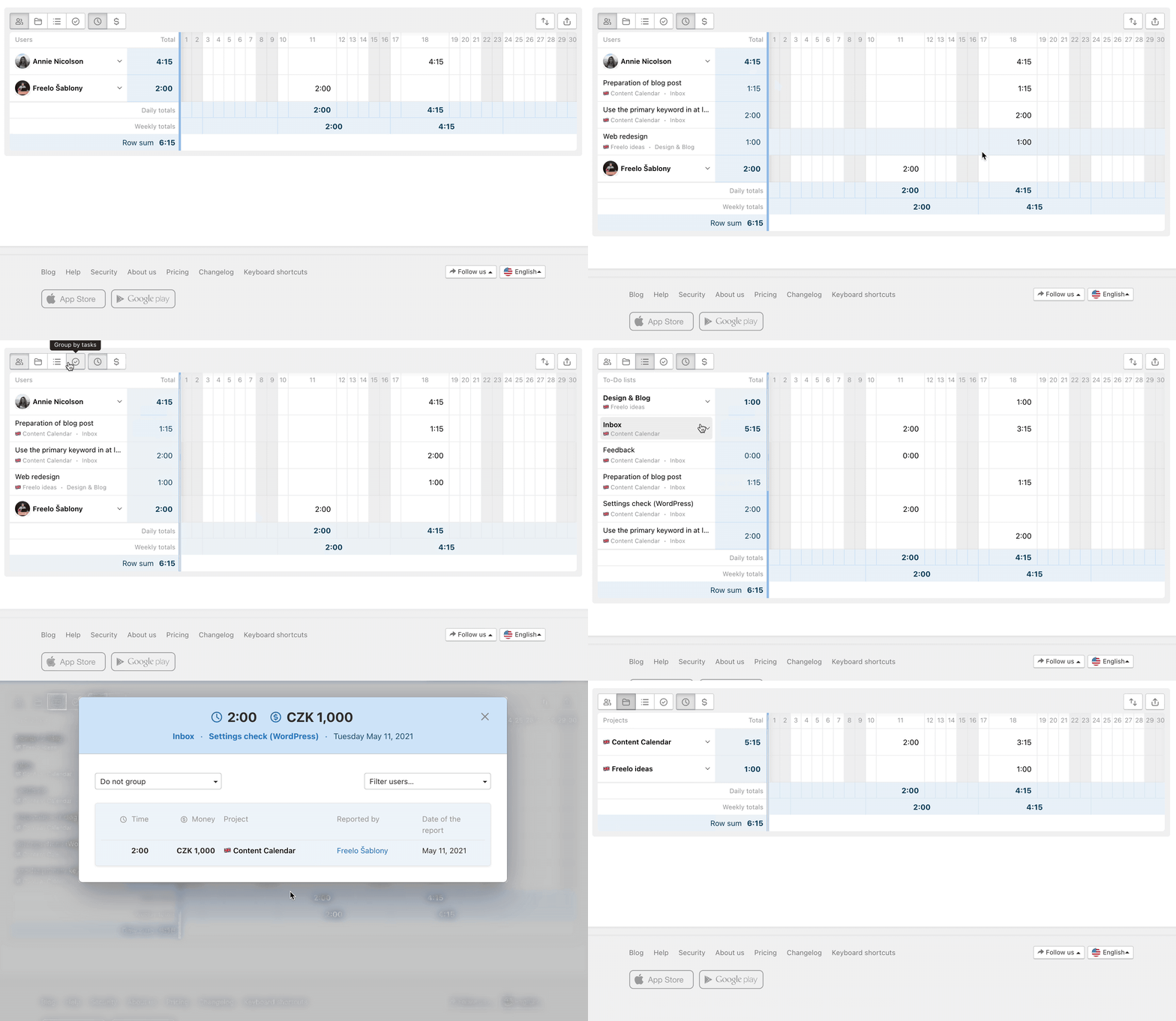
You can filter and group your reports according to users, projects, To-Do lists or tasks. Also by costs or time.
Report views
Do you want to check how your team working? Filter according to users.
- People
- Projects
- To-Do lists
- Tasks
- Time
- Finances
Group reports according to user, project, task or To-Do list via icons in top left corner.
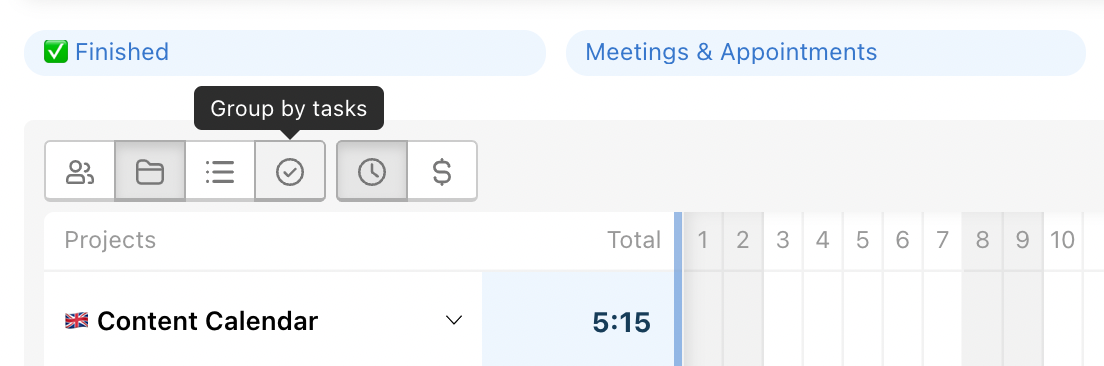
Select whether you want to see reported time or money via clock or dollar icon.
Set up filters
You can save different types of views that you use repeatedly. Name the filter and next time check the reports in one click.
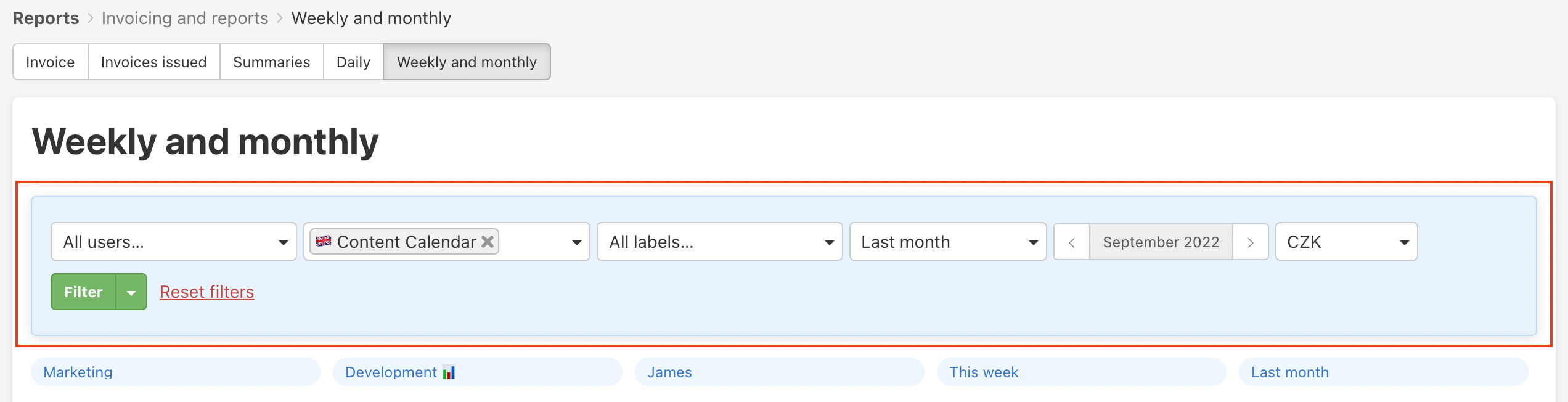
Useful filters:
- Selected people in particular projects last month.
- Particular To-Do list from last week.
- Selected projects last month.
- Tasks with label Done this month.

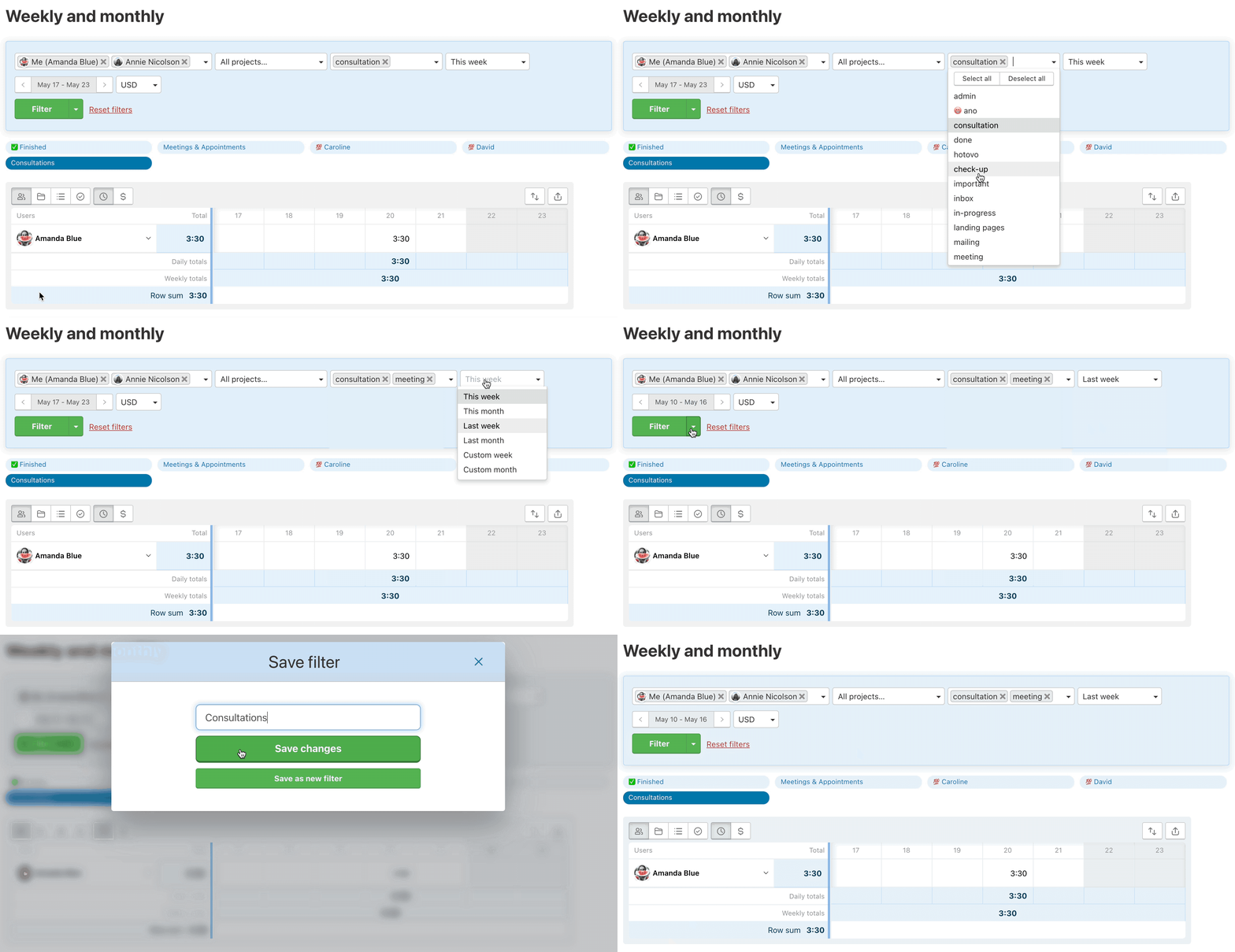
How to save new filter
Click the arrow icon on the right from the green button Filter > Save filter and name it as you wish.
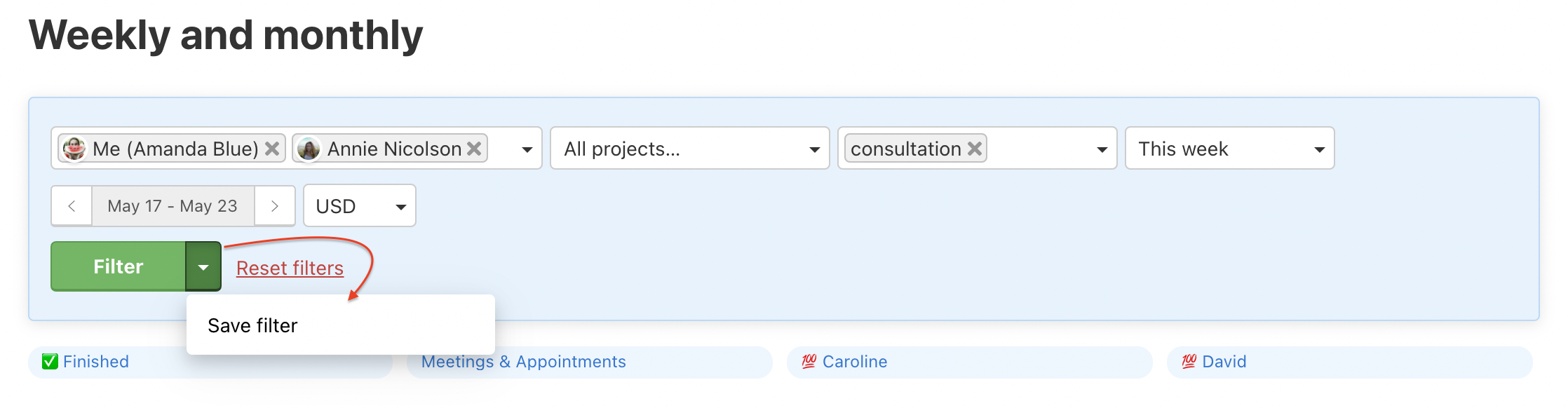
In the following window name the filter and confirm via Save as new filter.
Saved filters
All filters you save are above the report tab and you can quickly change your views.
Edit filter
All filters can be edited. Click the particular filter in the top part where you can again add/delete users, projects or labels. Then click the arrow icon and select Save or edit filter. In the following window Save changes.
Line up filters
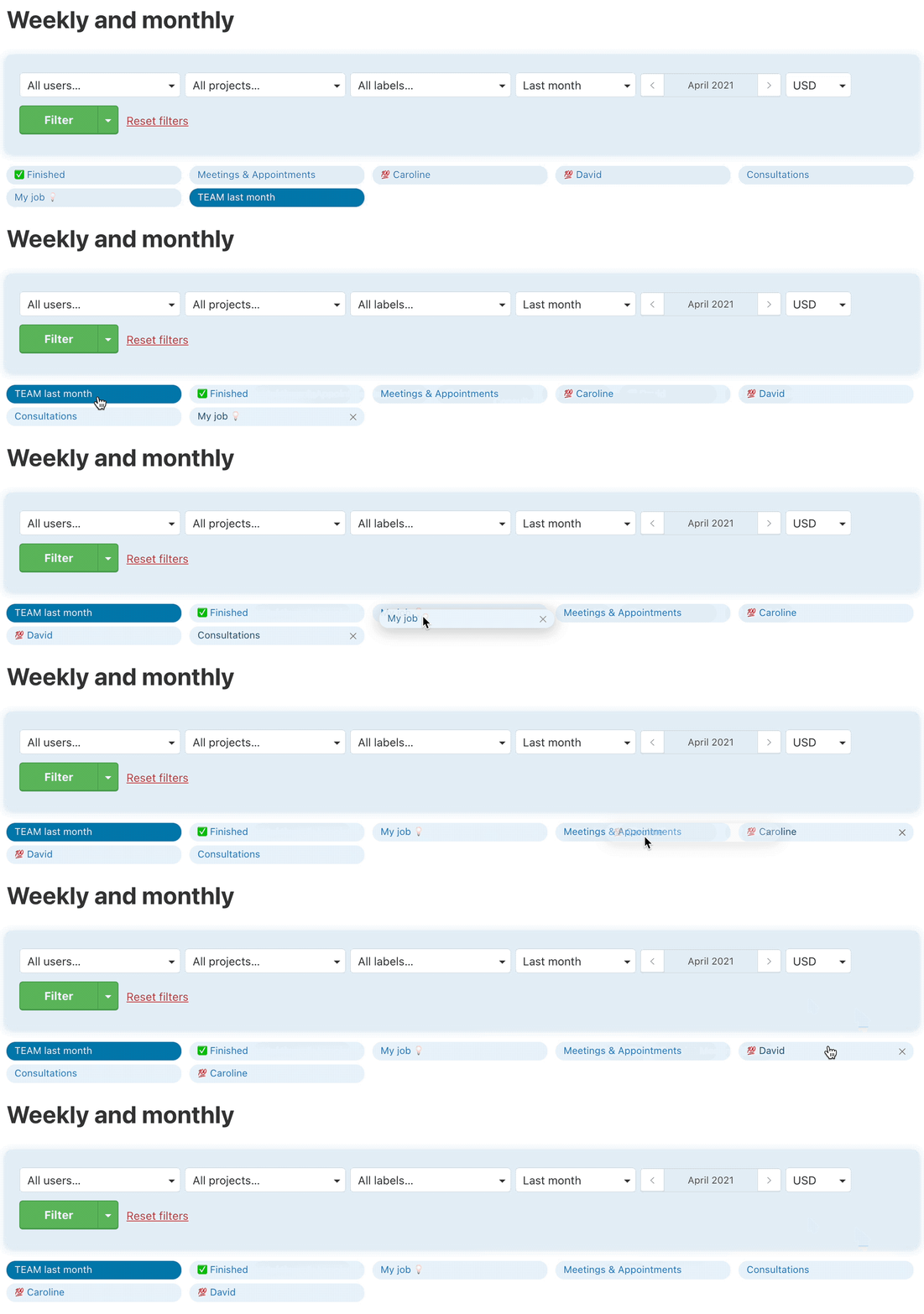
All filters you save can be lined up via drag & drop (click with mouse and pull the filter, then drop).
Delete filter
Delete filter via cross icon next to filter name.

Export to CSV
Anything you filter can be downloaded as a CSV file that you can open in Excel or any other chart editor.
Exported reports can be used when invoicing to your client or employer.
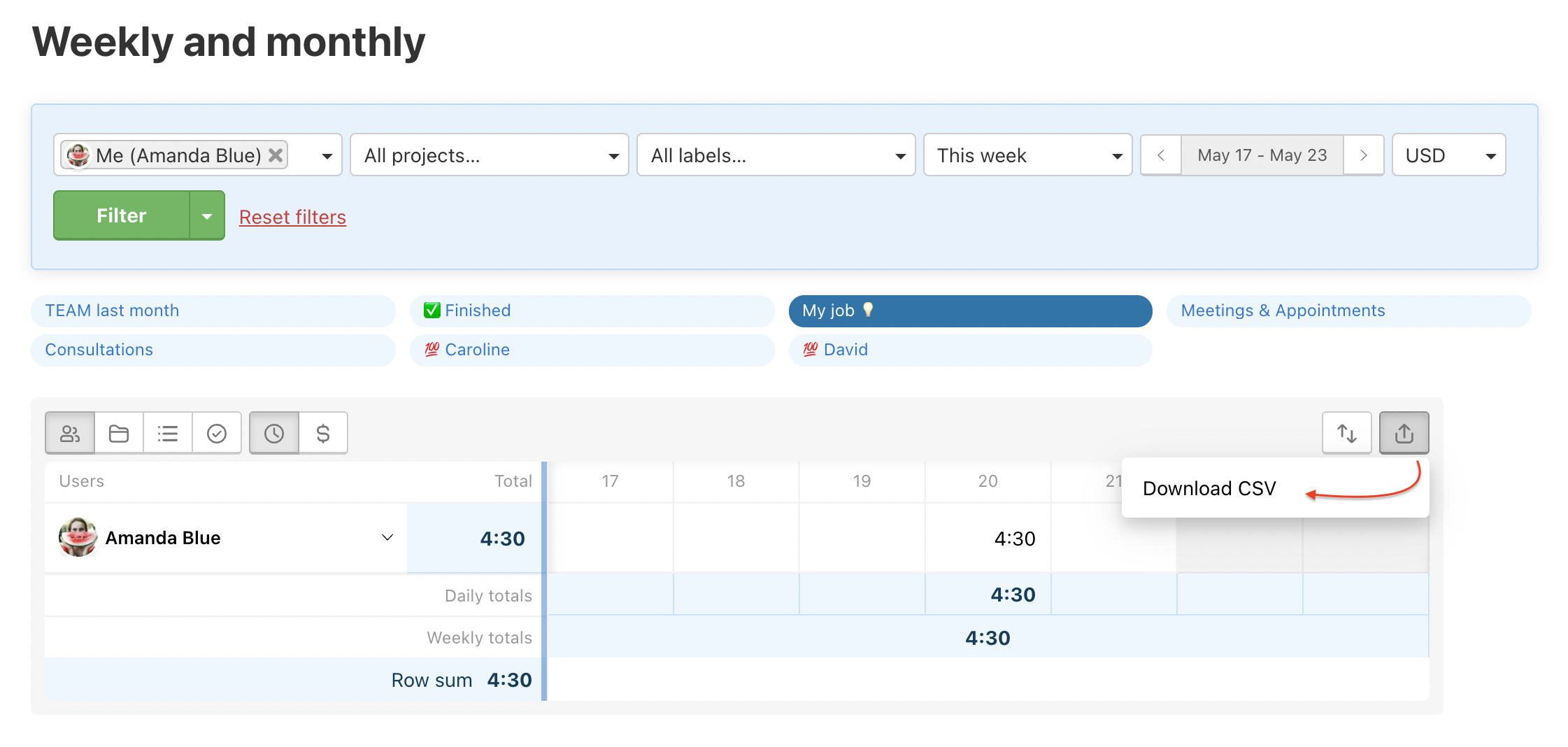
In the exported CSV are all necessary details - task, report date, duration, costs and added notes.

Sort reports
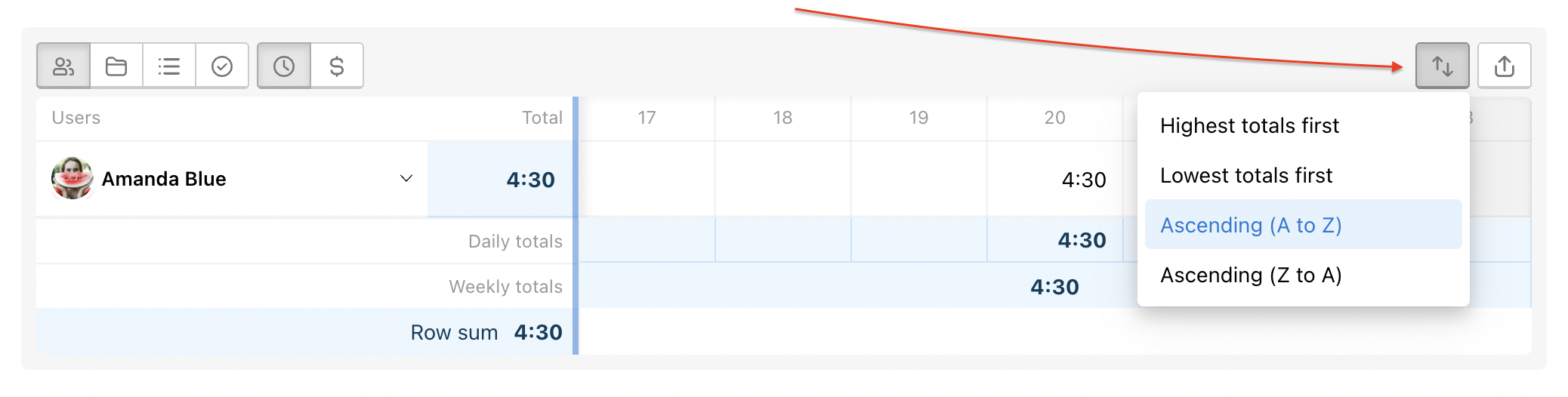
You can sort the order according to the amount or alphabet via the arrows button.
Practical Use
- Invoicing overview for a period – filter by projects and users for a selected month and instantly know how much to invoice clients or pay external collaborators.
- Team workload check – switch to the People view and see who worked how many hours in a given week or month.
- Saved filters for recurring reports – set up a filter once, save it, and select it with a single click next time.
- Export to Excel – whatever you filter, download it as a CSV and have your data ready for accounting or invoicing.
- Drillable totals – click any cell in the table to see a detailed breakdown of the specific reports.