
Task overviews give you a complete summary in one place – repeated tasks, deleted items, public links, activities, reminders, and completed tasks – without jumping between projects. Access them via Reports → Task overviews in the top menu. In this article you'll find a description of each section, filtering options, and how to restore deleted items.
User activities
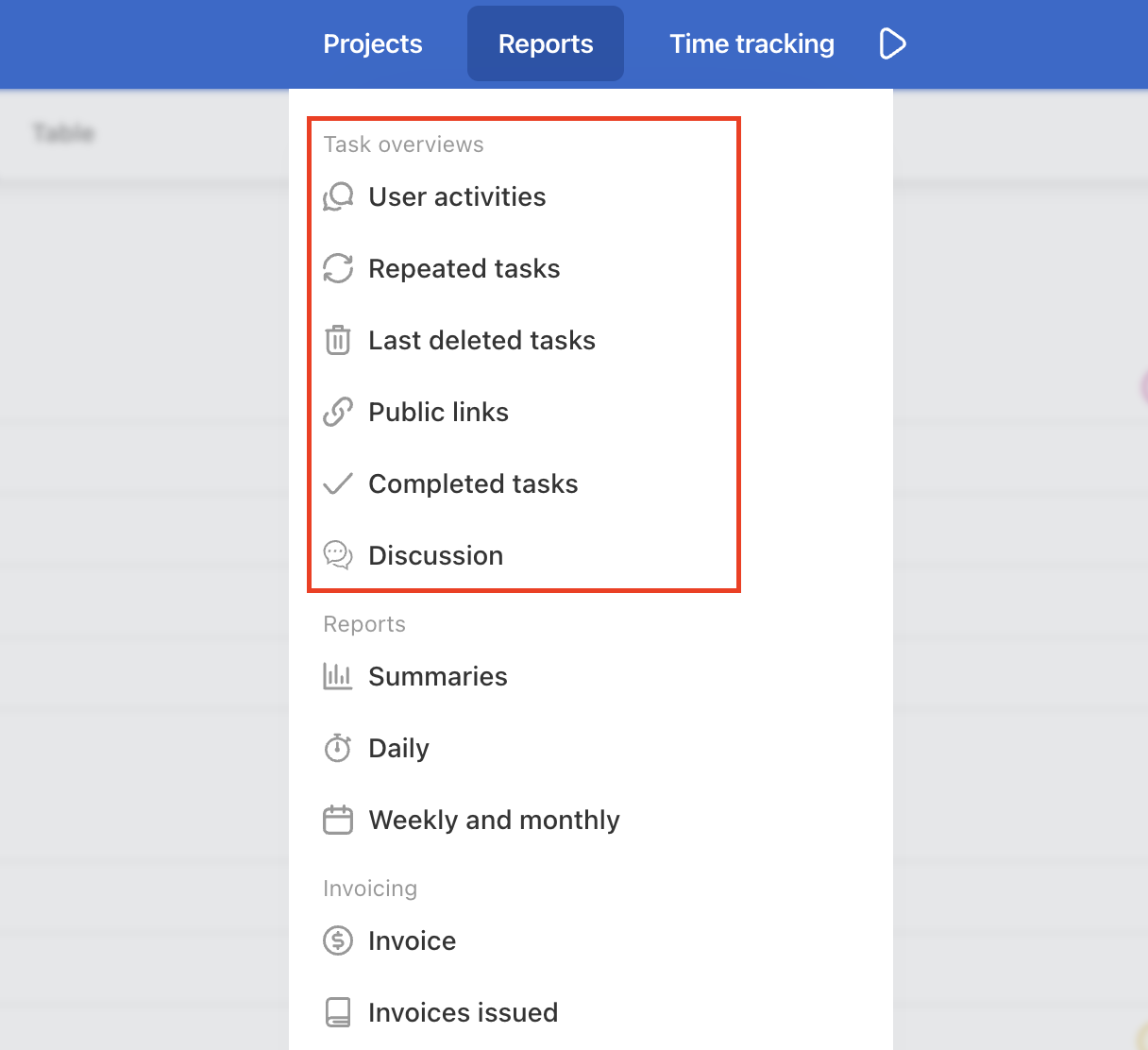
The list of the recent activities over projects is in the section Reports > User activities in the Task overviews section.
Filter activities according to their type (changed due date, deleted task, task completion, etc.), the user who did an action, project, or from newest to oldest.
It helps you to check what is happening.
Repeated tasks
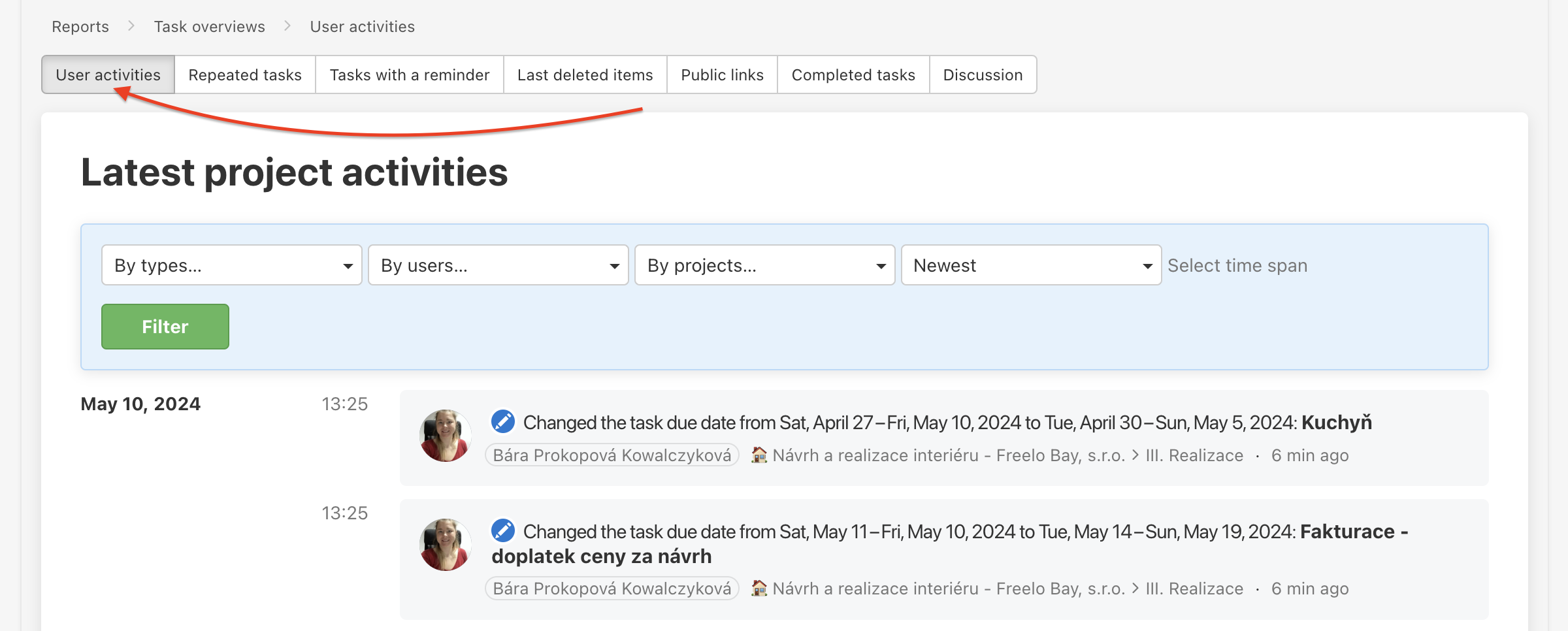
In this section, you can find an overview of all set repeated tasks. If you remember the task name, you can use the filter and search, or filter by the project. You can also select the period from newest to oldest (meaning the time, when a repeated task has been set).
Go to Reports > Repeated tasks in the Task overviews section.
Tasks with a reminder
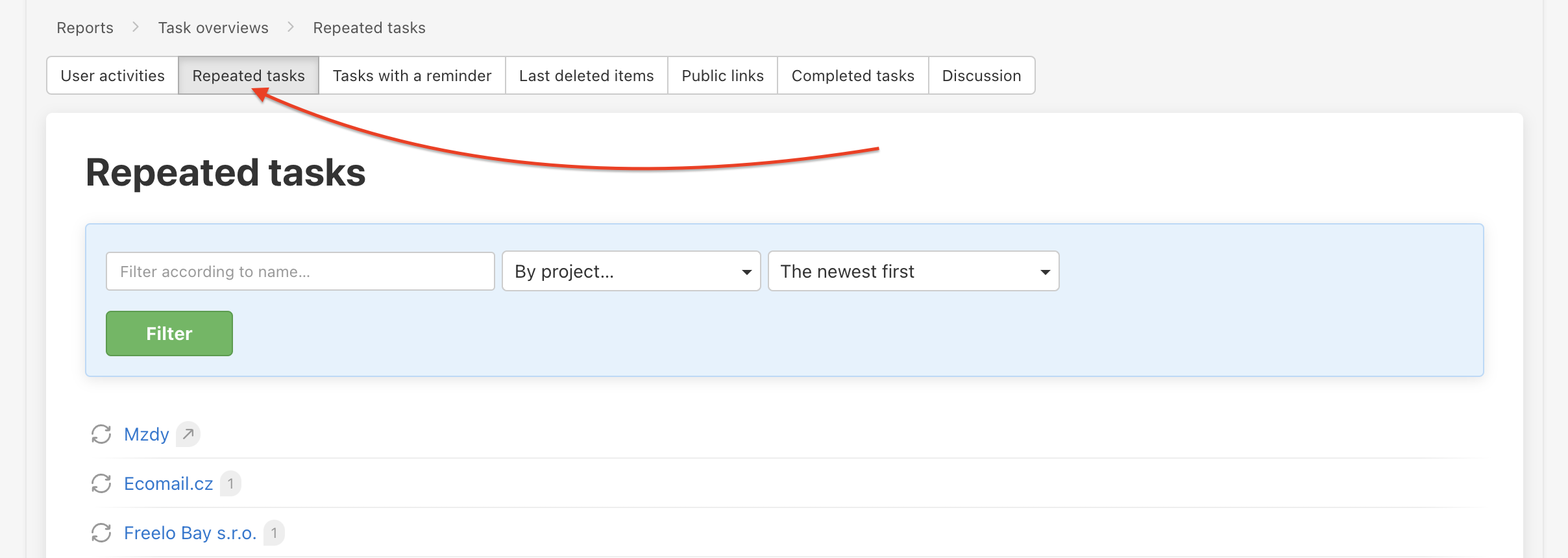
In the Tasks with a reminder section, you will find all tasks/subtasks for which you have set a reminder. You can filter the comments according to the name or the project in which they are located, and you can use the checkbox to hide expired comments.
Last deleted tasks
In this section, you can find all deleted items in the last 30 days. You can filter by the name of the item, item type, or project where the item is located and also by the newest/oldest deleted items. Via Reports > Last deleted tasks in the Task overviews section. Display the task detail via the bubble icon.
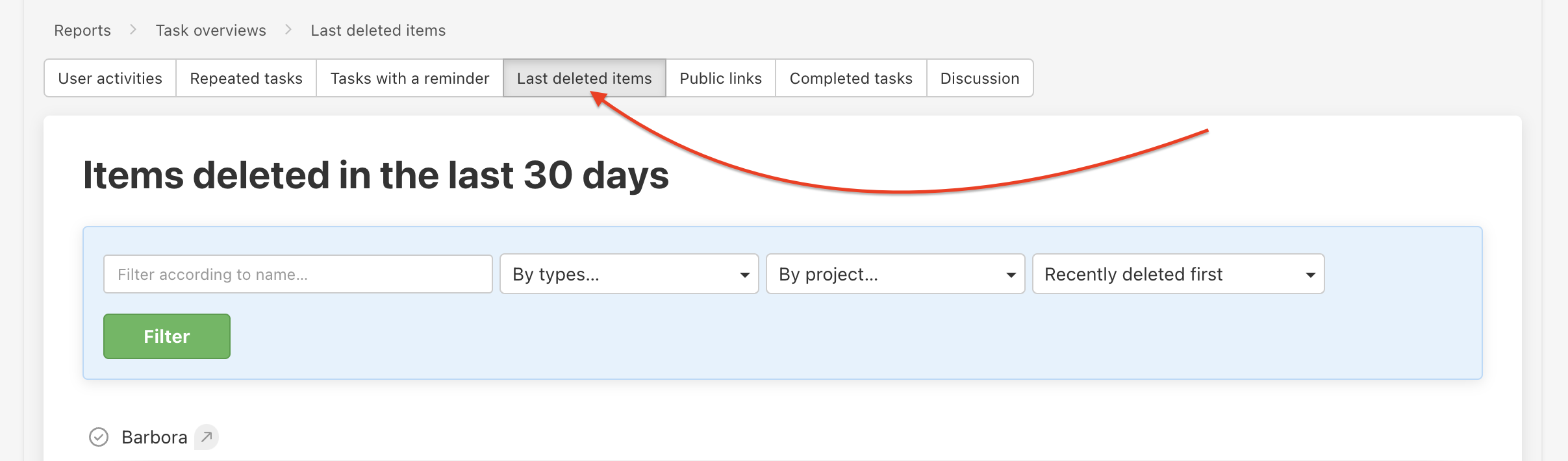
Which deleted items are stored?
- Tasks
- Subtasks
- To-Do lists
- Projects
- Notes
- Files
- Public links
Restore deleted item
The items can be resorted for up to 30 days since their deletion via the Restore button. Place the mouse over the item and click the button on the right.

Public links
The section tasks, To-Do lists, or notes. If you remember the name, you can filter the items by name by project and type. You can also select the period from newest to oldest.
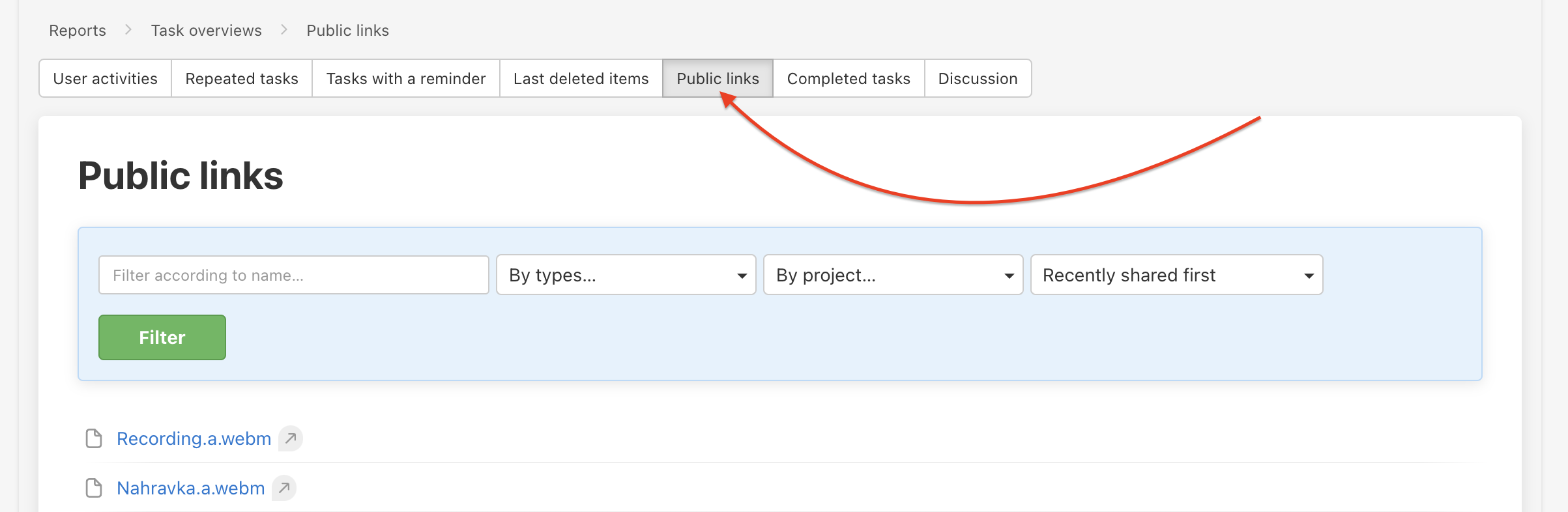
Completed tasks
In the Completed tasks section you can find the latest completed sub/tasks across projects. The list is sorted from the most recently completed sub/tasks.
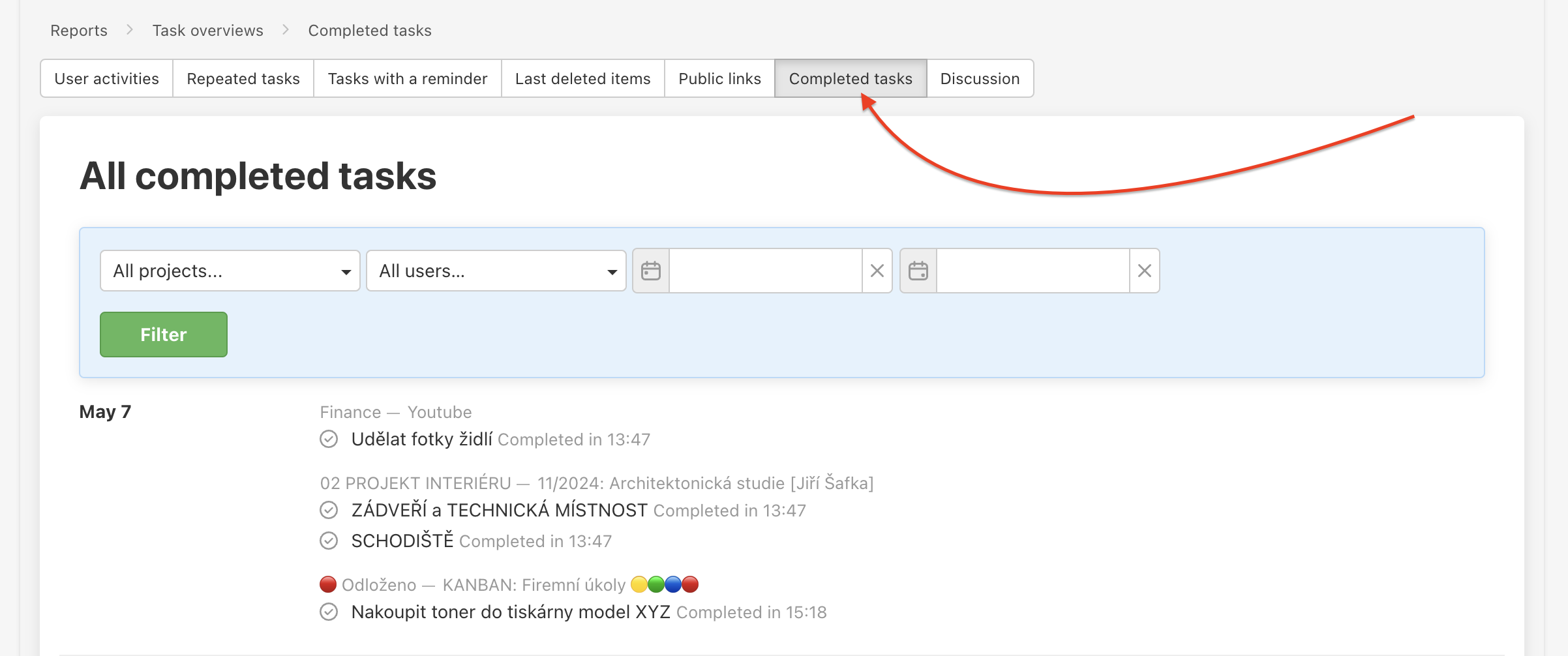
How to filter completed tasks
Similarly as activities, completed tasks can by filtered by:
- Projects - you can click Select all to see completed tasks across all projects, or only pick one/some of them.
- Users - click on Select all or only pick individual users.
- Date.
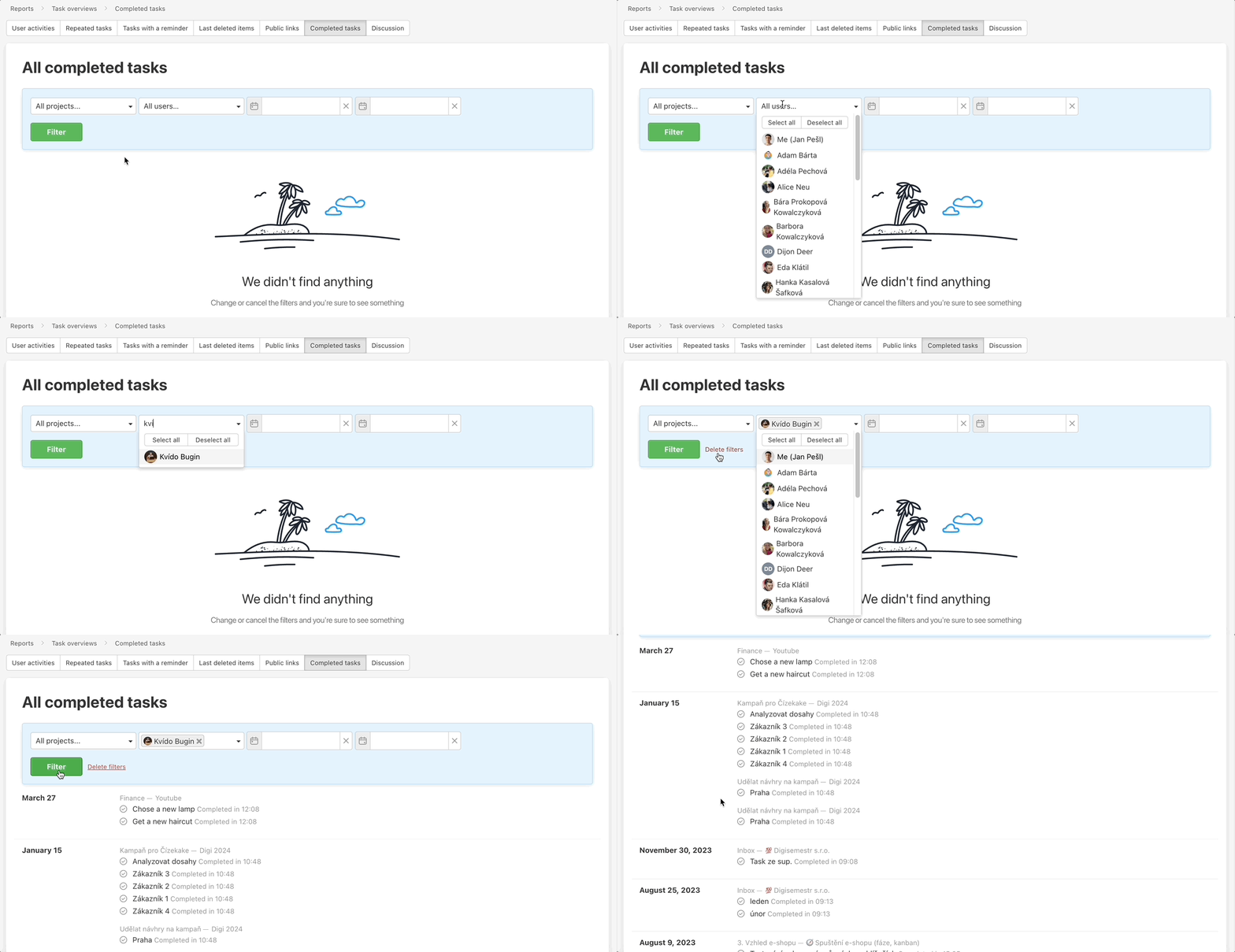
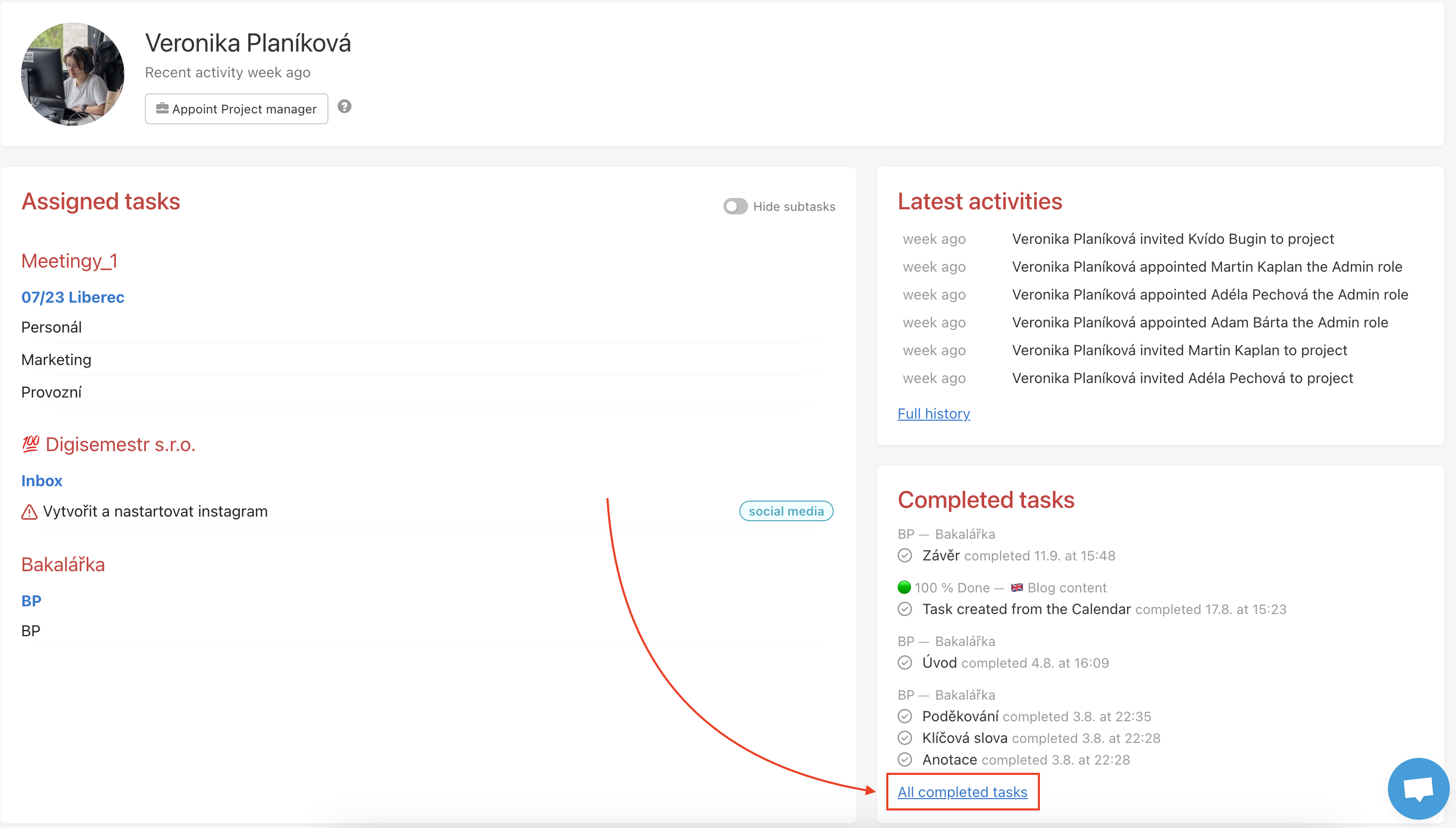
In your own completed tasks, which you can find in your profile, you can still use filters - filter by projects or date. Similarly with other users, you can see their completed tasks through each user's profile and apply filters there.
Discussion
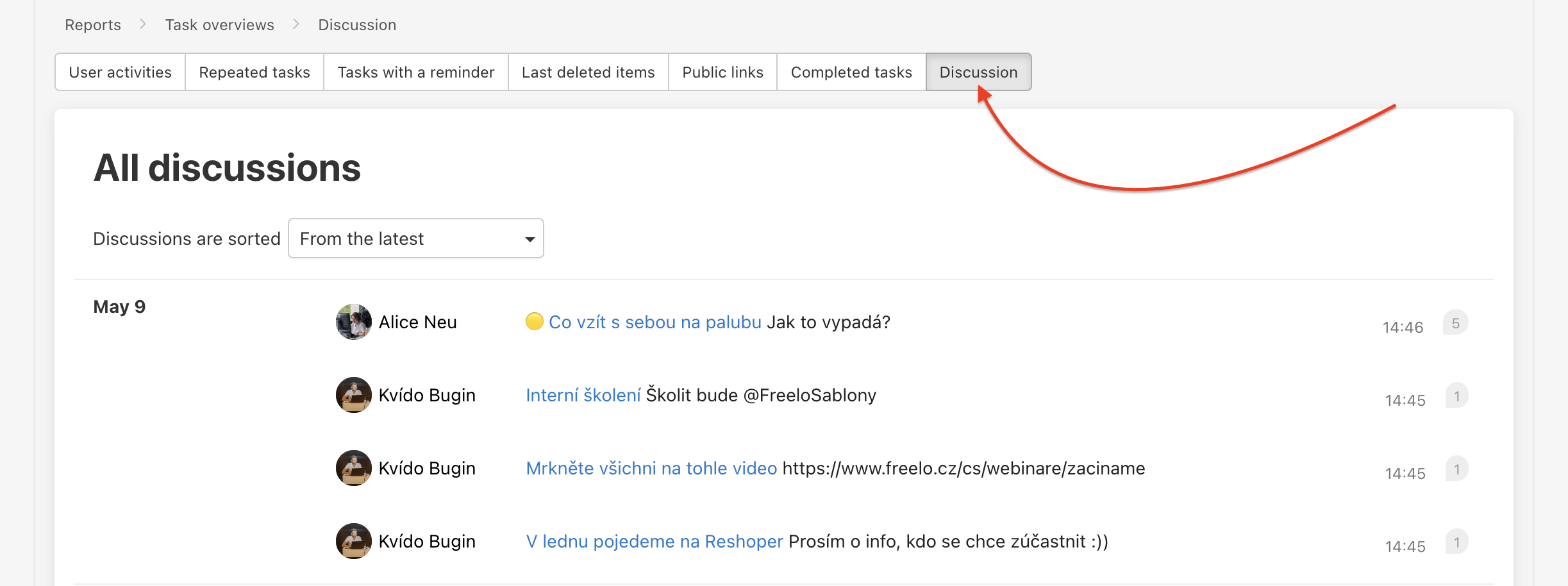
Want to see what your colleagues last commented on? Go to the Discussion section.
Practical Use
- Check repeated tasks – verify the frequency of all repeated tasks at once, without browsing through individual projects.
- Recover deleted items – restore a task, subtask, To-Do list, or project within 30 days of deletion – no stress, no need to contact support.
- Manage public links – see at a glance what is shared publicly and easily share it with clients or collaborators.
- Track completed tasks – filter by project, user, and date range to quickly see what the team delivered in a given period.
- Follow discussions – in the Discussion section, see the latest comments across all projects at a single glance.