
Project Summaries in Freelo show you which activities have high costs, where profits are generated, and how efficiently your team completes tasks – all clearly displayed in charts and tables. Find them in the main menu under Reports → Reports → Summaries, where you can filter results by user, project, label, or time period. In this article you will find a description of the chart view, filtering options, and table view.
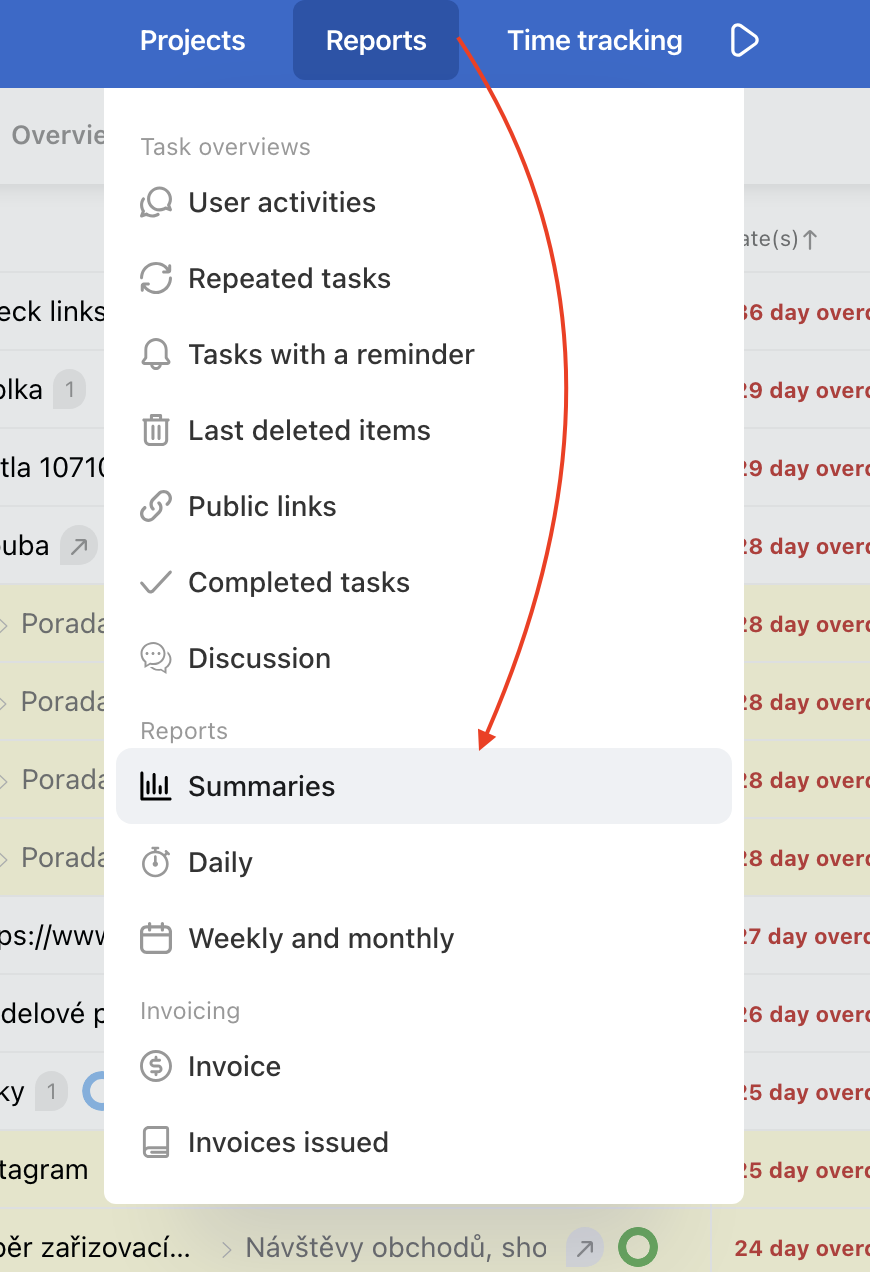
Chart view
In the top part find a bar chart overview of reported time and finances per selected time period. Use filters for users, projects, task labels, time or project currency and get exactly the view you need.
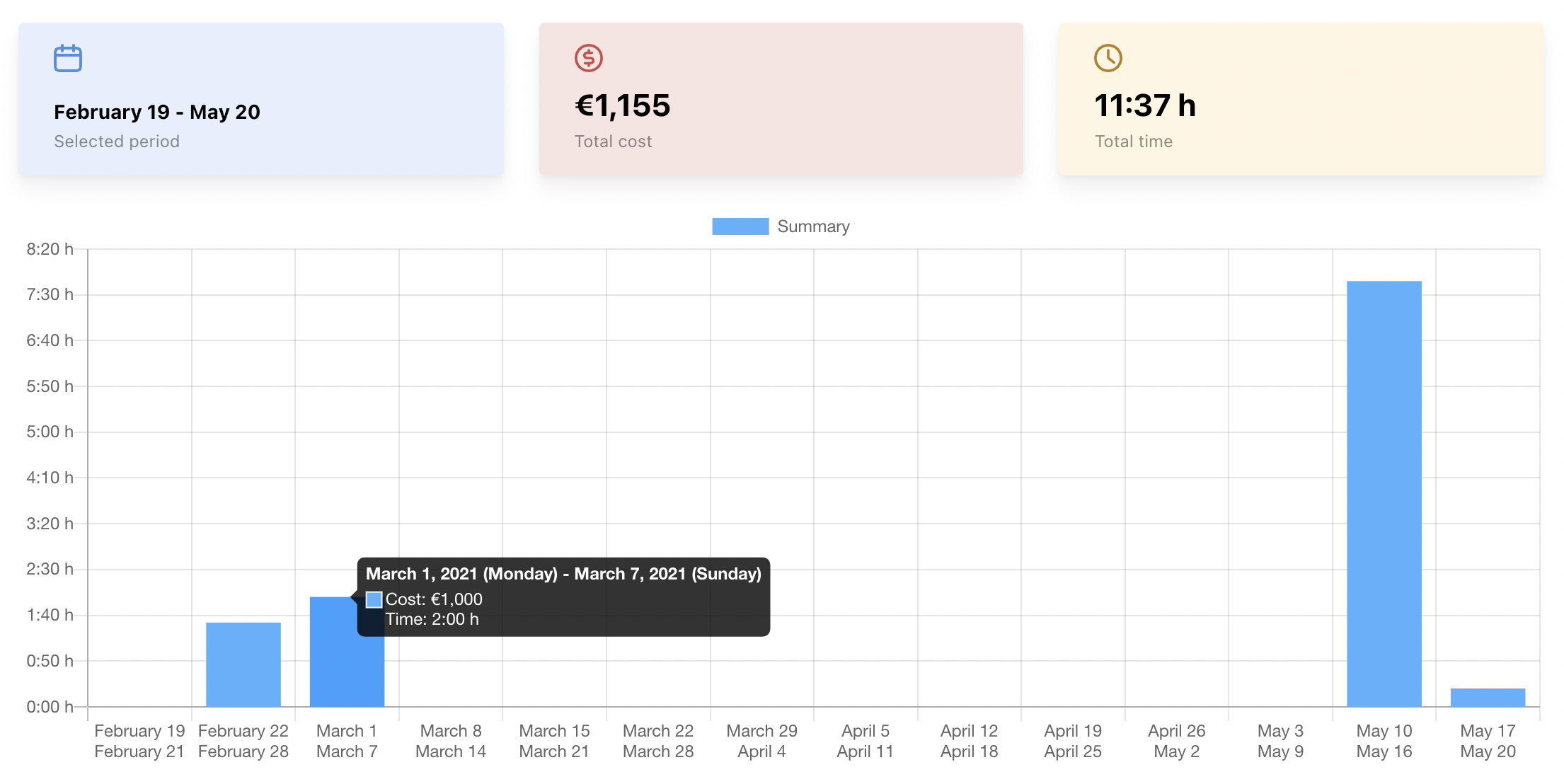
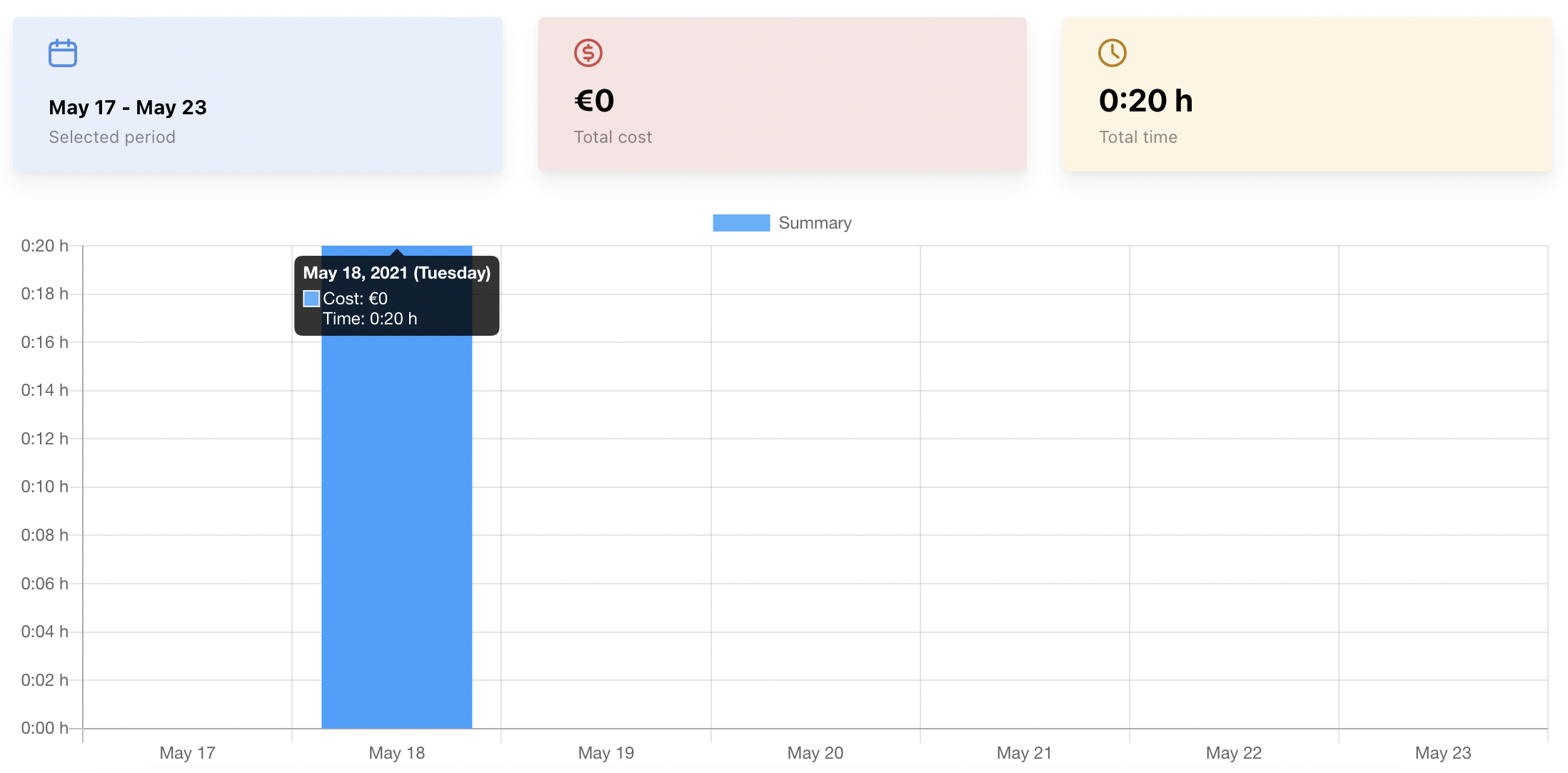
When having the mouse over the particular bar you can see costs and time per month/day.
Filter summaries
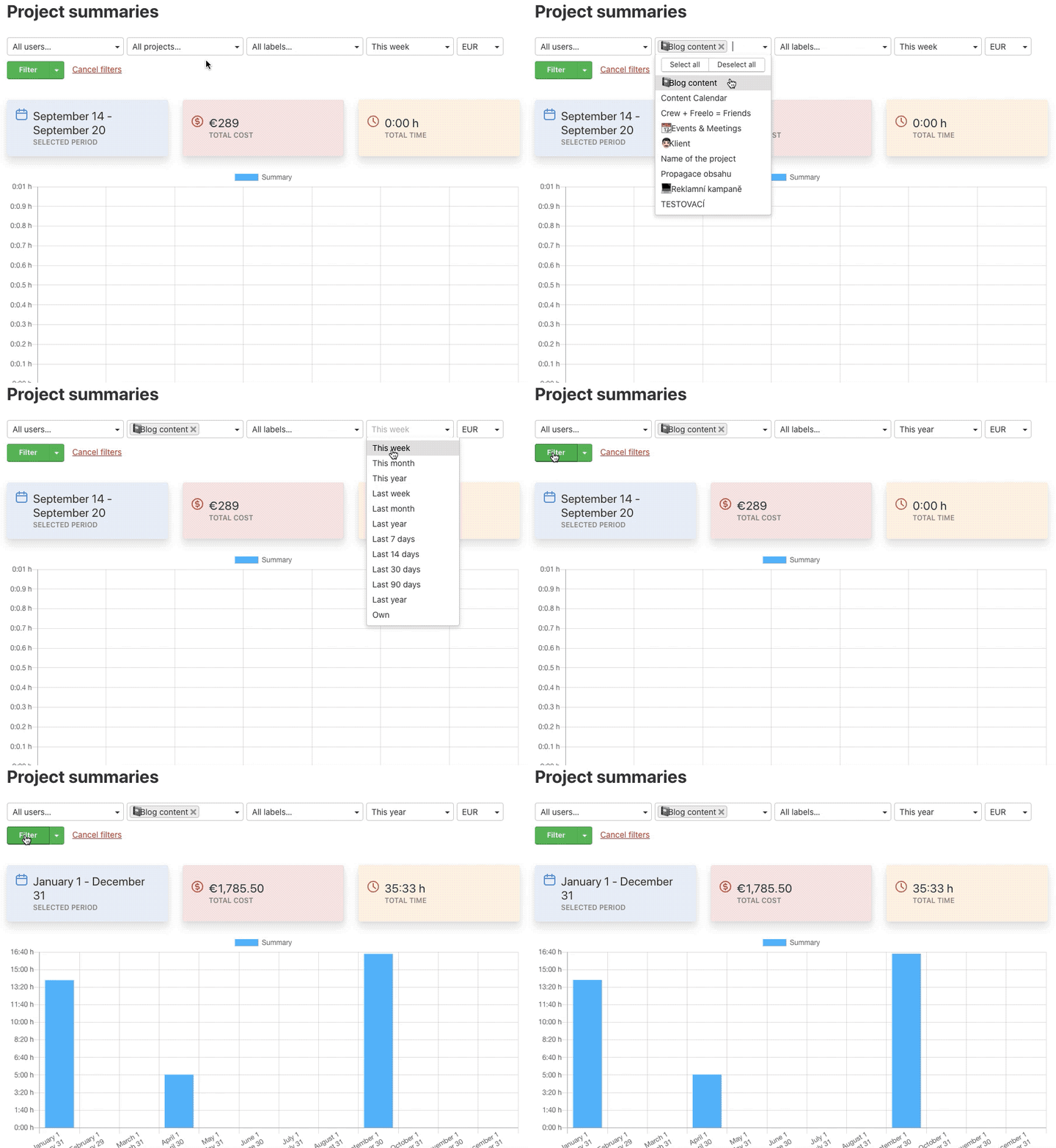
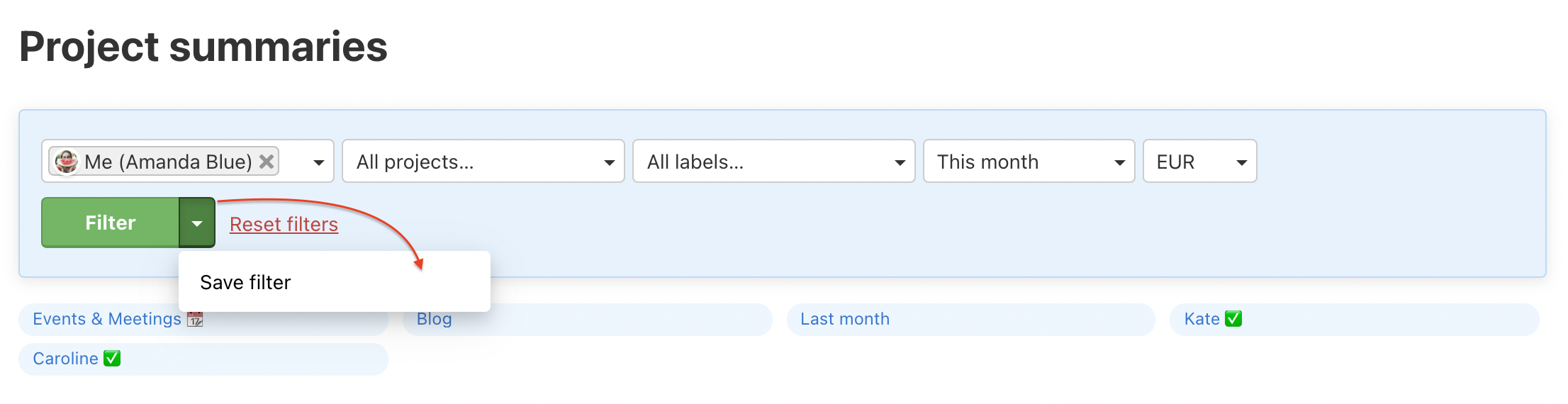
Clear filters in the summaries ensure that you see exactly the data you need to see. You can filter in summaries in the following ways:
- By users - if users haven't any report in Freelo, you will not see them in the filter
- By projects
- By task labels
- By time period
- By currency
Save filters
Set up filters and save them for next time. Filters can be edited and ordered. Click the arrow icon next to the green button Filter > Save filter > input the name of filter and Save as new filter.
We do recommend saving the filter for any report you have to check regularly.
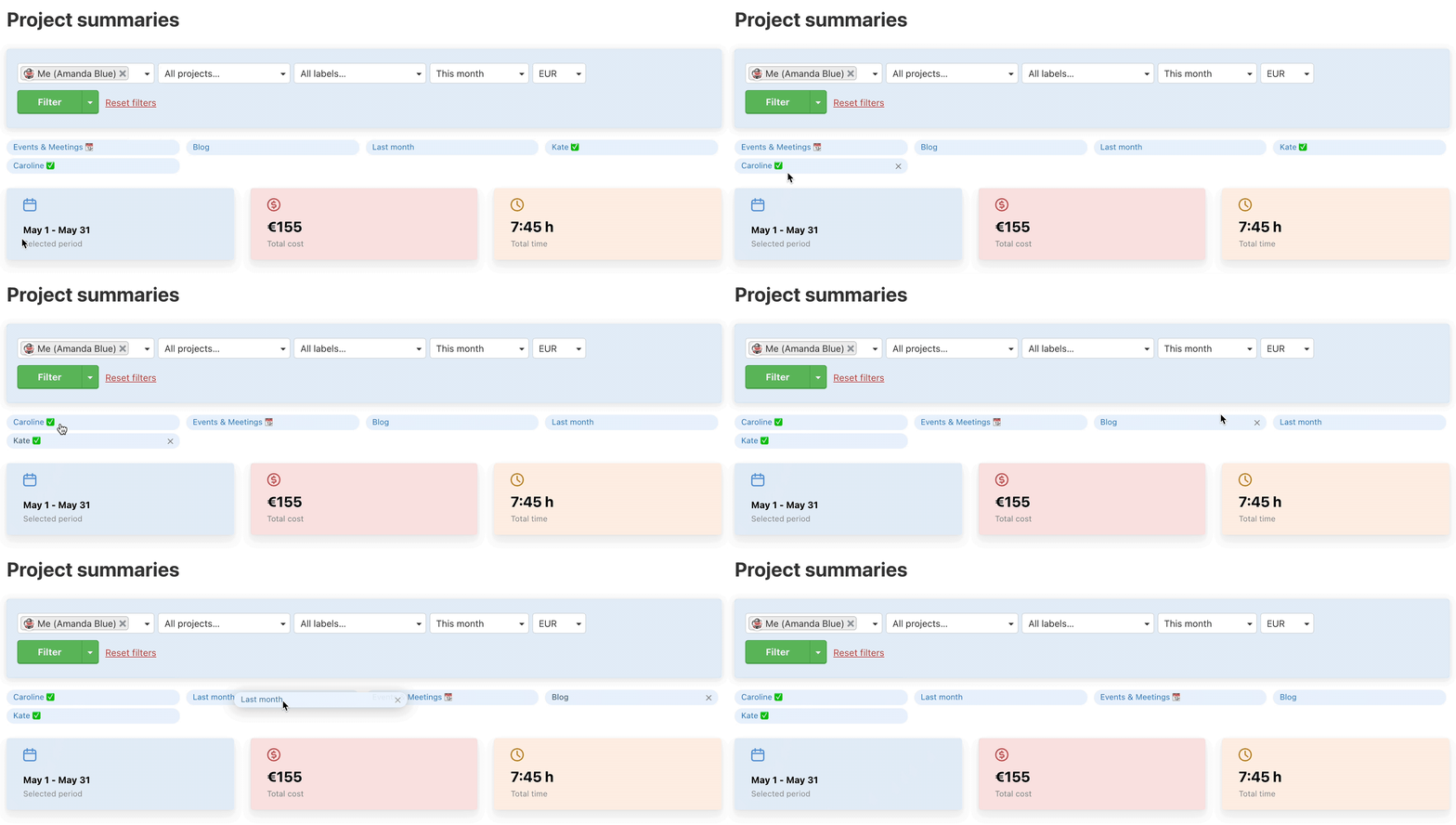
Delete your filters by clicking on the cross at the filter.
Table view
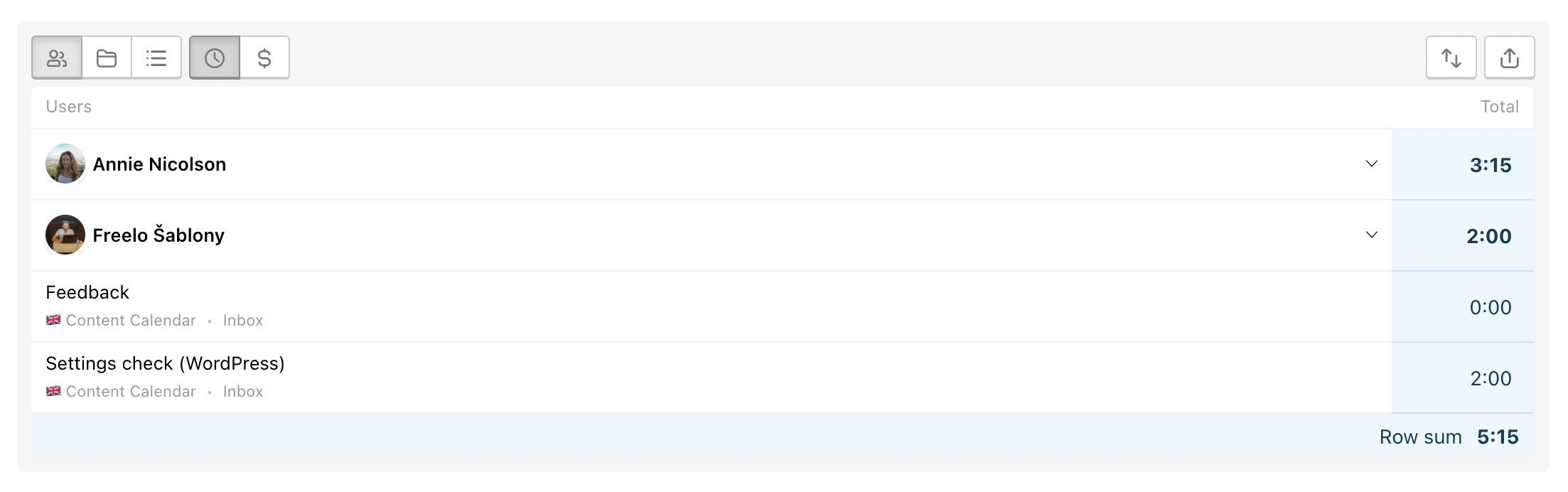
Overview of filtered summaries can be viewed also as a table, where you can set other perspectives. Just scroll down below the chart.
Similar and more detailed summary overview is in section Weekly and monthly reports.
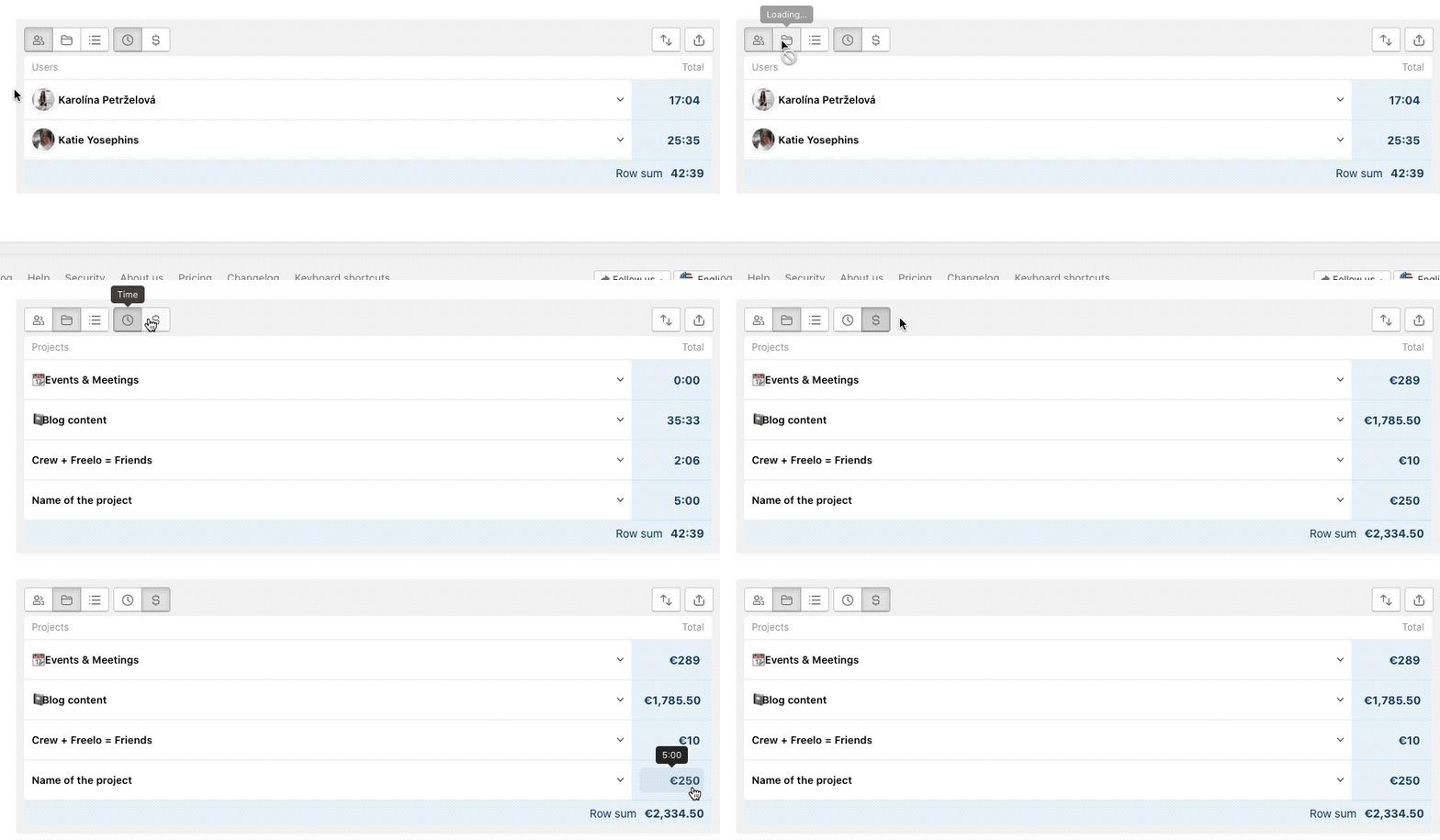
Select view
- According to user
- According to project
- According to To-Do list
- Reported time
- Reported money
[/ht_message]
Select sorting
There is also the possibility to line up the data per newest/oldest reports or alphabetically.

Export to CSV
Anything you filter can be downloaded as a CSV file that you can open in Excel or any other chart editor. Click the icon in the top right corner Export.

Practical Use
- Project cost overview – at a glance you can see which projects or activities consume the most time and money.
- Profitability check – compare tracked hours with hourly rates and instantly see whether a project is making or losing money.
- Team performance tracking – filter summaries by user and find out who is working on what and how efficiently.
- Regular client reporting – save a filter for a specific project and generate a cost overview any time during the month.
- Period comparison – set different time periods and track how workload and costs develop over time.