
The financial budget and time capacity in Freelo show you at a glance whether a project is still in the black - or you've gone over the line. Set them once in the project settings and Freelo automatically deducts reported hours and costs - you can see the current status directly on the project detail. In this article you'll find how to set up a budget, how to let it reset automatically every month, and who on your team can see it.
In case you are project captain (owner) or Admin, you can set up financial budget and time capacity for particular project.
Budgets keep you on track. You have an immediate overview if there is enough money left or it has been overdrawn.
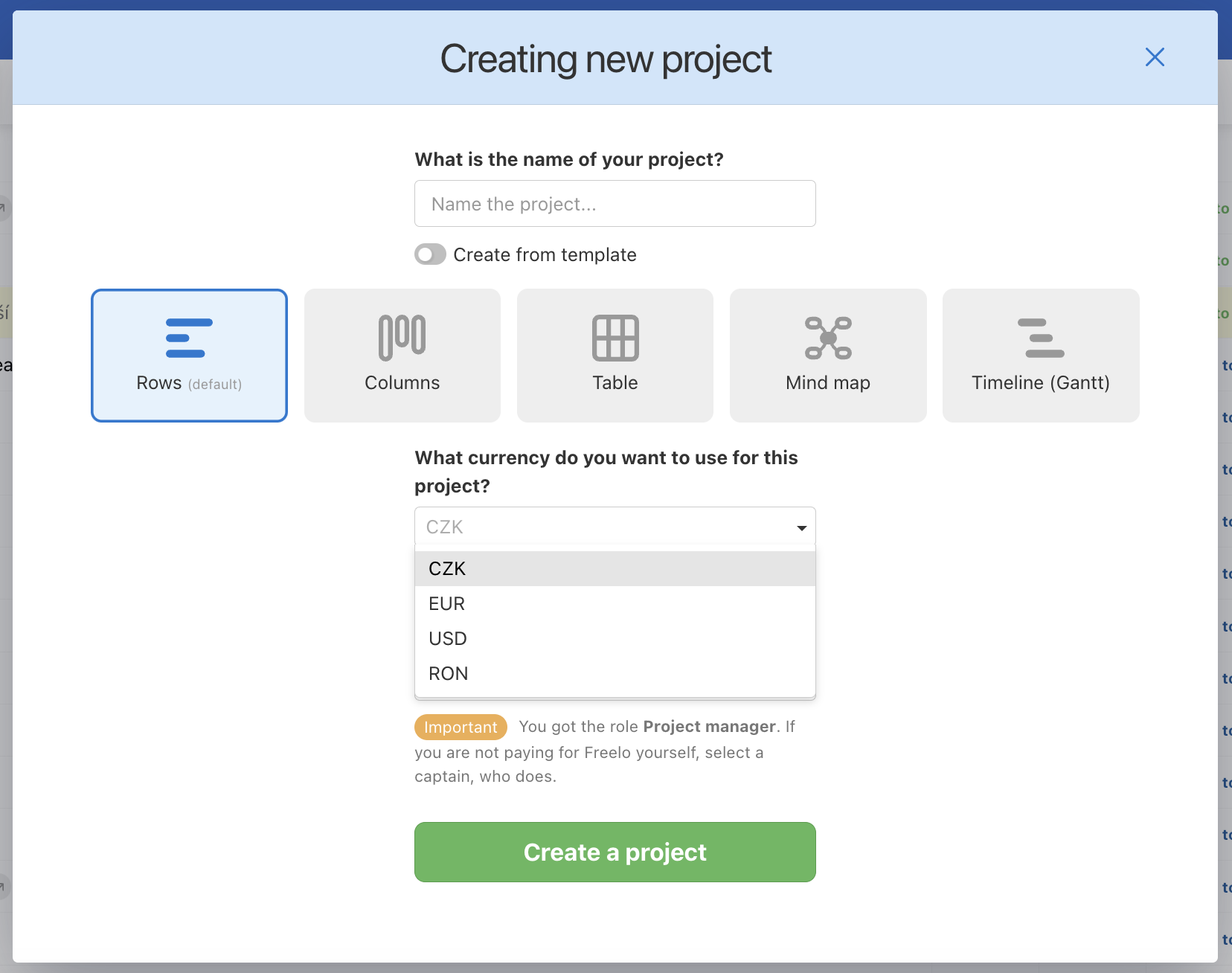
Project currency
When creating a new project, it is important to select the correct currency, because it cannot be changed later. Freelo operates with following currencies:
- Czech crown (CZK)
- Euro (EUR)
- US dollar (USD)
- Romanian Lei (RON)
All financial reports over the tasks have the same currency within one project.
How to set up budget
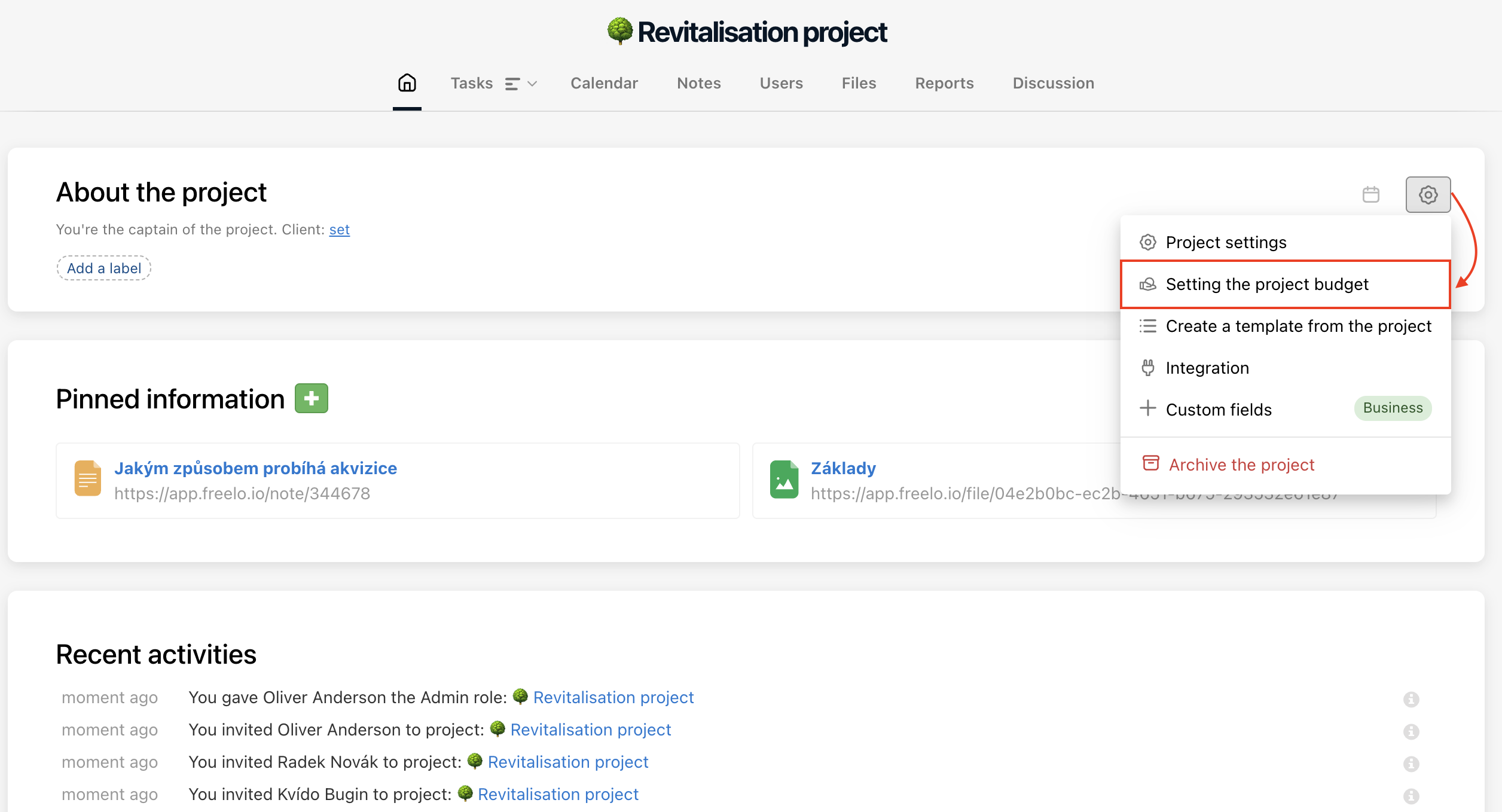
Go to project detail and via the setting icon on the right click Set project Budget.
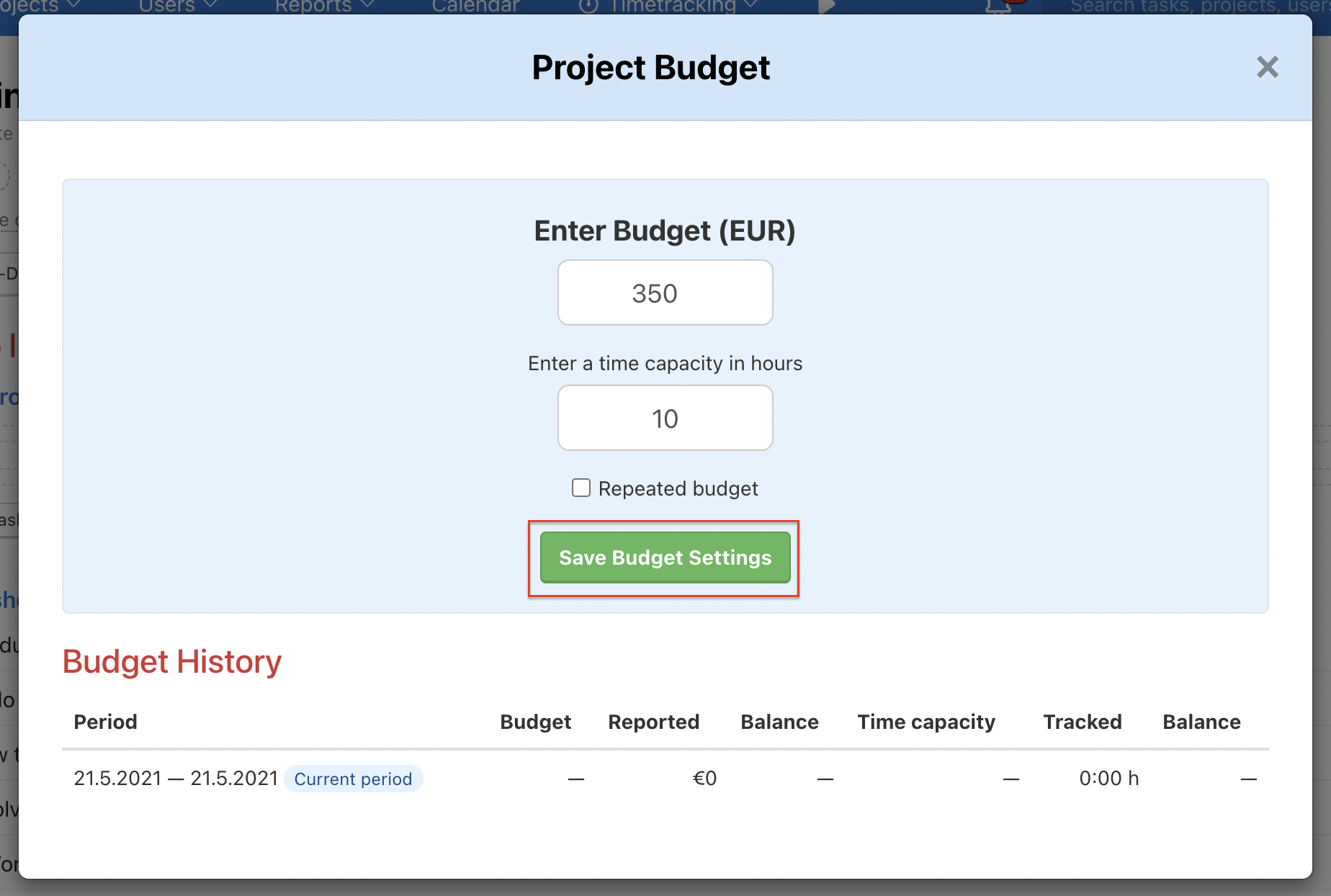
In the following form enter financial budget and/or time capacity in hours. Confirm via Save Budget Settings.
Budget is visible at the top right corner when you are in project detail. It can see only the project captain (owner) and Admin of the project.
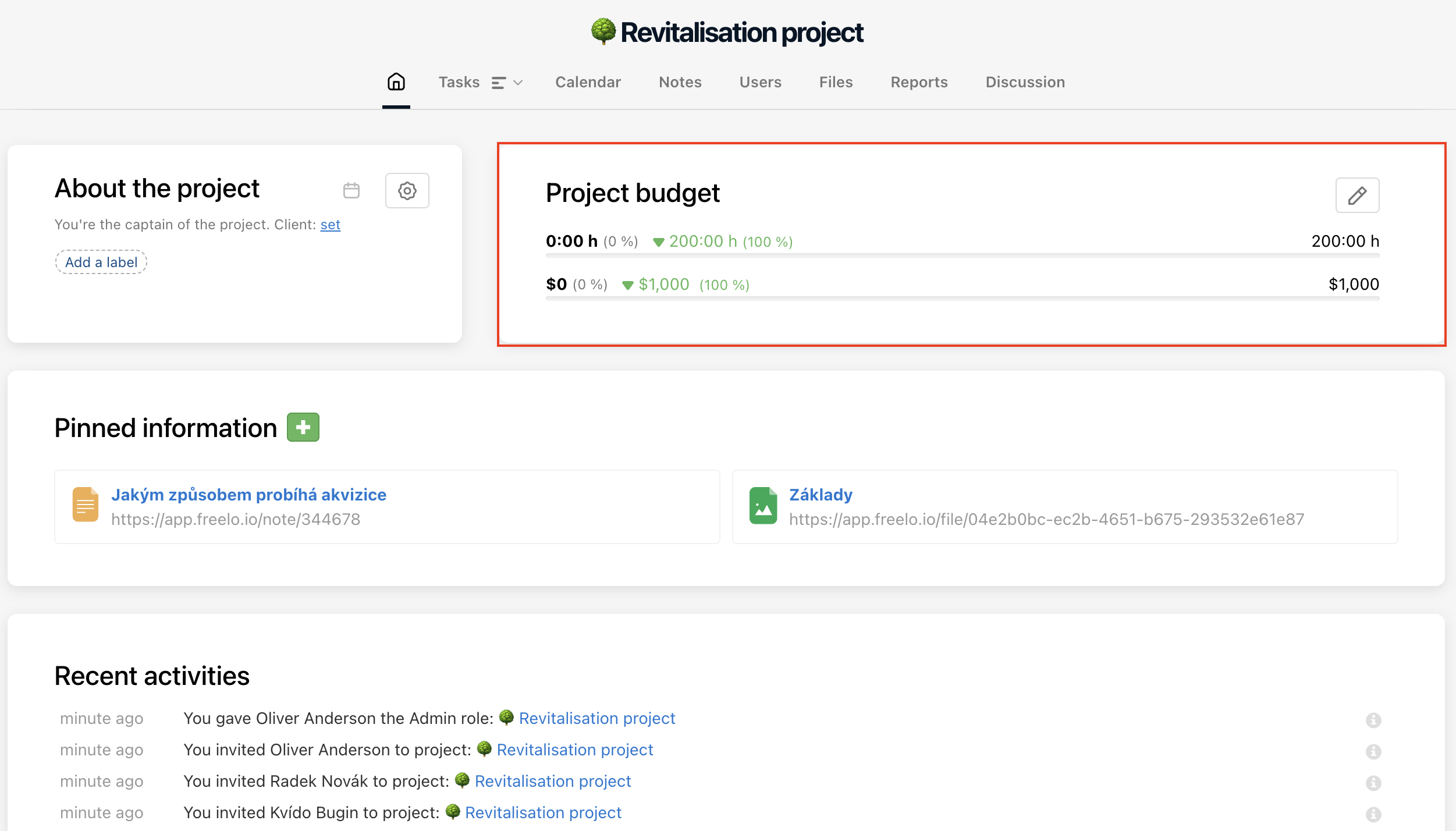
Each report over a task is deducted from the budget. Total amount is visible in green color as long as it is still within the budget. When you overdraw either of them it turns red.
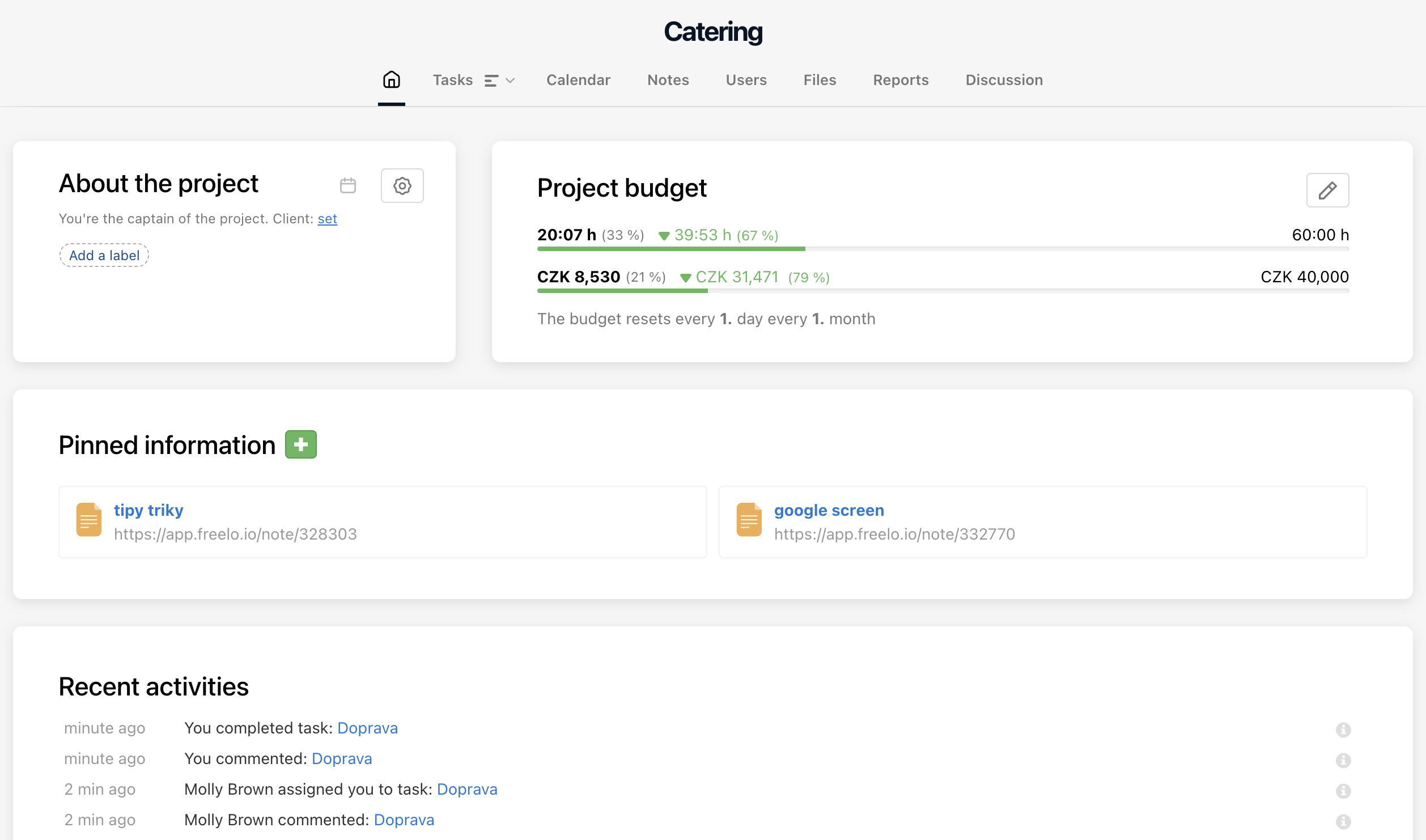
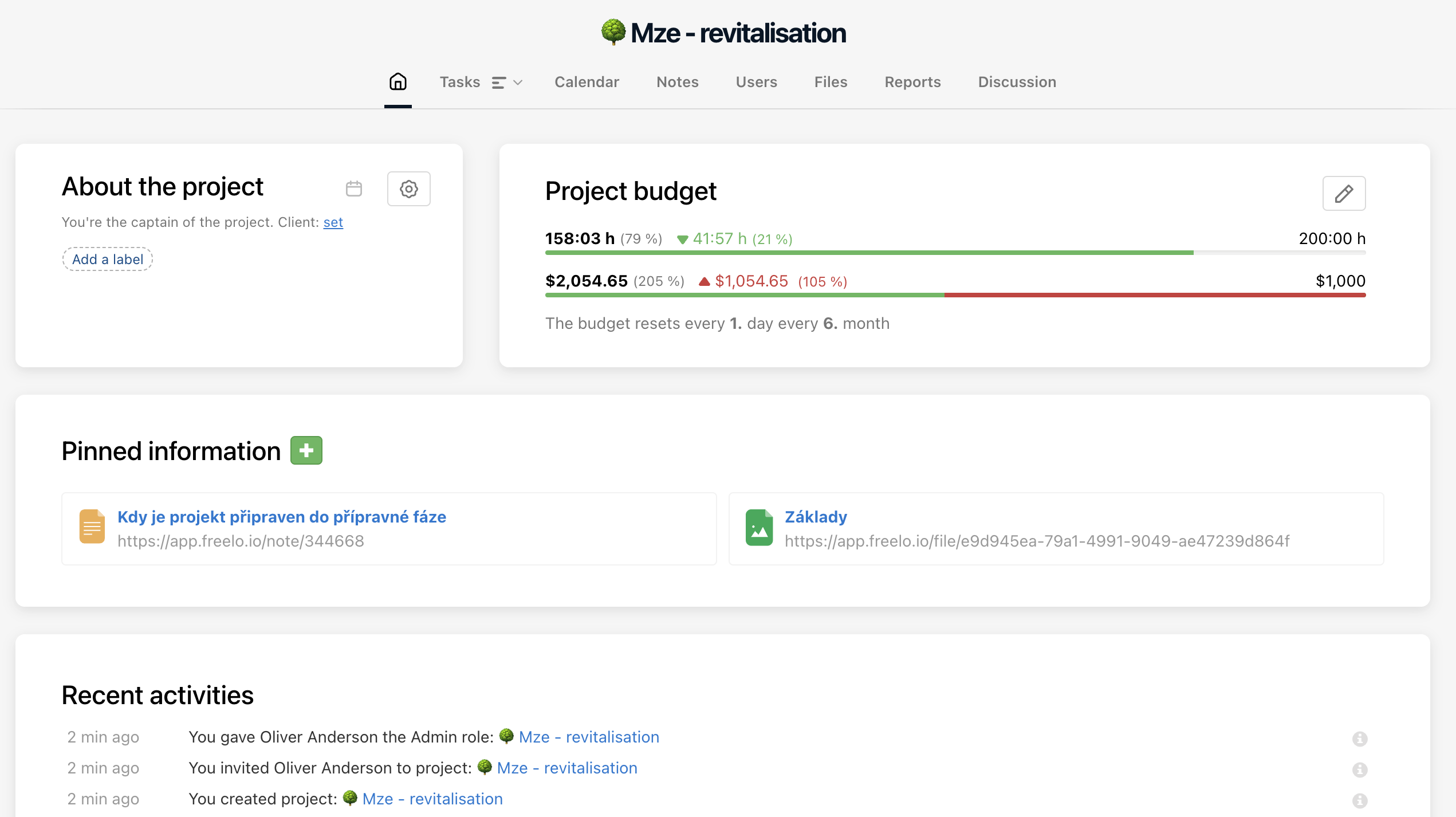
Divide the exact financial budget for the To-Do list and have an even better overview.
Repeated budget
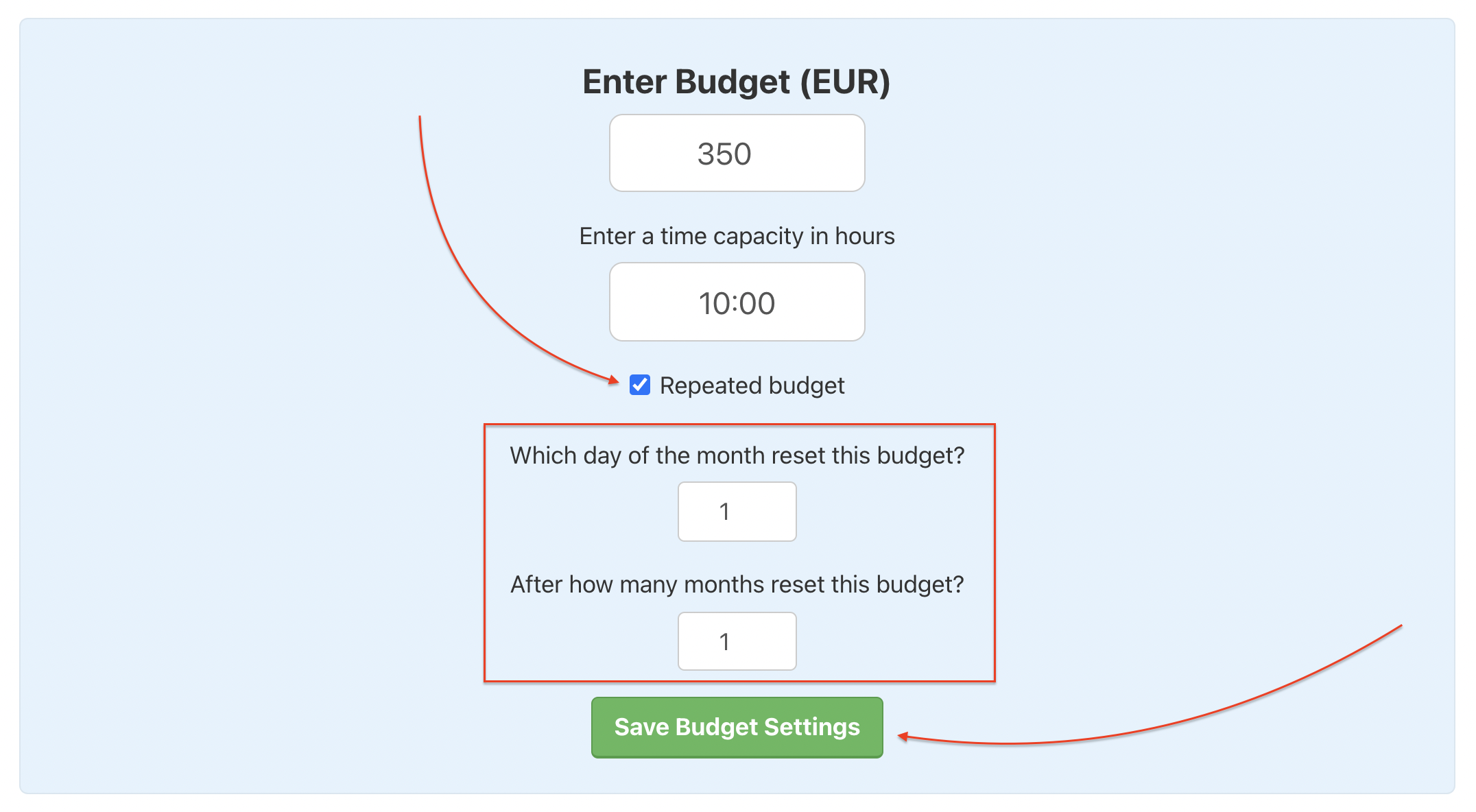
When setting a project budget you can add regular repeating. It means that the financial budget and time capacity clears at a certain time. For example every first day each month or quarterly.
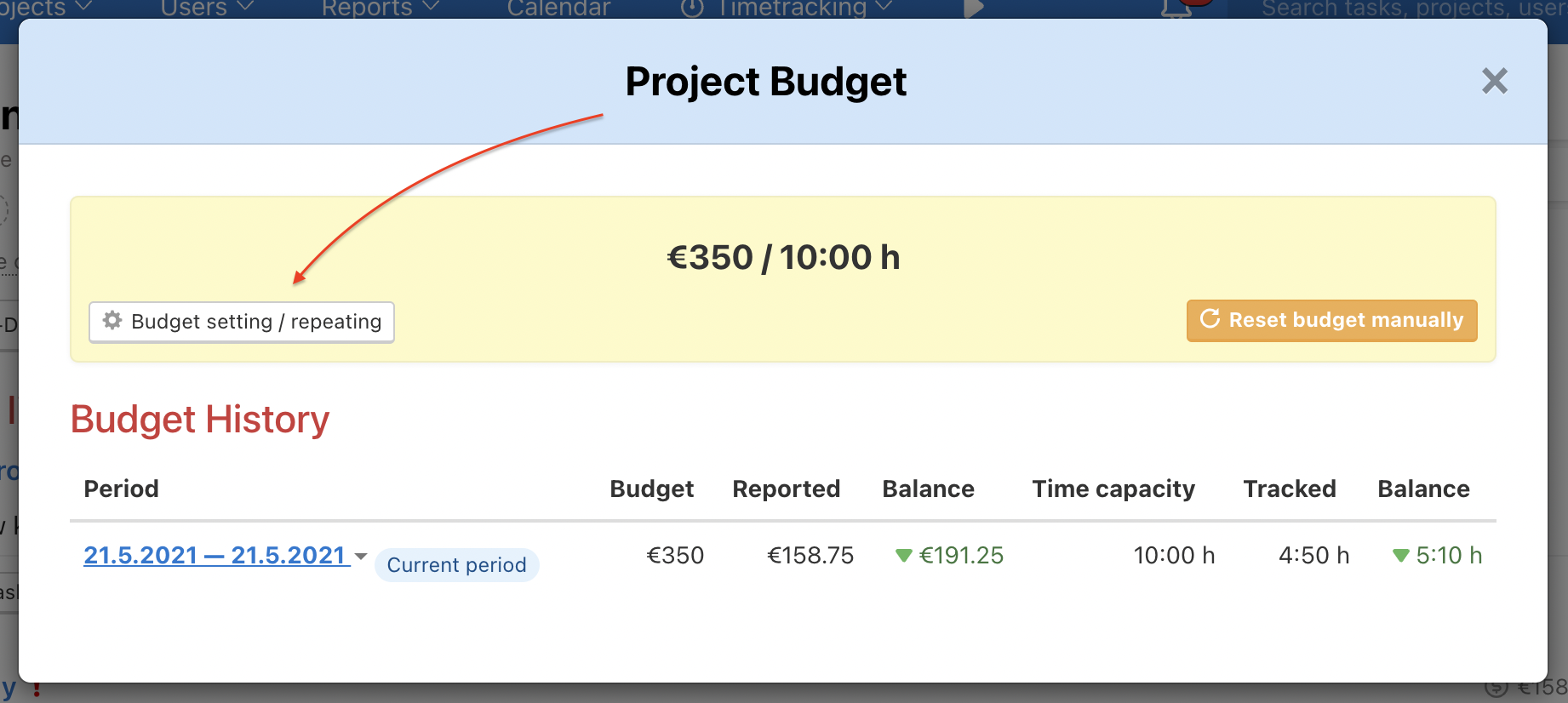
When you already have a budget click Budget setting / repeating. Check box Repeated budget and another setting appears.
When you are adding the first project budget, just click the checkbox Repeated budget. Confirm the setting via Save Budget Settings.
How to reset budget
Anytime you can manually reset the budget. Go to project detail and click the already set budget. Then click the orange button Reset the budget manually.
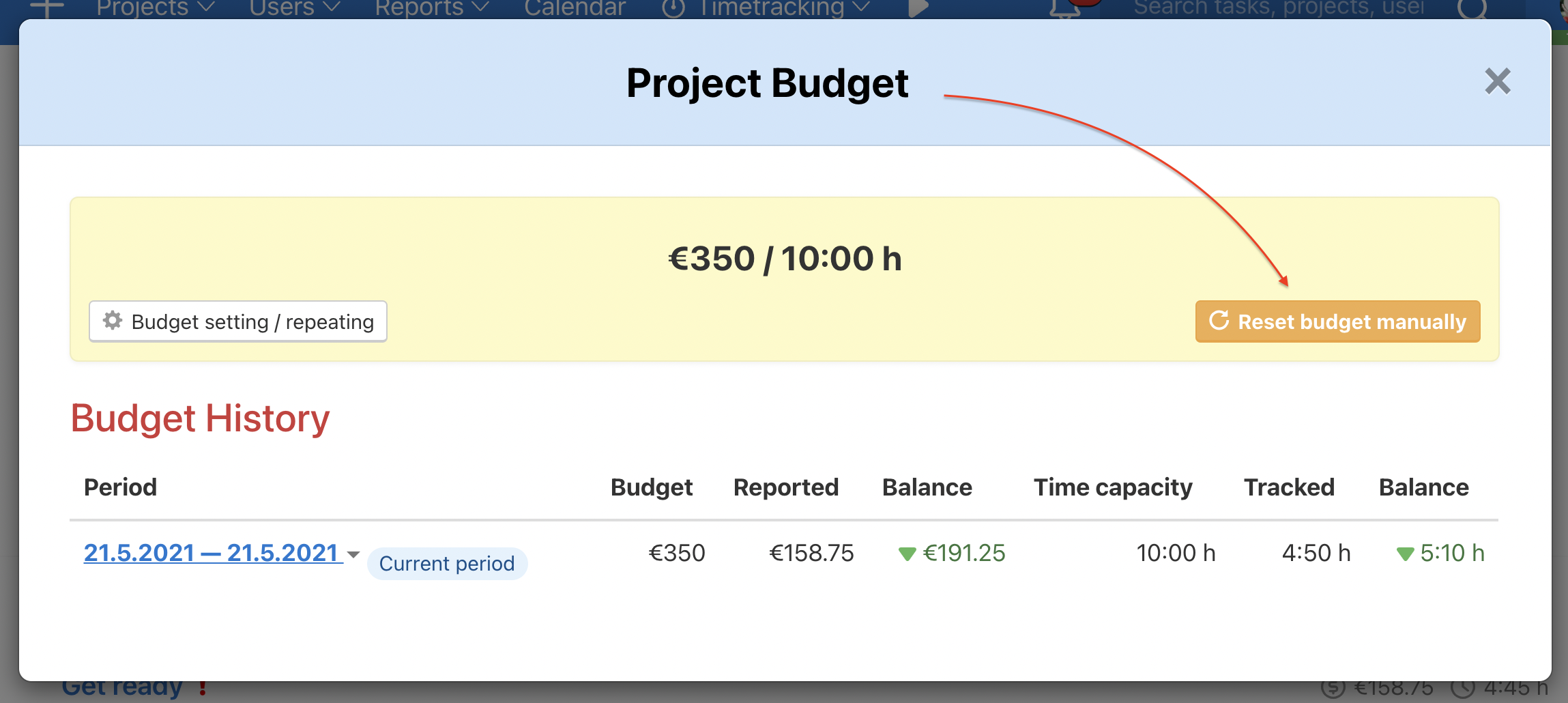
In the following window confirm via Reset.
Budget history
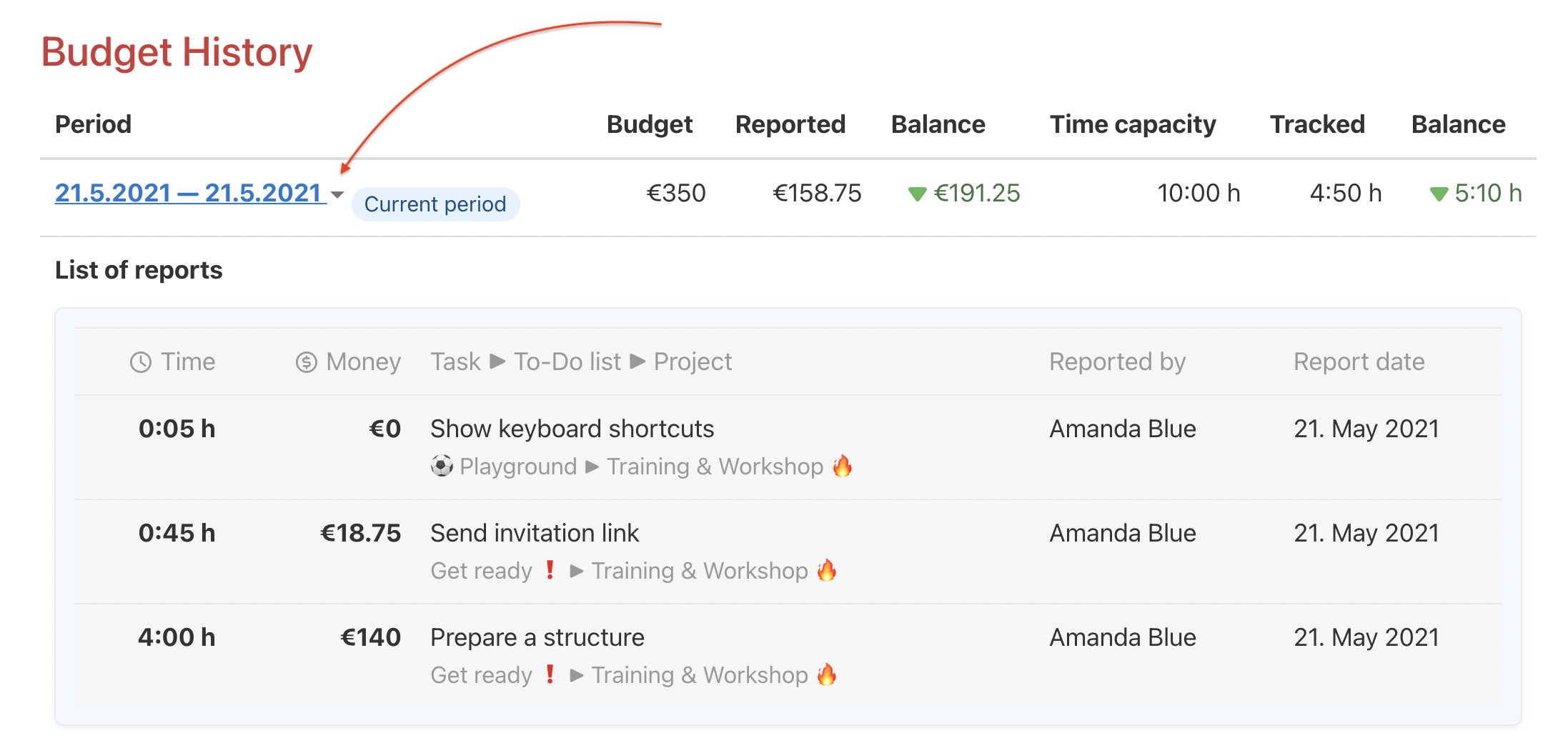
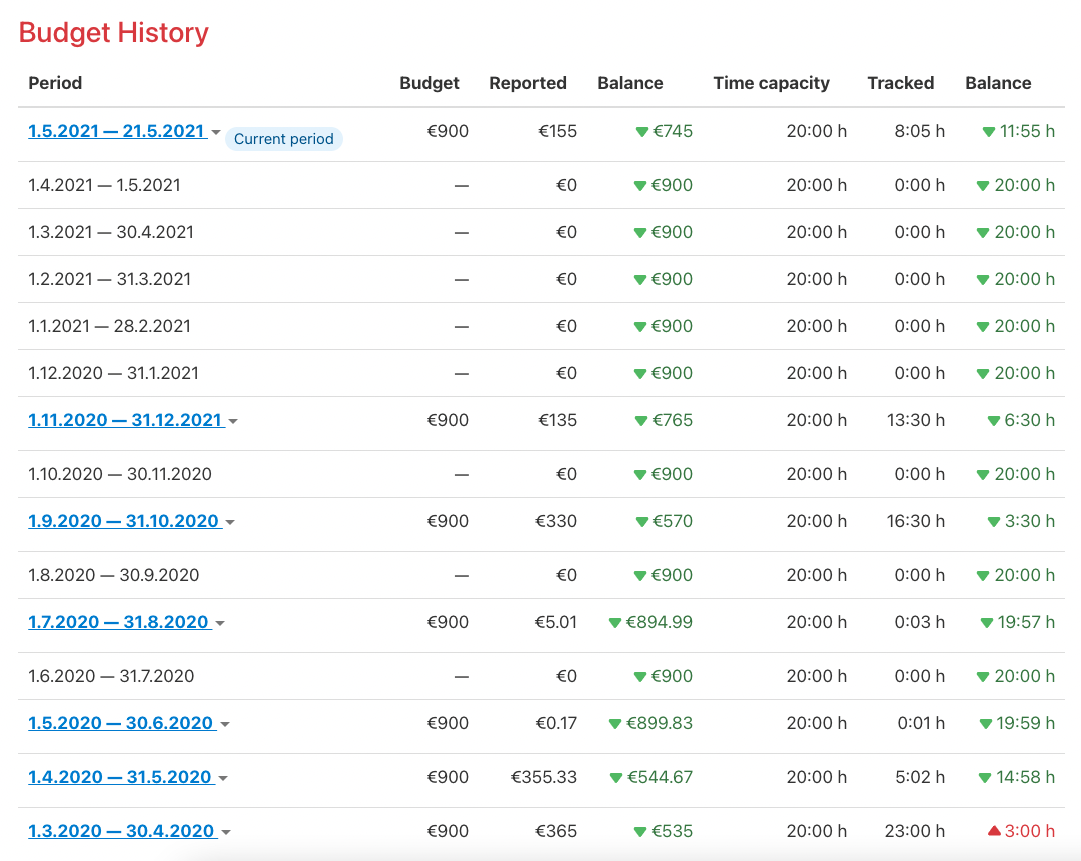
Thanks to budget repetition it is regularly cleared. Time and costs are zero. Each period counts its own reports.
In Budget History you can see the balance for a particular period. Via a small arrow you can see detailed reports from the time period.
Practical use
- Freelancers and consultants on a retainer - the recurring monthly budget keeps track of whether you're working more than agreed. As soon as the numbers turn red, you know it's time to talk scope with your client.
- Agencies with fixed-price contracts - the financial budget clearly shows where the agreed scope ends and where extra work begins. No more digging through spreadsheets.
- Project teams with capacity planning - the time capacity tells you how many hours you have available, and the live status shows how many are left. So you won't double-allocate your team.
- Managers running multiple projects - thanks to the colour coding directly on the project detail, you can see at a glance which projects are on track and which need attention, without having to click deeper.