
Reporting time or costs over tasks allows you to track the financial side of the project from the point view of real numbers.
The fastest way to report the time is using time tracking. Simply just click the play icon at the task and start. But you can also track manually, which is useful to do when tracking back in time.
Manual time reporting
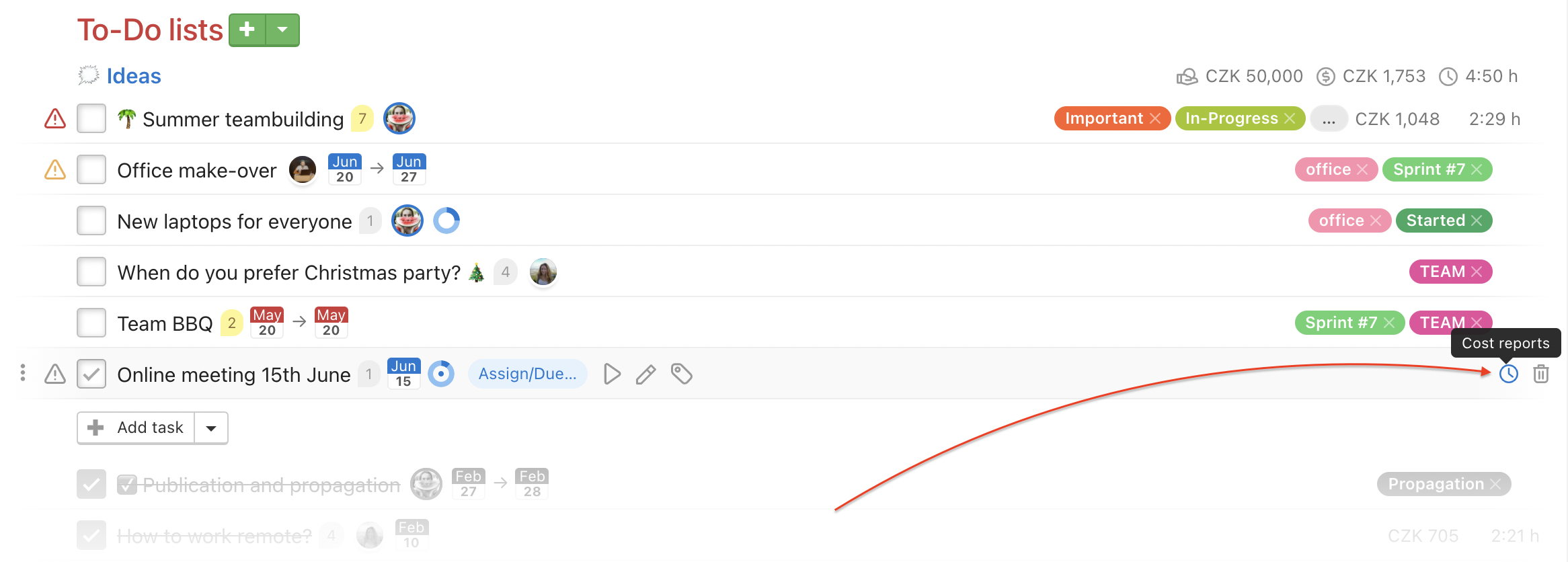
Place your mouse over the task and click the clock icon on the right or already reported time / money.
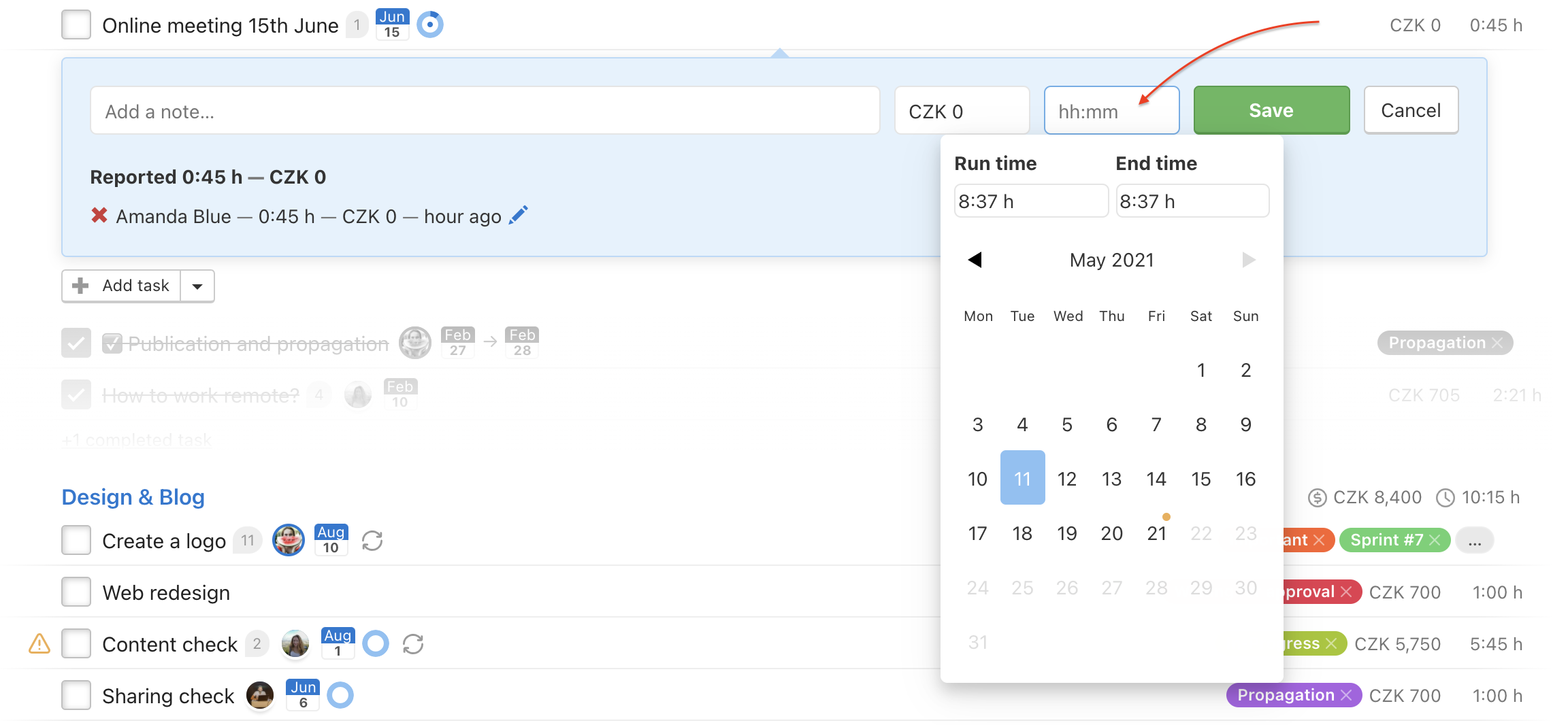
A form appears where you can enter hourly rate / cost and also the time. When you enter both, the clock time is multiplied. Confirm via Save and your first report is in the world.

You can write a note or report it retroactively on a specific date.
Reports as costs
You can take the task reports as costs. For example installed product, material or expenses for business dinner. You do not need to enter the time, just enter the amount and confirm via Save. Always keep the costs associated with the item they are related to.