
Yes, you can invoice directly from Freelo - connect it to Fakturoid, iDoklad or Vyfakturuj.cz and transfer your logged hours into an invoice without any manual retyping. Connect your accounts once in the settings and then mark reports for invoicing directly in Reports. In this article you'll find how to connect each tool and how to mark reports as billed.
Freelo is connected to Fakturoid, iDoklad and Vyfakturuj.cz invoicing services, but you can use API to connect to other systems. Thanks to integration you can invoice your reports directly.
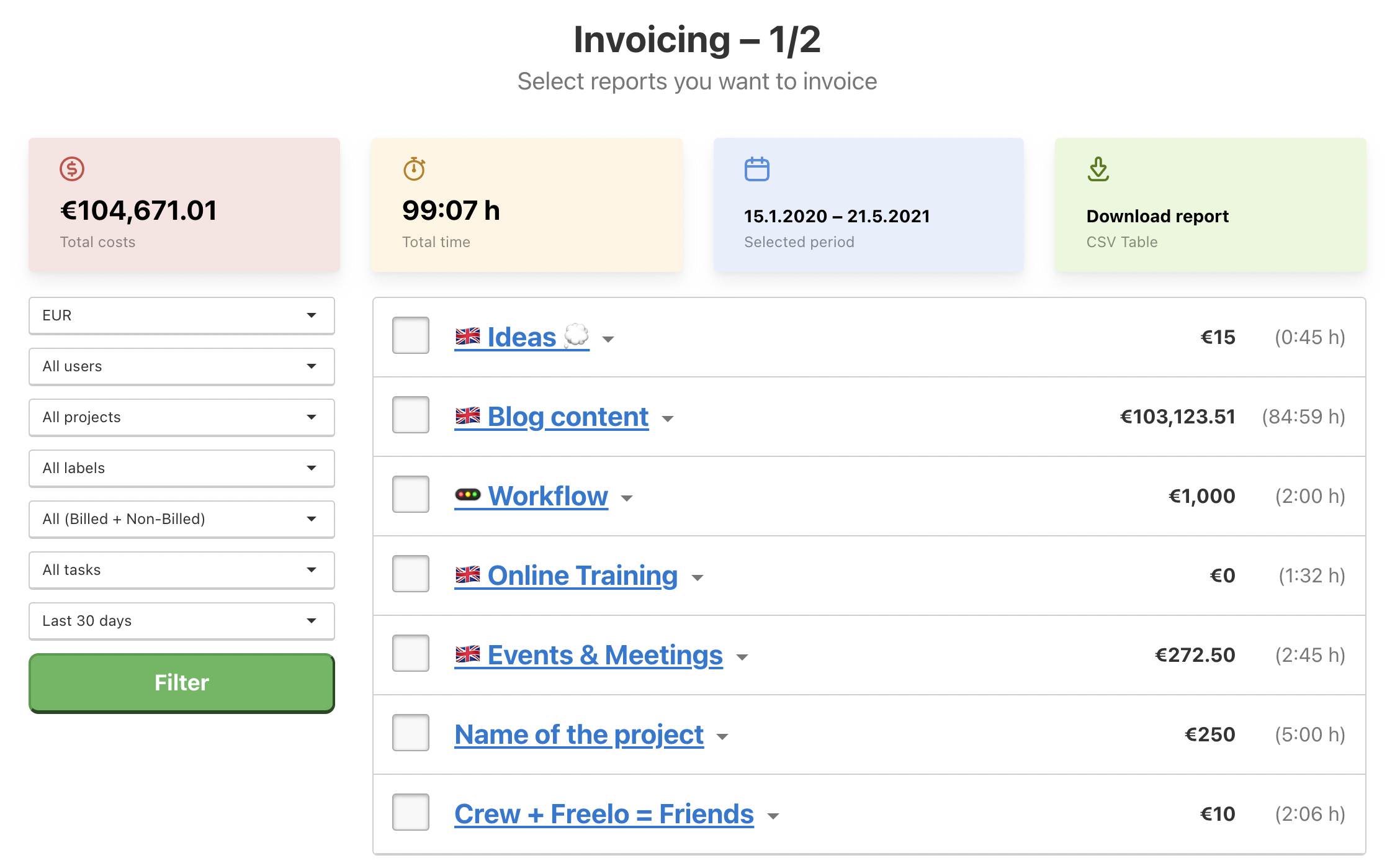
Go to section Reports > Cost reports > To invoice. In the left column filter tasks/projects/users etc. that you want to invoice. Then select particular items you want to bill.
How to mark reports as Billed
- In the top blue menu Reports > Cost reports > To invoice.
- Check all items you want to mark as Billed. Click the arrow next to the project name and select particular tasks or whole To-Do lists.
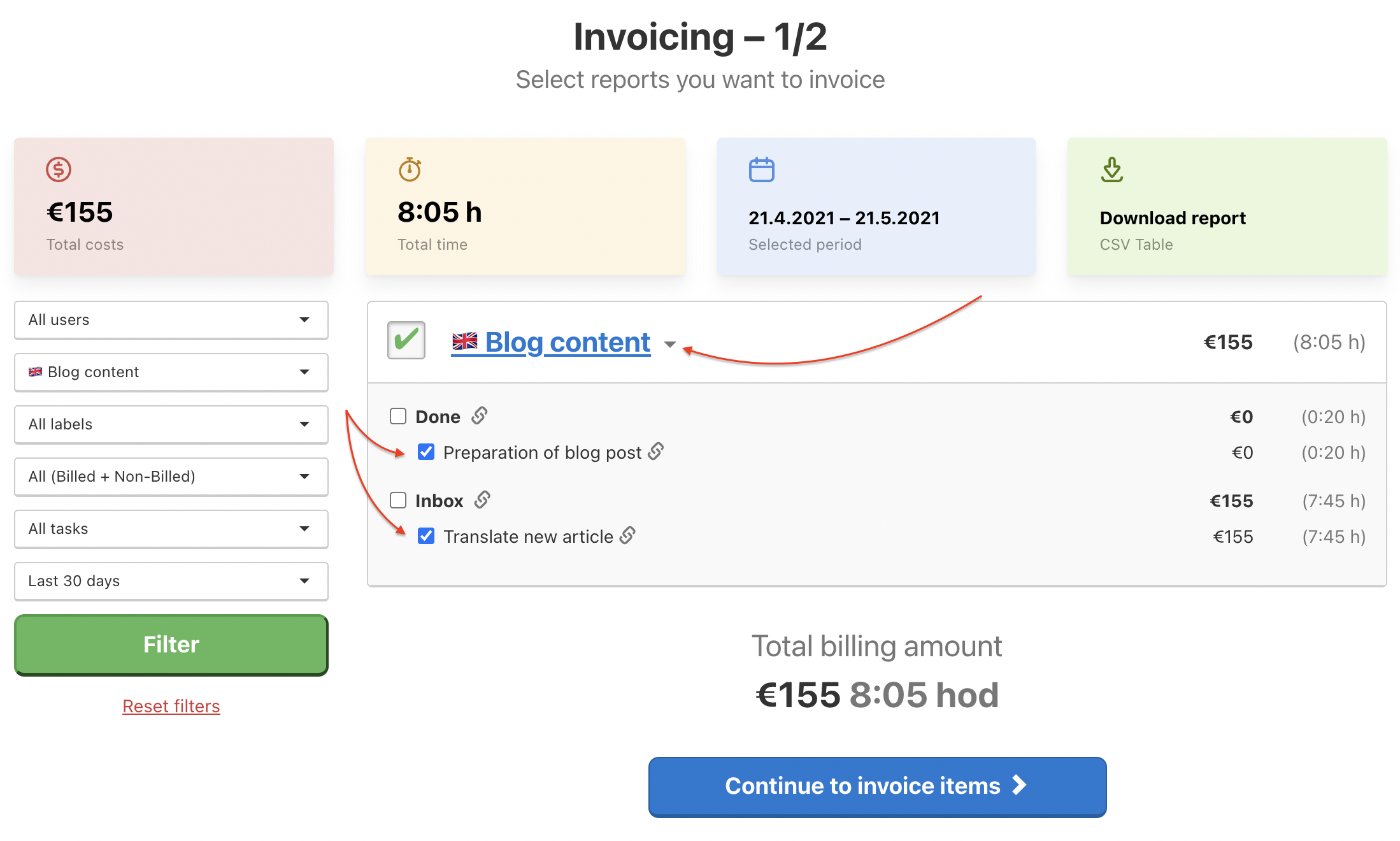
- When done, click Continue to invoice items.
- Edit the invoice items (change name, add money, add row and additional costs) or Add note.
- Click Save as Billed.
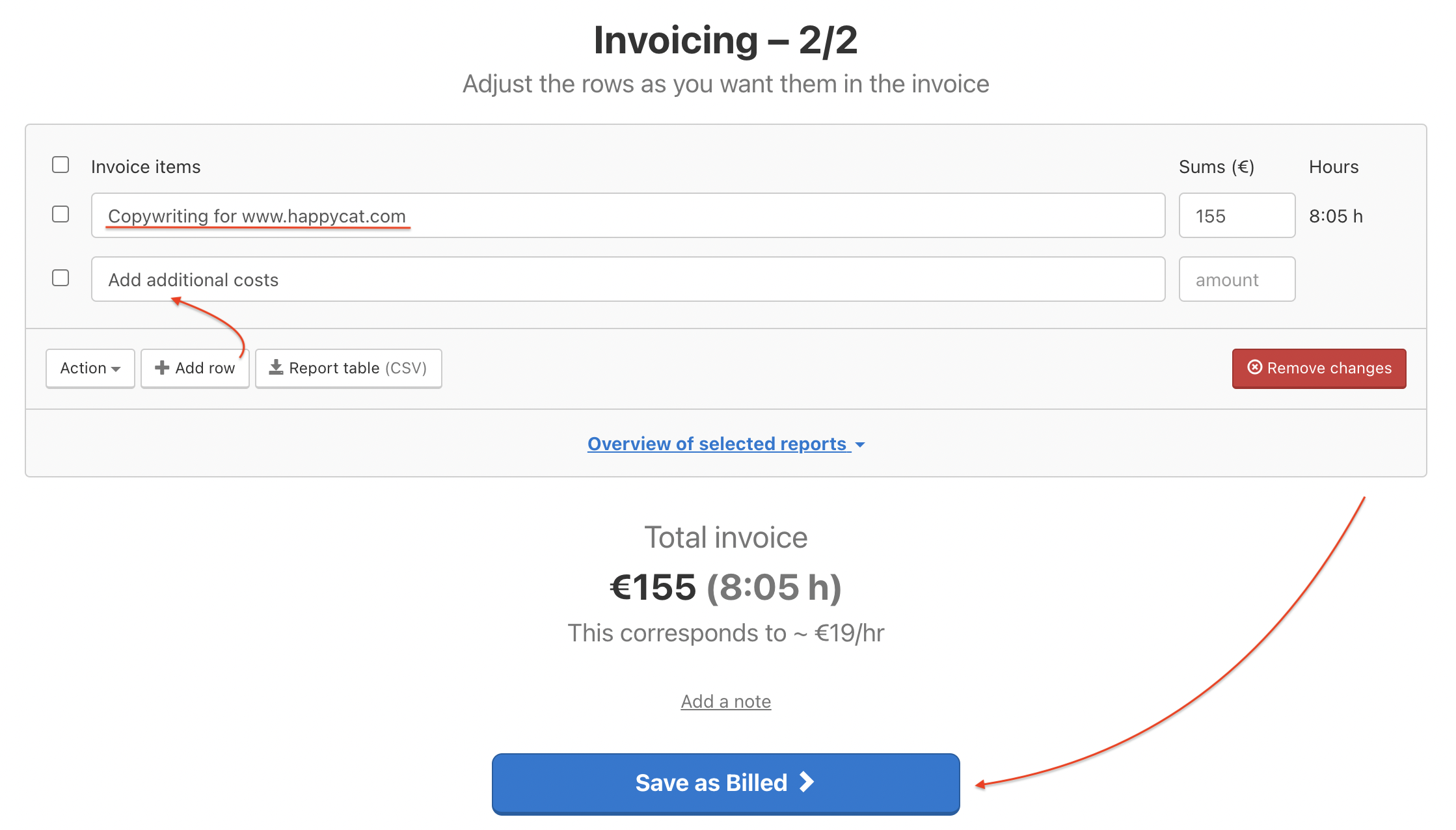
Adjust the rows as you want them in the invoice. - Ready! The selected reports are now marked as Billed. If you want you can create a real invoice via one of our integrated online apps. Click Invoice via and select the app.
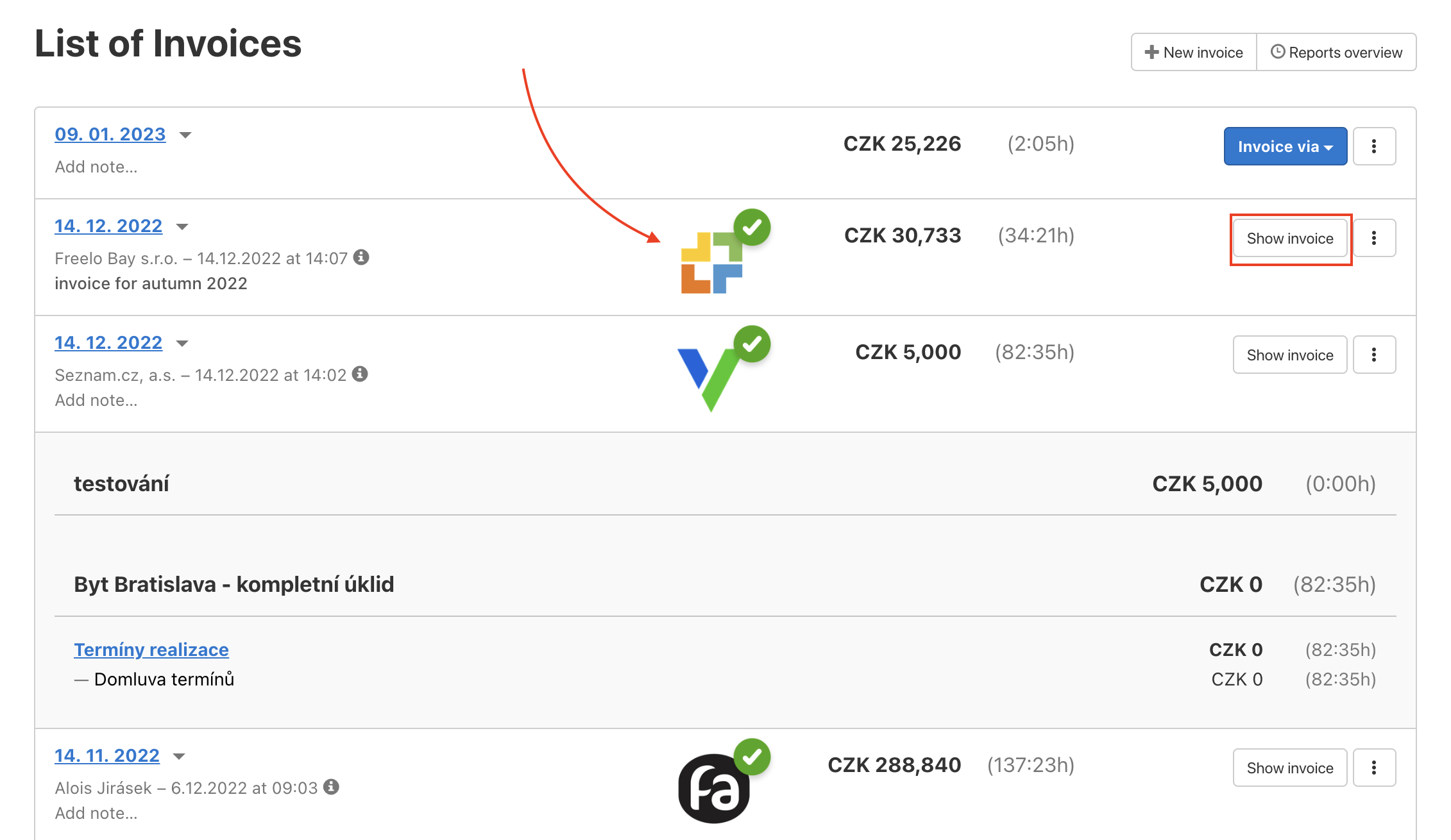
Billed reports are in section Invoices.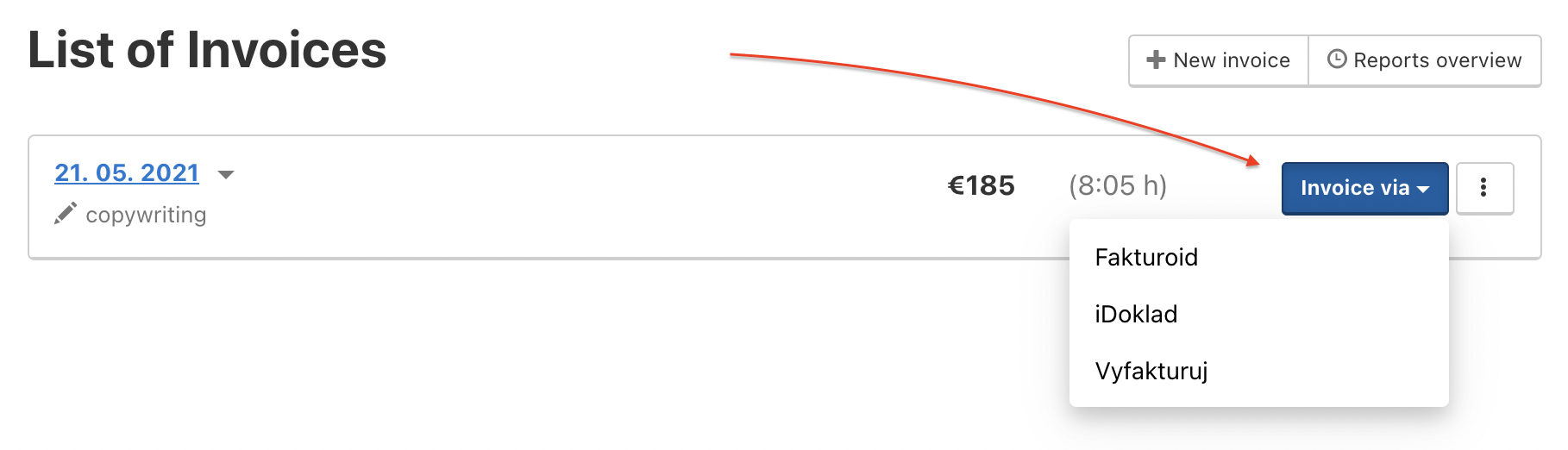
Integrate one of these apps and invoice from Freelo directly.
Billed items have the logo of the invoicing app and you can also view the real invoice via Show invoice.
I have different billing system
No matter which billing software you have, you can mark the reports as billed in Freelo. Such reports are in section Invoices (via Reports > Invoices).
You can invoice marked items anywhere you want, but still have an overview of what you have already invoiced and what not in Freelo.
In the following picture, you can see a summary report of an invoiced tasks.

Export Billed items
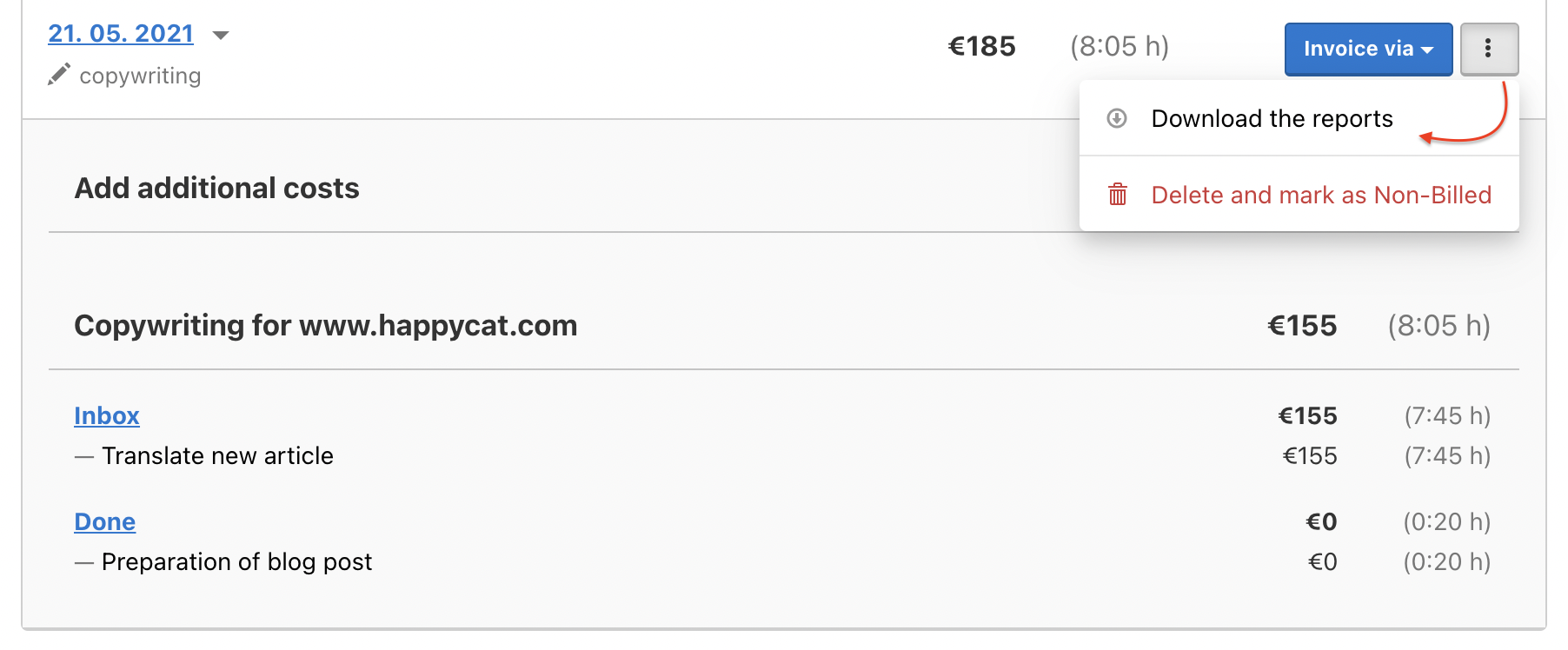
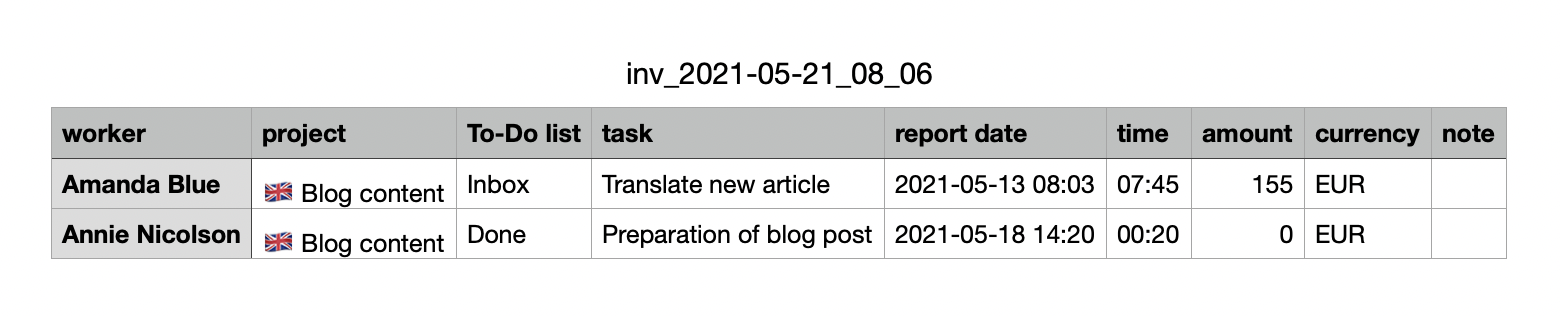
In section Invoices issued you can export billed items. Via the three dot menu on the right click Download the report and get the CSV table with a detailed report.
Practical use
- Freelancers and consultants - log time directly in tasks and transfer it to an invoice with one click. No manual copying of hours into a spreadsheet.
- Agencies and teams - invoice multiple projects at once with different rates or currencies. Each project has its own reports, so billing always adds up.
- Client margin or extra work - in the invoice editing step you can add custom rows or adjust the amount without changing the reports in Freelo.
- Different billing system - even without a direct integration, mark reports as billed and keep a clear overview in Freelo of what's done and what's still waiting.