
Most likely you already know mentions from social networks such as Facebook or Instagram. In Freelo it works the same way.
In a comment you can mention another user when using @UsersName and he/she gets one time notification. There is no need to assign the task to someone. Just notify the user that you need a one time reaction.
How to mention a user
In the text editor in a discussion type “@“ and start typing the user's name. The user will appear in the list of users and you must select them.
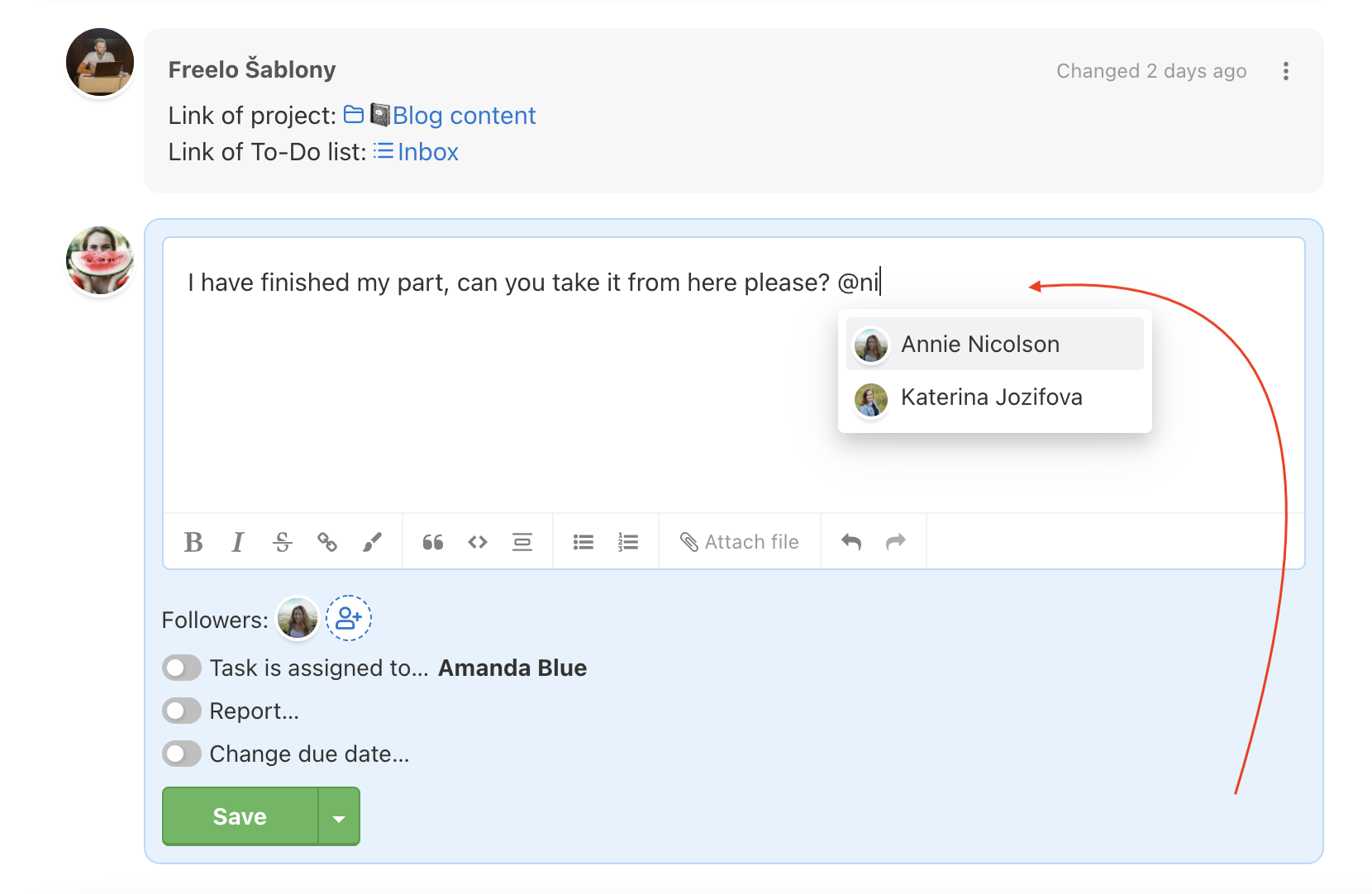
Mentions are in all discussions – tasks, subtasks, notes and files.
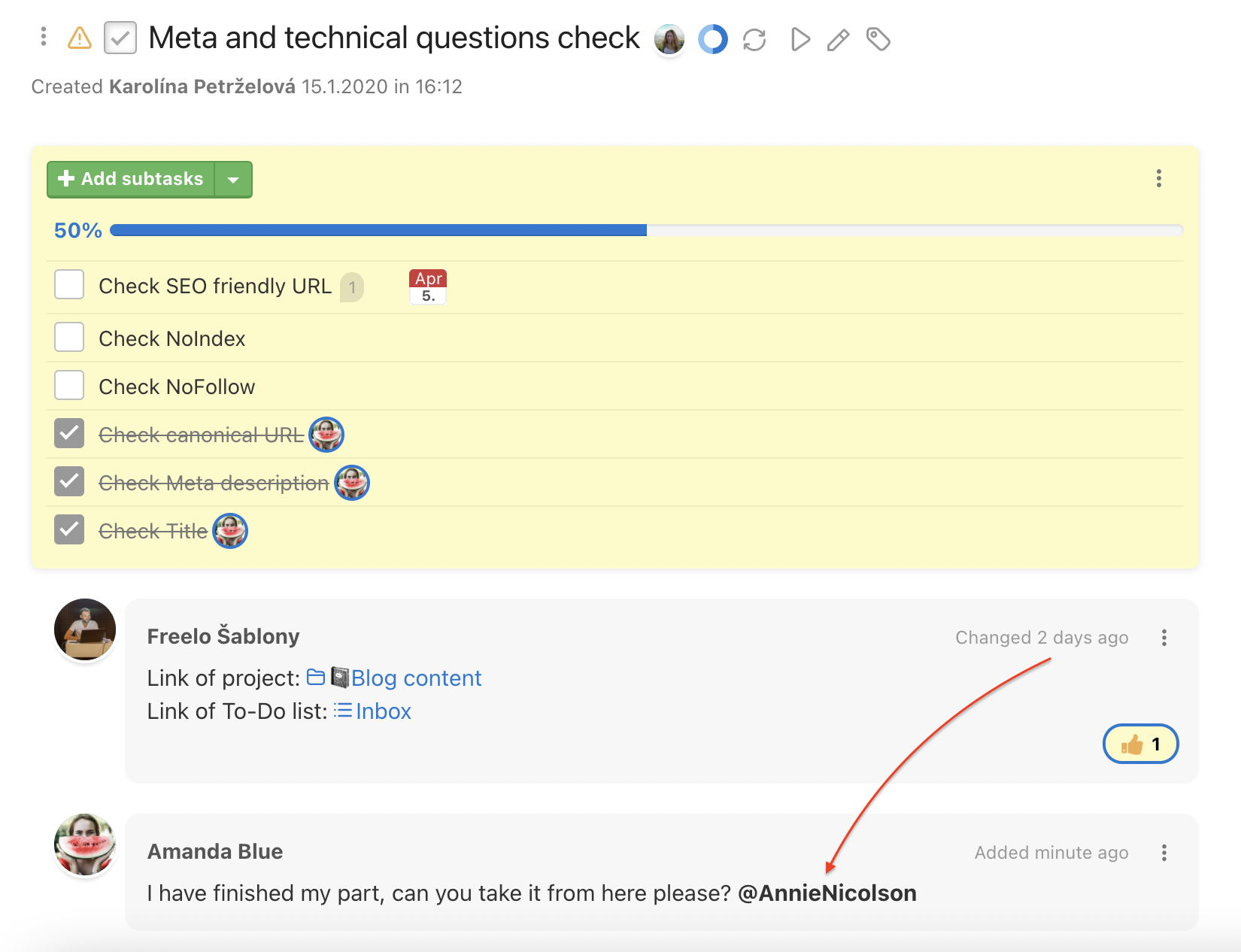
One-time notification
In case you mention a user or all project members, they receive one time notification automatically. In Freelo the notification center shows the alert Mentioned you.
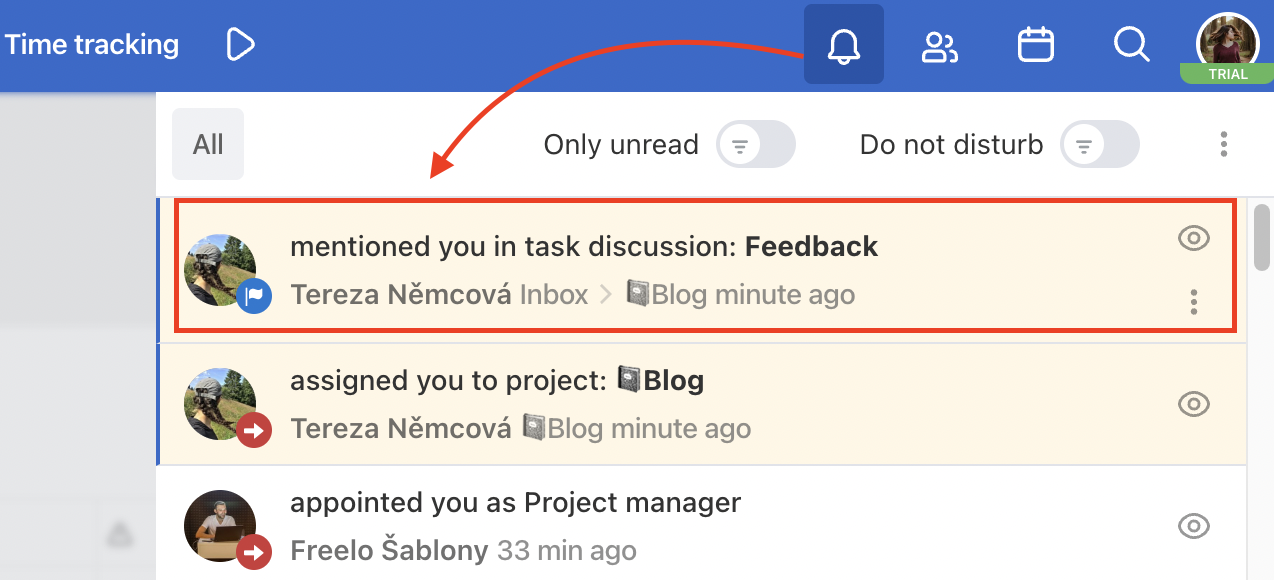
Email notification
Email notification about new mentions is possible as well. In Settings > Notification > Email notifications, check the option Send me an email immediately when someone mentions me in a discussion.