
The Roles feature in the Business panel lets you set precisely the permissions each user needs – and restrict actions they shouldn't be able to perform in a project. Roles are created by the captain or Company captain in Business panel → Roles; they can be assigned to individual users or entire teams across selected projects. In this article you'll find how to create and edit roles, a list of available restrictions, and the rules for mutually exclusive roles.
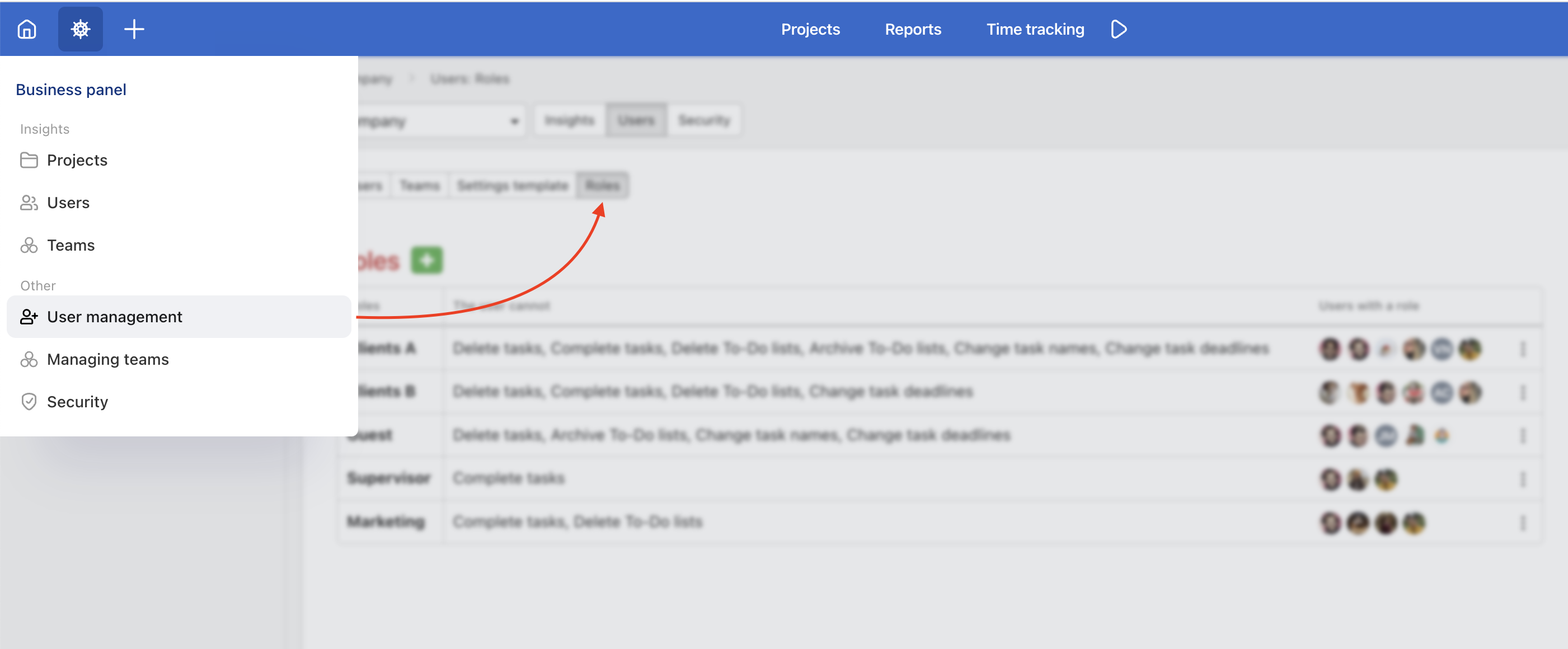
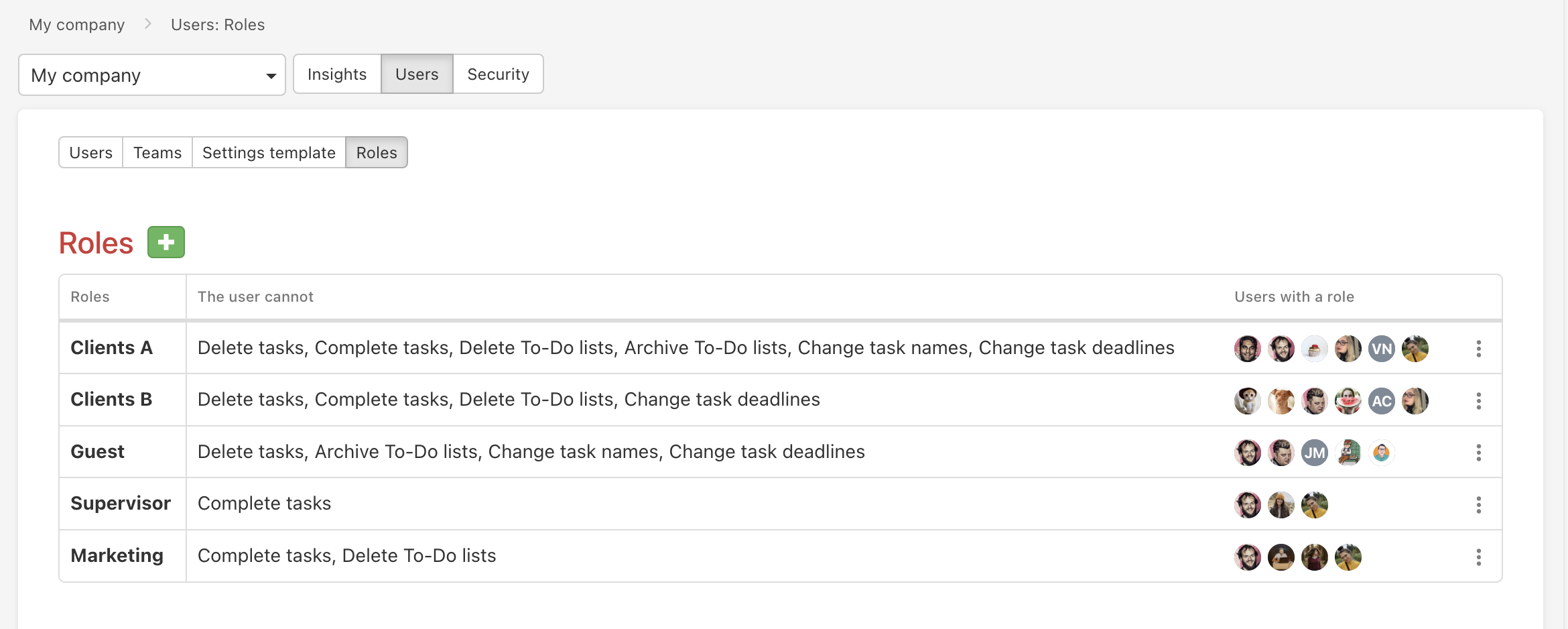
Role settings
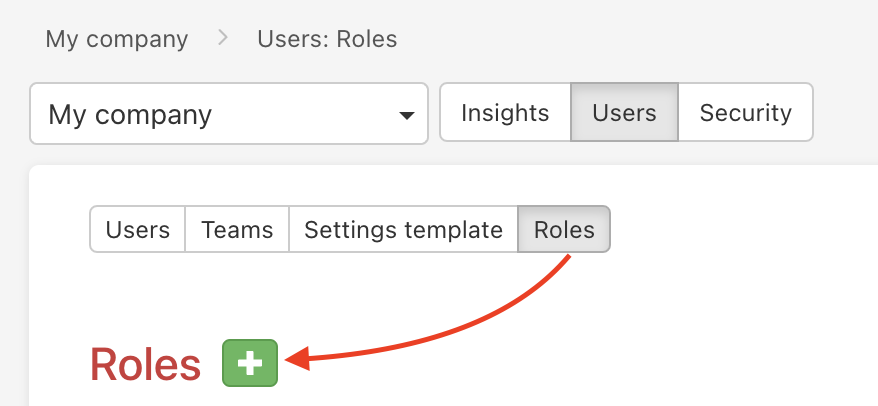
To set up a new personalised role, click on the green plus button next to the Roles headline. This will open a modal window where you can create a new role and assign it to someone.
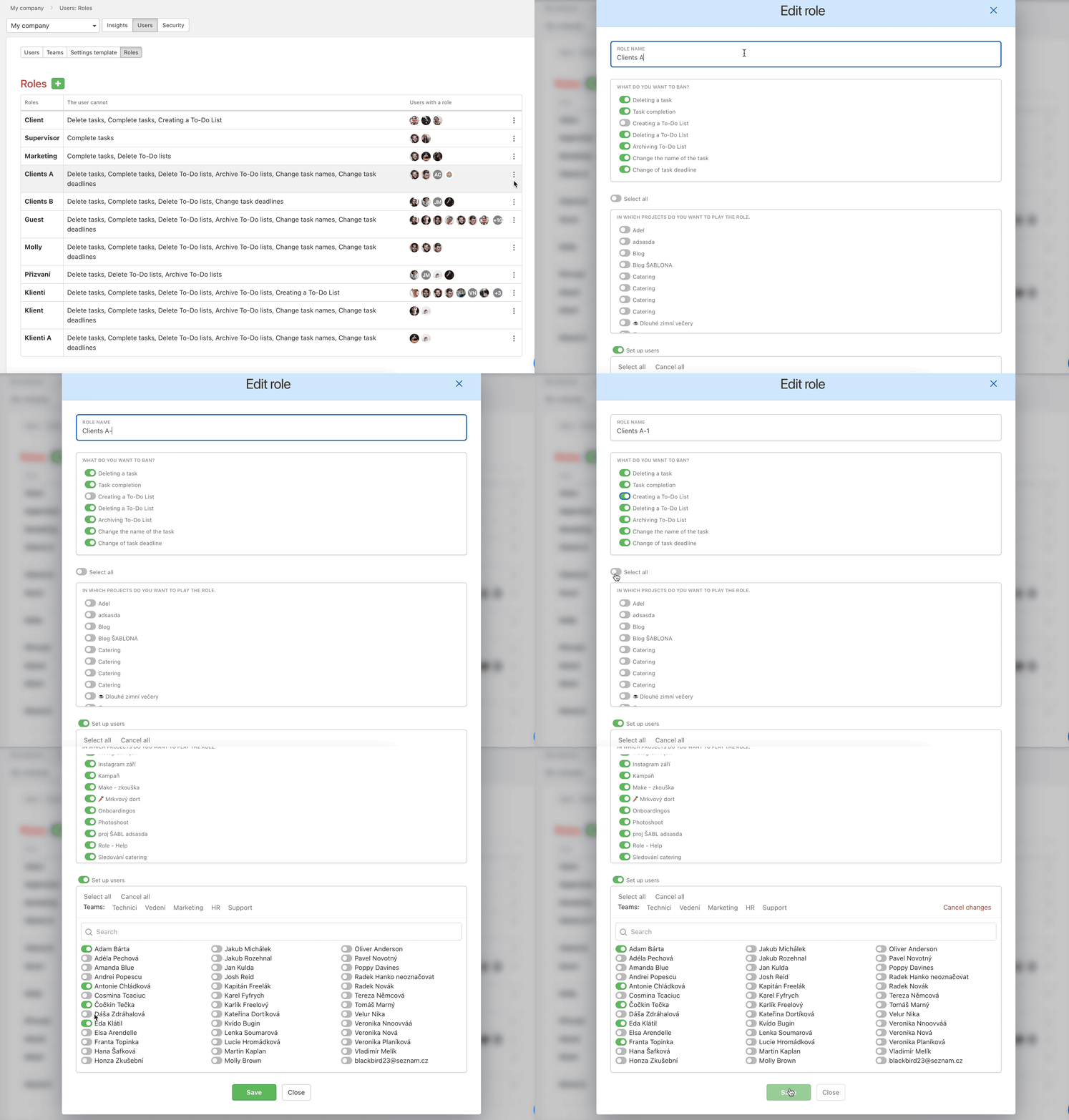
In the Role name section, fill in the name of this new role. Next, select which actions you want the role to be restricted of.
You can apply it across all of your projects by clicking on Select all or you can only pick some. Finally, you can set which users will fall under this role category. To save some time, you can pick a whole pre-made team (or multiple teams) by simply clicking on its name. Don't forget to save this setting by clicking on the green Save button at the bottom.
You can change any of these settings at any point in the future.
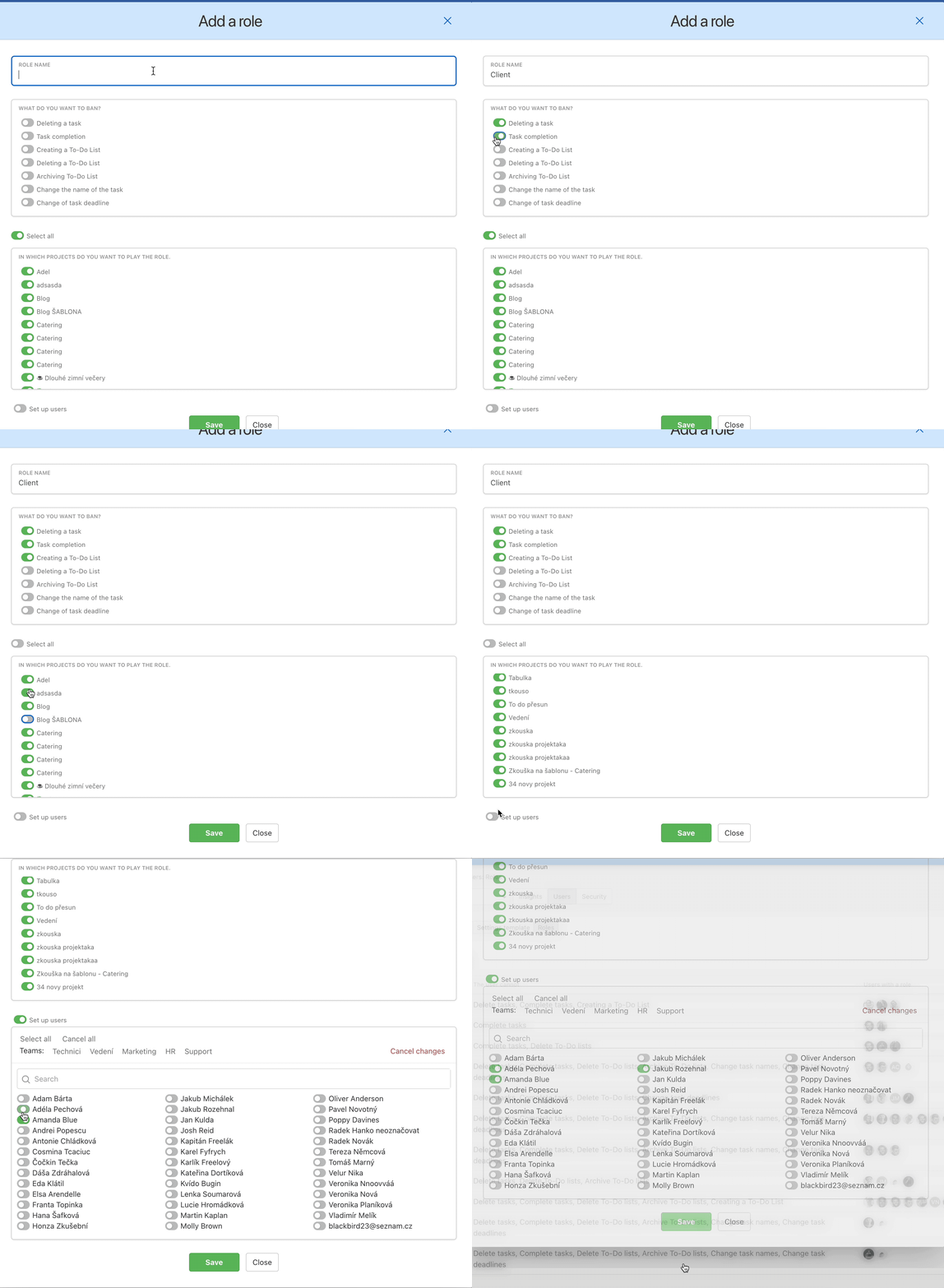
Actions you can make other users restricted of
- Deleting a task
- Task completion
- Creating a To-Do list
- Deleting a To-Do list
- Archiving a To-Do list
- Change the name of the task
- Change the task deadline
Editing roles
You can edit or delete your personalised roles whenever you wish. Open the three-dot menu next to a selected role and click on Edit or Delete.
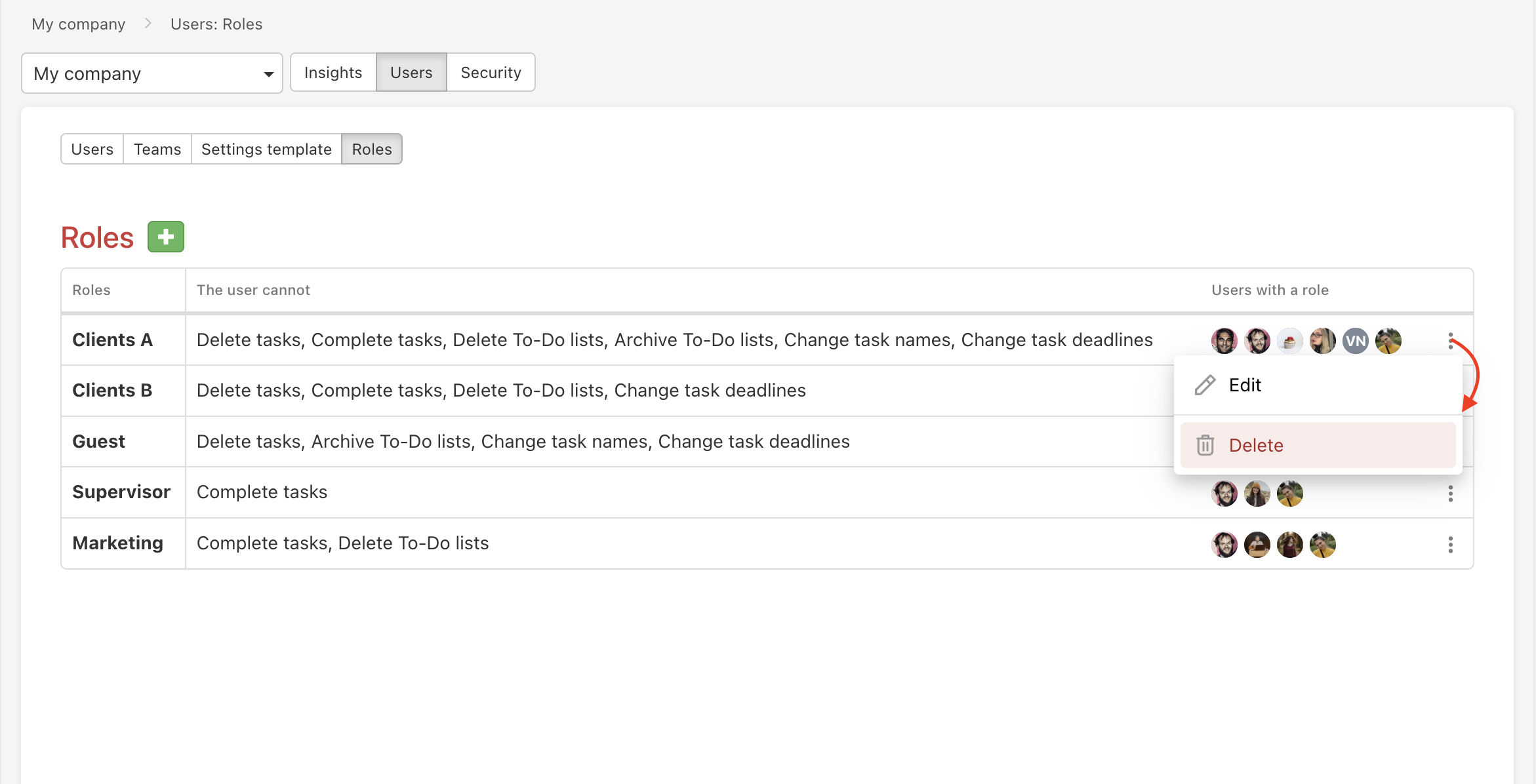
If you pick Edit, a modal window (similar to the one appearing creating a role) will open. Here, you can change everything connected to the role - name, restricted actions, and finally selected projects and users.
If you try to delete a role, a modal window with a confirmation request will appear. By clicking on the red Delete button, you will permanently delete it.

Mutually exclusive roles
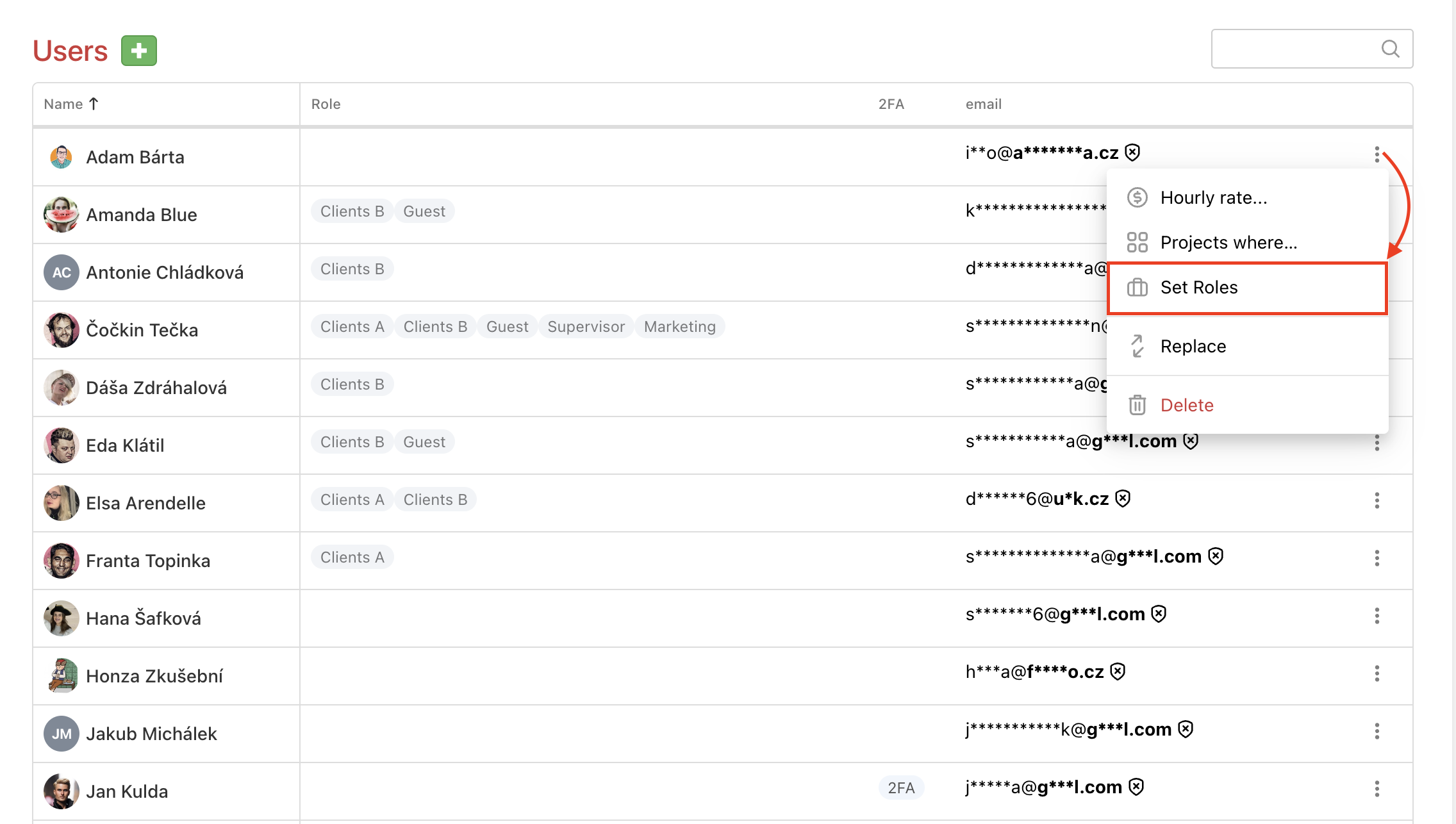
Another way to edit roles is through User management section in Business panel. Again, use the three-dot menu next to a selected user.
As you can see here, some roles are mutually exclusive. If a user is a Company captain or a Project manager they can't simultaneously be restricted of some task actions and vice versa - a user with a role forbidding them to perform a specific action cannot be appointed a Company captain or a Project manager.
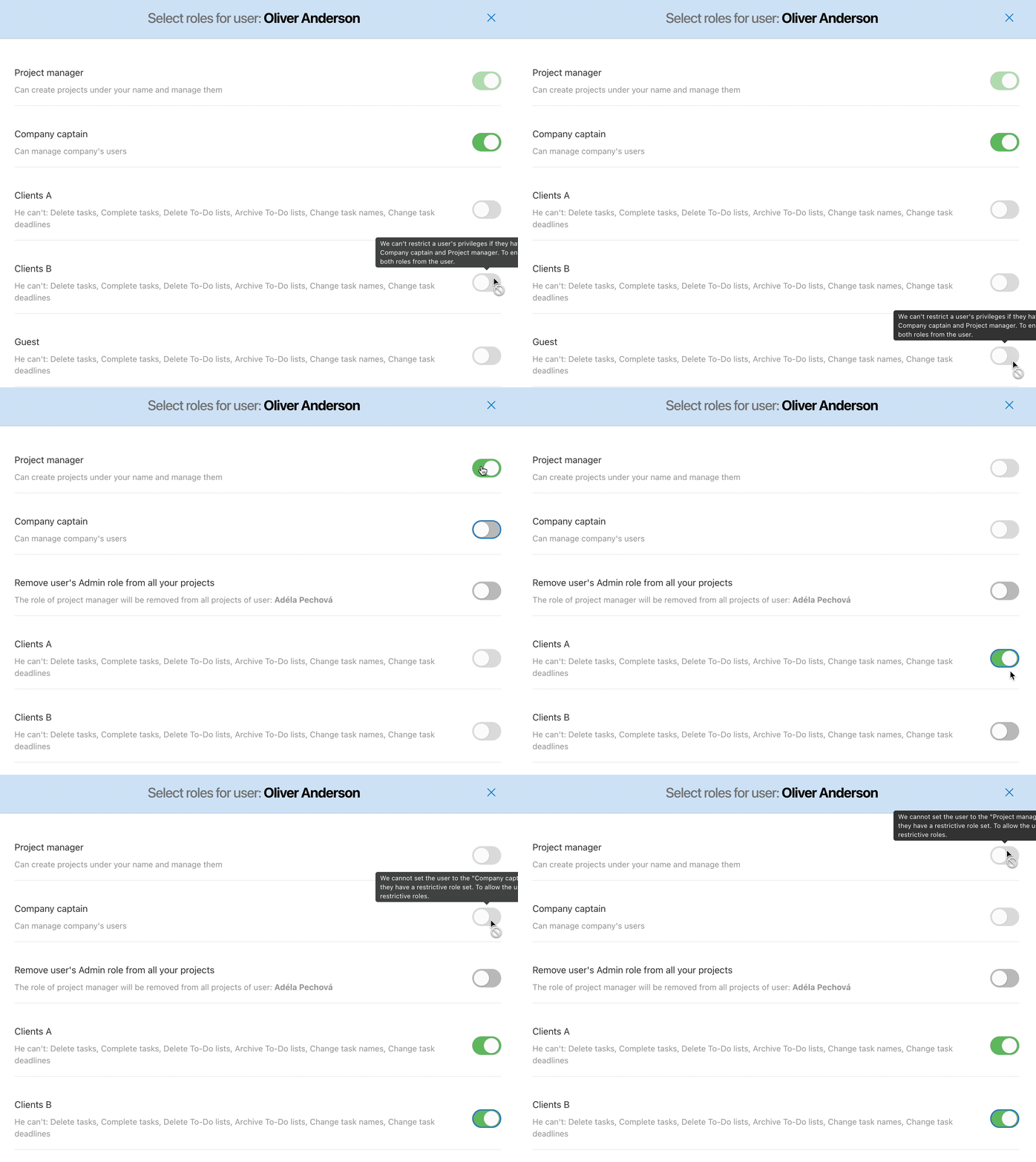
What if a user tries to perform a task outside of their role restrictions?
If you select a role for a user banning them from performing a specific action, a modal window like this one will appear:
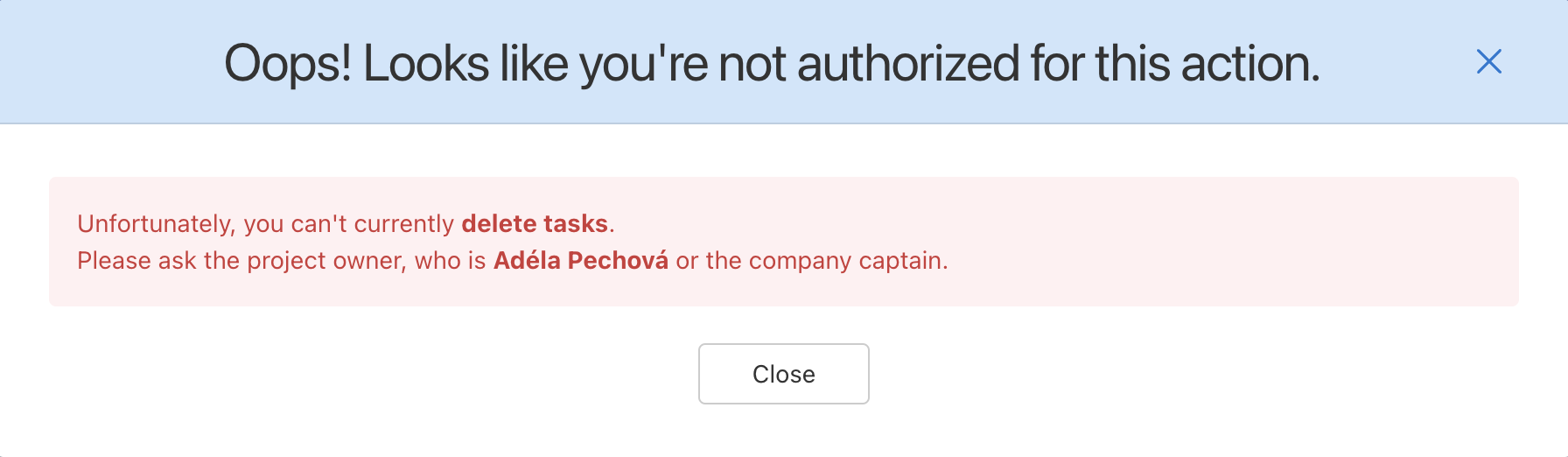
The user needs to contact the owner of the project (the project captain or company captain) if they wish to continue.
Practical Use
- Restricting client access – invite a client to a project and assign them a role that prevents them from deleting tasks or changing deadlines.
- Protecting project structure – prevent external collaborators from creating or deleting To-Do lists so no one disrupts the agreed structure.
- Different permissions for different teams – assign one role to an entire team at once without setting restrictions for each user individually.
- Flexible management – edit or delete roles at any time; changes take effect immediately for all assigned users.
- Control over task completion – restrict selected users from completing tasks so that final approval stays with project leadership only.