
You can restrict individual users' access to To-Do lists in a project - useful when working with clients who should only see part of the project. Set it up in the Users section of the project; available to you as the captain or Admin of the project. In this article you'll find how to set it up and what happens if you don't select any To-Do list.
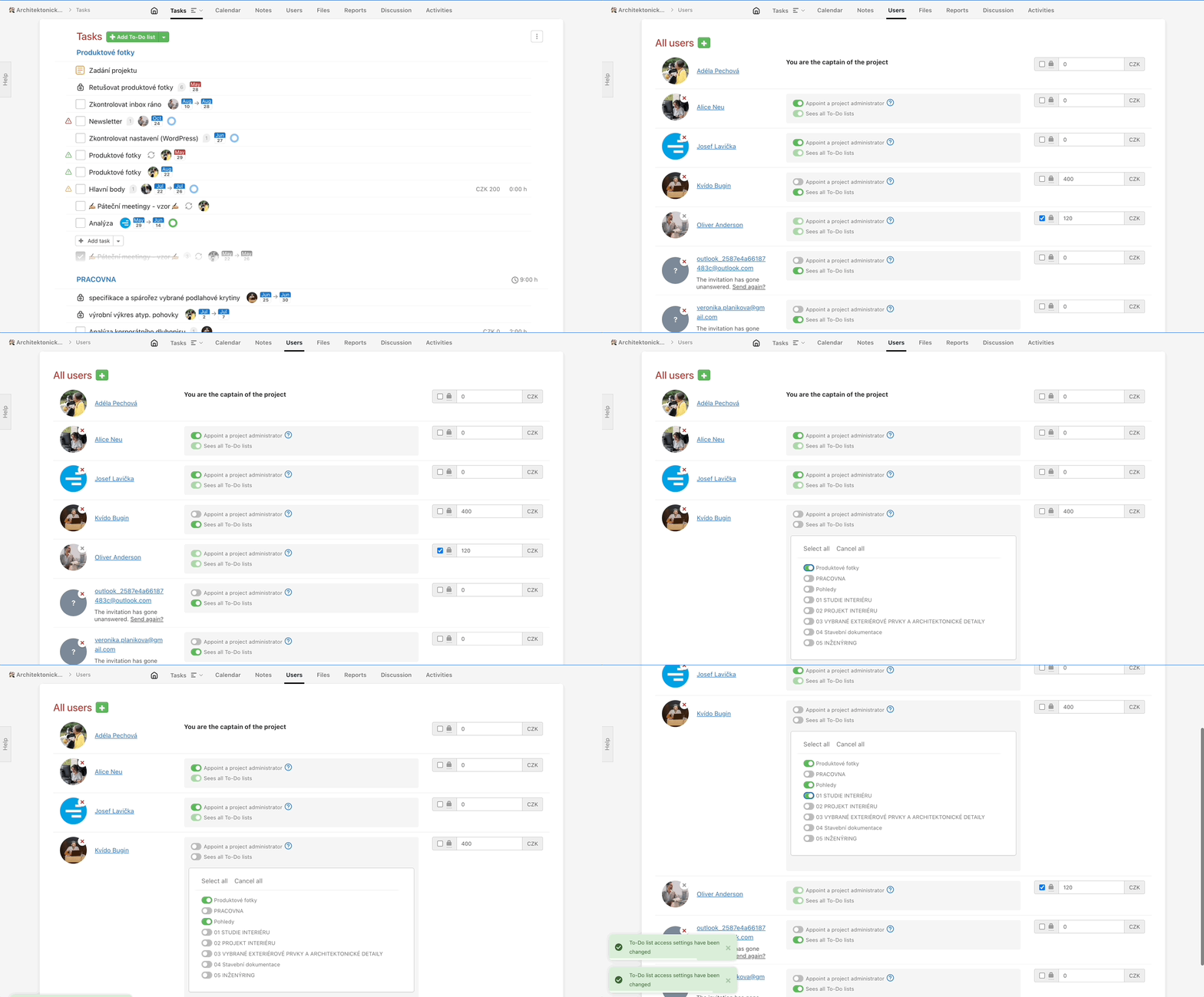
Invite user to one To-Do list directly
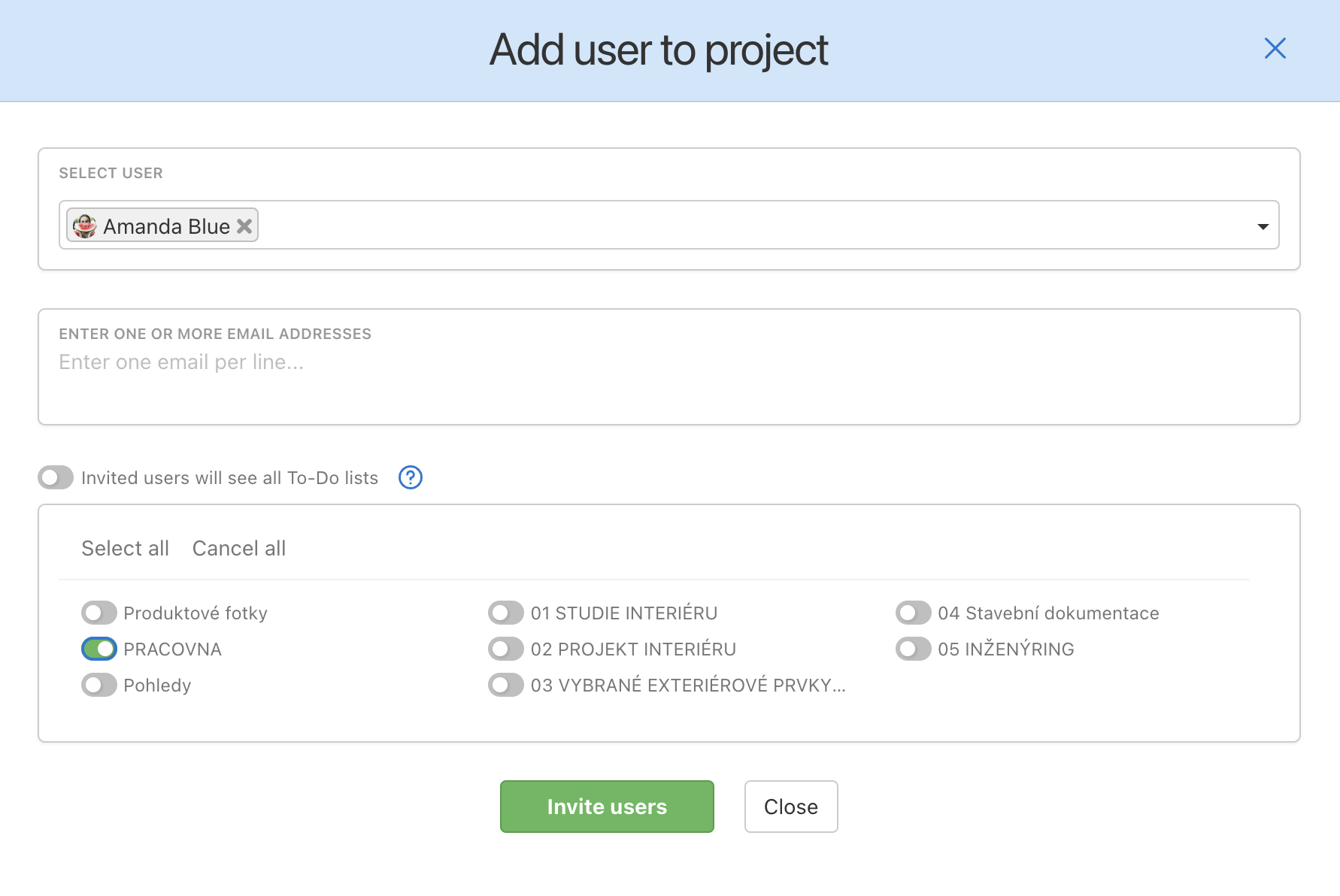
You can invite a new user directly to a particular To-Do list in a project. Go to the section Users in a project, click on the green plus button and select the particular user you wish to invite. Unselect the option Invited users will see all To-Do lists and choose only the To-Do lists you want them to be able to access. Confirm by clicking on the green button Save.
Practical Use
- Hide internal To-Do lists from clients - invite a client to the project and give them access only to the To-Do lists for their deliverables; internal working lists stay hidden.
- Different To-Do lists for different teams - in a project with multiple teams, let each one see only the part that concerns them.
- Protect sensitive information - show billing or internal To-Do lists only to users who need them.
- Quick setup when inviting - access to To-Do lists can be set directly when inviting a user to the project, without having to go back later.
Last updated: